Record Sales of Fixed Assets Under GST in TallyPrime
When a fixed asset reaches the end of its useful life, you may choose to either scrap it or sell it after recording depreciation. TallyPrime allows you to seamlessly record both the depreciation and the sale of fixed assets. During the sale, if the sale price exceeds the book value of the asset, the difference is recorded as profit. If the sale price is lower than the book value, the difference is recorded as loss.

Ensure that you have:
- Created the fixed asset ledger and expense ledger to account for depreciation of the asset being sold.
- Configured the sales ledger and applicable tax ledgers.
- Created the indirect income ledger to account for the profit on the sales of the fixed assets.

I. Record Depreciation of the Fixed Asset
In the Journal voucher:
- Debit the depreciation ledger grouped under expenses, and enter the value of depreciation.
- Credit the fixed assets ledger (for example, Furniture).
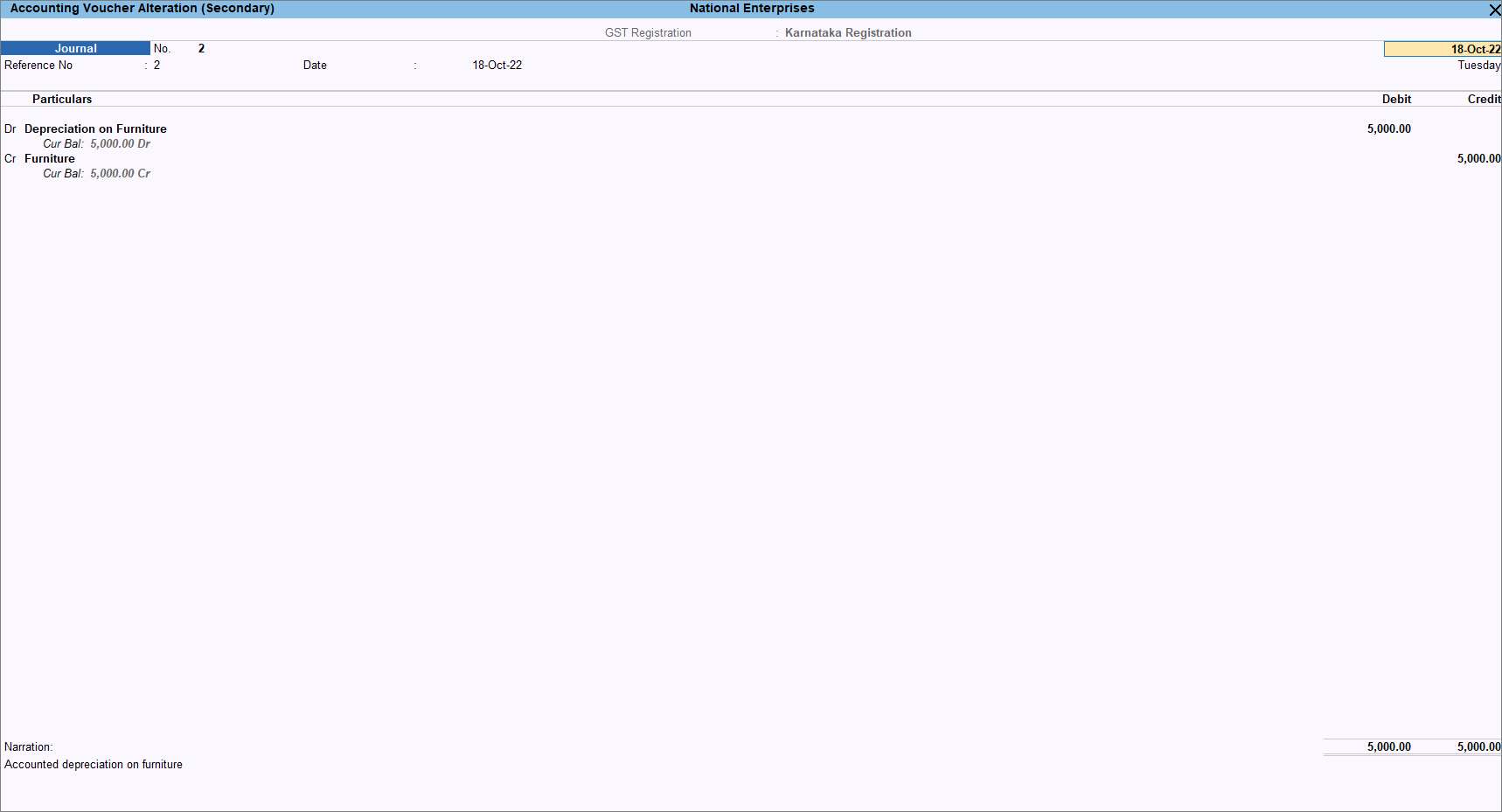
- Provide other details if necessary and press Ctrl+A to save.
II. Record Sales of Fixed Assets
In the Sales voucher:
- Press Ctrl+H (Change Mode), and select Accounting Invoice.
- Under Particulars, select the sales account for fixed asset, say Furniture.
- Select the applicable tax ledgers for tax calculation on the sales value of the fixed asset.
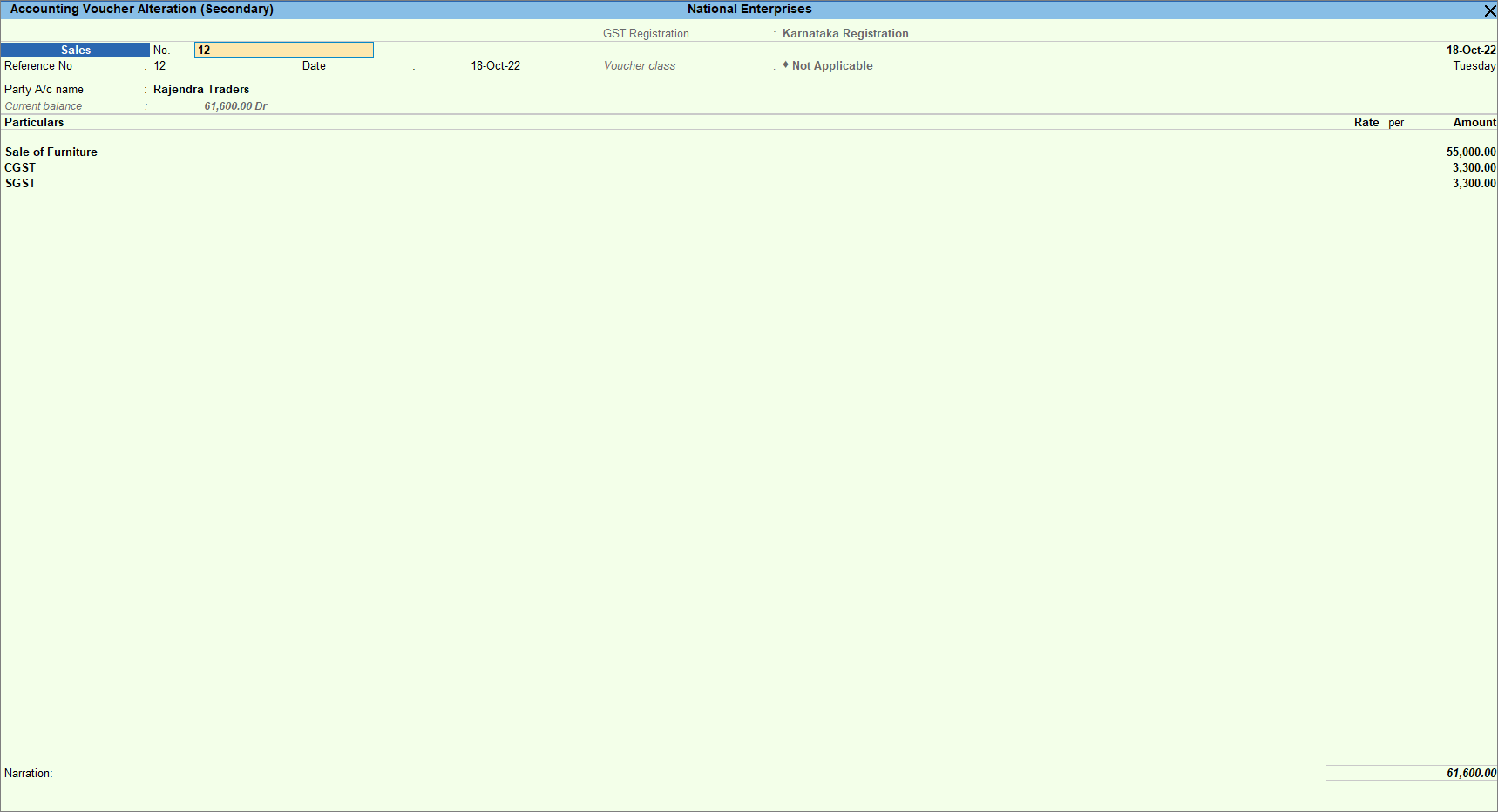
- Provide other necessary details, and press Ctrl+A to save the voucher.
III. Record Profit or Loss on Sales of Fixed Assets
Transfer the profit to the income ledger to reflect the actual value of fixed assets in the Balance Sheet.
In the Journal voucher:
- Under Particulars, select the sales ledger (Sale of Furniture) and enter the Debit amount – the amount for which the asset was sold.
- Credit the fixed asset ledger (Furniture) with the amount of the asset.
- Credit the indirect income ledger (Profit on Sale of Furniture) with the profit amount.
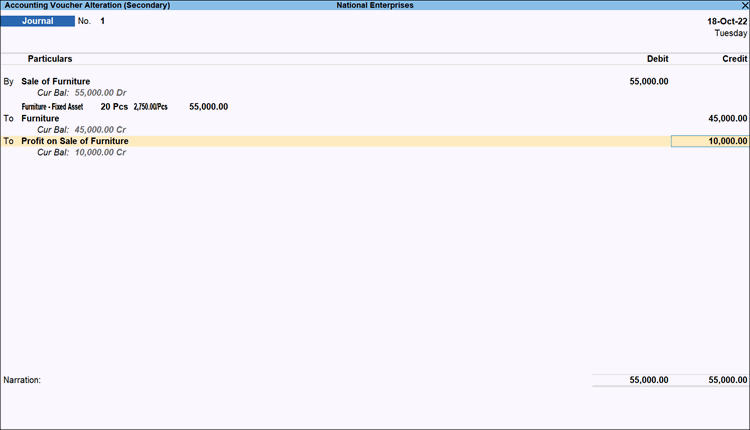
- Provide other necessary details, and press Ctrl+A to save the voucher.
If the fixed asset is sold to a registered dealer, the details appear under GSTR-1 > B2B Invoices. For sales to an unregistered dealer, the details appear under GSTR-1 > B2C Invoices.