
Record GST Sales with Discount
In your business, you may be selling items or goods and services on discount to your customers. In such cases, tax computation must be done considering the discounted amount. In TallyPrime, you can
- Apply discount first and calculate the sale value: This process helps when your invoice has multiple stock items and each stock item has a different discount amount.
- Calculate the total sale value and apply discount: This process helps when the discount needs to be calculated on the total sales amount.

- Set up Company, stock items/service ledger with the required GST details.
- Create tax ledgers, as applicable.
- Set up the discount ledger for GST.
Generate GST Invoice with Discount on Stock Item Value
You can record discounts while recording invoices under GST by using the Disc% column or the Discount field.
Provide discount details under the Disc% column
In F11 (Company Features) screen,
- Enable Inventory > Use discount column in invoices.
- In Discount format, select Percentage, Amount, or Both Percentage & Amount, as required.
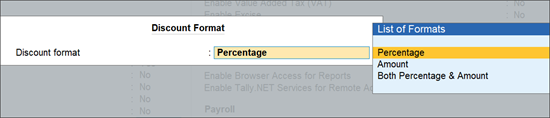
For TallyPrime 7.0 & earlier, the Discount Format screen is not supported.
In the sales voucher:
- Select the Party ledger for which you are providing discount on the sale.
- Select the stock item.
- In the item allocation screen, enter the Quantity, Rate and Discount % or Amt, or both.
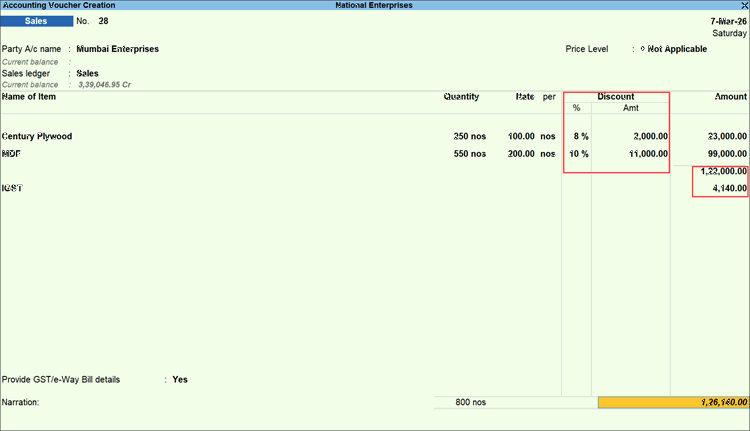
For TallyPrime 7.0 or earlier, you can enter the Quantity, Rate and Disc%.
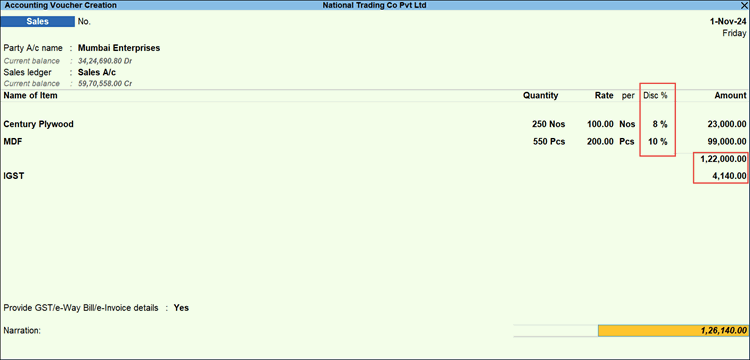
- Select the required tax ledgers. Note the tax computation is done on the discounted amount.
- Provide other necessary details and press Ctrl+A to save.
Provide discount details in the Discount field
In the sales voucher:
- Select the Party ledger to whom you are providing discount on the sale.
- Press F12 (Configure), and enable Provide Cash/Trade Discount.
- Select the stock item, and enter Quantity and Rate.
- In the Discount field displayed under the selected stock item, enter the discount percentage.
- Select the discount ledger.
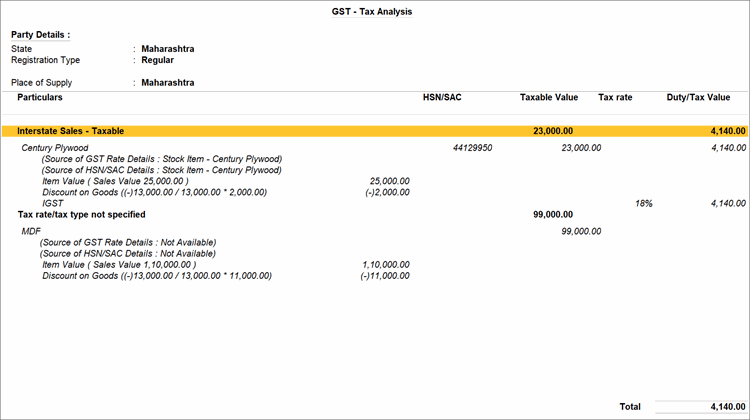
It automatically sums up the discounts given on separate stock items and shows the total discount.
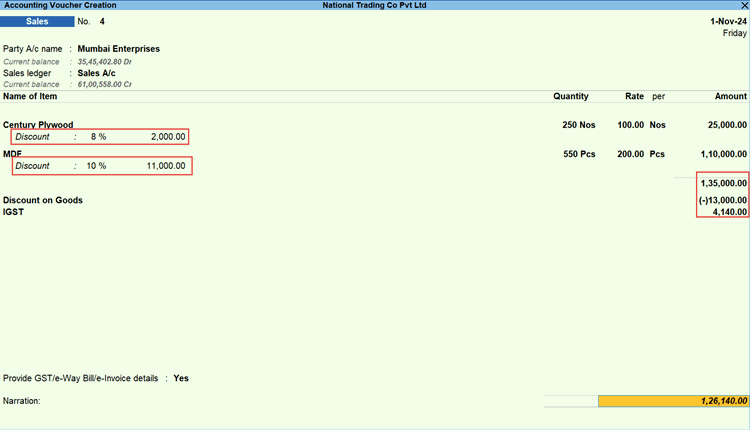
- Select the required tax ledgers.
- To display the Tax Analysis screen, press Ctrl+O (Related Reports) > type or select GST – Tax Analysis> and press Enter.
- Provide any other necessary details in the voucher, and press Ctrl+A to save.
Generate GST Invoice with Discount on Total Sales Value
In the sales voucher:
- Select the Party ledger to whom you are providing discount on the sale.
- Select the stock item, and enter the Quantity and Rate.
- Select the required tax ledgers.
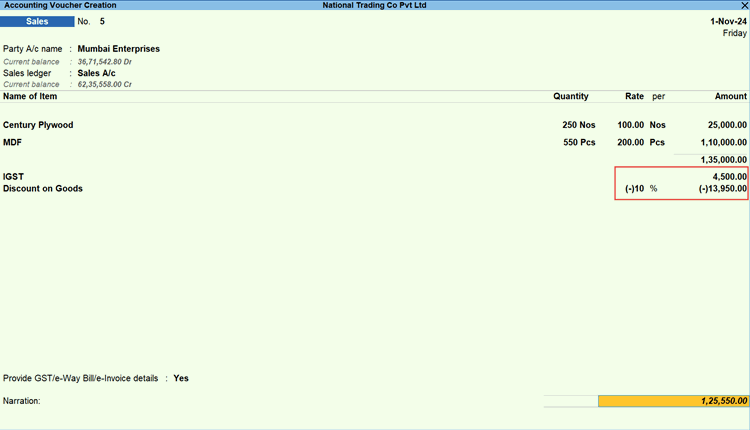
- Select the discount ledger and enter the amount as a negative value.
The discount amount gets deducted from the total sale value of the stock items.
- Provide other necessary details, and press Ctrl+A to save the voucher.
Questions & Answers
- I want to apply discount on the total sale value without tax. How do I record the entry?
In the sales voucher, first select the discount ledger to enter the discount amount. Then select the applicable tax ledgers.
The tax will be applied to the discounted amount.
- What configurations should I give in my discount ledger?
Refer to Set up discount ledger for GST.
Is this information useful?
YesNo


