
Map Top and Bottom Voucher Entries from Excel using Fixed Ledger Columns
You may have entered the details of the sales vouchers in multiple columns in your Excel file. You may have also entered the top ledger and bottom ledger details of the sales vouchers in different columns in your Excel sheet. If the ledger names are the same across vouchers, you can use fixed values to map the ledger names during import.
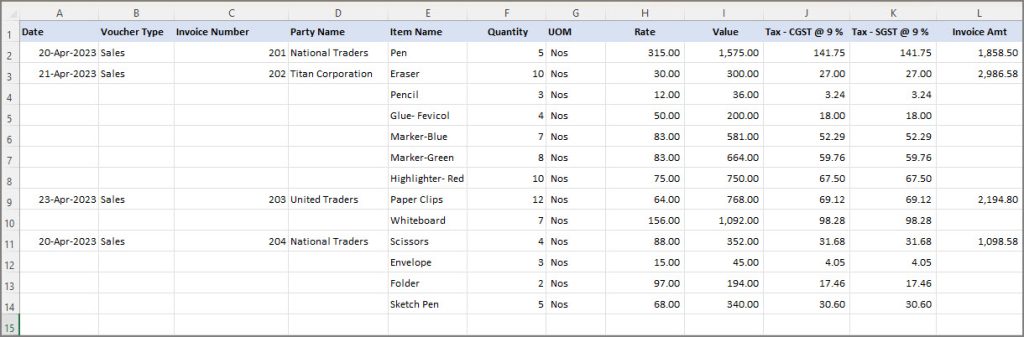
Let’s say you have entered the sales voucher details in Excel as shown below.
In the Mapping Template Creation screen:
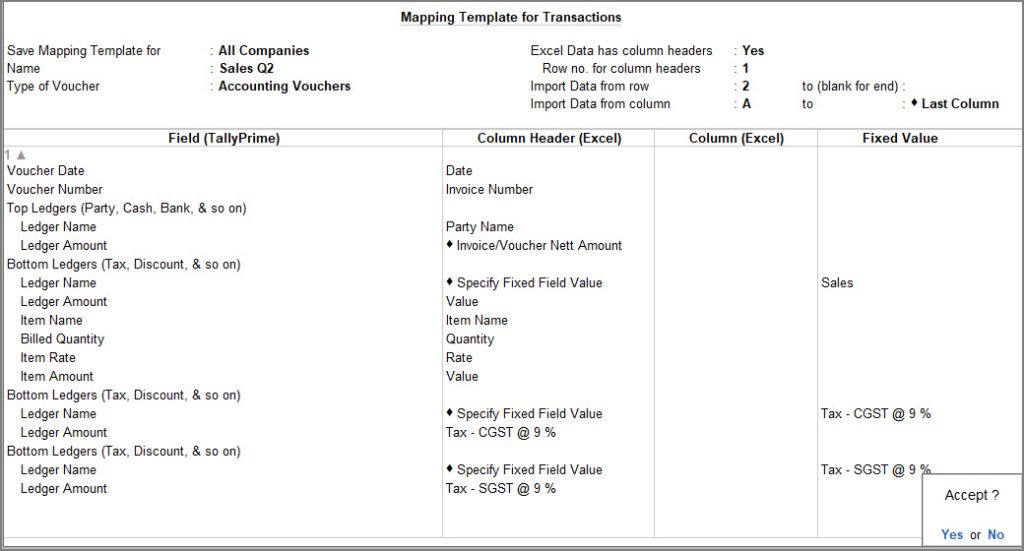
- Save Mapping Template for: Select All Companies.
- Name: Enter a name for the mapping template, for example, Sales Q2.
- Type of Voucher: Select Accounting Vouchers.
- Set Excel Data has column headers to Yes and Row no. for column headers to 1.
- Import Data from row: Enter 2.
- Under Field (TallyPrime), map the following fields with their corresponding column headers in Excel:
- Voucher Date with Date.
- Voucher Number with Invoice Number.
- Select Top Ledgers (Party, Cash, Bank, & so on), map Ledger Name with Party Name and Ledger Amount with Invoice/Voucher Nett Amount.
- Select Bottom Ledgers (Tax, Discount, & so on), select Ledger Name and, under Column Header (Excel), select Specify Fixed Field Value.
- Enter Sales under Fixed Value.
- Select Bottom Ledgers (Tax, Discount, & so on) again and map the following fields with their corresponding column headers in Excel:
- Ledger Amount with Value.
- Item Name with Item Name.
- Billed Quantity with Quantity.
- Item Rate with Rate.
- Item Amount with Value.
- To map the CGST ledger,
- Under Bottom Ledgers (Tax, Discount, & so on), select Ledger Name and choose Specify Fixed Field Value under Column Header (Excel).
- Enter Tax – CGST @ 9 % under Fixed Value.
- Map Ledger Amount with Tax – CGST @ 9 %.
- Similarly, to map the SGST ledger,
- Under Bottom Ledgers (Tax, Discount, & so on), select Ledger Name and choose Specify Fixed Field Value under Column Header (Excel).
- Enter Tax – SGST @ 9 % under Fixed Value.
- Map Ledger Amount with Tax – SGST @ 9 %.
- Press Ctrl+A to save the mapping template and import the data using the saved template.
You can view the Day Book to view the imported transactions in TallyPrime.
Is this information useful?
YesNo


