
Adjust Advances Received Under GST in TallyPrime
You can configure TallyPrime to adjust advances received in sales invoice, automatically or manually.
If you have unadjusted advances before the GST advance adjustment effective date, enter them as opening balances to adjust them in sales invoices.

Auto-adjust advances during voucher creation
To have TallyPrime set off advances automatically while recording a sales voucher,
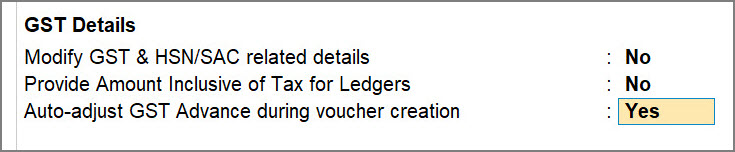
- Press F12 (Configure) > enable the option Auto-adjust GST Advance during voucher creation.
- On the voucher screen, select the Party A/c name and enter the Dispatch Details and Party Details.
- Select the service ledger and the requited tax ledger, and enter the Amount.
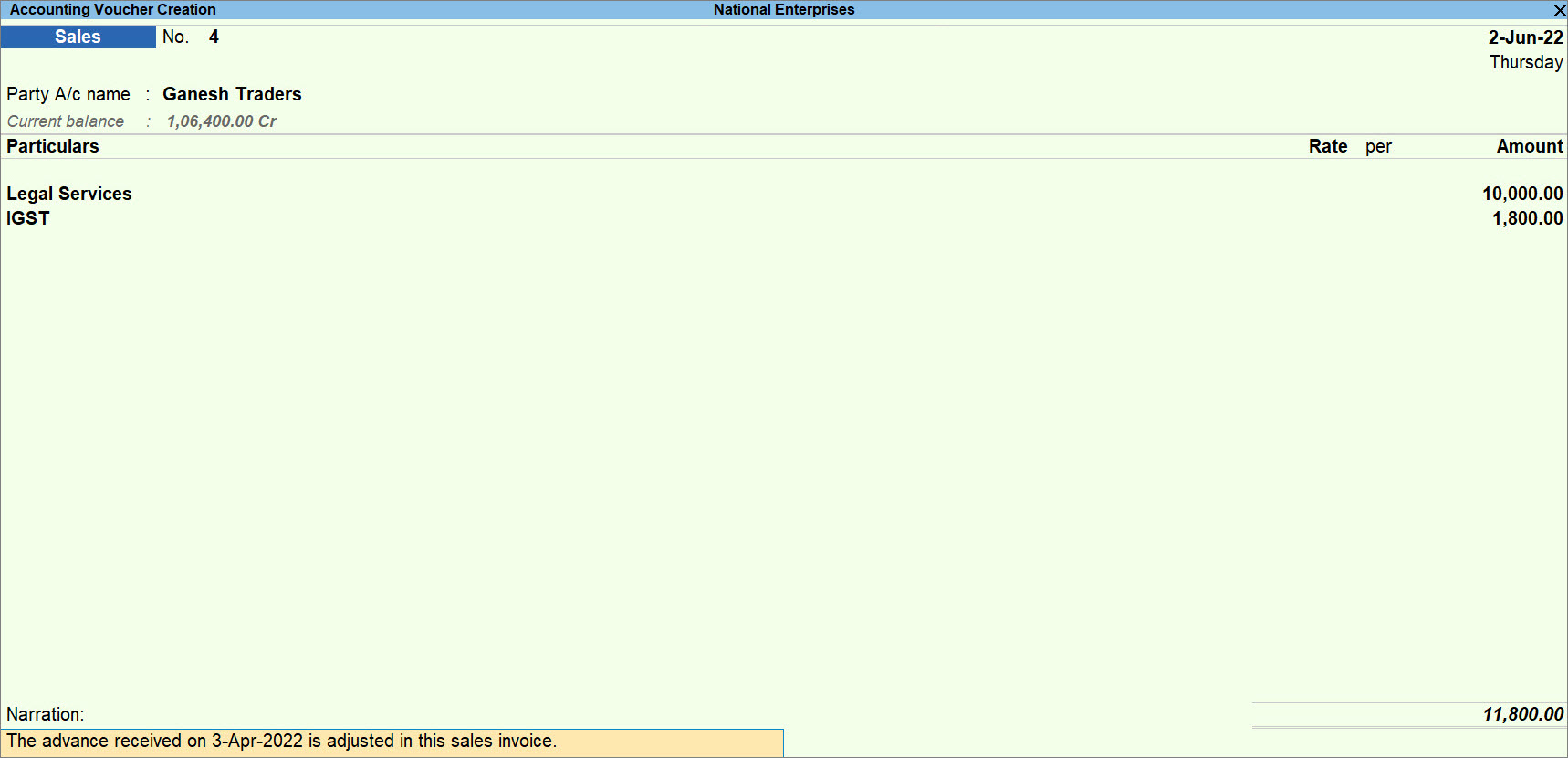
- Press Ctrl+A to save the voucher.
The advance received will be adjusted with the sale. You can view the adjusted references and amounts in the Bill-wise Details of the sales invoice and the remaining balance in the Outstanding Advance Receipts report.
In case of a sales return, refer to the Record Refund of Advances Received topic.
Manually adjust advances during voucher creation
In case the auto-adjustment configuration in not enabled, then after entering the Amount,
- Press Enter to view the Bill-wise Details.
- Provide the Bill-wise Details for the party, and press Ctrl+A to save.
- On the Details of Advance Amount to be Adjusted screen, select the advance to set off and press Enter.
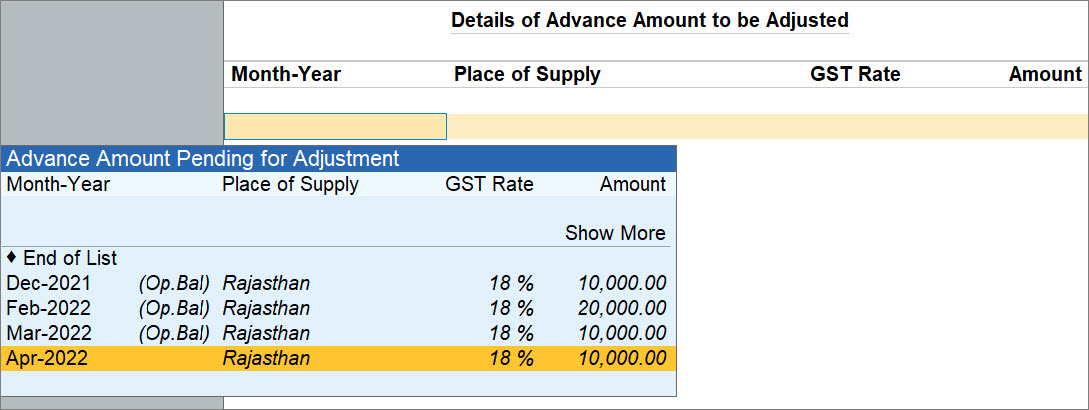
Advances are listed based on the Applicable from date configured while enabling advance adjustments. - Change the amount, if needed, and press Enter on Show More to view additional pending advances.
You can select other advances, if required. - Press Ctrl+A to save the voucher.
In case of a sales return, refer to the Record Refund of Advances Received topic.
Questions & Answers
- Does enabling GST Advances for adjustments in transactions apply to all my GST registrations?
Yes. Once enabled, this setting applies to all your GST registrations automatically. - Do I need to manually select the advance amount to set off in each sales invoice?
No. Once you enable the Auto-adjust GST Advance during voucher creation option, TallyPrime automatically matches and adjusts the advance based on GST rate and place of supply, in First In, First Out (FIFO) order. - Can I adjust advances received before the GST advance adjustment effective date?
Yes. Enter the unadjusted advances as opening balances, and then adjust them in sales invoices.


