
Record Purchase in Tally e-Billing
Recording purchase with VAT in Tally e-Billing is simple. You can record purchase of goods and services, including purchase with discounts, additional charges, imports or zero-rated purchase, and Excise.

Ensure that:
- You have created the purchase account, party account, and input VAT account.
- You have created the required stock items.
- You have created service account under purchase account.
- You have configured the Purchase voucher type with the default purchase account, VAT account, and other details.
Record Purchase of Goods | Item Invoice Mode
- From Gateway > click Transactions > and then click Purchase Invoice.
By default, the purchase voucher opens in Item Invoice Mode. - Enter the Invoice Issue Date and Transaction Date.
By default, both dates are set to the current date. The Transaction Date can be the same as or later than the Invoice Issue Date, but cannot be earlier. - Enter the Supplier’s Trans. No.
- Select the Supplier.
- Select the Purchase Ledger.
By default, the ledger configured in the voucher type is prefilled. You can select a different ledger if required. - Enter the Stock Item details.
- Select the stock item or create a new stock item on the fly.
- Select the Nature of transaction.
By default, the nature of transactions configured for the purchase ledger is selected. - Enter the Quantity and Rate.
- Select the Input VAT Ledger.
By default, the ledger configured in the voucher type is prefilled. You can select a different ledger if required. - Enter a Narration, if required.
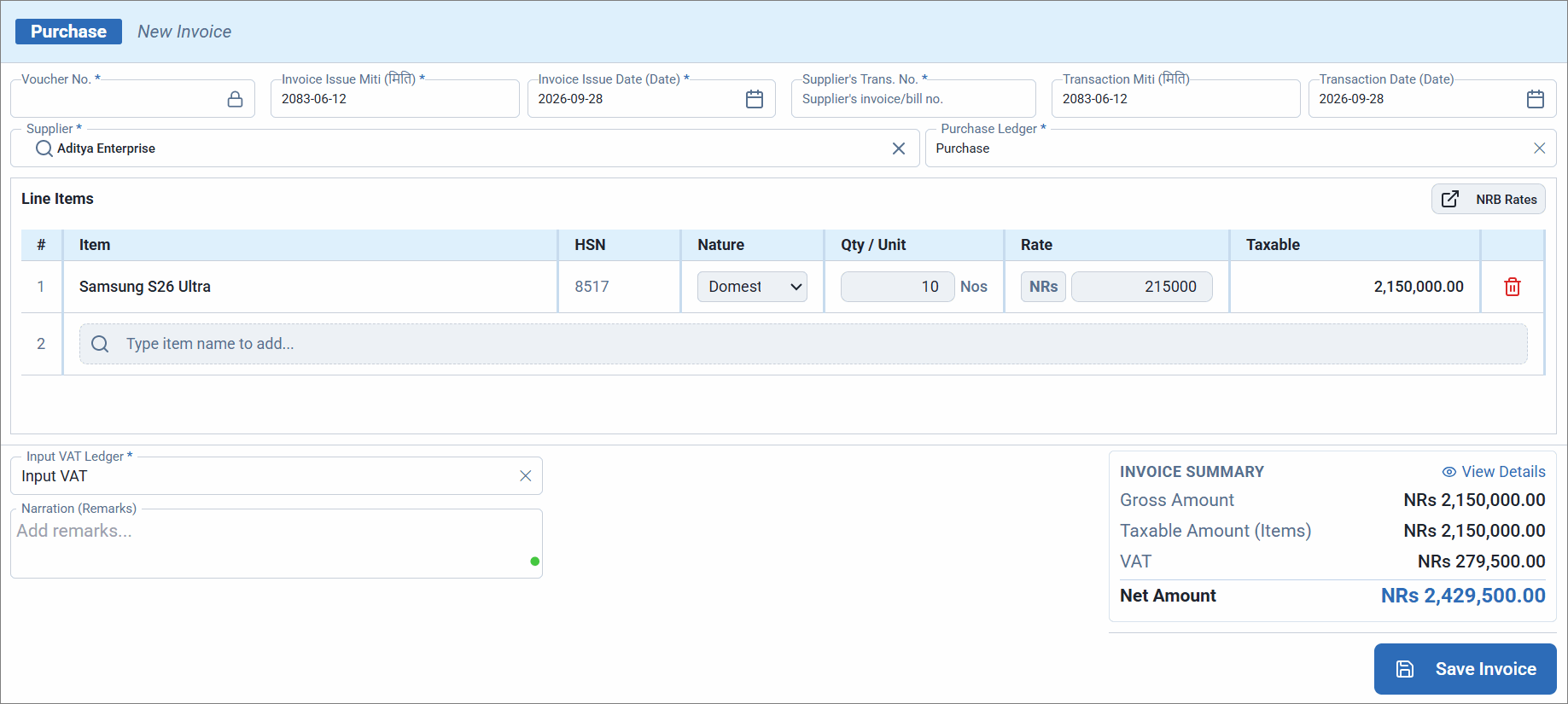
- Click Save Invoice.
- Enter the Bill-wise Details.
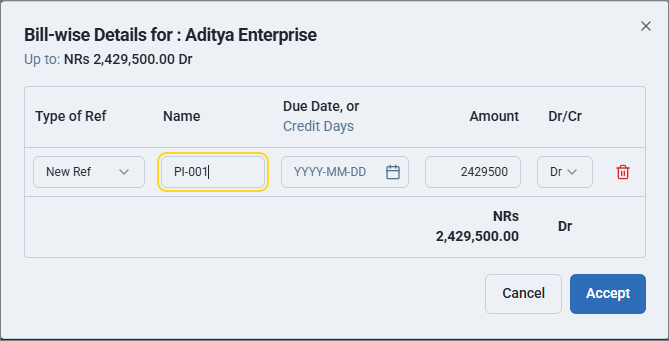
- In the Bill-wise Details for screen, select New Ref as the Type of Ref.
- Enter the reference number under Name.
- Click Accept.
- Select Yes to save the voucher.
- Print the invoice.
- In the Purchase voucher screen, click Print (Original).
The first print is marked as Original. Subsequent prints are marked as Copy of Original (1), Copy of Original (2), and so on. - If Print after saving voucher is enabled in the voucher type, click Print in the Print Preview screen.
- In the Purchase voucher screen, click Print (Original).
Record Purchase of Services | Account Invoice Mode
In the purchase voucher,
- Click Voucher Configuration and select the Invoice Mode as Account Invoice.
- Click Add Row to enter the details.
- Select the Ledger.
By default, the purchase ledger configured in the voucher type is prefilled. You can select a different ledger or create a new one, if required. - Enter a Description/Narration, as required.
- Enter the Amount.
- Enter the necessary details and click Save Invoice.
Record Purchase with Additional Charges or Discounts
You can record purchase with additional charges such as transportation, delivery, installation charges, and so on or discounts. If these charges apply to all purchases, enable Additional Charges in the Voucher Type. Otherwise, you can add them to individual purchase vouchers as required.
Ensure that:
- You have created the required additional charges ledger under Indirect Expenses.
In the purchase voucher,
- Click Voucher Configuration and enable Additional Charges.
- Select the required ledger in Additional Charges & Discounts field.
- Enter the amount of additional charges or discount.
- Enter the necessary details and click Save Invoice.
If the additional charges ledgers are created as VATable, VAT is calculated after including the additional charges in the taxable amount.
Record Purchase with Item Discount
If you want to show the discount amount for each line item while recording purchase, enable the Discount Column in the Voucher Type. Alternatively, you can enable it in individual purchase vouchers as required.
In the purchase voucher,
- Click Voucher Configuration and enable the Discount Column.
- For each stock item, enter the discount percentage in the Disc % field.
- Enter the necessary details and click Save Invoice.
The total Item Discount is displayed in the Invoice Summary.
Record Purchase with Excise
If you purchasing products such as liquor, cigarettes, or tobacco, excise is applicable along with VAT. You can configure the excise calculation method and rate while creating the Excise Tax Ledger and the stock item. The excise details specified for the stock item are used when calculating excise during purchase.
Ensure that:
- You have created the Excise account.
- You have enabled excise in your stock item.
- You have configured the Purchase voucher type with a default Excise Ledger, along with the Purchase Ledger, VAT Ledger, and other required details.
In the purchase voucher,
- Select the stock item for which you have enabled excise.
- Enter the necessary details and click Save Invoice.
Record Import of Goods and Services
If you are purchasing goods from outside Nepal, you can record the purchase in Tally e-Billing by selecting the appropriate Nature of Transaction. VAT is applicable for Imports.
Ensure that:
- You have created the required currency.
- You have created the party account for a party located outside Nepal.
- You have created the Purchase account with Export selected as the Nature of Transaction and Taxation Type selected as Zero-rated (0% Export).
In the purchase voucher,
- Select the Supplier located outside Nepal.
- Select the Purchase Ledger created for import.
- Click Voucher Configuration and select the required Currency.
In the voucher, the amount is calculated based on the standard rate configured in the Rate of Exchange. - Click Import and enter the import details.
Fields marked with * are mandatory.- Import Country: Enter the name of the country from where the goods are imported.
- Import Declaration No.: Enter the declaration number assigned by the customs authorities.
- Declaration Date: Enter the date on which the declaration number was issued.
- Place of Receipt: Enter the place where the goods will be received.
- Vessel/Flight No.: Enter the vessel or flight number used to import the goods.
- Port of Loading: Enter the name of the port from which the goods were loaded.
- Port of Discharge: Enter the name of the port where the goods will be unloaded.
- Shipping Bill No.: Enter the shipping bill number assigned by the customs authorities.
- Enter the necessary details and click Save Invoice.
Record Zero-rated / Exempt Purchase
Certain purchases may be zero-rated, meaning VAT is charged at 0%. Zero-rated purchases remain taxable, and eligible businesses can claim or request a refund of the applicable input VAT.
In contrast, exempt purchases are not subject to VAT. Input VAT on purchases related to exempt supplies generally cannot be claimed.
Ensure that:
- You have created stock items that are zero-rated or exempted.
- You have created the Purchase account with Zero-rated, or Exempt selected as the Nature of Transaction and Taxation Type selected as Exempt (0%) or Zero-rated (0% Export).
In the purchase voucher,
- Select the Purchase Ledger created for zero-rated or exempted purchase.
- Select the stock item created for zero-rated or exempted goods.
- Enter the necessary details and click Save Invoice.


