
Configure Voucher Type in Tally e-Billing
Tally e-Billing provides six default voucher types—Sales, POS, Purchase, Sales Return, Purchase Return, and Journal. You can configure these voucher types to suit your transaction and reporting requirements. This includes setting up voucher numbering, prefixes and suffixes, predefined ledgers, and display and print settings. If a voucher type is not configured beforehand, you can configure it when you record the voucher for the first time.
Let us see how to configure a Sales voucher type.
- From Gateway > click Chart of Accounts > click Accounting Masters > and then click Voucher Type.
- In the Voucher Type screen, click Configure for the Sales voucher.
- In the Configure Voucher Type screen, click Set Prefix/Suffix.
- In the Schedule Prefix / Suffix Change screen, enter the required details.
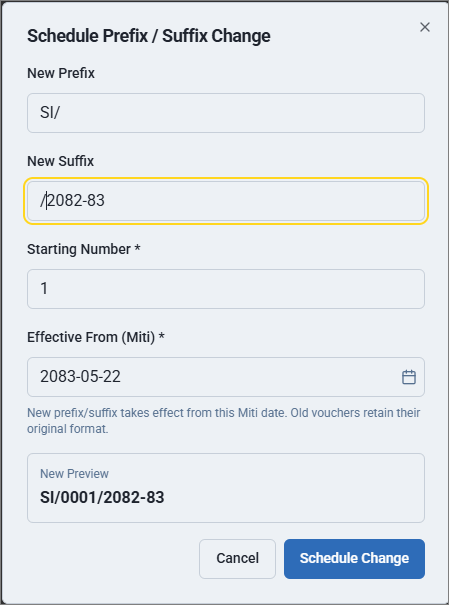
- New Prefix: Enter the prefix to be displayed with the sales voucher number.
- New Suffix: Enter the suffix to be displayed with the sales voucher number.
- Starting Number: Enter the starting number for the voucher numbering.
- Effective From (Miti): Select the date from which the numbering changes should apply.
- Under New Preview, you can preview the voucher numbering.
- Click Schedule Change.
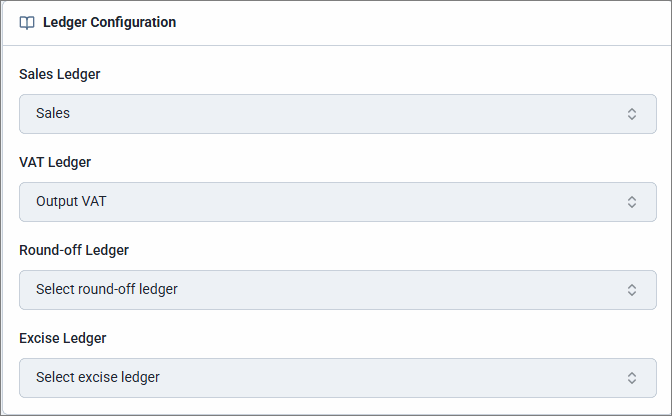
- To apply the default ledger at the time of recording transactions, select the default Sales Ledger, VAT Ledger, Round-off Ledger, and Excise Ledger, if applicable.
You can change the default ledger while recording the transaction, if required.
- Under General Details, configure the required options. You can disable them during voucher entry, if required.
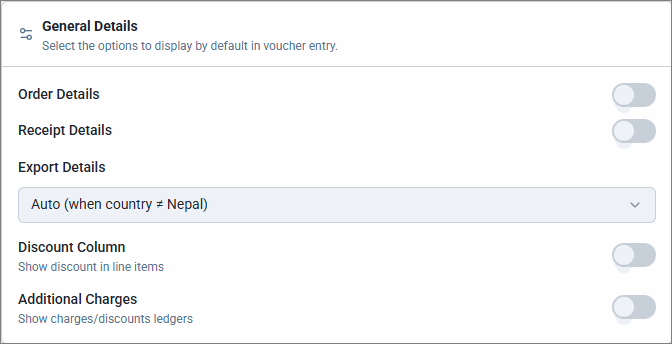
- Enable Order Details and Receipt Details to enter these details while recording the transaction.
- Enable Discount Column to view the discount column separately for each line item at the time of recording transactions.
- Enable Additional Charges to enter additional charges or discounts while recording the transaction.
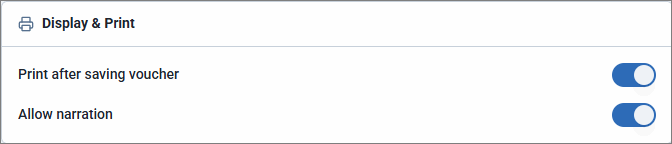
- Under Display & Print, enable Print after saving voucher to print the invoice automatically after saving the voucher.
- Click Save.
Similarly, you can configure the other Voucher Types as required.
Is this information useful?
YesNo


