
Synchronise Tally e-Billing Data to TallyPrime
Once you have created the required masters and recorded transactions in Tally e-Billing, you can synchronise them with TallyPrime to access your business data and view financial reports.

Ensure that:
- You have set up TallyPrime with the required details to synchronise data.
- From Gateway > select Reports > then select Day Book.
- In the Day Book screen, click Show Sync.
- In the Sync screen, click Sync Config.
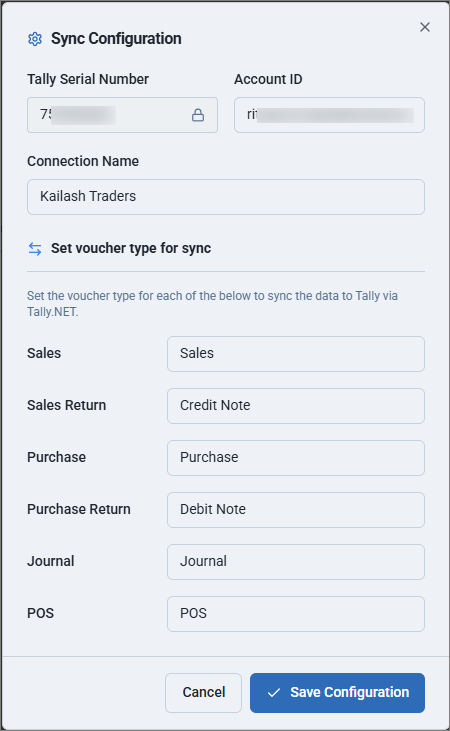
- In the Sync Configuration screen, enter Tally.NET ID under Account ID and Connection Name.
The Connection Name should match the company display name configured in TallyPrime. - Map the voucher types created in Tally e-Billing with the corresponding voucher types available in TallyPrime and click Save Configuration.
- In the Sync screen, click Masters.
It displays the list of masters created in Tally e-Billing. - Select the required masters.
- Click Actions.
- Select Sync.
The selected masters are now synchronised from Tally e-Billing to TallyPrime. - If any records fail to synchronise, select the failed records, click Actions, and then select Retry.
- After the synchronisation is complete, switch to TallyPrime and verify that the required masters, such as ledgers and stock items, have been created successfully.
Similarly, you can synchronise the vouchers to TallyPrime.
Once the synchronisation is complete, you can continue working with the synchronised data in TallyPrime.
Questions & Answers
- How can I identify transactions from different e-Billing companies after synchronising them with TallyPrime?
If you have multiple e-Billing companies, create separate voucher types for each branch with a branch-specific name. For example, create Sales – KTM, Sales Return – KTM, Purchase – KTM, and Purchase Return – KTM for Kathmandu, and corresponding Sales – BRT, Sales Return – BRT, Purchase – BRT, and Purchase Return – BRT for Biratnagar. This helps you identify transactions from each branch after synchronising the data with TallyPrime. - How should I configure voucher types in TallyPrime for synchronisation?
Ensure that each e-Billing voucher type has a unique Prefix and Suffix for every branch company. For accurate synchronisation and to prevent duplicate transactions, configure Voucher Numbering as Manual and set Prevent Duplicates to Yes for all voucher types in TallyPrime.
Is this information useful?
YesNo


