
Set Up Stock Items in Tally e-Billing
Create stock items in Tally e-Billing to manage inventory and define details such as units of measurement, HSN/SAC codes, VAT rates, and other applicable information.
- From Gateway > click Chart of Accounts > click Inventory Masters > and then click Stock Item.
- In the Stock Item screen, click Create.
- In the New Stock Item screen, enter the Name of the stock and Alias, if any.
- Enter the Basic Info.
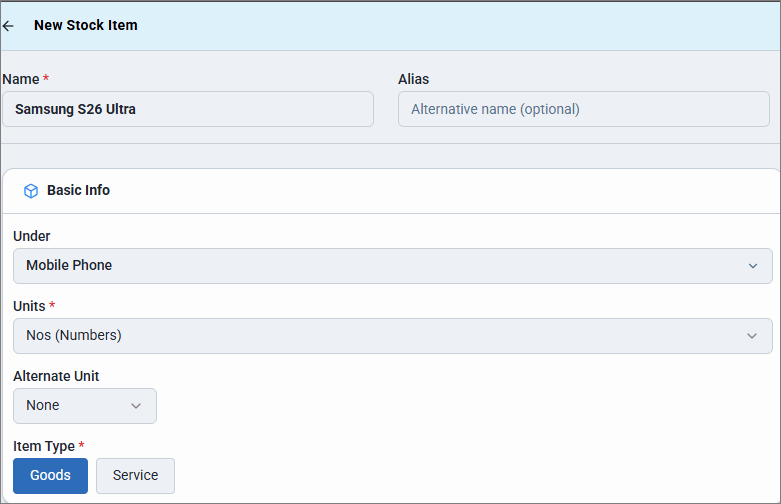
- Under: Select the appropriate stock group for the stock item.
- Units: Select the required unit of measurement.
- Alternate Unit: Select an alternate unit if you want to track the stock item using a secondary unit.
- Item Type: Select Goods or Services.
- Enter the Statutory Details.
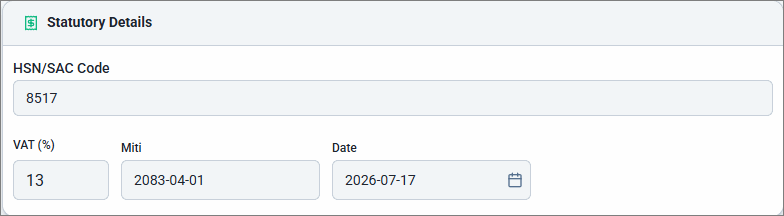
- HSN/SAC Code: Enter the HSN/SAC code of the stock item.
- VAT (%): Enter the applicable VAT rate.
- Select the applicable Date.
- Enter the Opening Balance and select the as on date of the balance.
- Enable and update Additional Details.
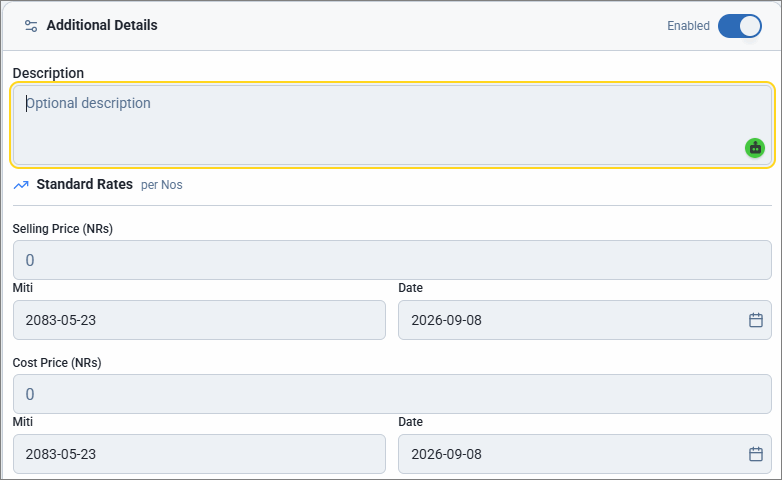
- Enter the Description, if any.
- Enter the Selling Price and Cost Price, along with the applicable Date.
- Enable Excise, if applicable, and enter the relevant details.
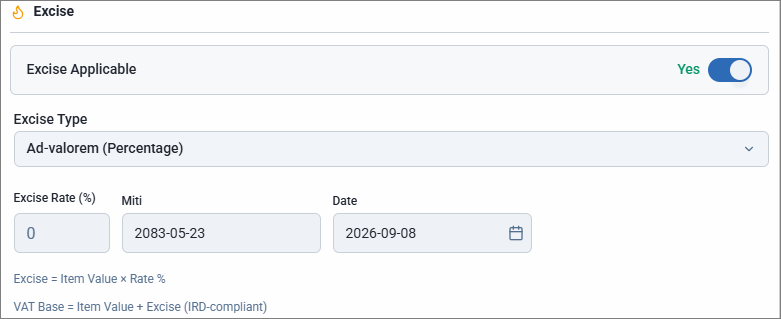
- Excise Type: Select Ad-valorem (Percentage) or Specific (Per Unit).
- Enter the Excise Rate (%) and applicable Date.
- Set the stock item Behaviour as required.
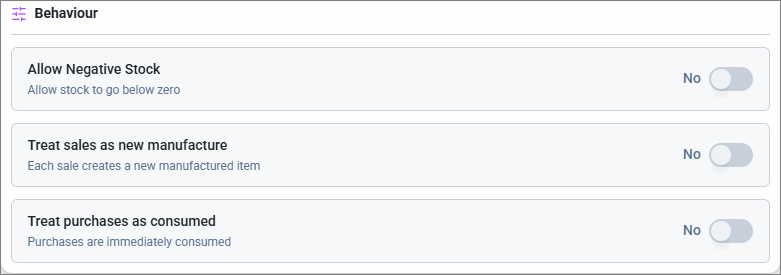
- To record transactions with negative stock, enable Allow Negative Stock.
- To treat your sales as newly manufactured items, enable Treat sales as new manufacture.
- To consume your purchases immediately, enable Treat purchases as consumed.
- Click Save.
Is this information useful?
YesNo


