Record Payment Transactions in TallyPrime
TallyPrime allows you to record all cash and bank transactions, including e-payments, in both Single Entry and Double Entry modes. Cash Payments are used to record expenses like wages, stationery, or petty cash payments, while Bank Payments are used for supplier payments, asset purchases, or any bank outflow. View all your payments using the Payment Register report in TallyPrime, and make necessary financial decisions.
If you need to track payments made to different departments or employees separately, you can use cost centres and allocate the payments separately. To record a payment transaction for future use without affecting the books of accounts, you can record an optional payment voucher.

Ensure that:
- The required Cash, Bank, Party, and Expense ledgers are available.
- The required bank ledger is created for recording bank payments and receipts.
- You have enabled F11 (Features) > Enable Bill-wise Entry, to reference the payment against a purchase.
- In the Payment Voucher Type, Provide narrations for each ledger in voucher is set to Yes, if needed.
Record Cash Payments
- Press Alt+G (Go To) > Create Voucher > F5 (Payment).
- Press Ctrl+H (Change Mode), if needed, to change the default single entry mode to double entry mode.
- Select the required ledgers for the payment.
- For Single Entry mode:
- Select the Cash ledger under Account
- Select the expense or party ledger under Particulars.
- For Double Entry mode:
- Under Particulars, debit the expense or party ledger.
- Credit the Cash, or Petty Cash ledger, as applicable.
- For Single Entry mode:
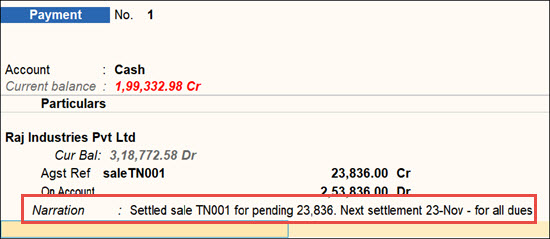
- If you need narrations for each ledger for future reference, enter the required narration after selecting a ledger.
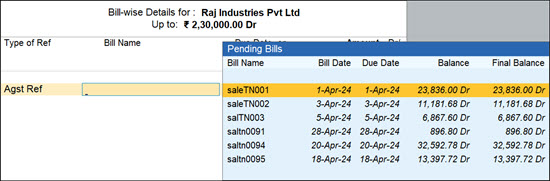
- If you are tracking the payment against a purchase or expense bill, in the Bill-wise Details screen, select Agst Ref as the Type of Ref and select the purchase voucher number.
- Enter Narration for the voucher and press Ctrl+A to save.
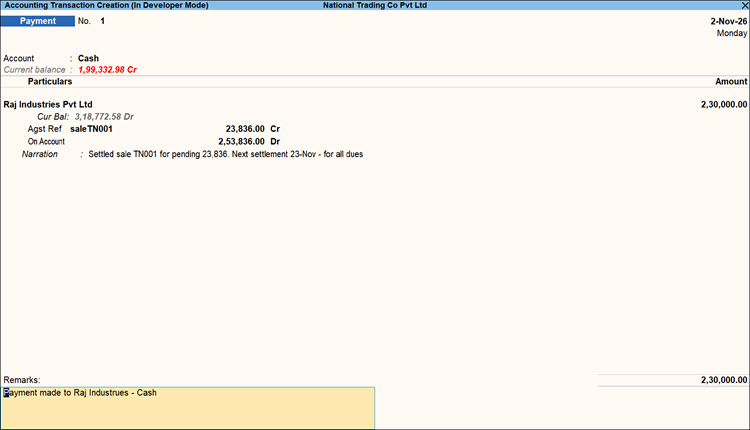
In TallyPrime, you can also print the Payment transactions immediately after saving.
Record Cheque Payments
In the Payment voucher:
- Under Account, select the required Bank ledger.
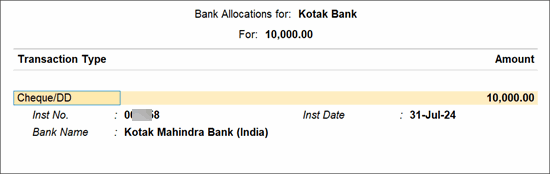
- In the Bank Allocations screen, set Transaction Type to Cheque.
- Enter the required Amount.
- In the Inst No. field enter the cheque number and set the Inst Date.
- Enter the Bank Name and press Enter.
- Press Ctrl+A to save.
Record Payments Through e-Fund Transfer
In the Payment voucher:
- Press F12 (Configure) and set the option Set Ledger-wise Bank Allocations during voucher creation to Yes, to view the bank details defined in the party ledgers.
- Under Account, select the required Bank ledger.
- In the Bank Allocations screen, set Transaction Type to e-Fund Transfer.
- Enter the required Amount.
- In the Inst No. field enter the transaction reference number and set the Inst Date.
- Enter the Bank Name and press Enter.
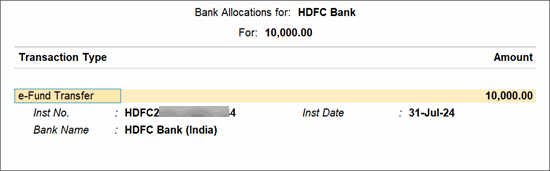
- Press Ctrl+A to save.
View Payment Register

- Press Alt+G (Go To) > type or select Payment Register > and press Enter.
- To compare payment data across periods:
- Press Alt+C (New Column) to add a column and compare payment transactions for another period.
- Press Alt+A (Alter Column) to modify the period or settings of an existing comparison column.
- Press Alt+N (Auto Column) to automatically create multiple period-based columns for quick trend analysis and comparison.
- Select the required month and press Enter. To analyse the report in different views, press Ctrl+H (Change View) and select the required view:
- Columnar: Displays payment vouchers in a column-based format, making it easier to compare voucher details across periods or categories.
- Extract: Displays a summarised view of voucher information, helping you quickly review the recorded payment vouchers.
- To view the list of cancelled vouchers and post-dated vouchers, press Ctrl+J (Exception Reports).
Questions and Answers
- Why is my payment not appearing under the expected expense head in reports?
This can happen if an incorrect ledger is selected while recording the voucher. Verify that the appropriate expense, party, or other relevant ledger has been used in the transaction. - Can I record multiple expense payments in a single Payment voucher?
You can record a single Payment voucher and can include multiple expense, party, or other ledger entries, provided they are paid through the same cash or bank account. - Can I record payments based on my bank statement entries?
You can absolutely do so. Simply import your bank statements from 145+ banks supported in TallyPrime instead of recording them manually. Thereafter, you can auto-create vouchers using bank statements. - I do not see the Cash or Bank ledger under List of Ledger Accounts. What should I do?
Cash or Bank ledger does not appear for selection by default under List of Ledger Accounts. You need to either select Show More or start typing Cash or Bank to see the ledger options.