
Send Payment Details and Create Payment Vouchers in TallyPrime
Once you accept the invoice, it appears under Bharat Connect Activities – Buyer > Bharat Connect >Invoices Pending for Payment. From there, you can share the payment details.

Ensure that:
- Bharat Connect for Business is enabled for the license.
- You are logged in to Bharat Connect for Business and connected to the internet.
- Bharat Connect registration is done, and B2B ID is created.
- The supplier invoice has already been accepted.
- You have user access to manage Bharat Connect for Business data.
Send Payment Details for Invoices Received
- Press Alt+G (Go To) > type or select Buyer – Activities.
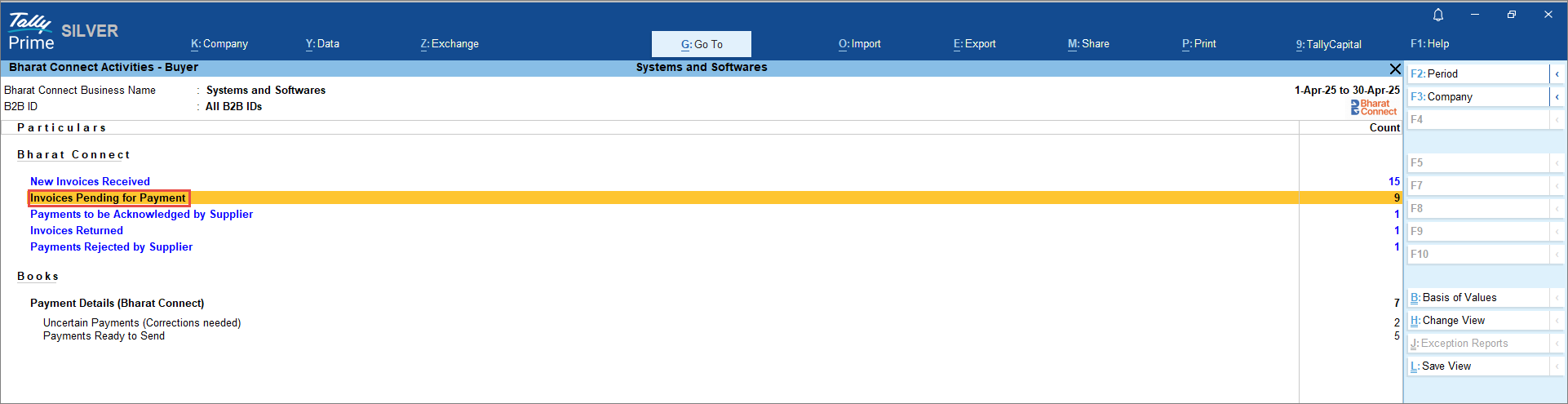
- In the Bharat Connect Activities – Buyer screen, drill down from Invoices Pending for Payment.
- In the Bharat Connect Activities – Invoices Pending for Payment screen, pressCtrl+F5 (Send Payment Details).
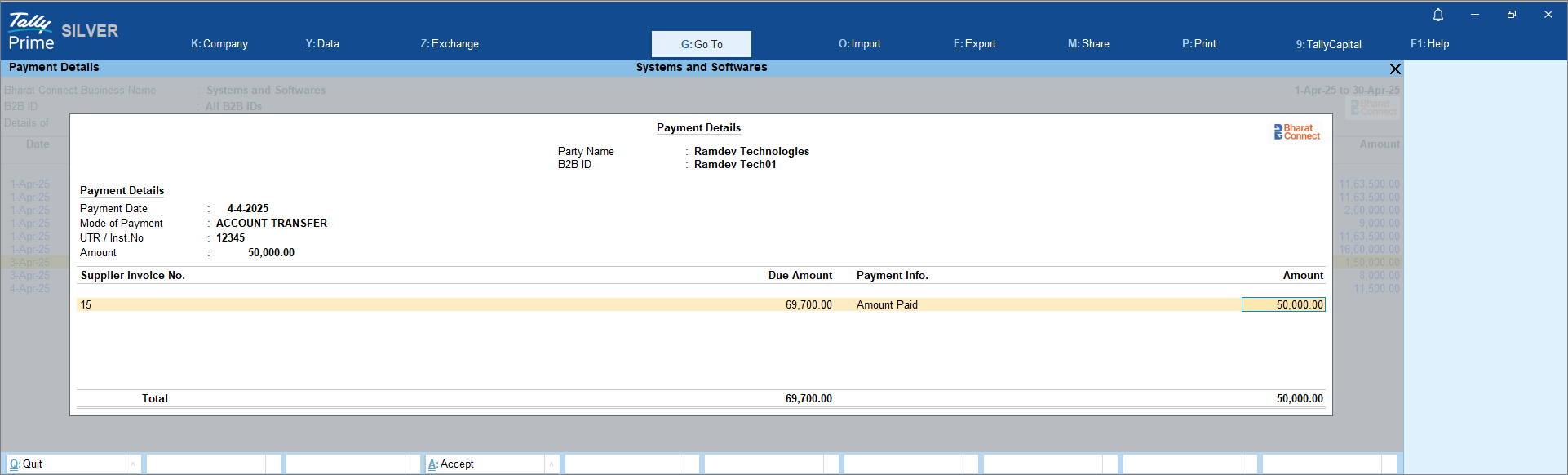
- In the Payment Details screen, update the Mode of Payment, UTR / Inst.No., and Amount to be paid, and press Ctrl+A to save.
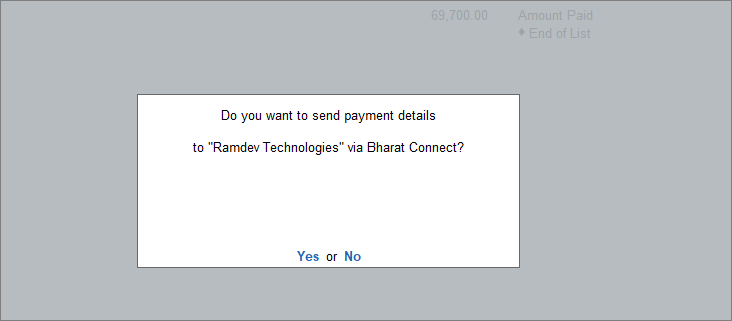
- Press Y to send thepayment details.
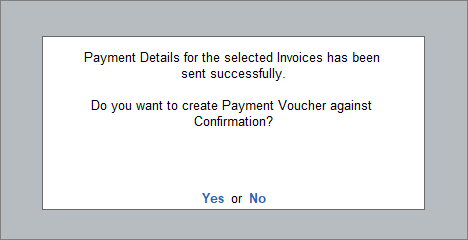
-
In the payment voucher, select the party name.
-
Enter the necessary details in the payment voucher.
- In the Bank Allocations screen, enable Bharat Connect Details option and press Enter.
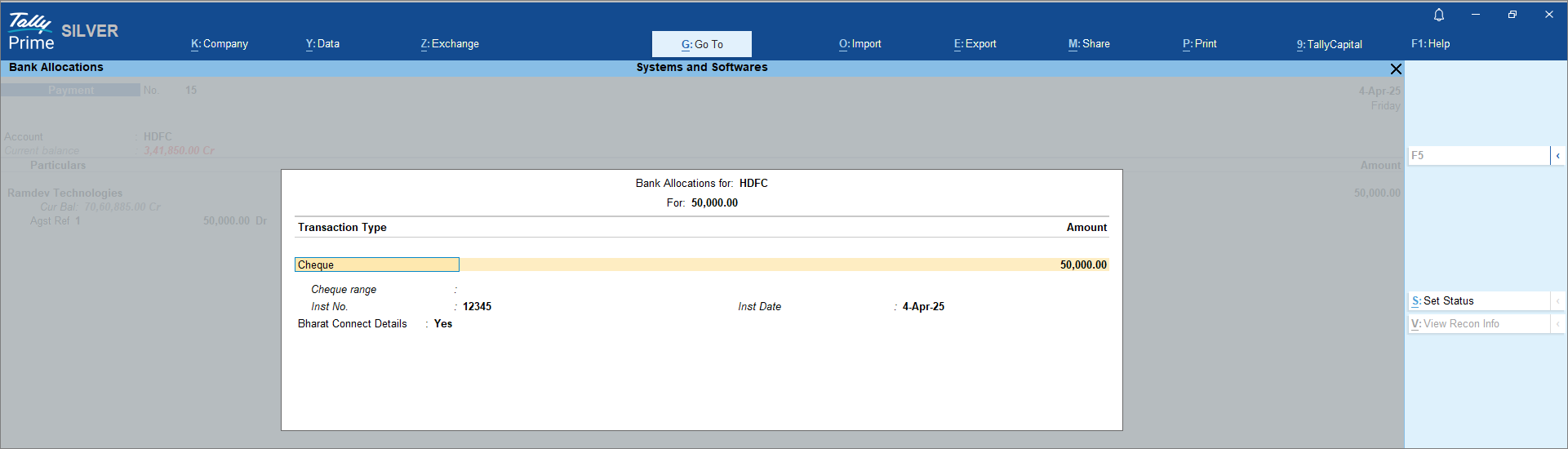
- In the Bharat Connect Details screen, check the payment details.
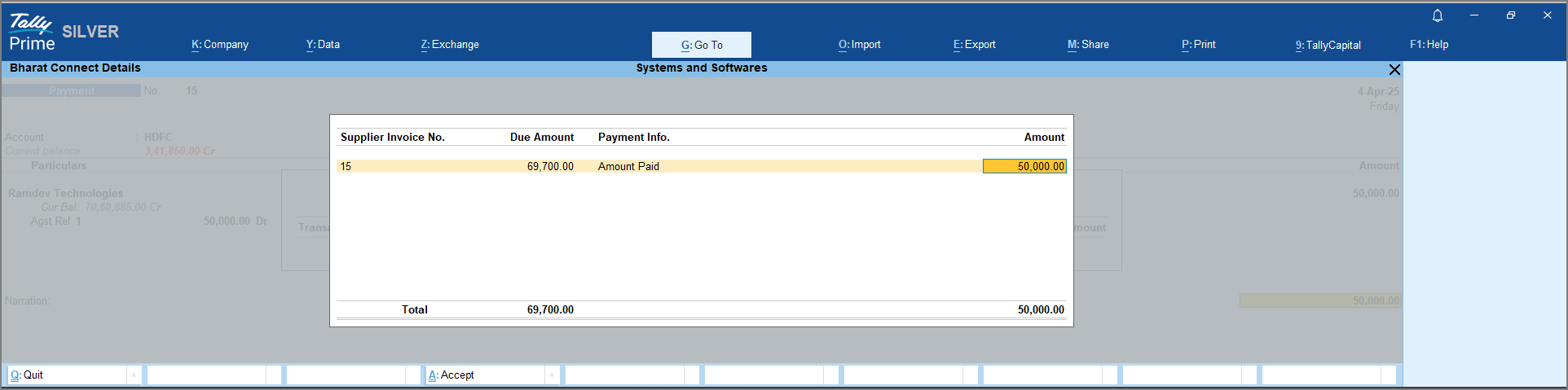
-
Press Ctrl+A to save the Payment Voucher.
Send Payment Details After Adjusting Credit Notes
- Press Alt+G (Go To) > type or select Buyer – Activities.
- In the Bharat Connect Activities – Buyer screen, drill down from Invoices Pending for Payment.
- In the Bharat Connect Activities – Invoices Pending for Payment screen, select the credit note along with the invoice to adjust the payment and press Ctrl+F5 (Send Payment Details).
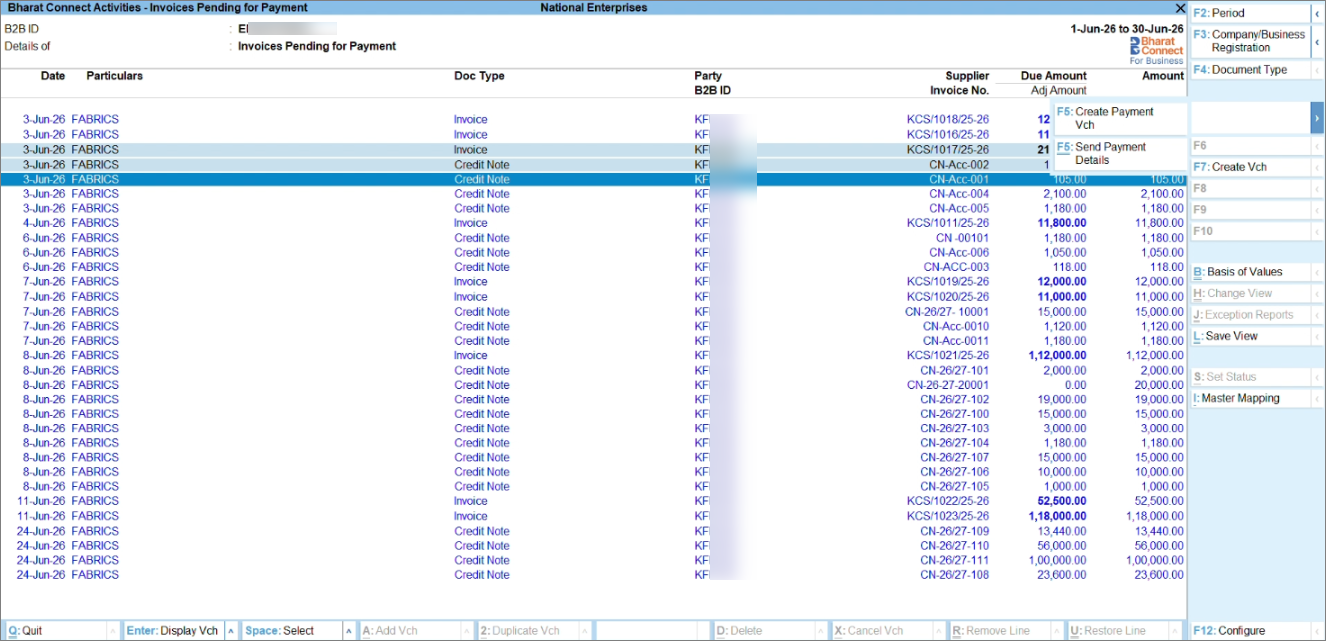
- In the Payment Details screen, update the Mode of Payment, UTR / Inst.No., and Amount to be paid, and press Ctrl+A to save.
Based on the selection, the credit note adjustment will be displayed.
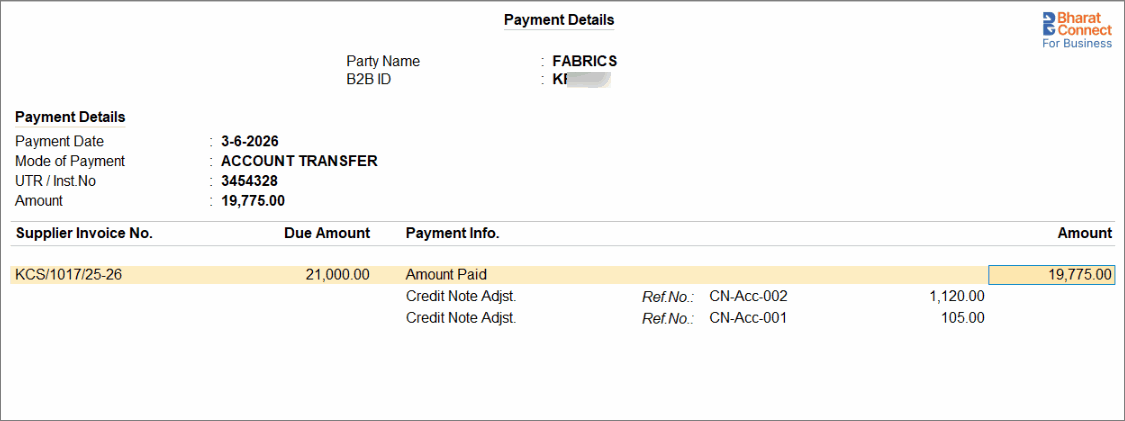
- Press Y to send the payment details.
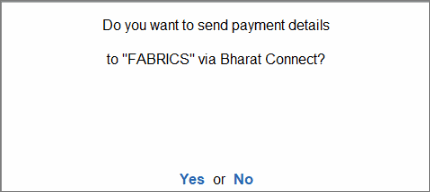
- Press Y to create the payment voucher.
- In the payment voucher, select the party name.
- Enter the necessary details in the payment voucher.
- In the Bank Allocations screen, enable Bharat Connect Details and press Enter.
- In the Bharat Connect Details screen, check the payment details displayed after adjusting the credit note.
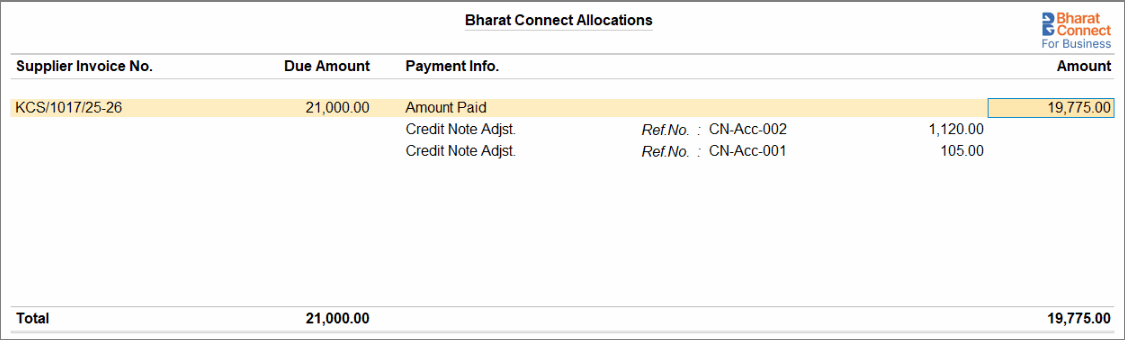
- Press Ctrl+A to save the Payment Voucher.
Send Payment Details Later with Suppliers
If you have already created the payment voucher and want to share it with the supplier now, then follow the below steps:
-
From the payment voucher alteration screen, press F12 (Configure) and enable Share Payment on Voucher Save and Show B2B ID Selection Subform.
-
Press enter on the party name.
-
On the Share Payment Details screen, both your B2B ID and the supplier B2B ID are displayed.
-
-
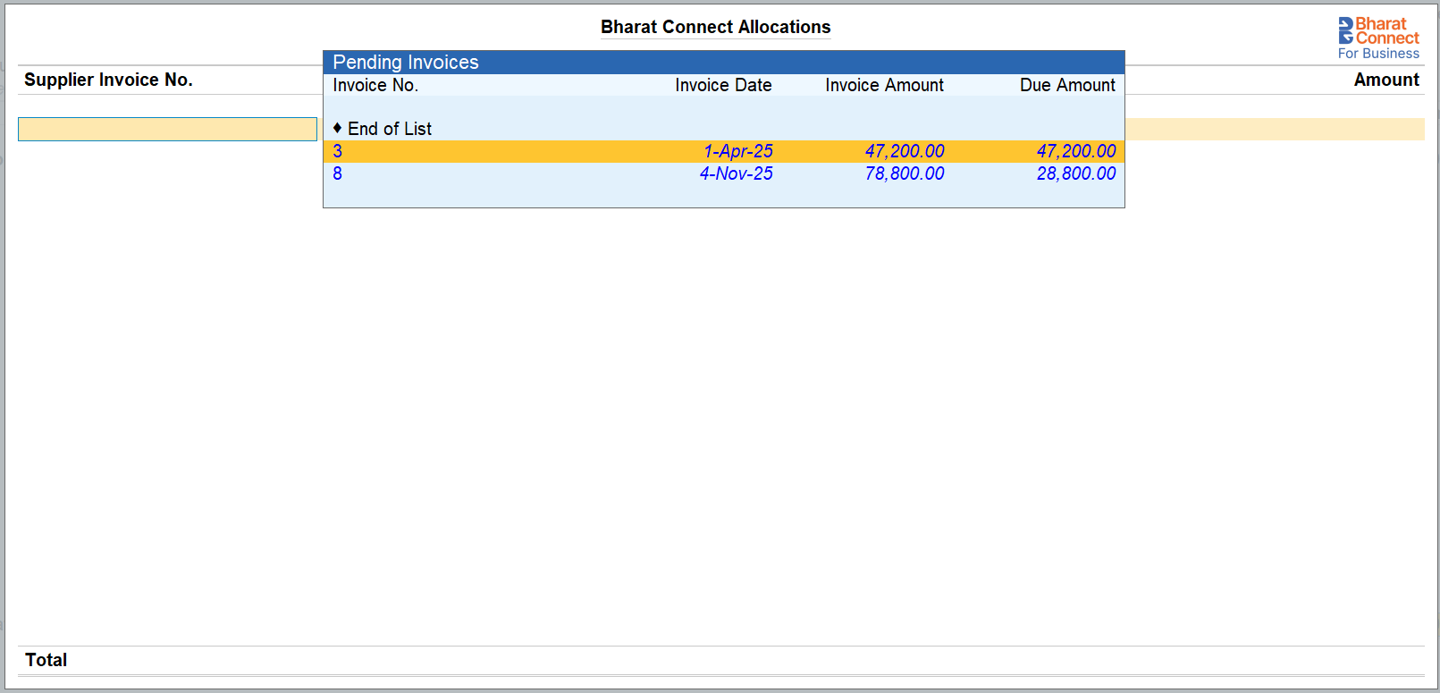
In the Bank Allocations screen, select Yes for Bharat Connect Details option and press Enter.
-
In the Bharat Connect Details screen, you can select the pending pr partially paid invoices against which the payment is to be shared.
Once the payment details are shared with the supplier, the voucher moves to Payments to be Acknowledged by Supplier. You can also share the payment details in bulk from Alt+Z (Exchange) > Send Payment Details.
Questions & Answers
- Can I share payment details for partially paid invoices?
Yes. In the Bharat Connect Details screen, you can select accepted or partially paid invoices against which the payment details need to be shared. - Can I create a single payment voucher for multiple invoices together?
Yes. You can select multiple invoices from one supplier, and create a single payment voucher to share with the supplier. - Can I share multiple payment details to different parties at once?
Yes. You can share multiple payment details in bulk to different parties from Alt+Z (Exchange) > Send Payment Details to. - Can I include TDS deductions or advance adjustments when sharing payment details with suppliers?
Yes, you can include such adjustments. While creating the Payment Voucher, in the Bank Allocation screen, enable Bharat Connect Details. Under Payment Info, you can select the TDS or advance adjustment. The adjustments details will be shared with the supplier along with the payment details.


