
Create Budgets and Analyse Budget Variance in TallyPrime
A budget helps you plan and control your business income and expenses for a specific period. In TallyPrime, you can create budgets for ledgers, groups, and cost centres based on your business requirements. You can also create multiple budgets with a hierarchical structure and choose to monitor nett transactions or closing balances.
For example, you can create a budget for April to track your monthly expenses. After recording your transactions, you can view budget variances in reports and compare budgeted figures with actual amounts using the Budget Variance report.
Create Budget for Ledgers

- Press Alt+G (Go To) > Create Master > Budgets.
- Enter a Name for the budget, say April Budget.
- Under: Select Primary or any other predefined groups, based on your requirement.
Press Alt+C to create a new group, if needed. - Period of Budget: Enter From and To date.
- Set/Alter Budgets of: Set Ledgers to Yes.
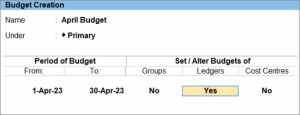
- In the Ledger Budget screen, select the required Budget details.
- Account Name: Select the required ledger. Press Alt+C to create a new ledger, if needed.
- Type of Budget: Select the budget type depending on how you want to set your budgets.
- Select On Nett Transactions, if you want to set your budgets based on the transaction amounts.
- Select On Closing Balance, if you want to set your budgets on the balance of accounts.
- Amount: Select the budget amount.
- Press Ctrl+A to save.
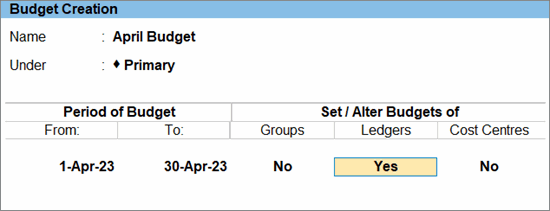
Similarly, you can create budgets in TallyPrime for groups such as expenses, sundry debtors, and sundry creditors by enabling Groups under Set/Alter Budgets of. These budgets will apply to all ledgers under those groups.
Create Budget for Cost Centres

- Ensure that you have already created the required Cost Centres in TallyPrime.
- Press Alt+G (Go To) > Create Master > Budgets.
- Enter a Name for the budget, say Departmental Budget.
- Under: Select Primary or any other predefined groups, based on your requirement.
Press Alt+C to create a new group, if needed. - Period of Budget: Enter From and To date.
- Set/Alter Budgets of: Set Cost Centres to Yes.
- In the Cost Centre Budget screen, select the required Cost Centre, Expenses, Income and Closing Balance.
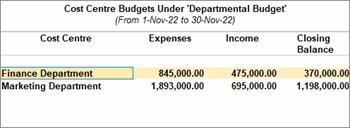
- Accept the screen. As always, press Ctrl+A to save the Budget Creation screen.
You can alter the Budgets whenever your business requirements change, and delete them when they are no longer needed.
Record Transactions for Budgets
You can monitor your regular transactions and expenses against the planned budget by recording them regularly.
In the payment voucher:
- Select the required expense ledger and enter the amount.
Ensure that the total amount of expense/purchase is as per the budget you have set for the month.
However, depending on you business needs, your expense might exceed the budget limit. - Enter other necessary details, as required and Press Ctrl+A to save.
You can now view the budget variance in your reports against your expenses.
View Budget Variance in Reports
You can view the Budget variance from Trial Balance to compare actuals with budgets, identify overspending, and analyse performance at the Ledger or Cost Centre level.
- Open Trial Balance > F10 (Budget Variance) and select the budget from the List of Budgets for which you want to view the variance.
You will see the three distinct columns for the Budget, Actuals, and Budget Variance. In this case, the April Budget Variance column helps you identify the difference between the budgeted figures and the actual figures.
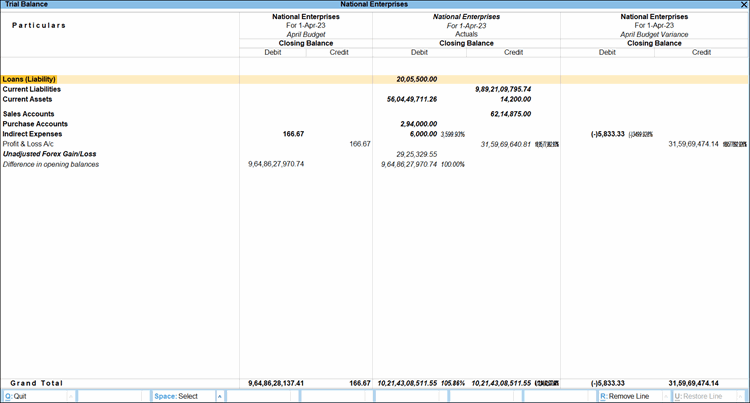
If the Budget Variance shows a negative value, it means that the actual expenditure has exceeded the budgeted value.
-
You can compare the budgeted amounts with the actual amounts for each category in the same report, identifying where the actual expenses differ significantly from the planned amounts. For example, under Indirect Expenses, the budgeted amount is ₹166.67, while the actual amount is ₹6,000.
-
You can identify potential overspending by checking whether actual expenses exceed the budgeted amounts. In the example, Indirect Expenses show actual expenses of ₹6,000 against a budget of ₹166.67, indicating that actual expenses are substantially higher than the budget. The negative variance of ₹5,833.33 shown in the report highlights the difference for this expense category.
-
- Press F5 (Ledger-wise) to compare budgeted and actual amounts and identify overspending for individual ledgers.
Similarly, you can also view budget variance for Cost Centres, if you have created budgets for them.


