
Manage Cost Centres in TallyPrime
Use Cost Centres in TallyPrime to track income and expenses for departments, employees, projects, or business units. You can also organise Cost Centres in a hierarchy to consolidate unit-wise expenses and incomes.

Ensure that in the F11 (Company Features) screen, you have set Enable Cost Centres to Yes.
Create Cost Centres

- Press Alt+G (Go To) > Create Master > Cost Centre > press Enter.
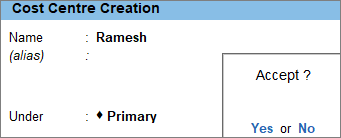
- Name: Enter a suitable Name for the Cost Centre.
- Under: Select Primary or an existing Cost Centre to create a hierarchy of Cost Centres.
To group the cost centre under an existing cost centre, press F12 (Configure) and enable Use grouping for Cost Centres.
- Show the opening balance of revenue items in reports, if needed.
- Press F12 (Configure) and enable Set Opening Balance for Revenue Items in Reports.
- In the Cost Centre Alteration screen, enable Show opening Balance for revenue items in reports.
- Update bank details for Cost Centres, if needed.
- Press F12 (Configure) and enable Set Bank details for Cost Centres.
- In the Cost Centre Alteration screen, enable Provide bank details.
- In the Bank details for screen, select Transaction Type and save.
- Press Ctrl+A to save.
You can alter the Cost Centres whenever your business requirements change, and delete them when they are no longer needed.
Use Cost Categories in TallyPrime to distribute the same income and expense among multiple Cost Centres or Profit Centres. Similarly, you can create a Cost Centre Class in TallyPrime to automatically allocate incomes and expenses to Cost Centres based on predefined percentages, eliminating the need for manual allocation during voucher entry.
Record Transactions for Cost Centres
Use Cost Centres to allocate incomes and expenses to specific employees, departments, projects, or activities. This helps you track and analyse the income earned and expenses incurred for each Cost Centre.
Once multiple Cost Categories are created, you can use the same cost categories across different sets of Cost Centres to record transactions with parallel allocation. You can also allocate incomes and expenses to Cost Centres automatically using a Cost Centre Class, based on the predefined percentages specified when creating the class.
Compare Report Details Using Cost Centres
View Cost Centre reports to analyse income and expenses allocated to Cost Centres. You can drill down to transactions, compare allocations, and monitor performance across departments, employees, projects, or business units.
View Cost Centre Breakup
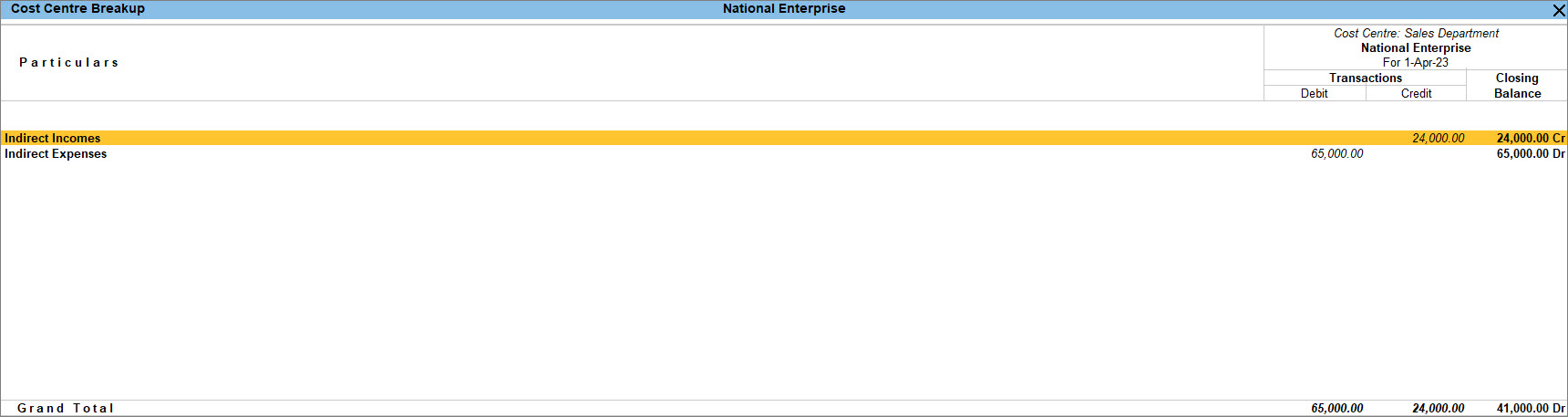
The Cost Centre Breakup report gives you the ledger-group-wise view of incomes and expenses incurred and allocated to the selected Profit Centre or Cost Centre.
- Press Alt+G (Go To) > Cost Centre Breakup > select a Cost Centre from the List of Cost Centres and press Enter.
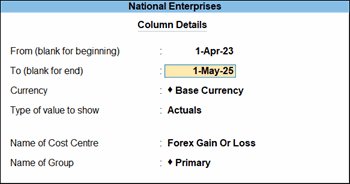
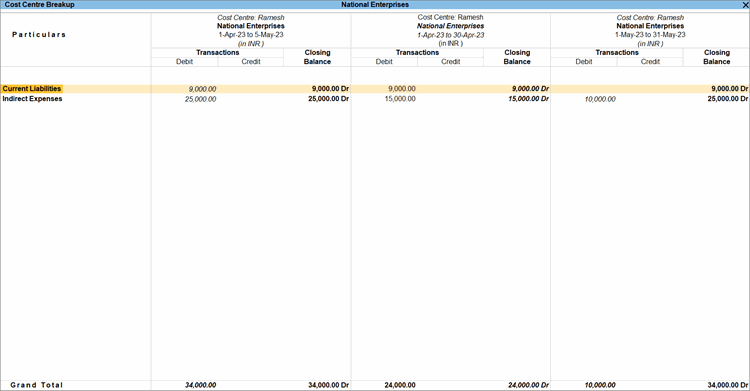
- To compare the ledger-wise details of two Cost Centres, press Alt+C (New Column), and update the column details.
This helps you analyse and compare incomes, expenses, and balances across Cost Centres side by side.
Cost Centre Summary
This report displays the summary of incomes and expenses allocated to different Profit Centres or Cost Centres.
- Press Alt+G (Go To) > Cost Centre Summary and press Enter.
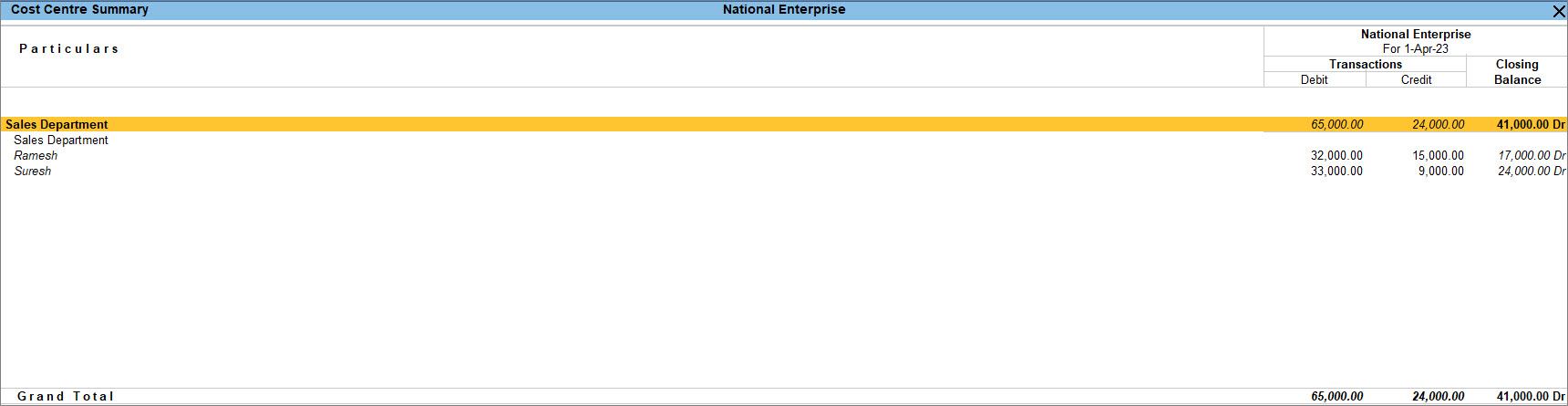
- To view the monthly breakup of income and expense details along with the closing balance of a Cost Centre, select the Cost Centre and drill down to view the Cost Centre Monthly Summary.
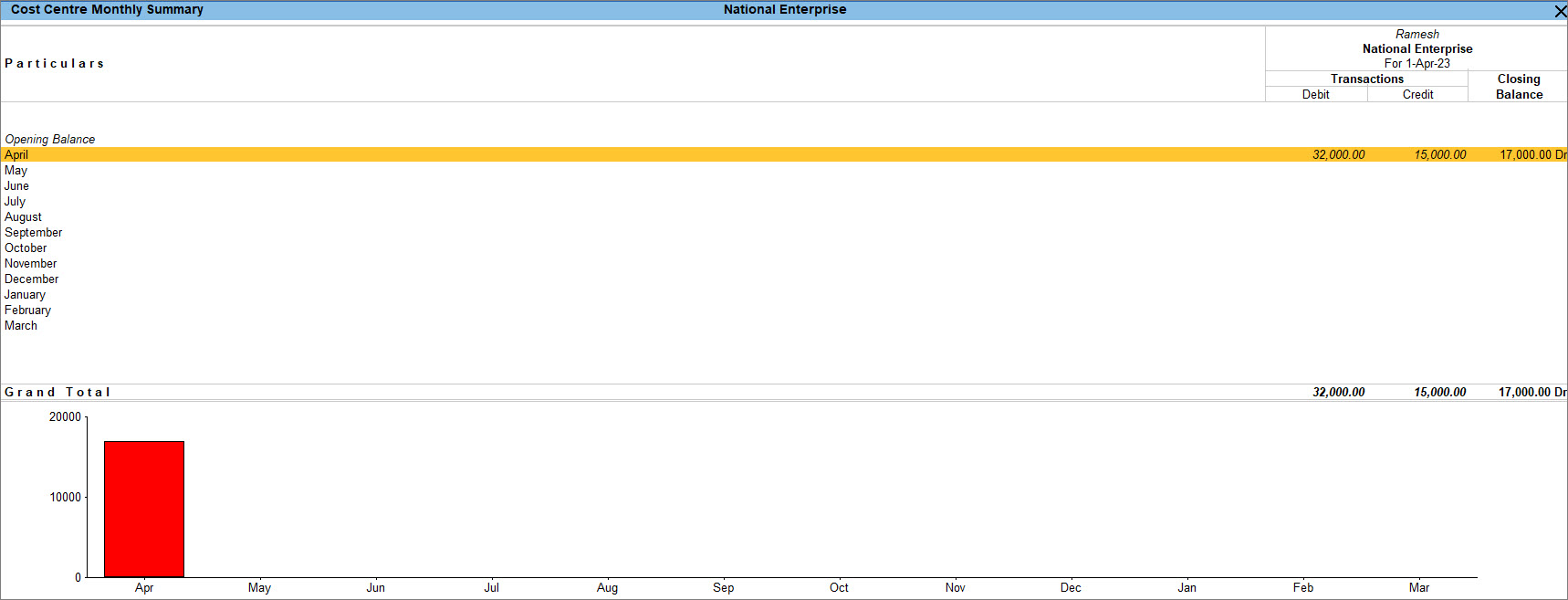
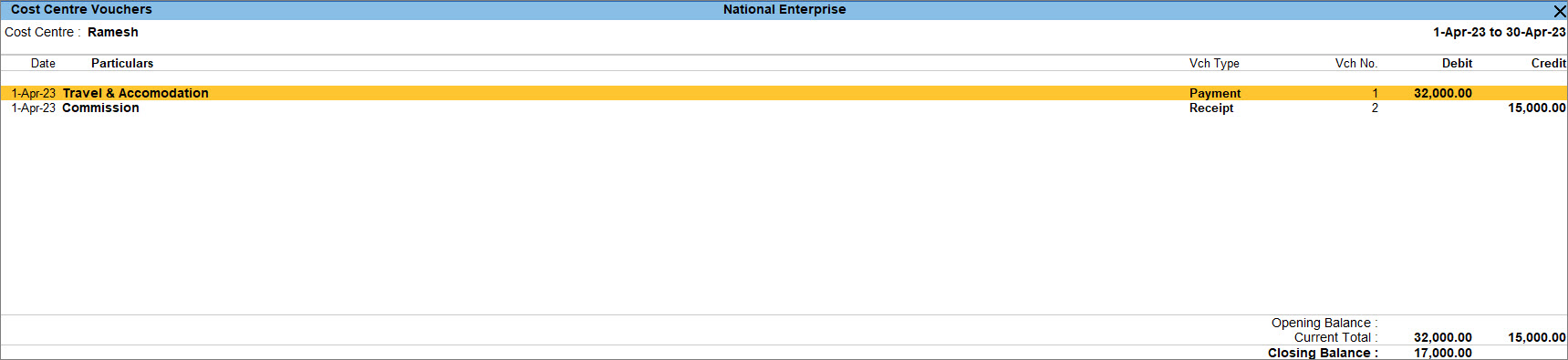
- Select the required month and press Enter, to view the Cost Centre Vouchers report.
Cost Centre Breakup in Ledger Reports
- Press Alt+G (Go To) > Ledger Vouchers > type or select a ledger and press Enter.
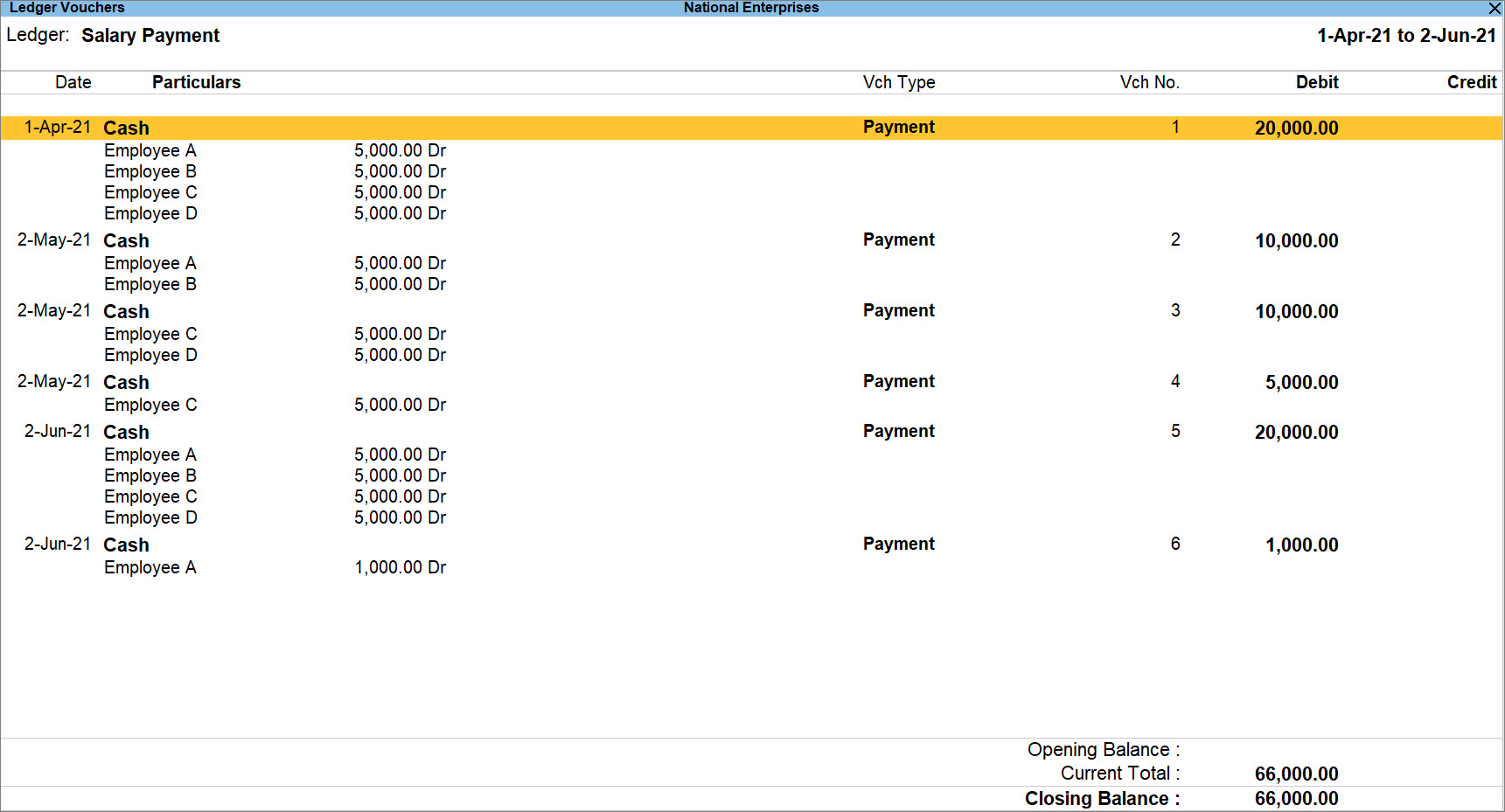
- In the Ledger Vouchers report, press F12 (Configure) and set Show Cost Centre details: Yes.
Cost Category Summary
This report displays the summary of incomes and expenses allocated to a parallel set of Profit Centres or Cost Centres in your business.
- Press Alt+G (Go To) > Cost Category Summary and press Enter.
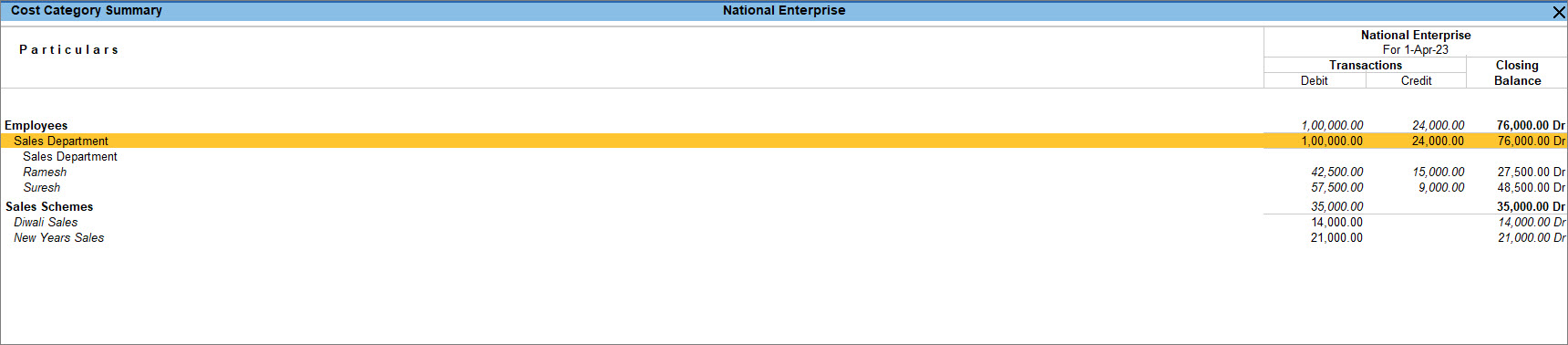
- Select the Cost Category and drill down to view the Cost Centre Summary, where you can analyse the income, expense, and balance details of the Cost Centres grouped under that category.


