
Record Purchase of Goods & Services in TallyPrime
With TallyPrime, you can record purchases of goods and services using different voucher entry modes, such as Item Invoice, Accounting Invoice, or Voucher mode. You can also capture supplier and consignee details, wherever applicable.
Once you have recorded the purchase vouchers, you can print your invoices and view the transactions in the Day Book and Purchase Register.

Ensure that:
- You have created the required party ledger, purchase ledger, service ledger, and stock items.
- You have enabled Provide Supplier details in Voucher Configuration.
- Provide narrations for each ledger in voucher is enabled in the Purchase Voucher Type if you want to add additional narrations for each ledger.
Record Purchases of Goods | Item Invoice Mode
- Press Alt+G (Go To) > Create Voucher > F9 (Purchase) > Ctrl+H (Change Mode) and select Item Invoice mode.
- Specify the supplier details.
- Supplier Invoice No. and Date: Update the invoice number and date as specified in the corresponding sales invoice.
- Party A/c name: Select Cash or Bank for cash purchases.
For credit purchases, select the supplier ledger.
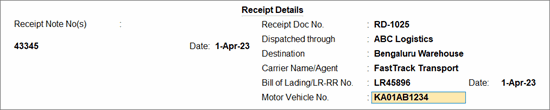
You can also create a ledger on the fly by pressing Alt+C. - Receipt Details: Enter receipt details like receipt doc no., bill of landing, destination, and so on, if needed.
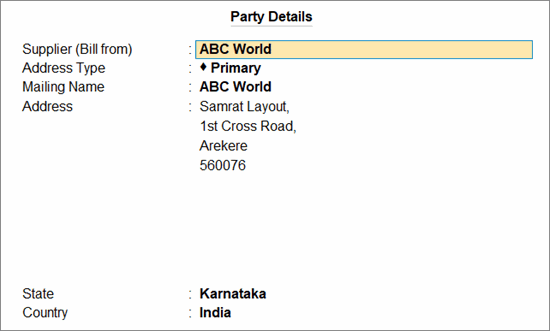
- Party Details: The details will be automatically filled as per the party ledger.
- Select the Purchase ledger.
- Under Name of Item, select the stock items and enter the Quantity and Rate.
- To add Narration for each ledger, press Ctrl+I (More Details) and update the details in the More Details screen.
- Set Details of to Ledger.
- Select the Ledger Name from the List of Ledgers.
- Under Additional Details, select Ledger Narration and enter the required narration.
- Provide Narration for the voucher, if needed, and press Ctrl+A to save.
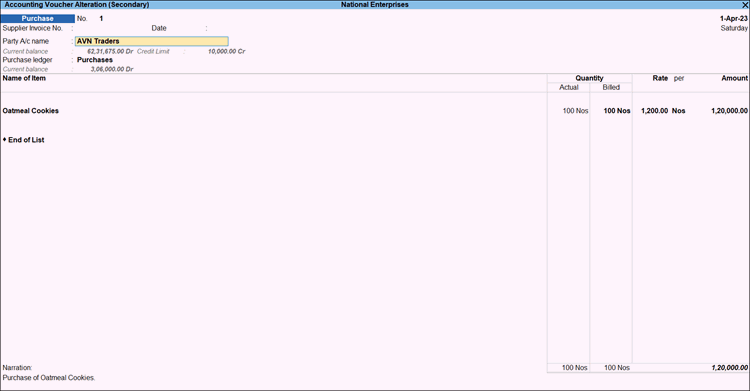
Record Purchases of Services | Accounting Invoice Mode
- Press Alt+G (Go To) > Create Voucher > F9 (Purchase) > Ctrl+H (Change Mode) and select Accounting Invoice mode.
- Specify the supplier details.
- Under Particulars, select the service ledger created under Purchase and enter the Amount.
- To add narration for each ledger, press Ctrl+I (More Details) and update the details in the More Details screen.
- Provide Narration for the voucher, if needed, and press Ctrl+A to save.
Record Purchases of Goods & Services | As Voucher Mode
- Press Alt+G (Go To) > Create Voucher > F9 (Purchase) > Ctrl+H (Change Mode) and select As Voucher mode.
In As Voucher mode, the voucher displays By and To instead of Dr and Cr.
To use Dr and Cr, press F12 (Configure) and enable Use Cr/Dr instead of To/By during voucher entry. - In the Cr field, select the cash or bank ledger for cash purchases or the party ledger for credit purchases.
- Enter the stock item details.
- In the Dr field, select the Purchase ledger.
- In the Inventory Allocations for screen, select the stock item, and specify the Quantity and Rate.
- Enter the ledger narration, if needed.
- Enter the service or expense details.
- In the Dr field, select the service or expense ledger, and enter the amount.
- Enter the ledger narration, if needed.
- Provide Narration for the voucher, if needed, and press Ctrl+A to save.
Record Purchases with Separate Supplier & Consignee Details
If the goods are delivered to a location different from your billing address, you can specify the delivery location by entering the consignee details in the purchase transaction.

In a purchase voucher:
- In the Party Details screen, press F12 (Configure) and set Provide separate Buyer and Consignee details to Yes.
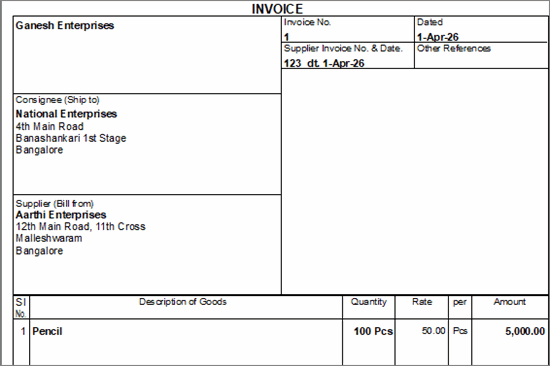
- In the Party Details screen, enter the Consignee and Supplier details.
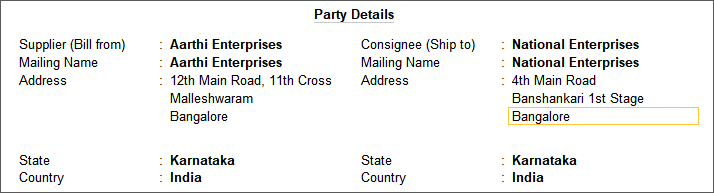
- Enter the rest of the details and save the voucher.
When you print the invoice, you can see the consignee’s name and address.
TallyPrime helps you capture complete purchase details, maintain accurate records, and track transactions seamlessly through reports such as Day Book and Purchase Register.


