
Create, Alter, and Delete Stock Items in TallyPrime
Stock items are the basic masters to manage your inventory in TallyPrime. In TallyPrime, you can:
- Create Stock Items: These represent goods and materials in your business.
- Alter Stock Items: Update stock items to change details such as Name, Rate, and Quantity.
- Delete Stock Items: When you do not deal with a stock item anymore, you can delete them.

- Ensure that you have created the unit of measurement for stock items.
Create Stock Items
In TallyPrime, you can create stock items with all the details such as Unit and Stock Group. If your business falls under a tax regime, you can set up your stock items with required tax applicability and tax details.
- Press Alt+G (Go To) > Create Master > type or select Stock Item and press Enter.
- Name: Enter the Name of the stock item.
- Select the language in which you want to enter the name.
- Press F12 (Configure) > set Provide language aliases for Name as Yes.
- In the Stock Item Creation screen, select the language from the List of Languages.
For example, Hindi. - Name & alias: Enter the name and alias in the selected language.
If you want to enter the details in another language, then refer to Change Data Entry Language.
- Under: Select Primary or an existing Stock Group.
- Use stock categories, if needed.
- Press F12 (Configure) and enable Use Stock Category for Stock Items.
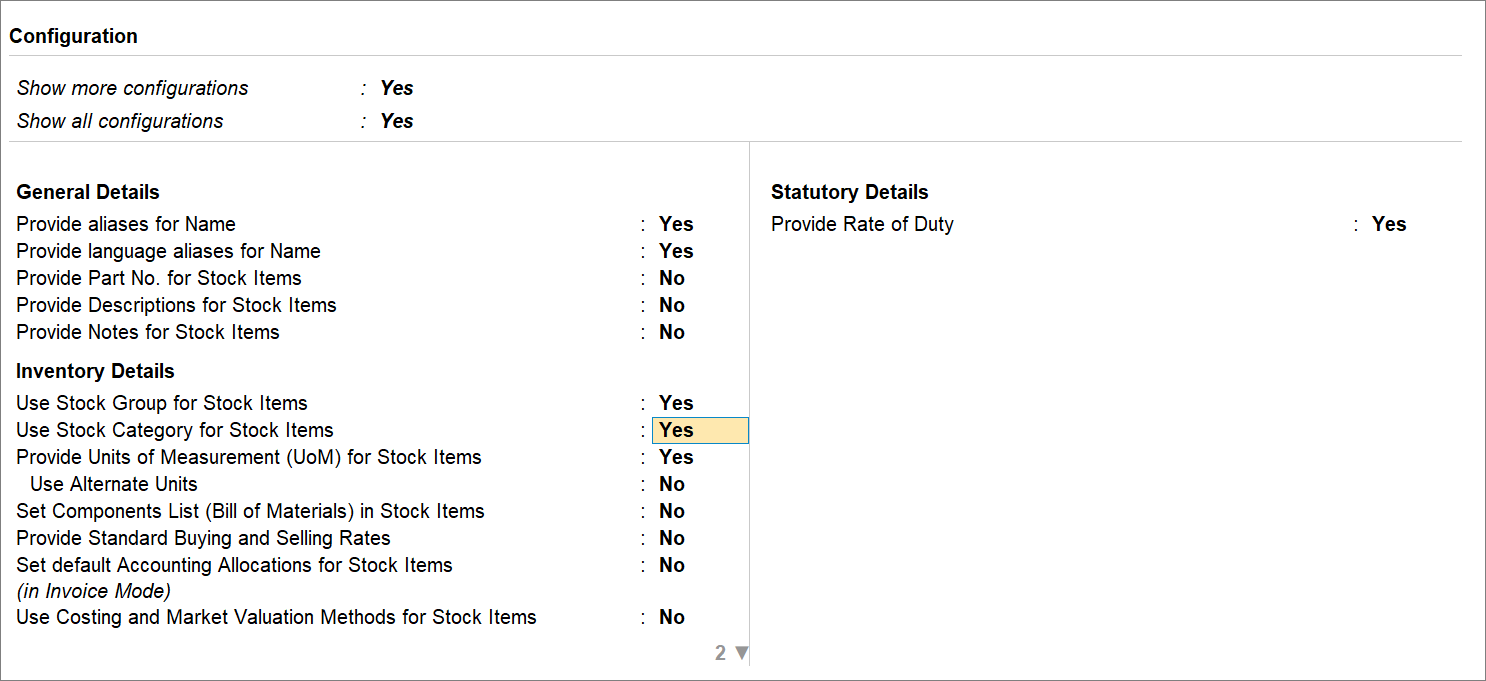
- Category: Select the relevant category from the List of Categories.
- Press F12 (Configure) and enable Use Stock Category for Stock Items.
- Units: Select the unit of measurement, applicable to the stock item.
You can also provide alternate units, if applicable in your business.
- Opening Balance: Specify the Quantity and Rate.
The Value gets calculated.
You can also change the Value. As a result, TallyPrime automatically refreshes the Rate field.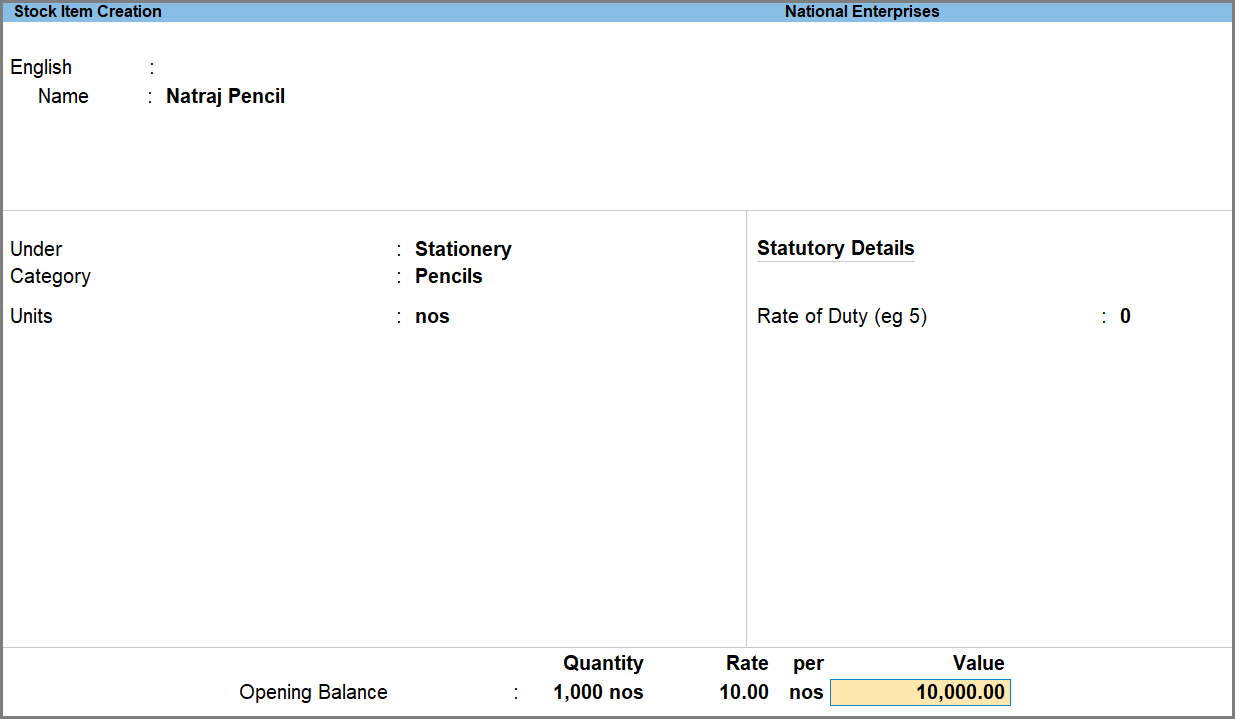
- Press Ctrl+A to save.
Alter Stock Items
Alteration allows you to update item details when there are changes in description, tax rates, or group.
- Press Alt+G (Go To) > Alter Master > type or select Stock Items, and press Enter.
You can then make the required changes.
Delete Stock Items
You can delete stock items that are no longer required. However, deletion is subject to certain conditions to maintain data integrity.
You cannot delete a stock item when:
- It has been used in any transaction.
- It is part of an opening balance or closing stock.
- It is linked to a bill of materials (BoM).
- Press Alt+G (Go To) > Alter Master > type or select Stock Item and press Enter.
- Select the stock item from the List of Stock Items.
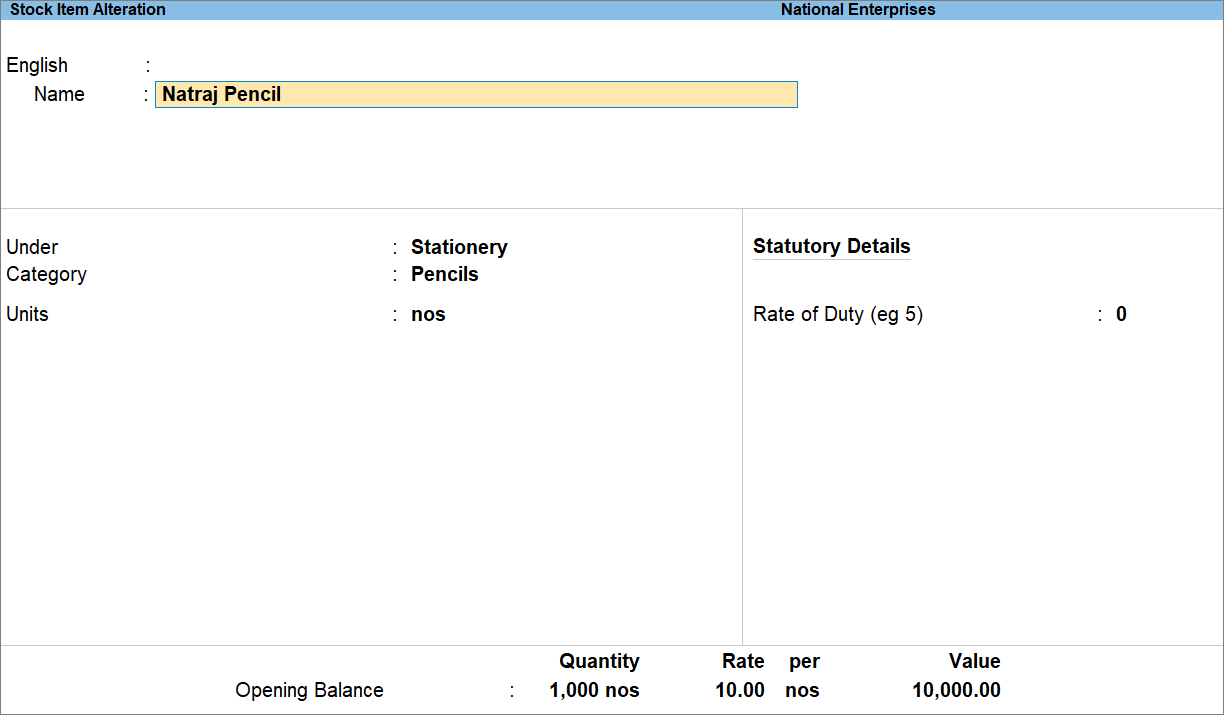
- Press Alt+D (Delete).
Is this information useful?
YesNo


