
Track Goods Receipts & Supplier Returns using Receipt Notes in TallyPrime
In TallyPrime, you can record a Receipt Note to account for goods received from a supplier before recording the purchase invoice. Receipt Notes can be tracked using a reference number and linked to a Purchase Order, Purchase Invoice, or Rejections Out voucher, helping you monitor goods receipts, pending purchase bills, and returns to suppliers.
Record Goods Received from Suppliers Using Receipt Notes
You can record goods received from a supplier before recording the purchase invoice and track them using a Receipt Note.

- Press Alt+G (Go To) > Create Voucher > F10 (Other Vouchers) > Receipt Note.
If Receipt Note is inactive, you will be asked to activate it. Press Enter to proceed. - Enter the Reference No., if required, and Date.
- Specify the party details.
- In Party A/c name, select the party ledger against which you are recording the receipt note.
- Enter the Order Details and Receipt Details, as required.
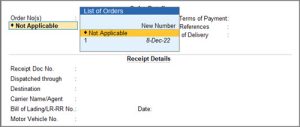
- Select Order No(s) from the List of Orders, if a purchase order exists for that supplier. If not, select Not Applicable.
- Select the Purchase Ledger.
- Specify the details in Item Allocations for screen, based on the Order Details.
- If you had selected purchase Order No(s), the stock items details are prefilled.
- If you had set Order No(s) as Not Applicable, then specify the details.
- Enter a Tracking No.
By default, the invoice number appears. You can change it by selecting New Number. - Set the Order No. to Not Applicable.
- Enter the Quantity and Rate.
- Enter a Tracking No.
- Provide Narration for the voucher, if needed, and press Ctrl+A to save.
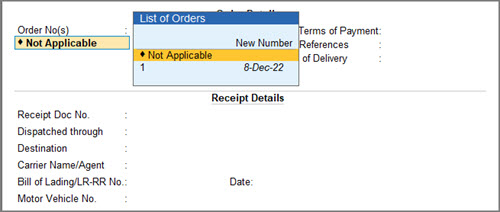
If the Tracking No. is set as Not Applicable, then the Receipt Note will act as an inventory document. This will not affect the accounts.
Record Purchase Invoices against Goods Received using Receipt Notes
If you have a receipt note that needs to be tracked against a purchase invoice, you can select the order number and tracking number.
- In a purchase voucher, press F12 (Configure) and set the option Provide Receipt, Order, and Import details to Yes.
- Specify the party details.
- Select the party ledger in the Party A/c name.
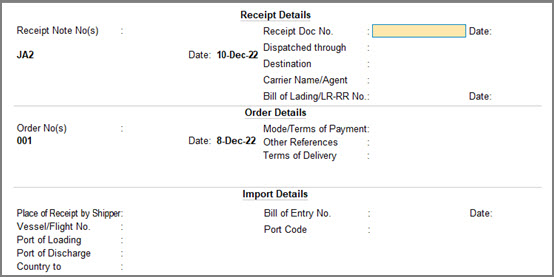
- Under Receipt Details, select the receipt note reference. The details from the receipt note reflect will reflect in the purchase voucher.
If you have generated the receipt note against a purchase order, the purchase order details also get prefilled.
- Select the Purchase ledger.
- Provide stock item details.
- Select the stock item and press Enter.
- In the Item Allocations for screen, the Tracking No. and Order No. will be auto-filled based on the receipt note and order number reference.
- Update the Quantity and Rate, if required.
- Provide Narration for the voucher, if needed, and press Ctrl+A to save.
A receipt note is closed if billed completely. If it is partially closed, the details appear in the Purchase Bill Pending report.
Track Rejected Goods Using Receipt Notes
You can record a Rejections Out voucher when you reject or return goods to your supplier after recording a Receipt Note but before recording the Purchase voucher.
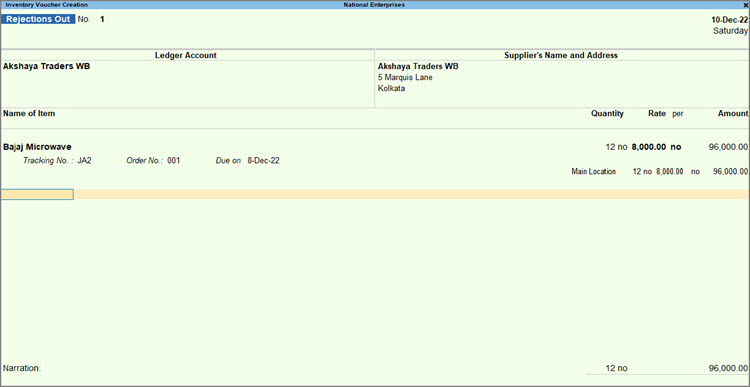
- Press Alt+G (Go To) > Create Voucher > F10 (Other Vouchers) > Rejections Out.
If Rejections Out is inactive, you will be asked to activate it. Press Enter to proceed. - Provide the party details.
- Under Ledger Account, select the supplier to whom you are returning the goods.
The Supplier’s Name and Address appear as per the ledger.
- Under Ledger Account, select the supplier to whom you are returning the goods.
- Provide the stock item details.
- Select the stock item.
- In the Item Allocations screen, select the relevant tracking number.
The details recorded in the Receipt Note with the tracking number appear. - Enter the Quantity and Rate.
To view the batch and godown details, press F12 (Configure) and enable Show Godown–wise Details.
- Provide Narration for the voucher, if needed, and press Ctrl+A to save.
Track Goods Against Purchase Orders Using Receipt Notes
When you receive goods against a Purchase Order, you can record a Receipt Note and select the Purchase Order to bring the order details into the Receipt Note.
- In the receipt note voucher, under Order Details, enter the Purchase Order No.
The purchase ledger and stock item details are prefilled based on the Purchase Order. - In the Stock Item Allocations screen, select the Tracking No. from the list or create a New Number.
The Quantity and Rate will be filled based on the purchase order number. - Provide Narration for the voucher, if needed, and press Ctrl+A to save.
In this way, Receipt Notes help you efficiently track the goods received, link them with purchase orders and invoices, and manage returns to suppliers, ensuring better control over the entire purchase cycle.
Questions & Answers
How do I record a purchase invoice with a new tracking number before receiving the goods?
You can record the purchase invoice with a new tracking number and use the same number when recording the Receipt Note.
In a purchase voucher:
- In the Item Allocations for screen, enter the New Number under Tracking No.
- Enter the Quantity and Rate. The Amount gets calculated.
- Press Ctrl+A to save.
The transaction appears under Bills Recd. but Goods not Recd. in the Purchase Bill Pending report.
How do I disable the tracking number after recording the Receipt Note?
To disable the tracking number, you have to deactivate the Receipt Note.
- Open the Receipt Note voucher type in alteration mode.
- Set Activate this Voucher Type to No.
- Press Ctrl+A to save.
The tracking number no longer appears in transactions unless you reactivate the voucher type.


