Record Point of Sale (POS) Transaction in TallyPrime
Point of Sale (POS) transactions are sales made when a customer purchases goods at a retail outlet, counter, stand, or booth. In TallyPrime, you can record POS invoices using a dedicated POS voucher type, accept payments through multiple modes, scan product barcodes, and print invoices. You can also use voucher classes to simplify POS invoice entry.

Ensure that:
- You have created the required sales ledger and stock items.
- You have created a POS Voucher Type to record POS invoices.
- A POS printer is installed and configured if you want to print POS invoices.
Record a POS Transaction
- Press Alt+G (Go To) > Create Voucher > F8 (Sales) > select the POS voucher type.
- Under Party A/c Name, select Not Applicable if the buyer details are unknown.
Otherwise, select the required party. - Select the Sales ledger.
- Select the stock item and enter the Quantity and Rate.
By default, the Quantity is set to 1. Press backspace to change it, if required. - Enter the payment details. By default, Cash appears as the mode of payment.
- To enter payment details using multiple modes, press Alt+I (Multi Mode Pymt).
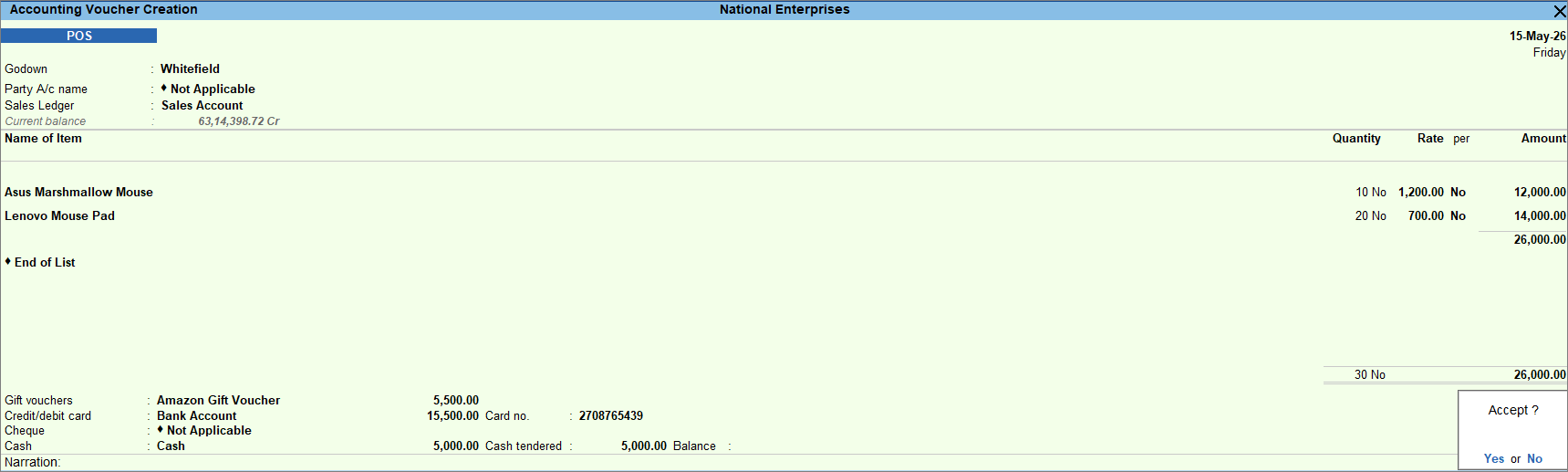
- Gift Voucher: Select the gift voucher ledger created under Sundry Debtors or Sundry Creditors.
- Credit/Debit Card or Cheque: Select the relevant bank ledger.
- Cash: Enter the Cash tendered, if applicable. The Balance amount, if any, appears.
- Enter the necessary details, and press Ctrl+A to save the voucher.
Once you have recorded the transaction, you can set up the printer and print the POS invoice. You can view the recorded transactions in POS Register.
Record POS Transactions Using a Barcode
If you scan a barcode while creating a stock item, you can scan the same barcode while recording a voucher to automatically select the corresponding stock item.
Ensure that:
- You have a barcode scanner, if you want to record transactions using barcodes.
- The barcode of the stock item is scanned in the Alias field while creating the stock item.
In the POS voucher:
- Select the party and sales account.
- In the Name of Item field, scan the barcode on the product.
The corresponding stock item appears with the Quantity, Rate, and Amount. - Enter the necessary details, and press Ctrl+A to save the voucher.
Record POS Transactions Using a Voucher Class
You can create a voucher class for a POS invoice to predefine the required payment modes and simplify invoice entry.
Ensure that you have created a Voucher Class for POS with the required modes of payment.
In the POS voucher:
- Select the required POS Voucher Class.
The modes of payment with the corresponding ledgers appear. - Enter the necessary details, and press Ctrl+A to save the voucher.
Questions & Answers
- Can I print the barcode number on the invoice?
You cannot print the barcode as a label in TallyPrime. However, you can print the barcode number on the invoice by enabling Name (Alias) under Display name for Stock Items in the printing configuration. - Can I record discounts or free items in a POS invoice?
Yes. You can record discounts and free items in a POS invoice. For the same item, enable Use separate Actual and Billed Quantity columns in invoices in F11 (Company Features). For different free items, enable Allow zero-valued transactions in the POS Voucher Type.