
e-Invoice Report in TallyPrime for UAE e-Invoicing
The e-Invoice Report helps you review transactions that require attention, resolve exceptions, and manually update e-Invoice details.

- Enable VAT & e-Invoicing.
View e-Invoice Report
- Press Alt+G (Go To) > e-Invoice.
By default, the report opens for the last three dates from the latest e-Invoice-applicable voucher entry date.
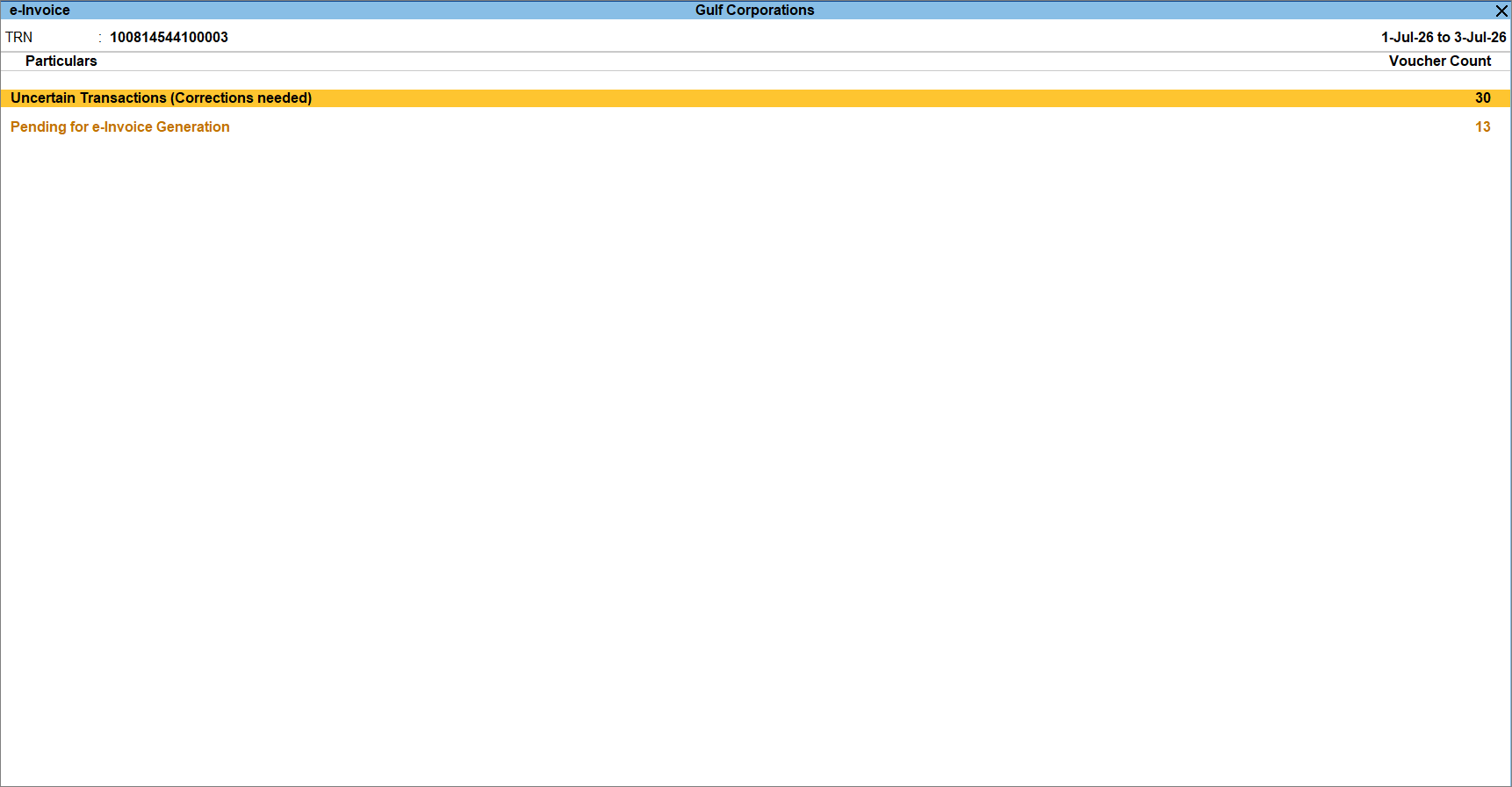
- Press F2 (Period) to change the dates for which you want to view the transactions.
- Review the transactions for correctness, as needed.
You can drill down from any section to view the underlying transactions and their details.
Resolve Uncertain Transactions (Corrections Needed)
This section displays transactions with incomplete or missing mandatory information. You can resolve them all in a few simple steps
Review Transactions Pending for e-Invoice Generation
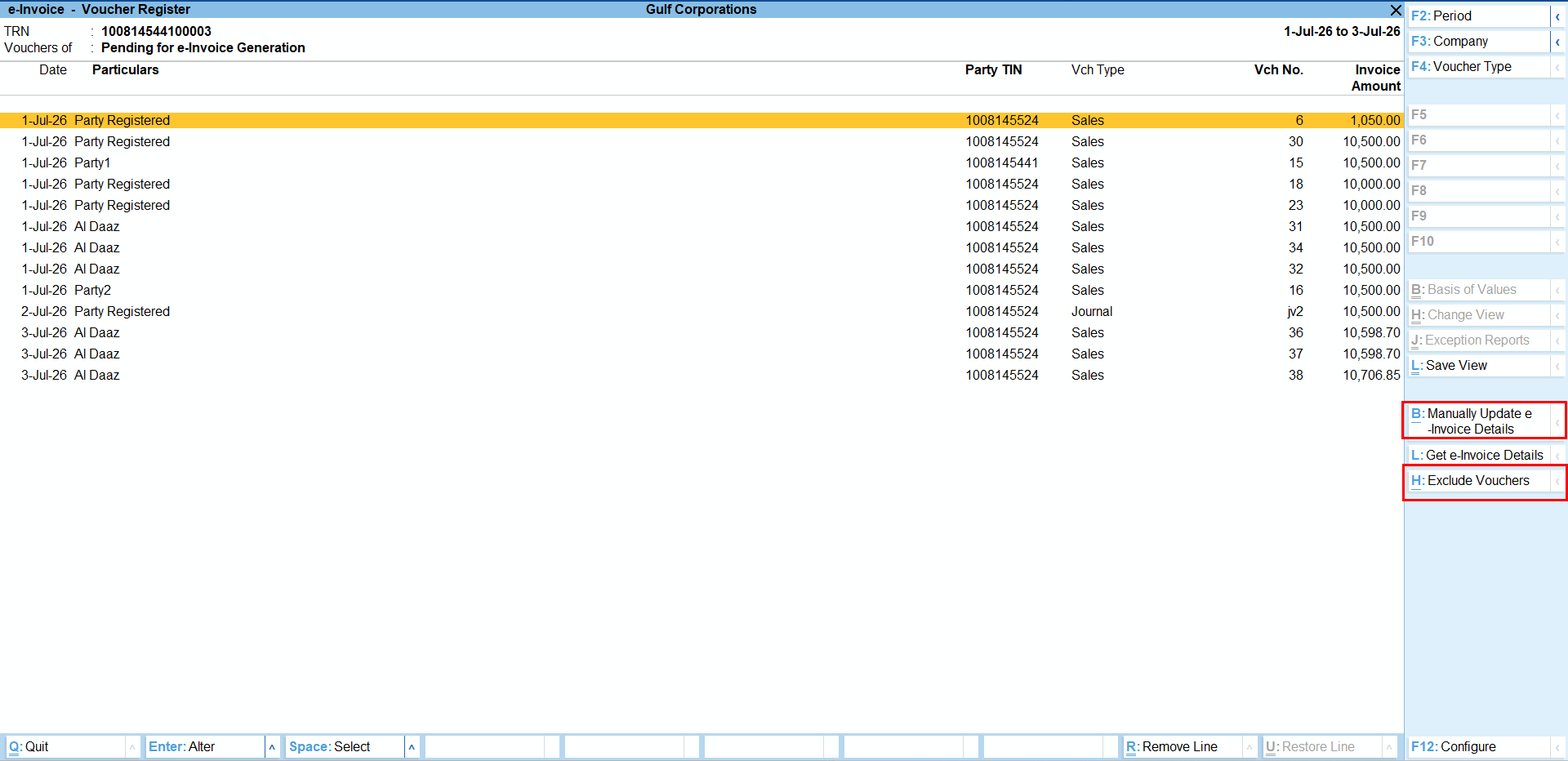
- Drill down from this section.
- Review the transactions awaiting e-Invoice exchange.
- Manually update e-Invoice Details, if required.
- Select the required transaction and press Alt+B (Update e-Invoice Details).
- Enter the following details:
- UUID: Unique invoice reference number.
- Date of Exchange: Date on which the invoice was exchanged with the e-Invoicing System.
- Time of Exchange: Time at which the invoice was exchanged with the e-Invoicing System.
- Accept the screen.
The transaction is moved to the e-Invoice Manually Updated section.
- Exclude a Transaction from e-Invoice Generation, if required.
- Select the required transaction and press Alt+H (Exclude Voucher).
The transaction is moved to the User-Excluded Transactions section.
- Select the required transaction and press Alt+H (Exclude Voucher).
Invoice upload is currently not supported from TallyPrime. Therefore, clicking the Get e-Invoice Details option does not retrieve invoice status from the e-Invoicing system.
Questions & Answers
-
Why is my e-Invoice report blank?
This can happen when:- No e-Invoice-eligible vouchers exist for the selected period.
- The e-Invoice Applicable Date falls outside the selected period.
- e-Invoicing is not enabled for the company.
-
My e-Invoice applicable date is 1 July 2026, but some older vouchers do not appear in the e-Invoice report. Why?
This can happen if e-Invoicing was enabled after the vouchers were created or if the e-Invoice applicable date was changed later.
When e-Invoicing is enabled, TallyPrime automatically updates only the recent vouchers (up to the last 14 days). Older vouchers may not be updated automatically and therefore may not appear in the e-Invoice report.
To include such vouchers in the report, open and re-save the affected vouchers. The vouchers will now be considered for e-Invoicing and appear in the e-Invoice report, if applicable.


