
Generate Bulk e-Invoice
You can generate an e-Invoice while recording a transaction or generate it later in bulk using the Exchange menu in TallyPrime.
The Send for e-Invoicing report helps you view and select transactions pending for e-Invoice generation before sending them for exchange. By default, the report opens for the last three dates from the latest e-Invoice-applicable voucher entry date.


Ensure that:
- VAT & e-Invoicing are enabled for your company.
- Your business is registered on the FTA portal.
- e-Invoicing Registration is completed from TallyPrime.
- Transactions eligible for e-Invoice generation are recorded with VAT & e-Invoice details.
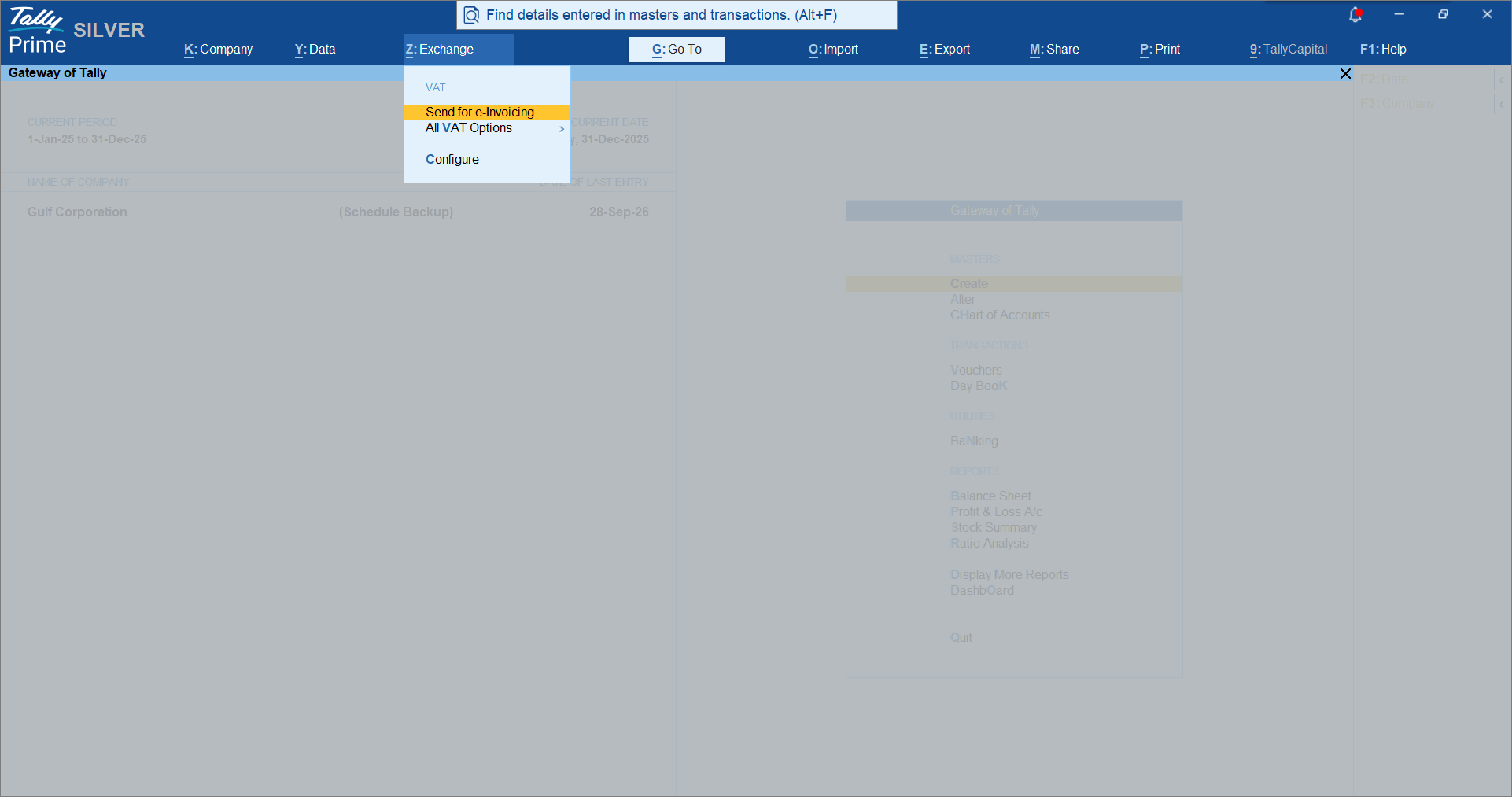
- Press Alt+Z (Exchange) > Send for e-Invoicing.
- In the Send for e-Invoicing screen, view the transactions pending for e-Invoice generation.
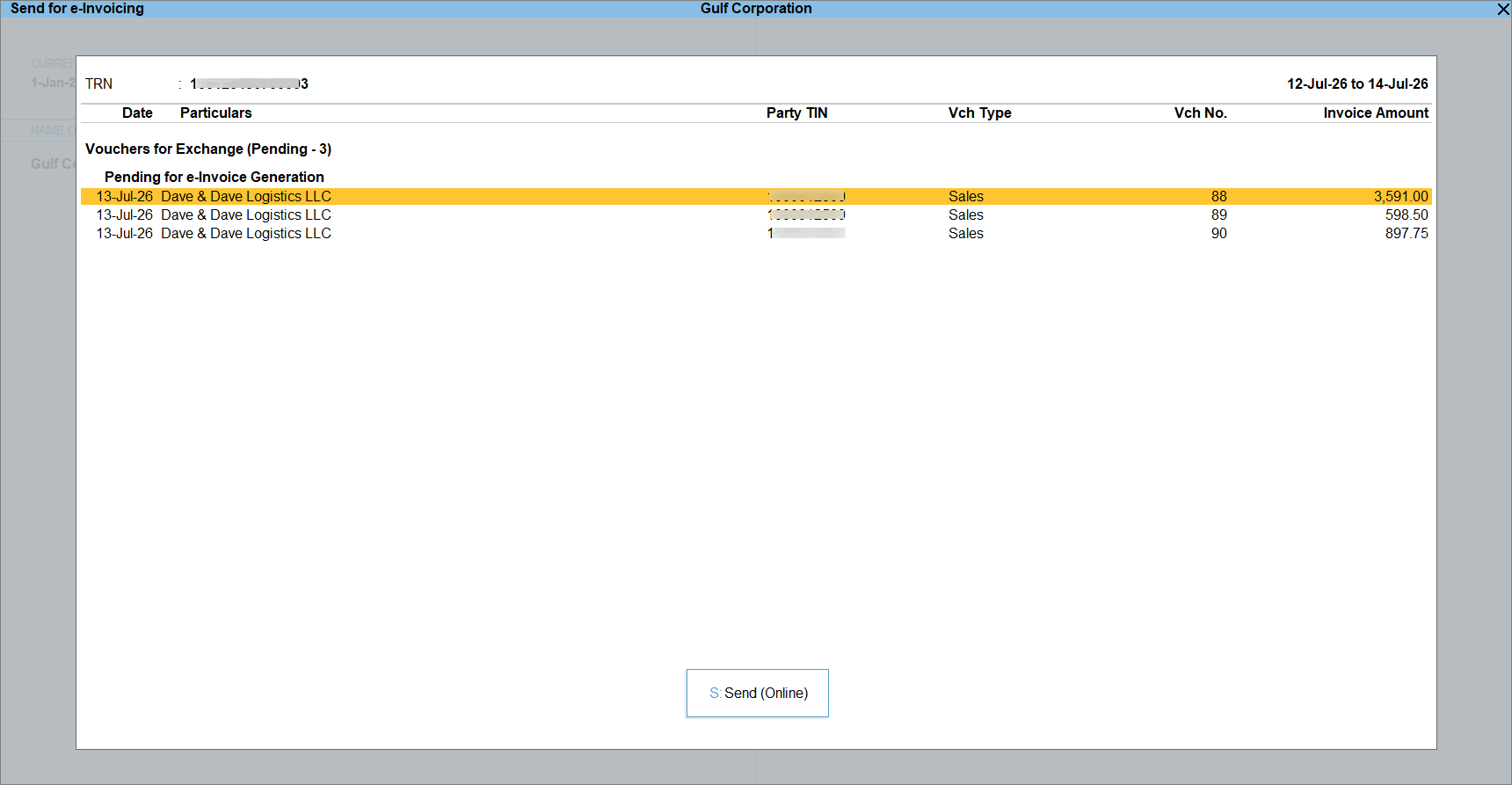
By default, the report displays vouchers with the Pending status. - Press Ctrl+B (Basis of Values) and enable the required options, as needed:
- Include vouchers rejected for e-Invoicing: Displays vouchers that were rejected during e-Invoice exchange.
- Include vouchers for which e-Invoice generation is in progress: Displays vouchers currently being processed for e-Invoice generation.
- Select the required transactions and press S (Send) to send the details for e-Invoicing.
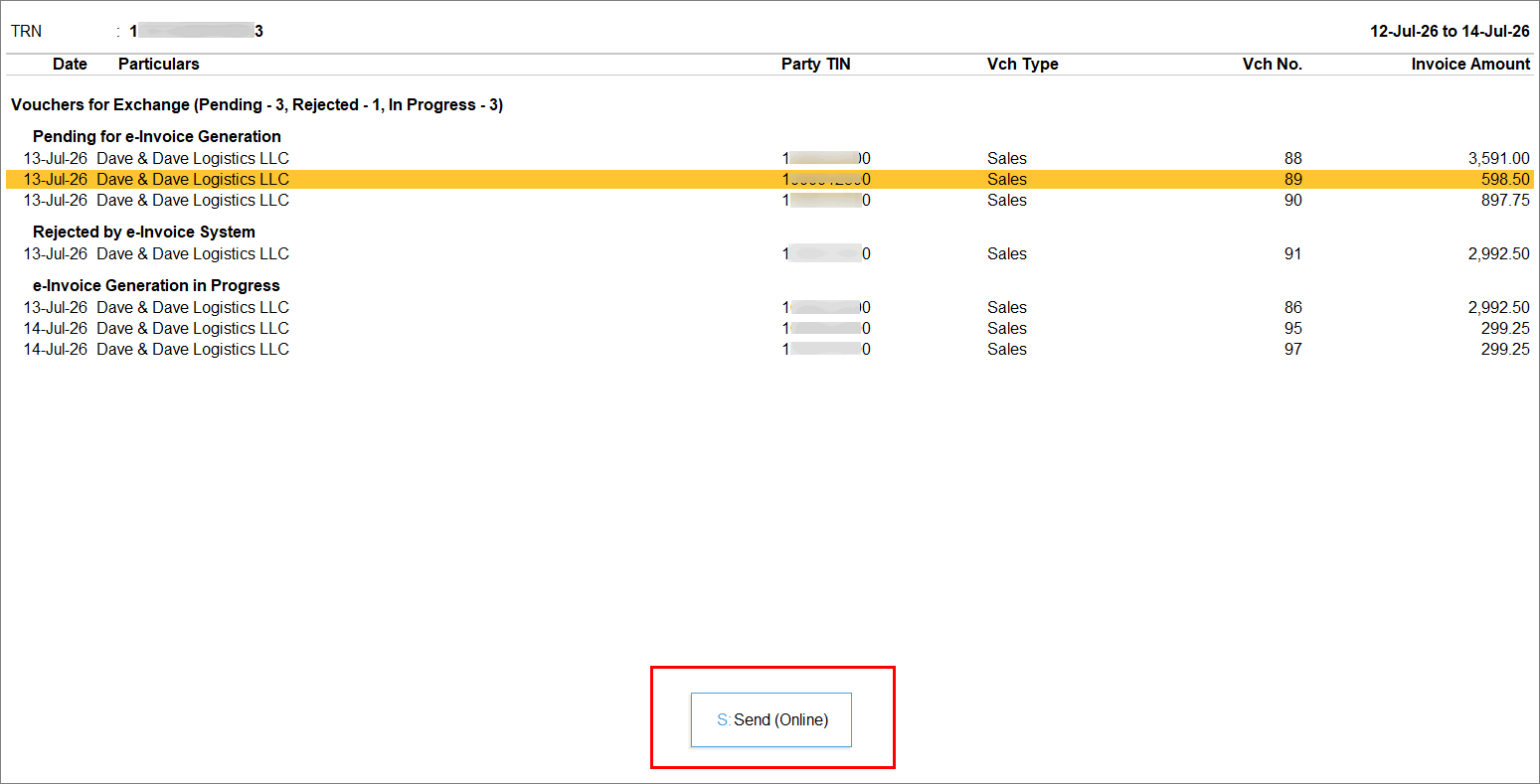
If you press S without selecting any transaction, then all the transactions in the report will be sent for e-Invoicing.
A confirmation screen appears, displaying the number of transactions queued for e-Invoice generation. - Press Yes to continue.
Is this information useful?
YesNo


