
e-Invoice Report in TallyPrime for UAE e-Invoicing
The e-Invoice Report helps you review transactions that require attention, resolve exceptions, and manually update e-Invoice details.

- Enable VAT & e-Invoicing.
View e-Invoice Report

For TallyPrime 7.1,
- Press Alt+G (Go To) > e-Invoice.
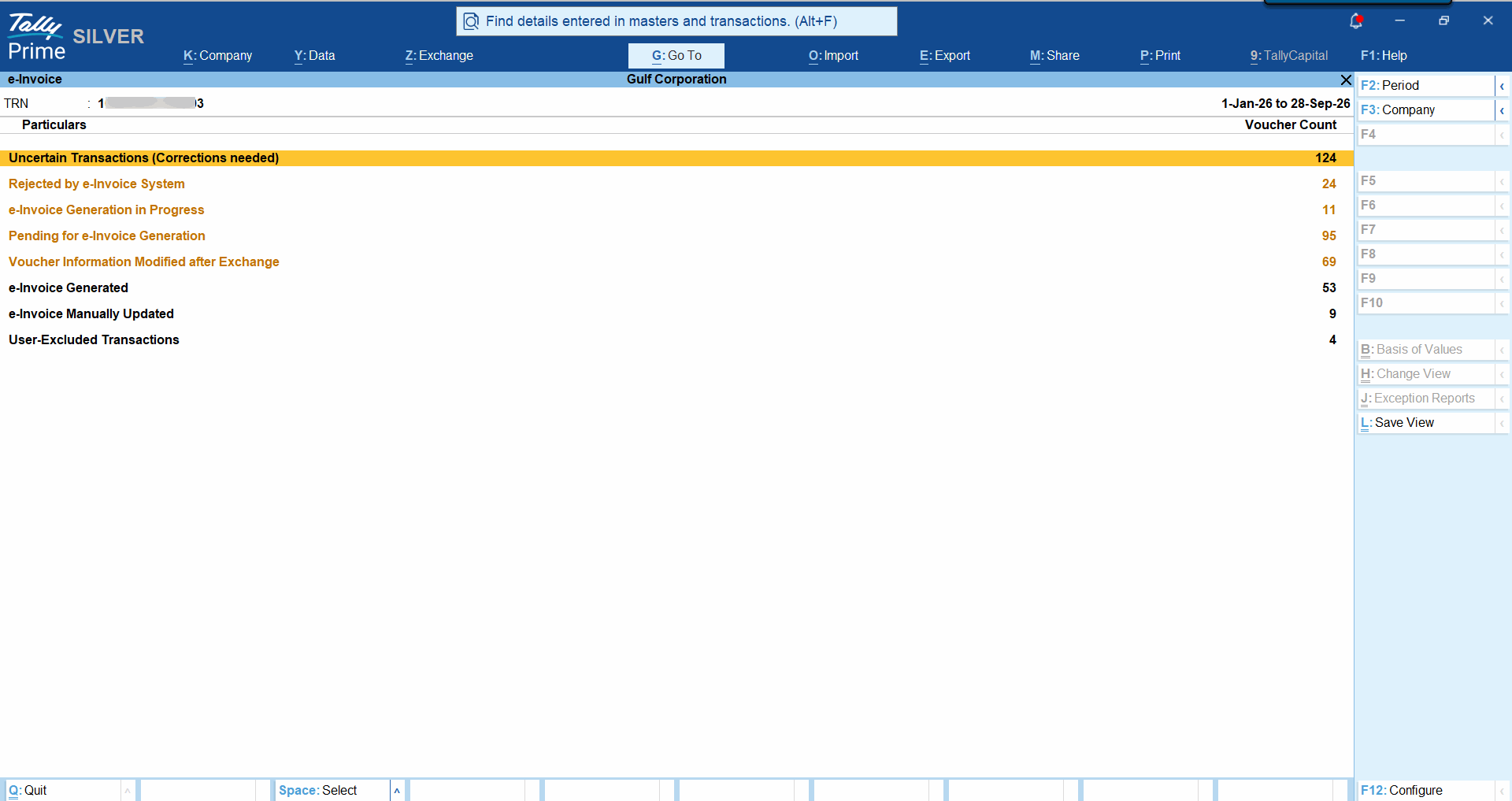
By default, the report opens for the last three dates from the latest e-Invoice-applicable voucher entry date. - Press F2 (Period) to change the dates for which you want to view the transactions.
- Review the transactions for correctness, as needed.
You can drill down from any section to view the underlying transactions and their details.
Resolve Uncertain Transactions (Corrections Needed)
This section displays transactions with incomplete or missing mandatory information. You can resolve them all in a few simple steps
Review Transactions Pending for e-Invoice Generation
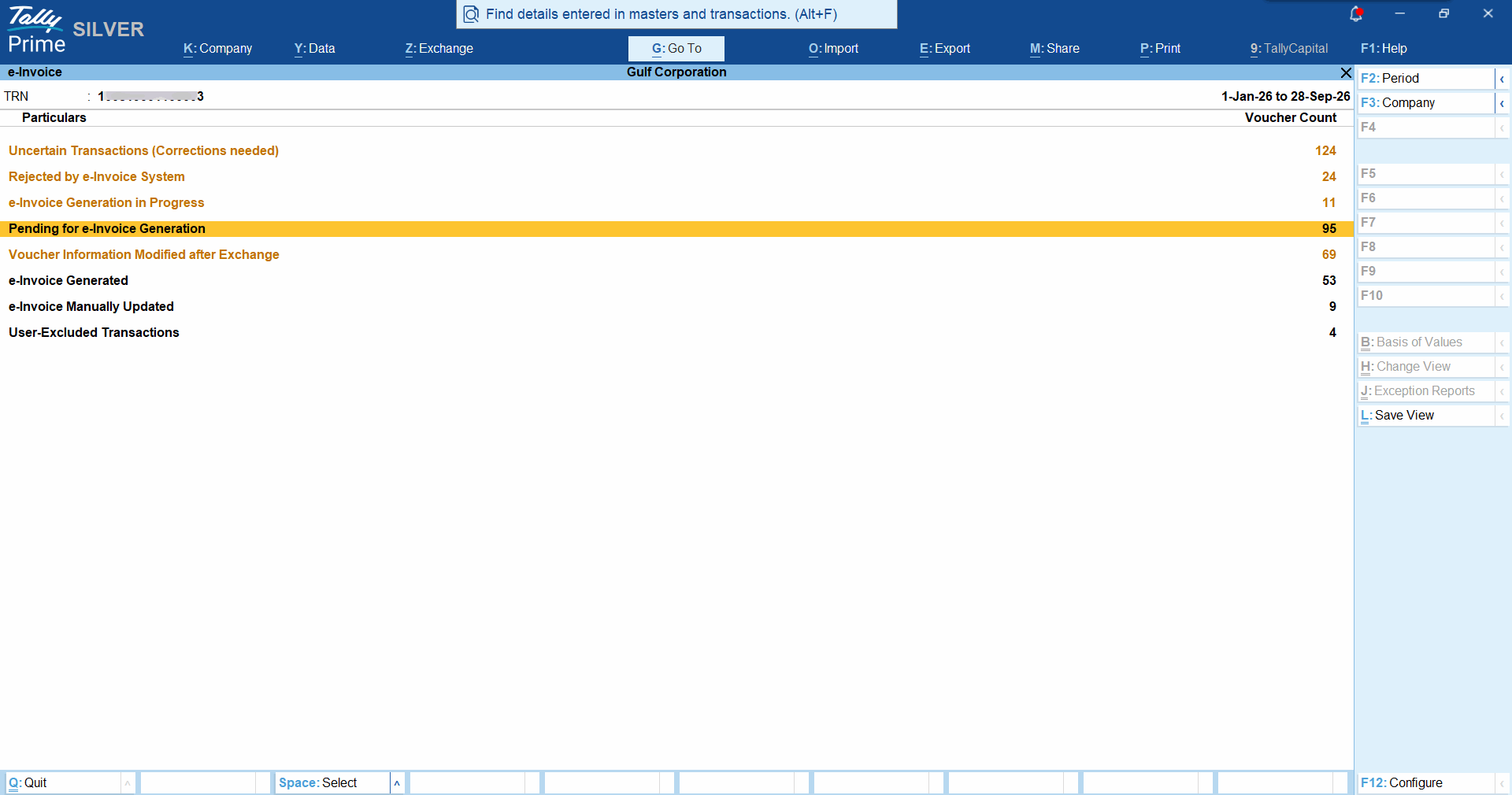
- Drill down from this section.
- Review the transactions awaiting e-Invoice exchange.
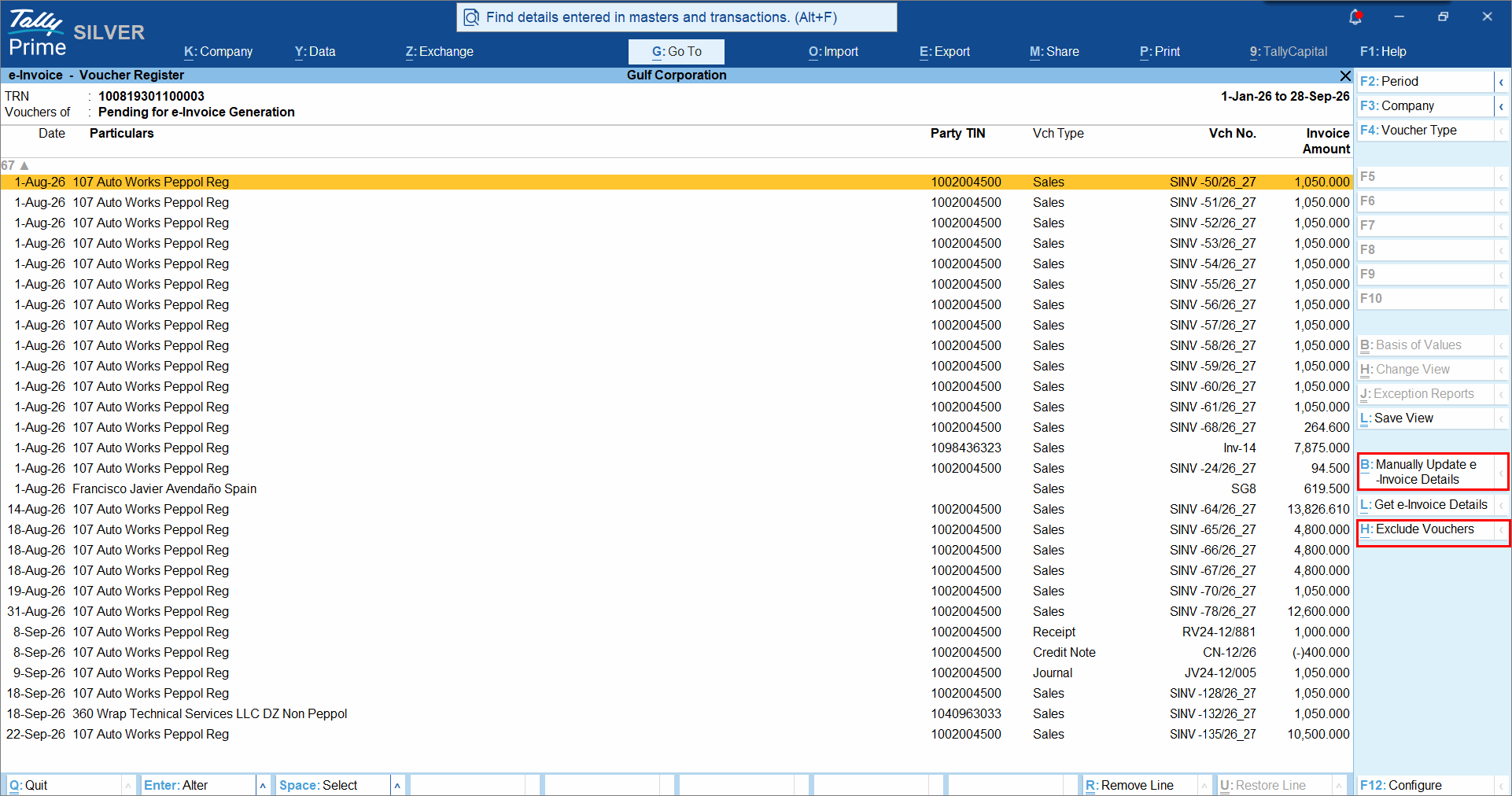
- Manually update e-Invoice Details, if required.
- Select the required transaction and press Alt+B (Update e-Invoice Details).
- Enter the following details:
- UUID: Unique invoice reference number.
- Date of Exchange: Date on which the invoice was exchanged with the e-Invoicing System.
- Time of Exchange: Time at which the invoice was exchanged with the e-Invoicing System.
- Accept the screen.
The transaction is moved to the e-Invoice Manually Updated section.
- Exclude a Transaction from e-Invoice Generation, if required.
- Select the required transaction and press Alt+H (Exclude Voucher).
The transaction is moved to the User-Excluded Transactions section.
- Select the required transaction and press Alt+H (Exclude Voucher).
Use the Send for e-Invoicing report to review transactions pending for e-Invoice generation and make necessary corrections to avoid rejections from portal.
e-Invoice Generation in Progress
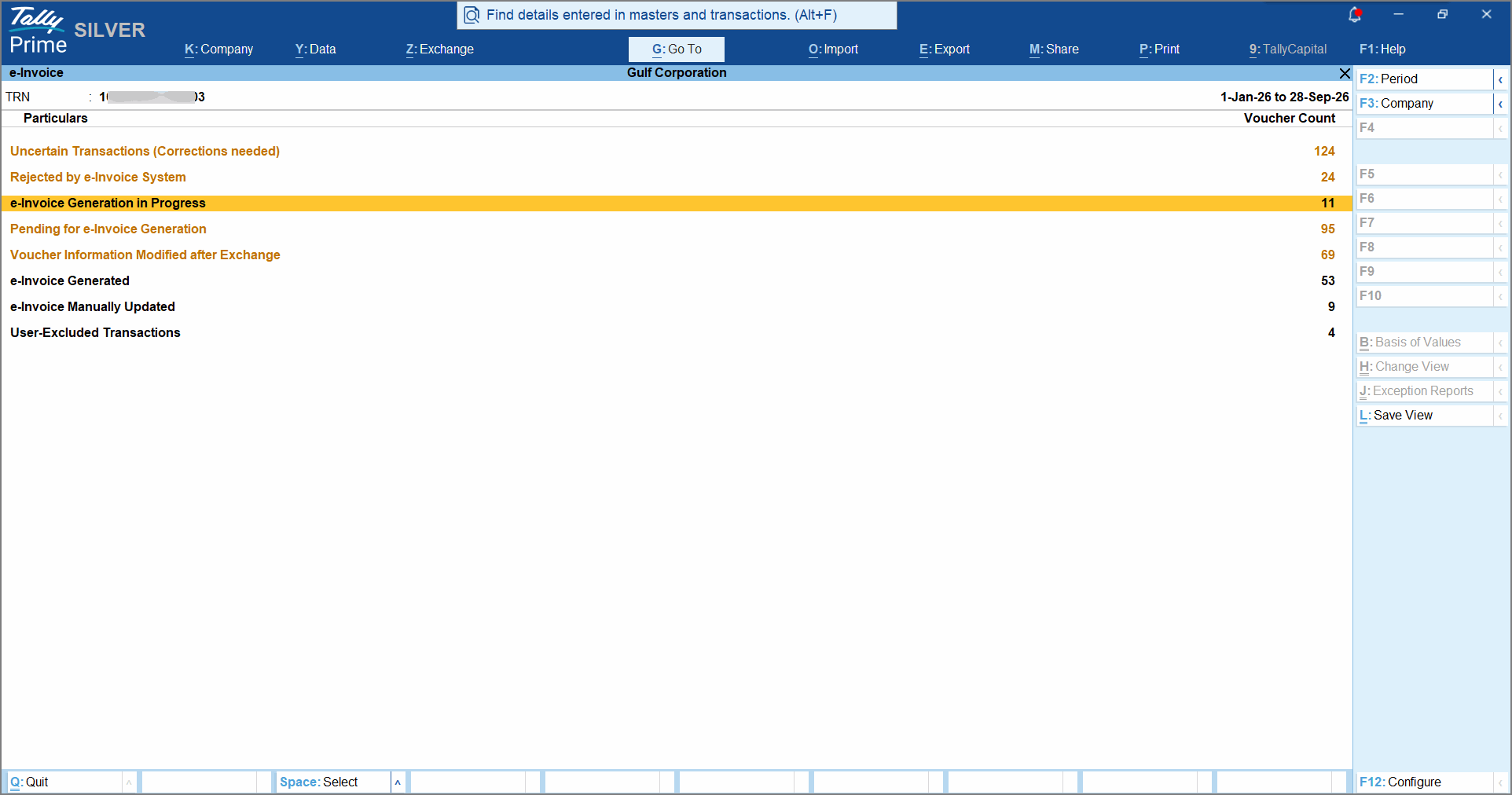
Displays vouchers that have been exchanged with the e-Invoice System but are yet to be processed.
- Drill down from this section.
The report displays vouchers for which the e-Invoice status is yet to be received from the e-Invoice System. - To view the exchange status from all available corners, press F12 (Configure) > enable Show Exchange Status and Show Status of all corners.
The C2 (Tally ASP), C3 (Buyer ASP), and C5 (Tax Authority) columns are displayed.
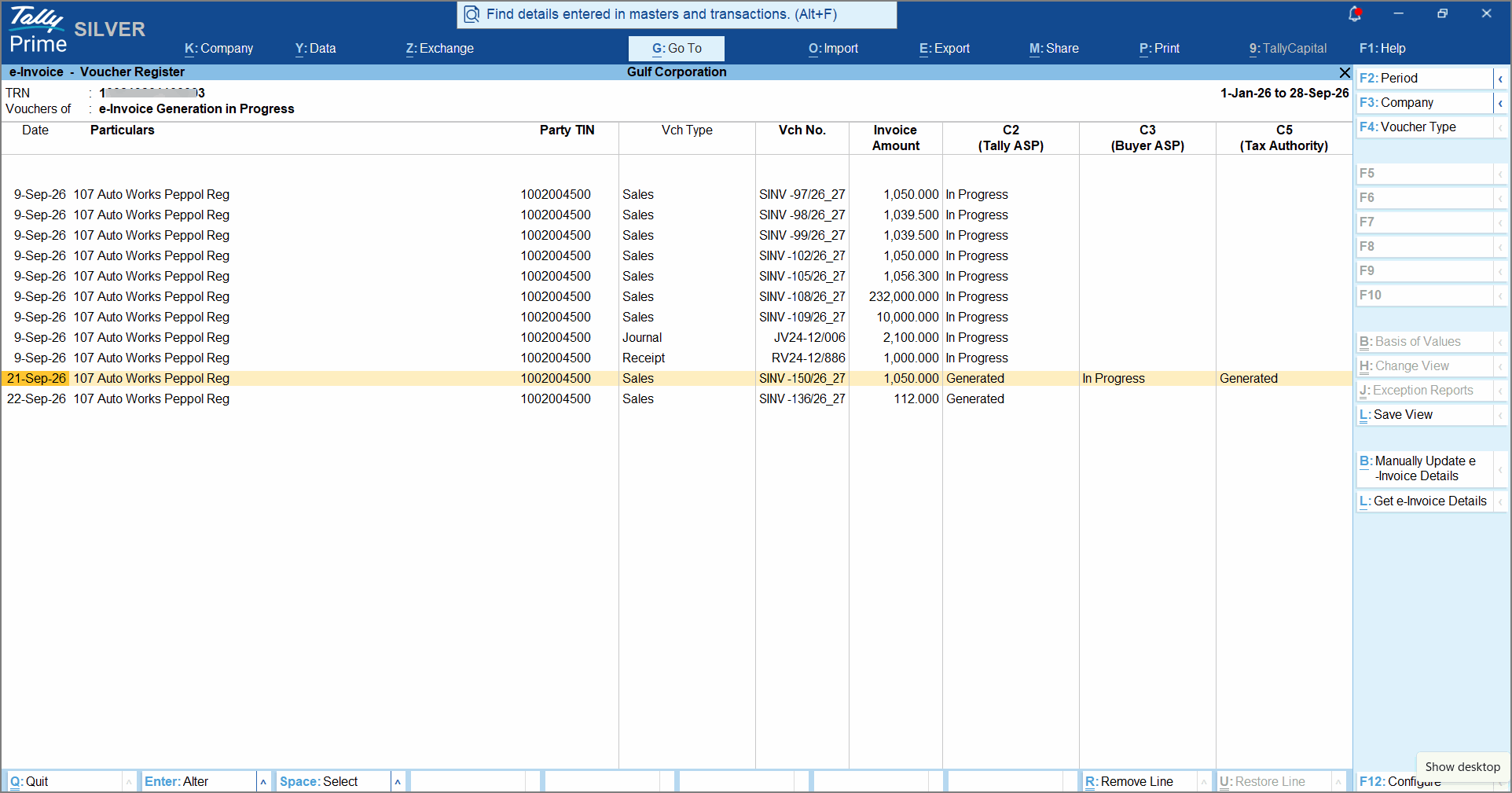
- Press Ctrl+L (Get e-Invoice Details) to fetch the latest status from the e-Invoice System.
- When prompted to get the latest status for the selected voucher, select Yes.
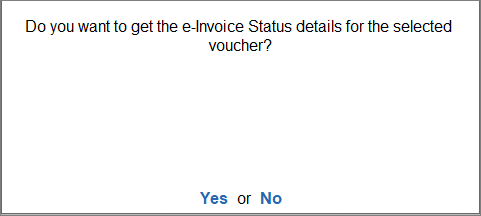
TallyPrime fetches the latest status from the e-Invoice System and displays the Exchange Summary.
The voucher is moved from e-Invoice Generation in Progress to e-Invoice Generated.
e-Invoice Generated
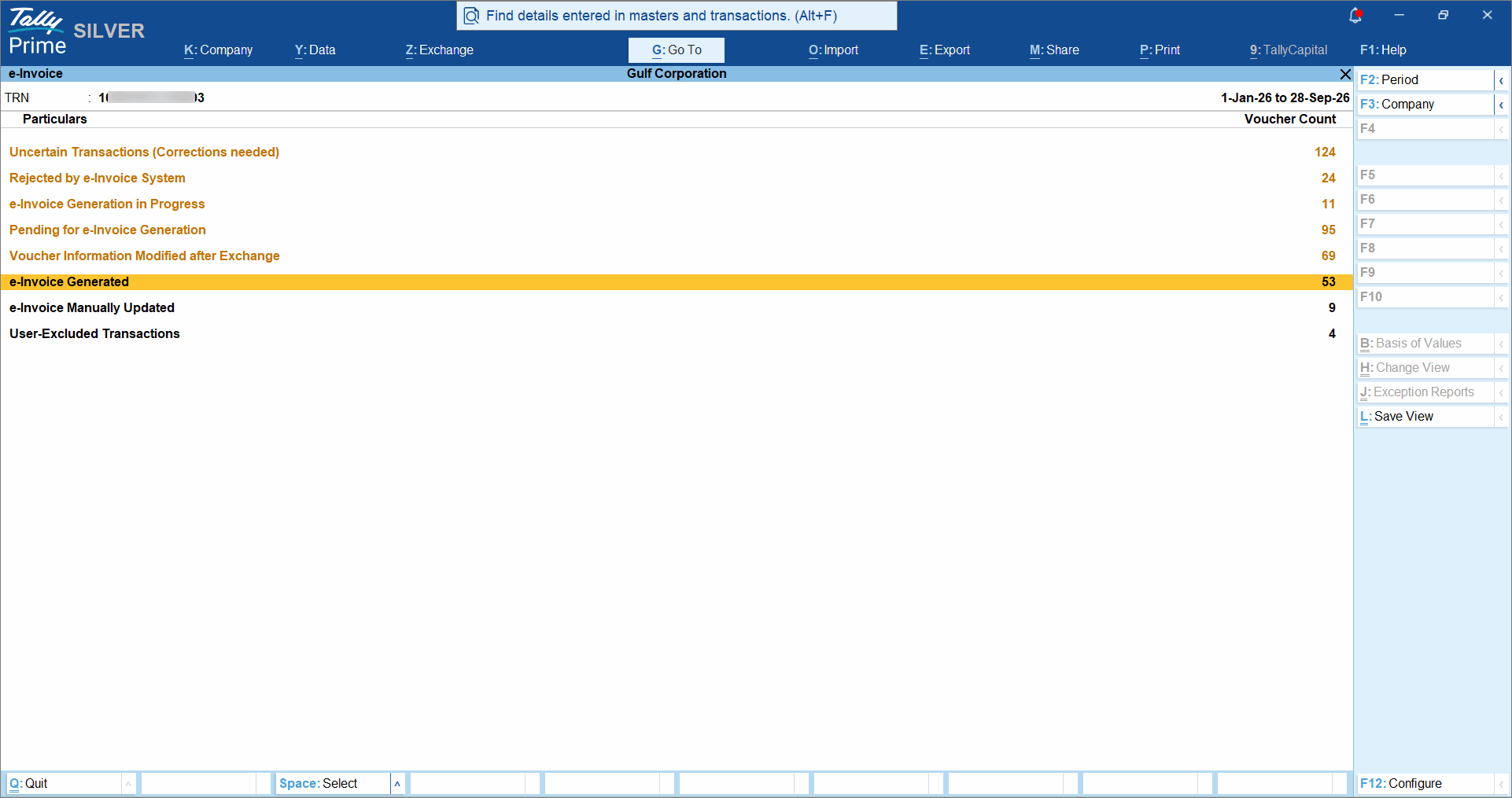
Displays vouchers that have been successfully exchanged with the e-Invoice System.
- Drill down from this section.
- Press Alt+F5 to view the e-Invoice details of the vouchers.
Voucher Information Modified after Exchange
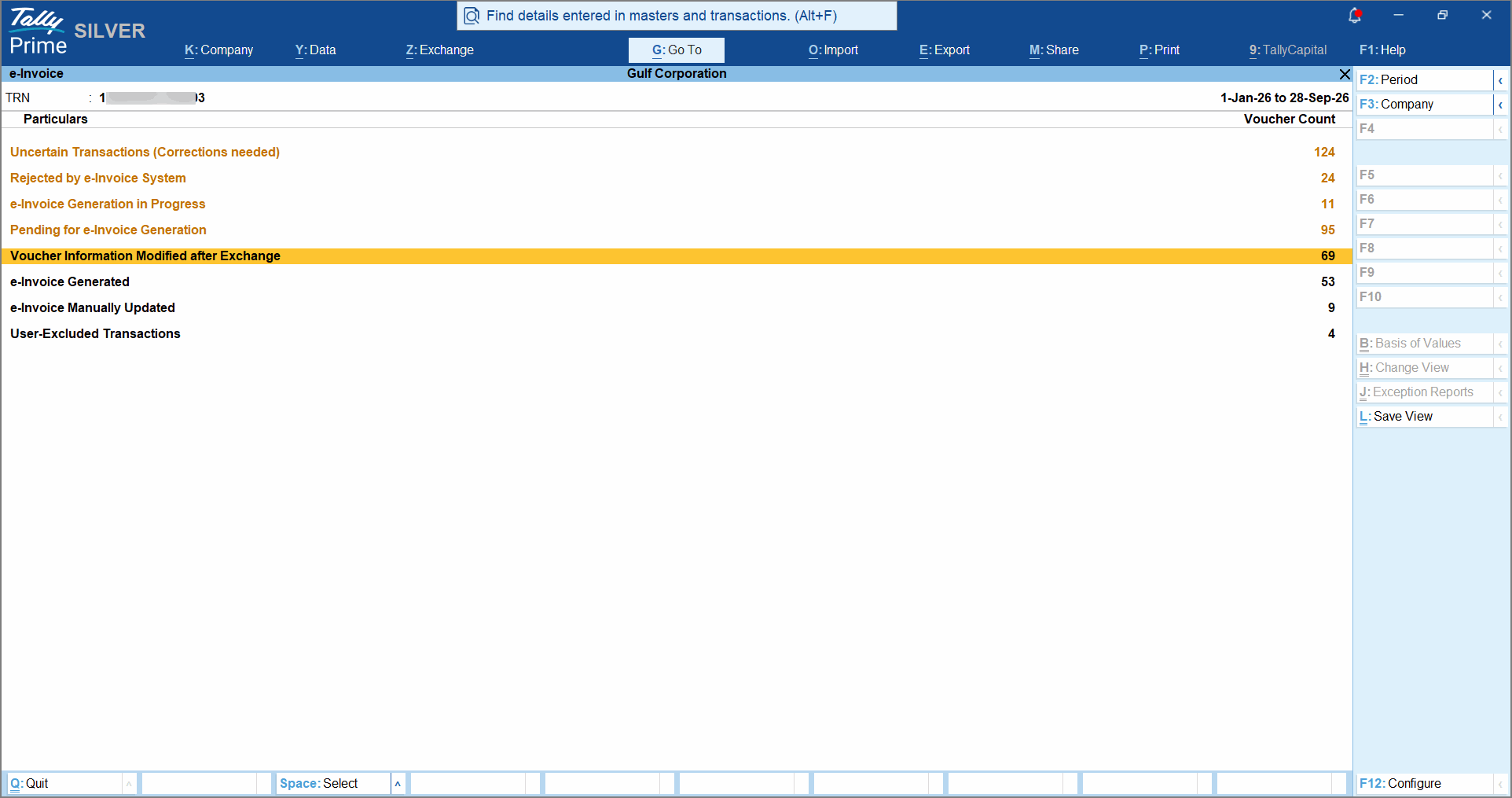
Displays vouchers that were successfully exchanged with the e-Invoice System, but certain details were modified later in TallyPrime.
Each voucher shows two sections. The top section displays the current voucher information and highlights changes in red. The bottom section displays the voucher with the original exchanged information.
- Select the required voucher and drill down to the Accounting Voucher Alteration screen.
- Enter the correct details in the voucher.
The voucher will move to the e-Invoice Generated section.
Rejected by e-Invoice System
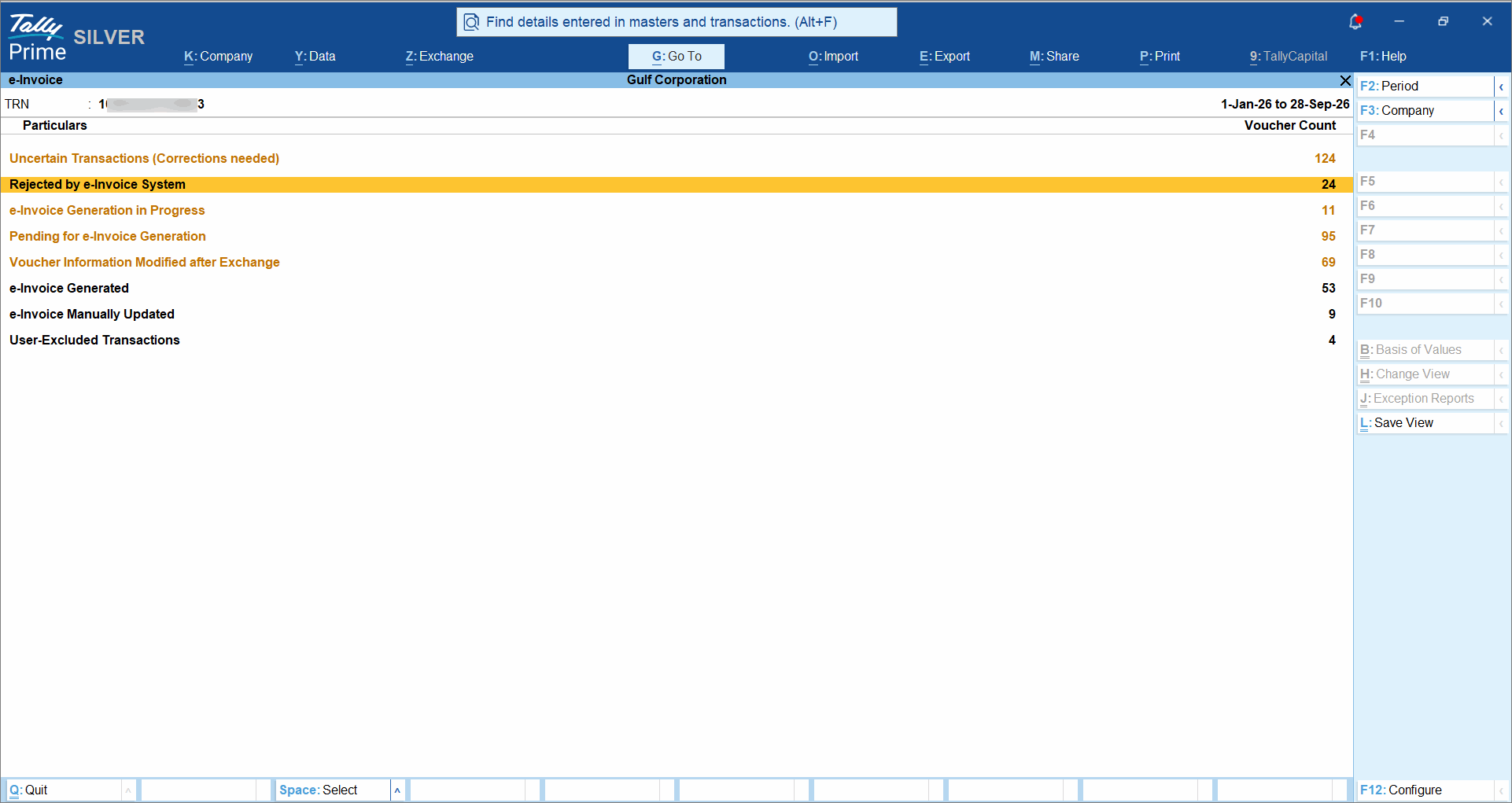
Displays vouchers that were rejected by the e-Invoice System, along with the reasons for rejection.
- Drill down from this section.
- Review the rejection reason displayed for each voucher, drill down to open the Accounting Voucher Alteration screen, and correct the required details in the voucher.
- Save the voucher to exchange with the e-Invoice System.
- To view the exchange status from all available corners, press F12 (Configure) > enable Show Exchange Status and Show Status of all corners.
The C2 (Tally ASP), C3 (Buyer ASP), and C5 (Tax Authority) columns are displayed. - Review the exchange status and rejection reason received from each corner.
Questions & Answers
-
Why is my e-Invoice report blank?
This can happen when:- No e-Invoice-eligible vouchers exist for the selected period.
- The e-Invoice Applicable Date falls outside the selected period.
- e-Invoicing is not enabled for the company.
-
My e-Invoice applicable date is 1 July 2026, but some older vouchers do not appear in the e-Invoice report. Why?
This can happen if e-Invoicing was enabled after the vouchers were created or if the e-Invoice applicable date was changed later.
When e-Invoicing is enabled, TallyPrime automatically updates only the recent vouchers (up to the last 14 days). Older vouchers may not be updated automatically and therefore may not appear in the e-Invoice report.
To include such vouchers in the report, open and re-save the affected vouchers. The vouchers will now be considered for e-Invoicing and appear in the e-Invoice report, if applicable.


