
Generate e-Invoice
In TallyPrime, you can record sales transactions with VAT and e-Invoice details, including discounts and additional charges wherever applicable. You can also include reasons for any applicable discounts, allowances, or charges in the transactions, making it e-Invoicing compliant.
For TallyPrime 7.1, 

-
Enable VAT & e-Invoicing.
-
Ensure that your business is registered on the FTA portal.
While recording a sales transaction,
- Select the Party A/c Name.
- In the Party Details sub-form review the party details.
- Set Provide Party details for e-Invoicing to Yes.
- In the Party Details for e-Invoice sub-form review the e-Invoice details and update as needed.
- Enter the Quantity, Rate, Discount (if applicable) and Amount.
- In the Tax Details screen, select the Nature of Transaction and the Reason for allowance.
- Select the applicable ledgers like Discount, Charge and VAT.
- Provide VAT & e-Invoice details.
- Set Provide VAT & e-Invoice details to Yes.
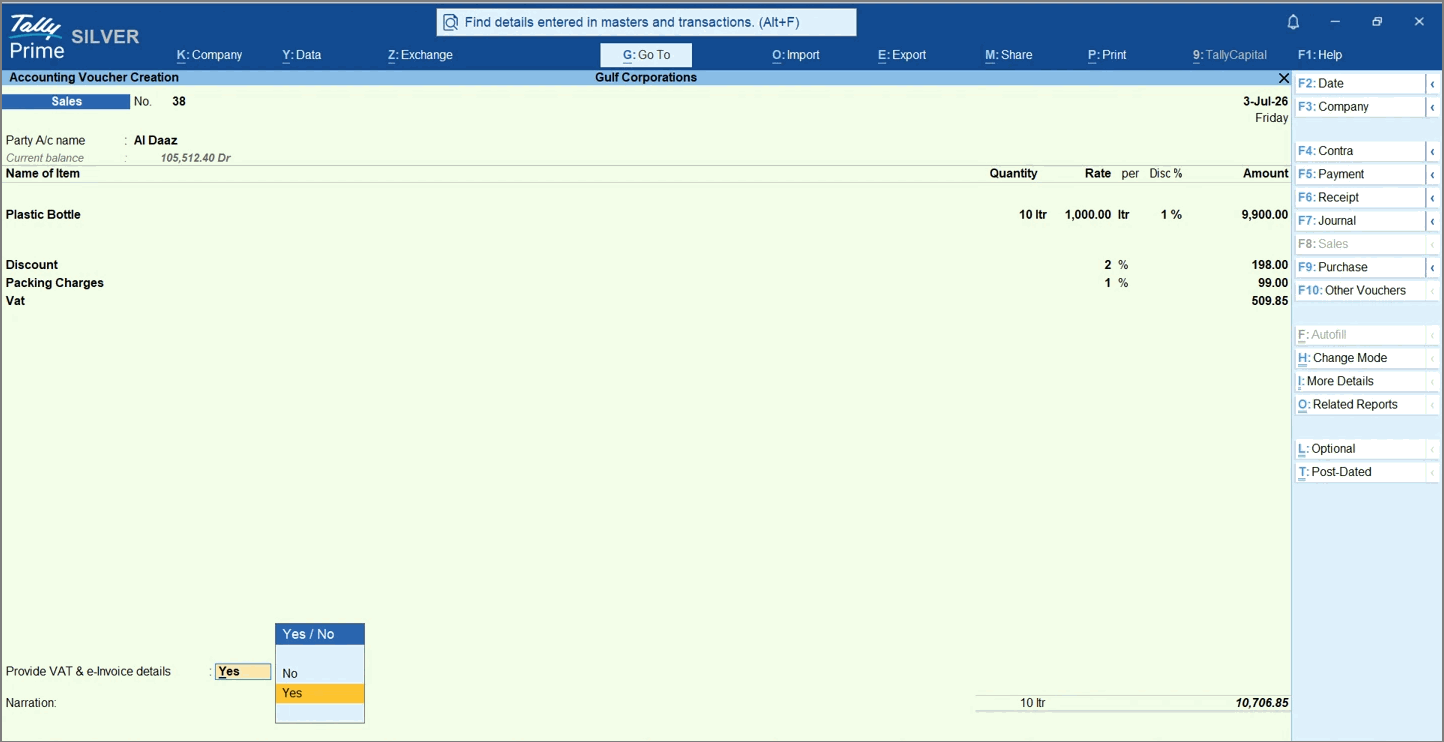
- Enter the VAT Details.
- Is Overseas Tourist: Set this to Yes if the customer qualifies as an overseas tourist.
- View the e-Invoice Details after the invoice is successfully exchanged with the e-Invoicing system.
- UUID displays the unique reference assigned to the invoice.
- Date of Exchange and Time of Exchange display when the invoice was exchanged with the e-Invoicing System.
- Review the Bill Details.
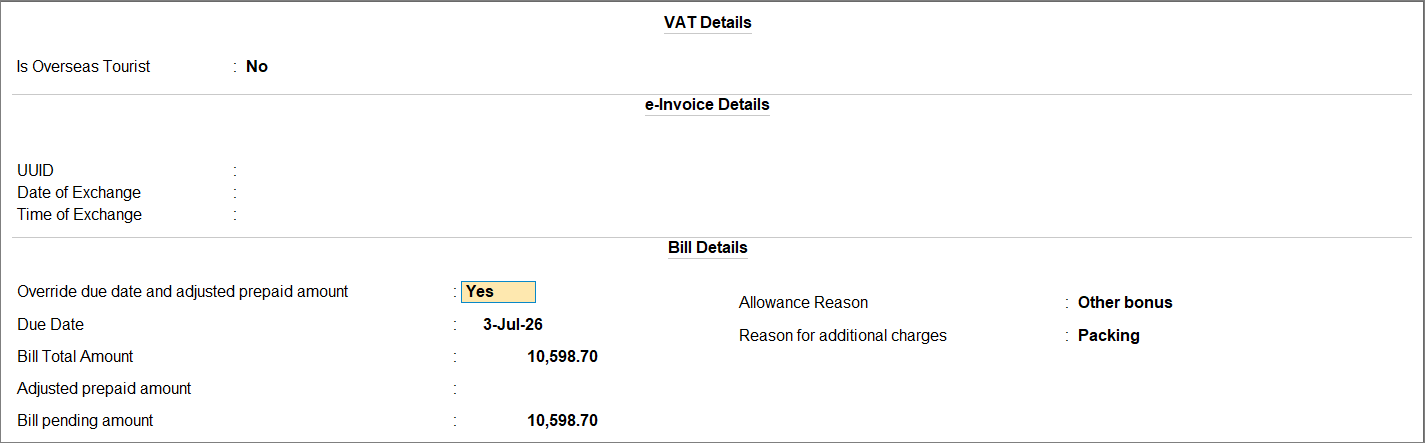
These details appear if Enable Bill-wise entry is disabled in F11 (Company Features).- Override due date and adjusted prepaid amount: Set this to Yes to modify the due date or prepaid amount for the invoice.
- Due Date: By default, this is set to the voucher date. You can change it when you enable Override due date and adjusted prepaid amount.
- Bill Total Amount: Displays the total invoice amount.
- Adjusted prepaid amount: Displays the prepaid amount adjusted against the invoice.
- Bill pending amount: Displays the balance amount payable.
- Allowance Reason: If any discount or allowance is applicable, select the appropriate reason from the List of Reasons.
The selected reason explains why the allowance or discount has been provided and forms part of the e-Invoice details. - Reason for additional charges: If any additional charges are applicable, select the appropriate reason from the List of Reasons.
- Press Ctrl+A to accept the VAT Details screen.
- Set Provide VAT & e-Invoice details to Yes.
- Press Ctrl+A to save the voucher.
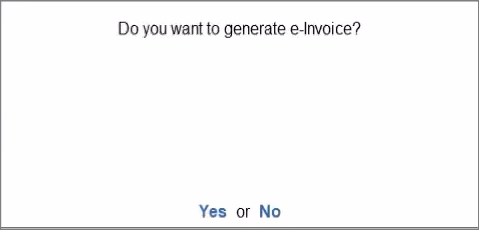
- If you want to exchange the voucher immediately, select Yes.
The details are sent to the e-Invoice system. - If you want to review and exchange the voucher later along with other pending transactions, select No.
- Press F12 (Configure) and set Send e-Invoice details after saving voucher to No to always review your transactions and do a bulk exchange anytime later.
If you have received an advance from your customer, you can record and adjust the advance receipt while creating the sales invoice.
TallyPrime 7.1 did not support e-Invoice generation from TallyPrime.
Questions & Answers
- Why do I need to specify an Allowance Reason and Reason for additional charges?
e-Invoicing in UAE requires a reason whenever a discount, charge, or excise amount affects the invoice value.
To comply with this requirement, TallyPrime allows you to define the Allowance Reason for discount ledgers and Reason for additional charges for charge and excise ledgers. These reasons are included in the e-Invoice exchanged with the e-Invoicing system.
If a valid reason is not specified and the ledger is used in a transaction, the invoice may appear in the Uncertain Transaction section of the e-Invoice report. Such transactions will not be exchanged until the required information is provided.
- Which Voucher Types can be recorded with e-Invoice Details?
You can record the following vouchers with e-Invoice Details:- Sales
- Credit Notes
- Debit Notes
- PoS Invoices
- Journal vouchers used for B2B sales transactions
- Payment vouchers used for B2B sales transactions
- Receipt vouchers used for B2B sales transactions
Is this information useful?
YesNo


