Pre-close Sales Order in TallyPrime
In TallyPrime, you can pre-close Sales Orders when the remaining quantity is no longer required by the customer or will not be fulfilled. You can partially or completely pre-close a Sales Order from the voucher or the Sales Order Outstandings report. You can also record the delivered quantity and pre-close the remaining quantity while creating a Delivery Note.

- Ensure that you have recorded the Sales Orders that you want to pre-close.
Pre-close Sales Orders from Vouchers
You can partially or completely pre-close a Sales Order from Day Book by specifying the quantity and reason for pre-closure.
- Press Alt+G (Go To) > type or select Day Book.
- Select the required Sales Order voucher and press Enter.
- Press F12 (Configure) and set Provide details to preclose orders to Yes.
- Pre-close an order partially.
- In the Stock Item Allocations screen, enter the Pre-Close Quantity and Reason for Pre-Close.
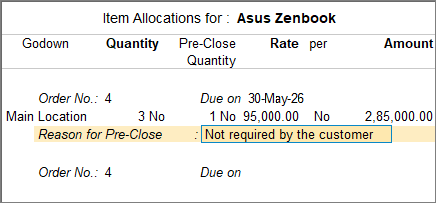
- Press Ctrl+A to save.
- In the Stock Item Allocations screen, enter the Pre-Close Quantity and Reason for Pre-Close.
- Pre-close an order completely.
- Open the required Sales Order in alteration mode.
- Press Alt+W (Pre-Close Quantity).

- Enter the Reason and Closed on date.
- Press Ctrl+A to save the voucher.
Pre-close Sales Orders from Delivery Note
If you deliver only part of the ordered quantity and the customer no longer requires the remaining goods, you can record the delivered quantity and pre-close the balance while creating the Delivery Note. When the Delivery Note is recorded against a Sales Order, pre-closing the remaining quantity in the Delivery Note also updates the Sales Order accordingly.
In the Delivery Note:
- Press F12 (Configure) > set the option Provide details to preclose orders to Yes.
- In the Party Details screen, under Order Details, enter the Order No(s).
The sales ledger and stock item details are prefilled based on the Sales Order. - In the Stock Item Allocations screen, select the Tracking No. from the list or create a New Number.
The quantity and rate will be filled based on the sales order number. - Enter the Quantity delivered, the Pre-Close Quantity, and the Reason for Pre-Close.
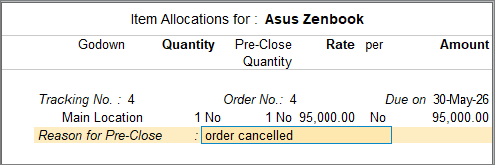
- Enter the necessary details, and press Ctrl+A to save the voucher.
Pre-close Sales Orders from Reports
You can also pre-close Sales Orders directly from the Sales Orders (Due Only) report. This allows you to review outstanding orders and partially or completely pre-close them.
- Press Alt+G (Go To) > type or select Sales Orders (Due Only).
- Press F12 (Configure) and set the following options to Yes:
- Show Cleared Sales Orders
- Show Preclosure Order details
- Show Reason
- Pre-close an order partially.
- Select the required Sales Order and press Alt+W (Preclose Orders).
- Enter the Pre-Close Quantity and Reason for Pre-Close.
The Nett Balance column will display the balance quantity.

- Press Ctrl+A to save.
- Pre-close an order completely.
- Select the required Sales Order and press Alt+W (Preclose Orders).
- Press Alt+W (Set Quantity).
- Verify or modify the Pre-Close Quantity and enter the Reason for Pre-Close.
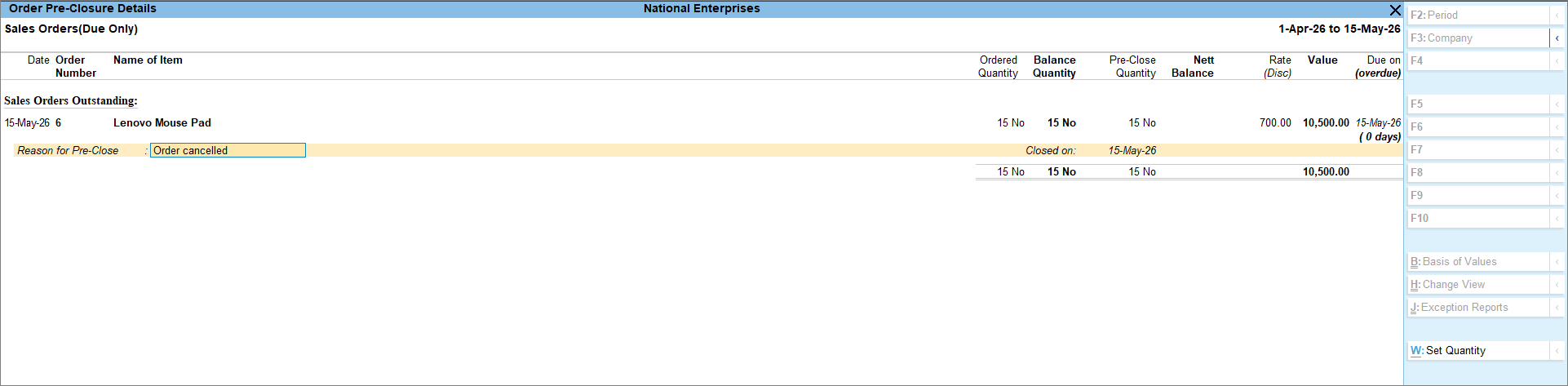
- Press Ctrl+A to save.
Questions & Answers
- Can I pre-close multiple Sales Orders at the same time?
Yes. In the Sales Orders (Due Only) report, press Spacebar to select multiple Sales Orders and then press Alt+W (Preclose Orders) to pre-close them together. - How to re-open the pre-closed quantity?
To re-open the pre-closed quantity:- Press Alt+G (Go To) > type or select Sales Orders (Due Only).
- In the Order Details screen, press Alt+F5 (Detailed).
- Select the required voucher through which the order was pre-closed and press Enter.
The voucher alteration screen appears. - Go to the Stock Item Allocations screen and press Spacebar to remove the Pre-Close Quantity.
- Press Ctrl+A to save.