Record Delivery Note in TallyPrime
In TallyPrime, you can record Delivery Notes to track goods dispatched to customers with or without recording a sales voucher. You can record a Delivery Note against a Sales Order or independently, link it to a sales invoice using a Tracking Number, and record goods returned by customers through a Rejections In voucher.

Ensure that:
- You have created the required party ledger, sales ledger, and stock items.
- The required Sales Order is created if you want to record the Delivery Note against a Sales Order.
- Press Alt+G (Go To) > Create Voucher > F10 (Other Vouchers) > type or select Delivery Note.
Alternatively, Gateway of Tally > Vouchers > F10 (Other Vouchers) > type or select Delivery Note. - Enter the Party Details.
- Select the Party A/c Name.
- Order Details: If the delivery note is against a sales order, select the sales order number under Order No(s). Otherwise, leave the field blank.
- Select the Sales ledger.
- Under Name of Item, select the stock item.
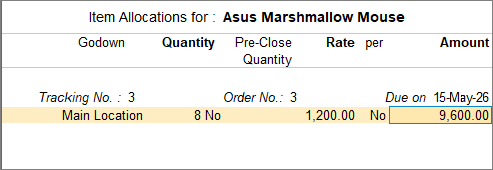
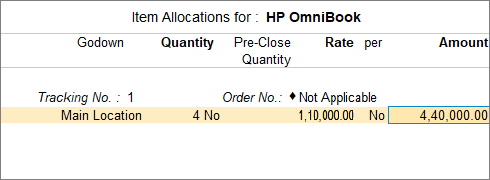
- In the Stock Item Allocation screen, select the Tracking No. from the list or create a New Number.
- Specify the Order No. in the Stock Item Allocation screen.
- If you selected a Sales Order number under Order No(s) in Party Details, the corresponding Order No. is prefilled along with the stock item details.
- Otherwise, set Order No. to Not Applicable.
- If you selected a Sales Order number under Order No(s) in Party Details, the corresponding Order No. is prefilled along with the stock item details.
- Enter the Quantity and Rate.
- Press Ctrl+A to save the voucher.
Questions and Answers
- Can I record a Sales Invoice before recording a Delivery Note?
Yes. You can record a Sales Invoice with a New Tracking Number and use the same Tracking Number later while recording the Delivery Note. The transaction is accounted for against the party ledger, while the stock value is updated when the Delivery Note is recorded.
In the Sales voucher:- Select the party ledger and stock item.
- In the Stock Item Allocations screen, select New Number for Tracking No.
- Enter the new Tracking Number, quantity and rate.
- Press Ctrl+A to save the invoice.
- Can I disable the Tracking Number?
Yes. Once the Delivery Notes and Sales Invoices linked through Tracking Numbers have been completely processed, you can deactivate the Delivery Note voucher type to prevent Tracking Numbers from appearing during voucher entry.- Press Alt+G (Go To) > Alter Master > Voucher Type > type or select Delivery Note.
- Set Activate this Voucher Type to No.
- Press Ctrl+A to save.
Is this information useful?
YesNo