
Set Up E-mail for Sending Invoices/Reports in TallyPrime
When you send your first e-mail from TallyPrime, you need to complete a one-time setup by creating an e-mail profile and authenticating your e-mail account. Once the profile is created and authenticated, you can securely send invoices, reports, and other documents directly from TallyPrime.

Ensure that:
- You have an active internet connection.
- You have a valid e-mail account.
- Two-step verification is enabled for your e-mail account if you are using App Password authentication.
Step 1: Select Invoice/Report to Send E-mail
- Open the invoice or report that you want to send.
- Press Alt+M (Share) or select E-mail from the available options.
- The Send E-mail screen appears.
If you are sending an e-mail for the first time, create an e-mail profile before proceeding.
Step 2: Create Your E-mail Profile

You need to create an e-mail profile only once, unless you need to create and use multiple e-mail profiles.
- In the E-mail from field, select Create.
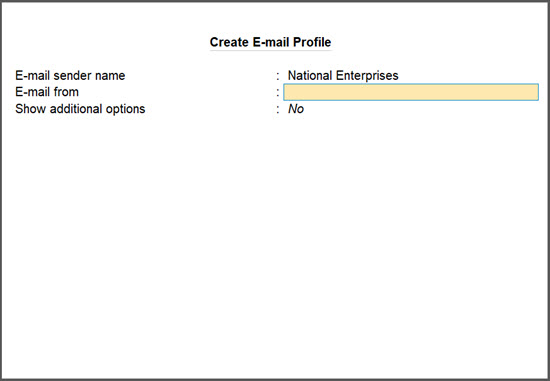
- In the Create E-mail Profile screen:
- The E-mail sender name appears as per the Company Name.
- Modify the sender name if required.
- Enter the sender e-mail address in E-mail from.
- Set Show Additional Options to Yes.
- Update the Username (for authentication) field, if required.
- Select the required E-mail Server from the list.
The profile is added to the List of Profiles and is available for future use.
Step: 3 Provide E-mail Details
- Select the required e-mail profile in the E-mail from field.
- In the E-mail to field, select the recipients address.
- Set Show Additional Options to Yes, if required.
- If your e-mail provider is not listed:
- Select User Defined.
- Enter the Server Address and Port Number manually.
- For the Server Address, enter the SMTP server name.
- Enter the applicable Port Number.
- Set Use SSL to Yes.

- For Outlook/Hotmail:
- Enter smtp-mail.outlook.com:25 as the Server Address.
- Set Use SSL/TLS on standard port to Yes.
- Press Ctrl+A to save the profile.
- Enter or modify the:
- Subject
- Message content
To select a predefine message template, if you have created one earlier, press Press Alt+S. - Attachment options
Step 4: Configure & Send E-mail
If this is your first time sending an e-mail using the selected profile, authenticate the account before sending.
-
Press M (E-mail).
-
Authenticate the e-mail account using one of the supported methods:
-
Login via Browser (OAuth) for supported providers such as Google and Microsoft.
-
Click here...
- Select the required e-mail profile and press L (Login via Browser).
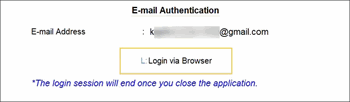
- The authentication page opens in your default browser.
- Sign in to your e-mail account.
- If you are a new user, select Use another account and enter your e-mail credentials.
- If you have already configured the account, select the same account used in TallyPrime.
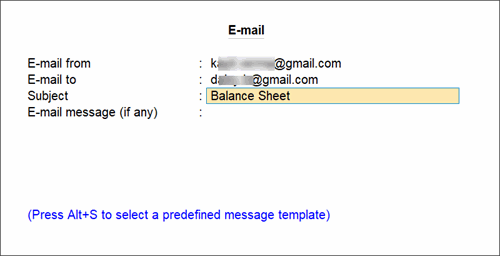
- Grant the required permissions.
- For Google, select Send email on your behalf and click Continue.
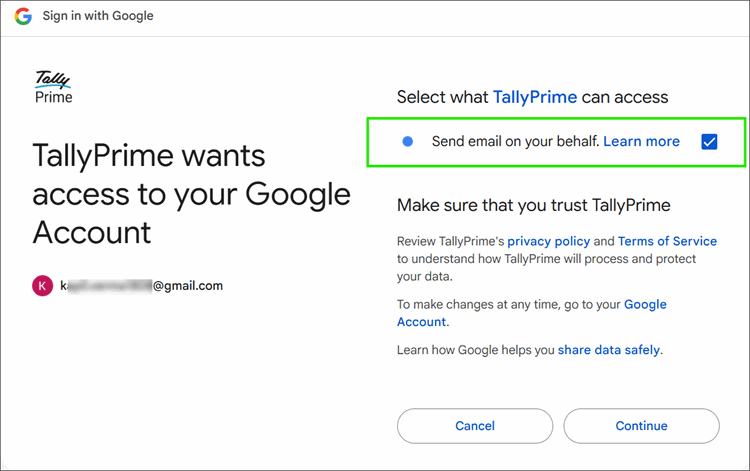
- For Microsoft, click Accept.
- For Google, select Send email on your behalf and click Continue.
- Return to TallyPrime and press S (Verify Login & Send).
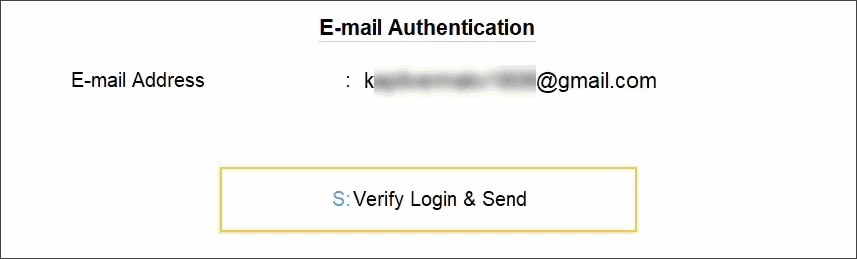
Login with App Password, if supported by your e-mail provider.
Click here...To change your Gmail settings to use your E-mail ID from TallyPrime,
- Log in to your Gmail account.
- From Google Apps, select Account > Security.
- Add Two-step verification and generate App passwords.
- Click Done.
To change your Yahoo Mail settings to use your E-mail ID from TallyPrime,
- Log in to your Yahoo account.
- Select Account Info > Account Security.
- Add Two-step verification and generate App passwords.
- Click Done.
The e-mail is sent to the selected recipients.


