Add Digital Signature to Invoices & Reports in TallyPrime
Digitally signed invoices and reports ensure authenticity and integrity. In TallyPrime, you can add digital signatures to PDFs while printing, e-mailing, exporting, or sharing them through WhatsApp.
For printing, you can configure the digital signature either at the application level or separately for each invoice or report.

- Ensure that you have a Digital Signature Certificate (DSC) token or dongle issued from a Certifying Authority.
(eMudhra, Capricorn, Verasys, Safescrypt, Pantasign CA, (n)Code Solutions, and IDSign CA) - Keep the Digital Signature PIN ready if you are using the certificate for the first time.
- Ensure that your digital signature dongle is connected to your system.
Add Digital Signature to Invoices or Reports
The steps to add digital signature in PDF format are the same for Print, Export, E-mail, and WhatsApp. For illustration purpose, let’s see how to add digital signature when exporting an invoice in PDF.
While exporting an invoice:
- Press F8 (File Format).
- In the Export Settings screen, configure the following options:
- File Format: PDF.
- Digital Signature: Select the required digital signature from the list.
- Ask before signing: Yes, if needed.
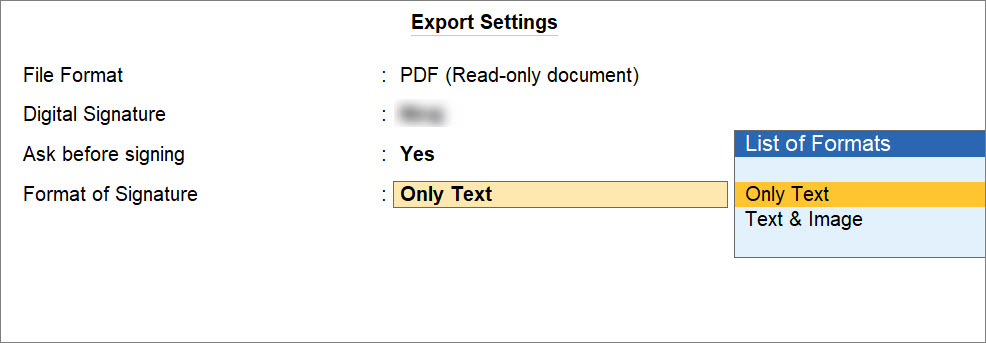
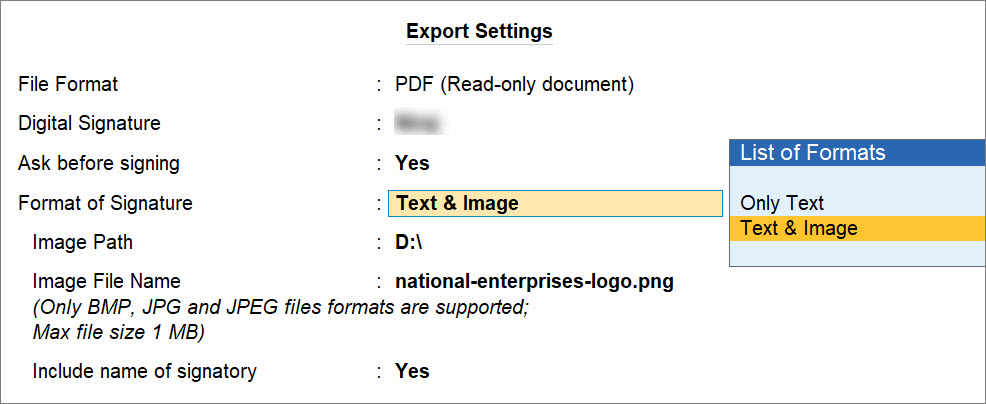
- Configure the Format of Signature.
- Choose Only Text or Text & Image as the signature.
- For Text & Image, select the Image Path and Image File Name to add.
- Set the option Include name of Signatory, as needed.
- Press C (Configure) to set other necessary export configuration.
- Press E (Export).
If you had set Ask before signing to Yes, TallyPrime displays a confirmation prompt.- Select Yes to proceed.
- When prompted, enter the User PIN provided by the Certifying Authority, and click OK.
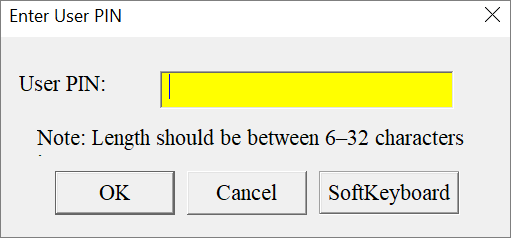
This is a one-time activity required to authenticate the digital signature certificate.
The invoice gets exported in PDF format with the digital signature.
You can follow the same steps for adding digital signature in the PDF format of each voucher under Multi Accounts Report.
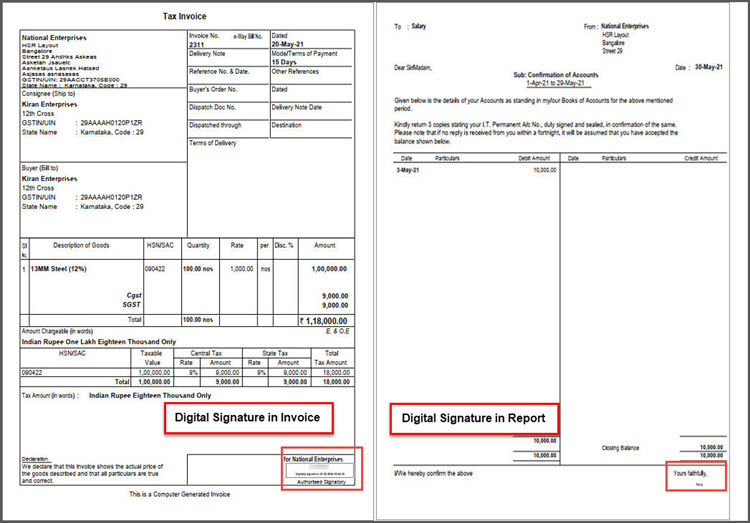
In invoices, the digital signature gets added with the date and timestamp above the label Authorised Signatory. In reports, the digital signature appears along with the Yours Faithfully sign-off.
Validate Digital Signature
You can verify the authenticity of a digitally signed invoice or report using the appropriate digital signature certificate. The steps may vary depending on the PDF reader.
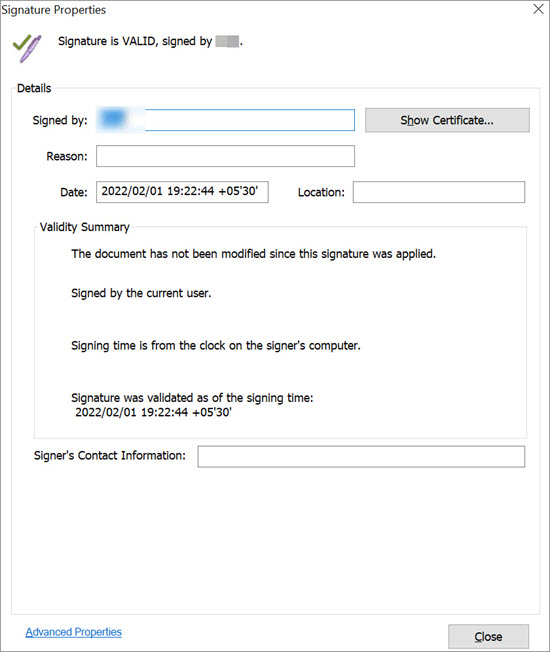
- Open the invoice exported in PDF format and click the digital signature.
You can see the Signature Validation Status. If the document has been modified after signing, the signature status is displayed as INVALID. - Click Signature Properties.
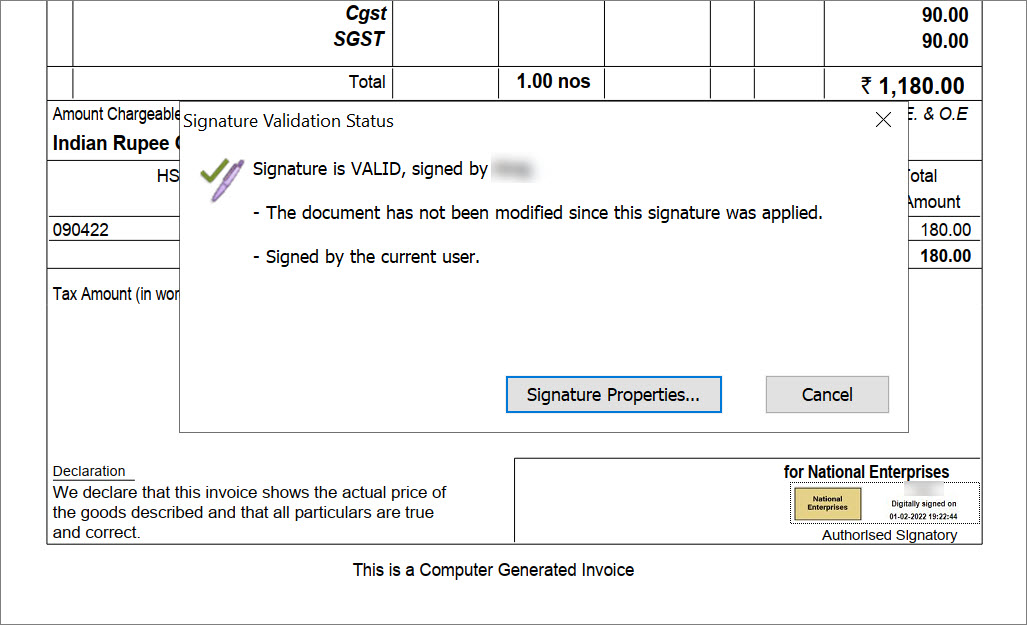
- In the Signature Properties window, verify the information, and click Close.