
Use TallyPrime in Your Preferred Language
Language should never be a barrier to doing business. TallyPrime supports multilingual accounting, allowing you to display the product, enter data, and print business documents in different languages. While you can enter data in regional languages as well as Arabic and Bangla, the product display is currently available only in Arabic and Bangla.
You can continue maintaining your books and masters in English while printing invoices, reports, account confirmations, and other business documents in your customers or stakeholders preferred language. This helps you communicate more effectively and cater to the needs of local customers and business partners.
If your Tally Partner has provided an additional language dictionary, it will co-exist with the Tally-provided dictionary. By default, TallyPrime gives preference to the Tally-provided dictionary.

- Ensure that you have an active internet connection.
- Ensure that you are on TallyPrime Rel 5.0 or later.
If you are in TallyPrime Rel 4.1 or earlier, you will not be able to see the display language in Arabic or Bangla. - If you are entering data in Arabic, ensure that the Arabic System Keyboard is installed on your computer.
- If you are entering data in Bangla using the Avro or Bijoy keyboard, ensure that the required keyboard is installed on your computer.
Change Display Language
- Press F1 (Help) > Settings > Language > Ctrl+K (Display Language).
- In the Select Display Language screen, select Add Language.

- Select your preferred language.

Once selected, you can now view and print all your transactions and reports in your preferred language.
Change Display Language in Educational Mode
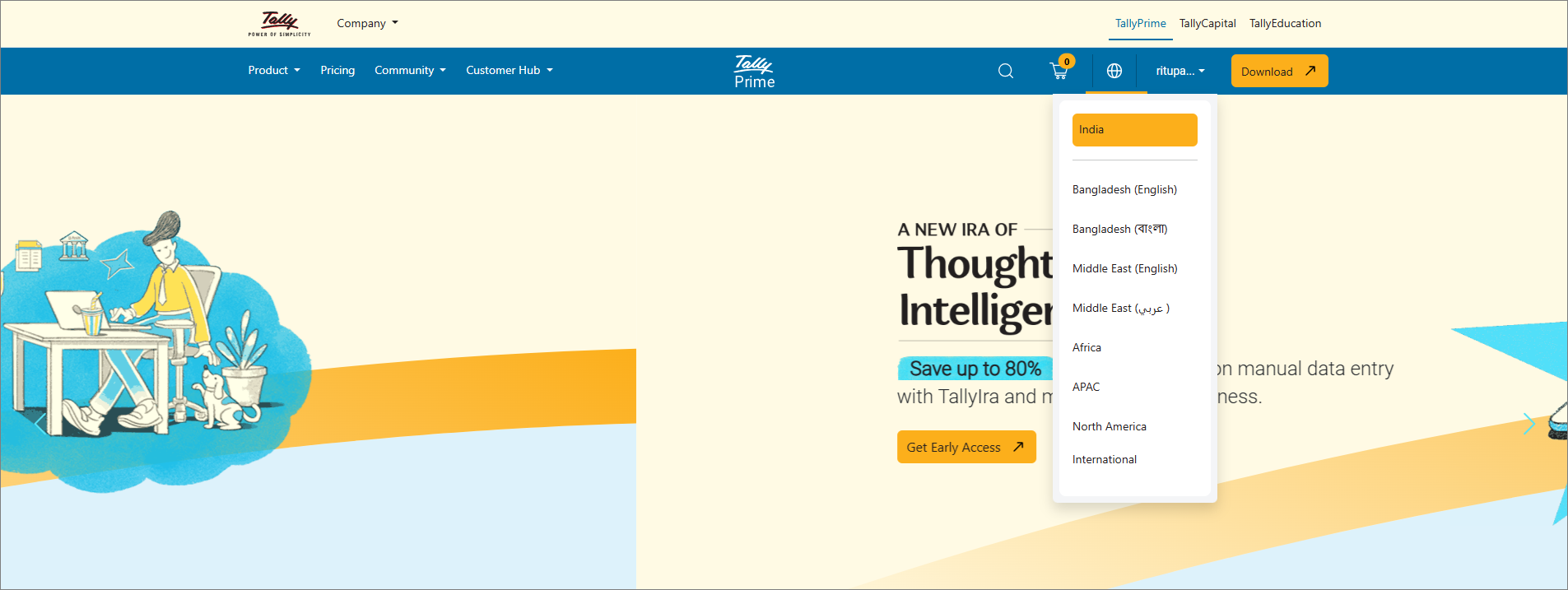
- Go to Tally website.
- Click on the Globe icon and select Middle East (English) or Bangladesh (English).
If you want to see the website in Arabic or Bangla, you can select Middle East (عربي ) or Bangladesh (বাংলা).
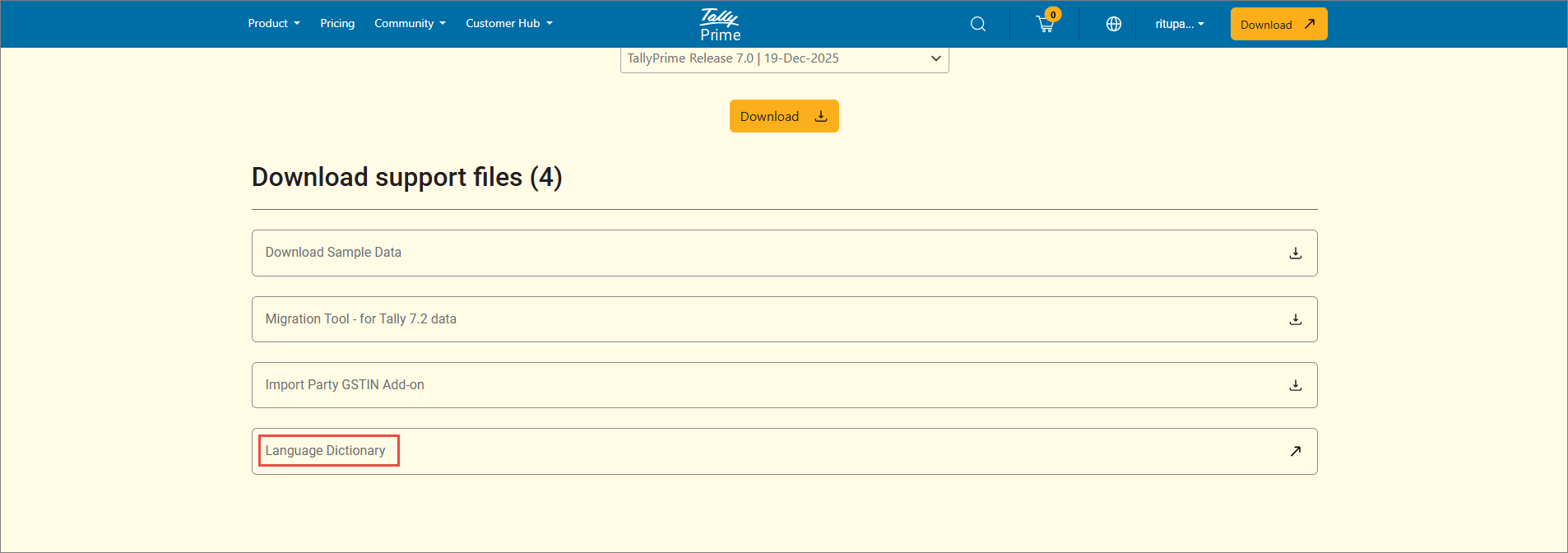
- Select Download > Download older versions or support files > Language Dictionary.
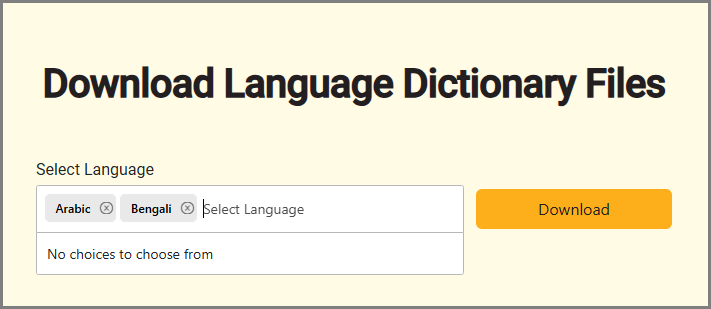
- Select the required language, and click Download.
The selected dictionary is downloaded to the default download folder.
- Copy the dictionary to the lang folder located in the TallyPrime installation folder.
- Press F1 (Help) > Settings > Language > Ctrl+K (Display Language).
- Select your preferred language.
Once selected, you can now view and print all your transactions and reports in your preferred language.
Change Display Language for Masters
If language aliases are available for groups and masters, you can view them in the selected language or in all available languages. In a multi-user environment, each employee can choose a different Display Language without affecting others.
- While creating/altering the party ledger and stock items, you can add an alias in your preferred language using language aliases.
- Press F1 (Help) > Settings > Display.
- Type or select List aliases for Master in.
- Set Display language only.
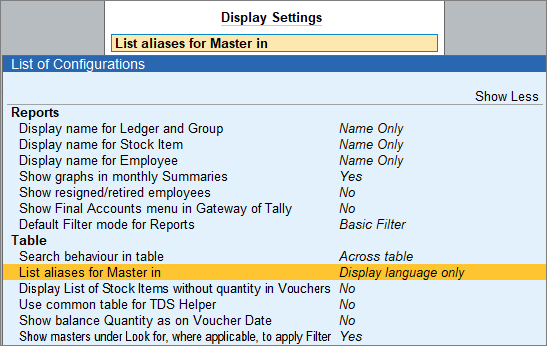
Once this is set, when you record transactions and select the party or stock item, the list of groups and other masters appears in the selected display language.
Change Data Entry Language
- Press F1 (Help) > Settings > Language > Ctrl+W (Data Entry Language).
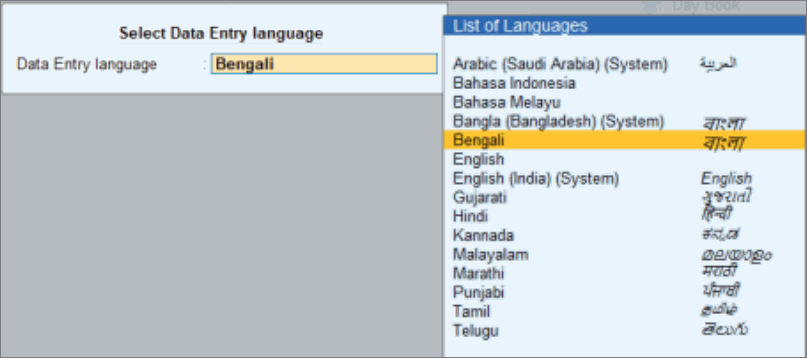
- In the Select Data Entry language screen, select your preferred language.
You can now create ledgers and stock items in your preferred language using different keyboards.
If you are using TallyPrime Rel 4.0 or earlier, click here.
Bangla and Arabic are not available as Display Language or Data Entry Language options in TallyPrime Rel 4.0 or earlier.
Display Language
- Press F1 (Help) > Settings > Language.
- Select Display Language.
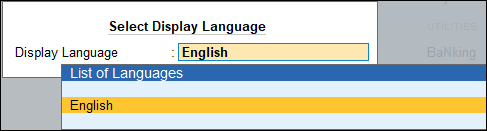
- Select the required Display Language for viewing your Company data.
Data Entry Language
- Press F1 (Help) > Settings > Language.
- Select Data Entry Language.
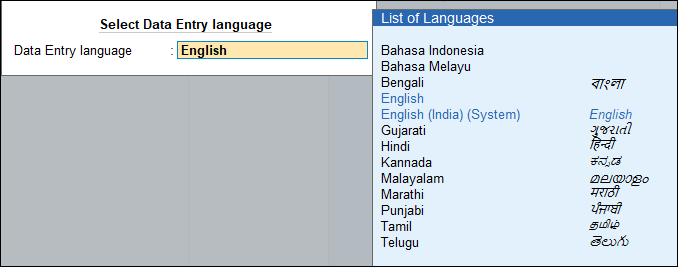
- Select the Data Entry language based on your preference.
You can now enter data in your masters and transactions in the selected language.
Questions & Answers
- Can I change the display language in all systems in multi-user environment with a single configuration?
No, you cannot change the display language in all systems with a single configuration in a multi-user environment. Each employee can change their data entry language and display language without affecting others.


