
Use Dashboard in TallyPrime to Analyse Business Information and Data Trends
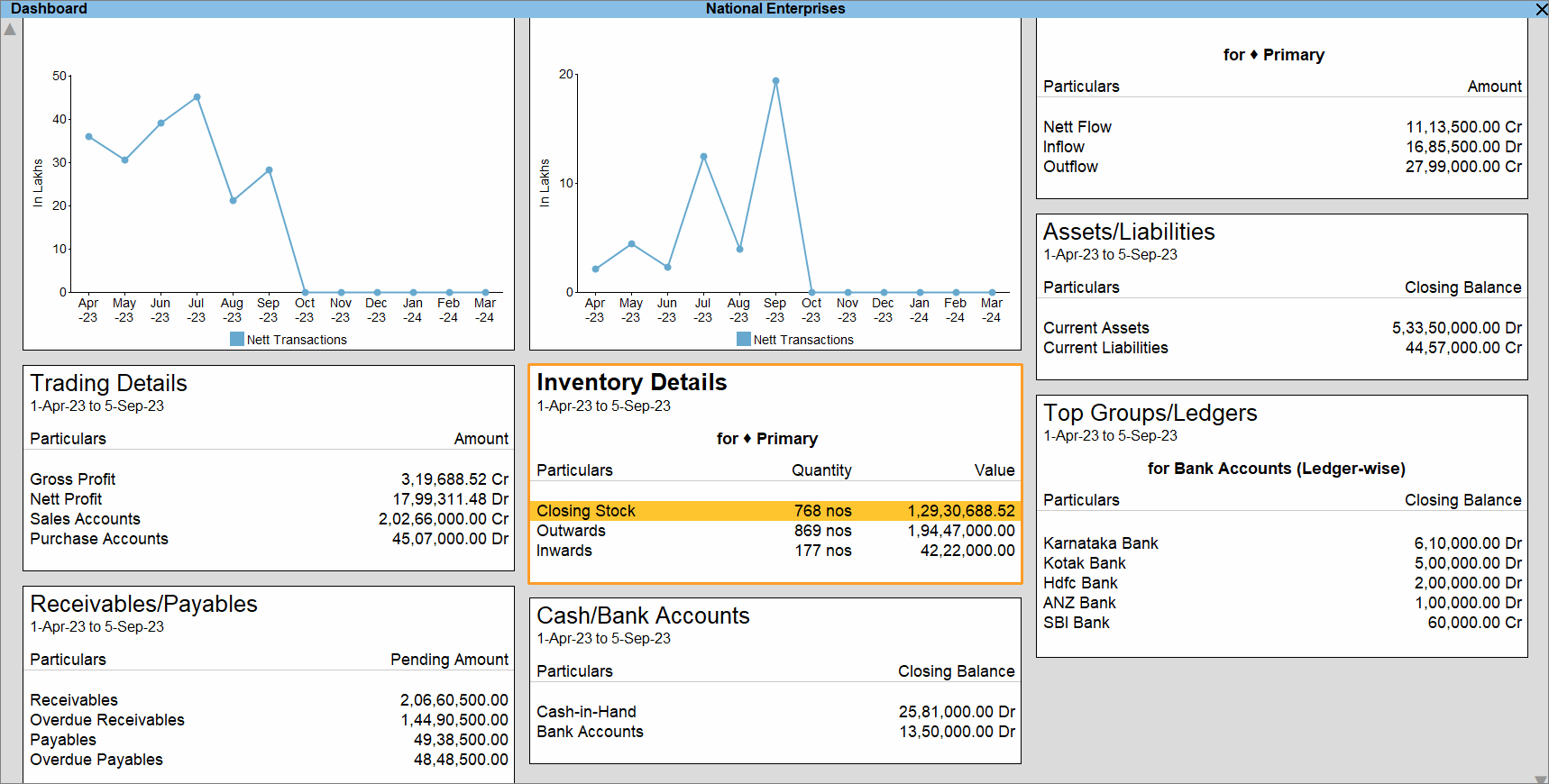
Dashboard in TallyPrime provides a single view of your key business information, helping you analyse business performance and trends. You can customise the Dashboard by configuring tiles, saving views, and sharing information through Print, Export, E-mail, or WhatsApp.
View Dashboard
- Press Alt+G (Go To) > type or select Dashboard and press Enter.
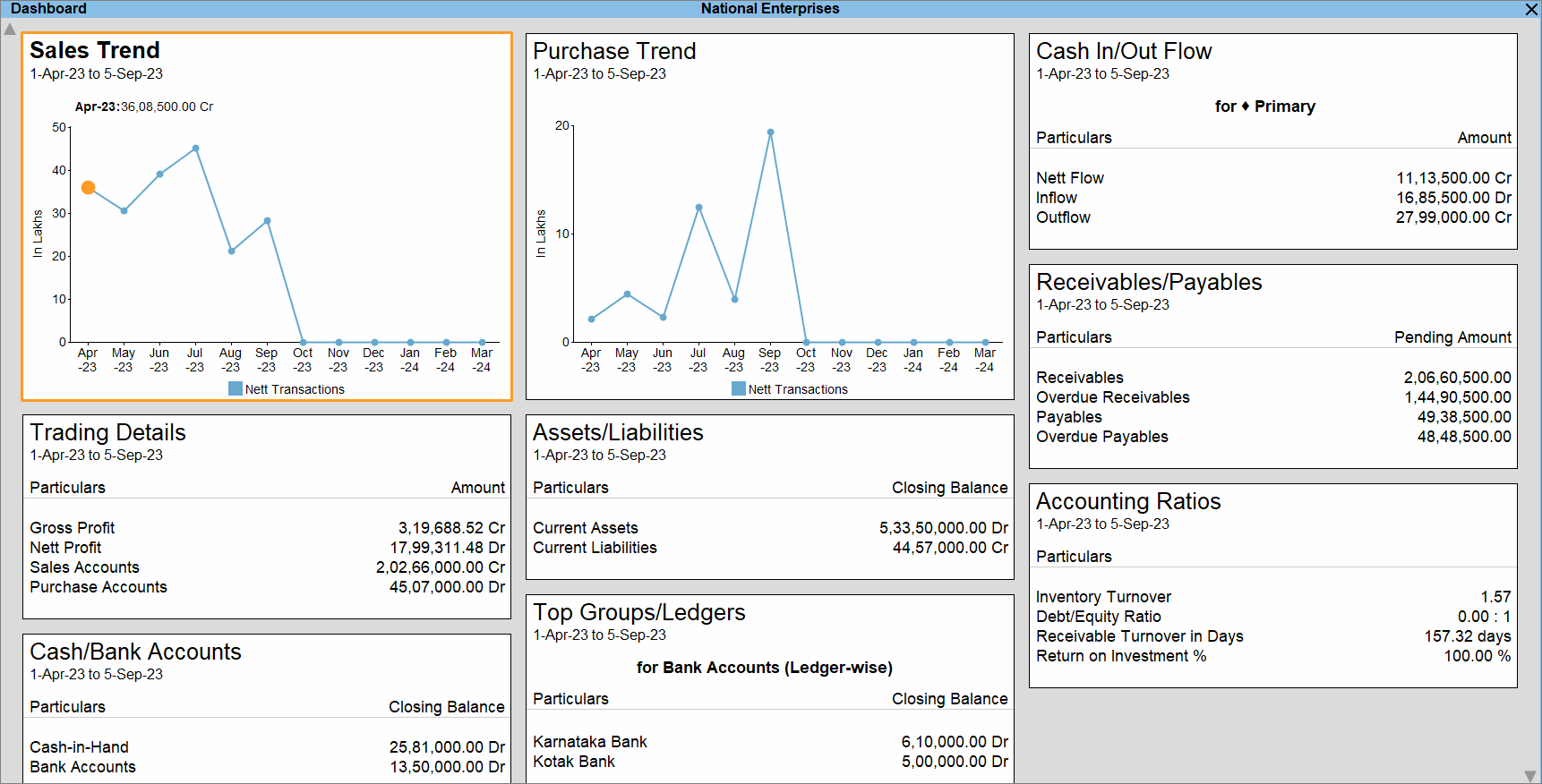
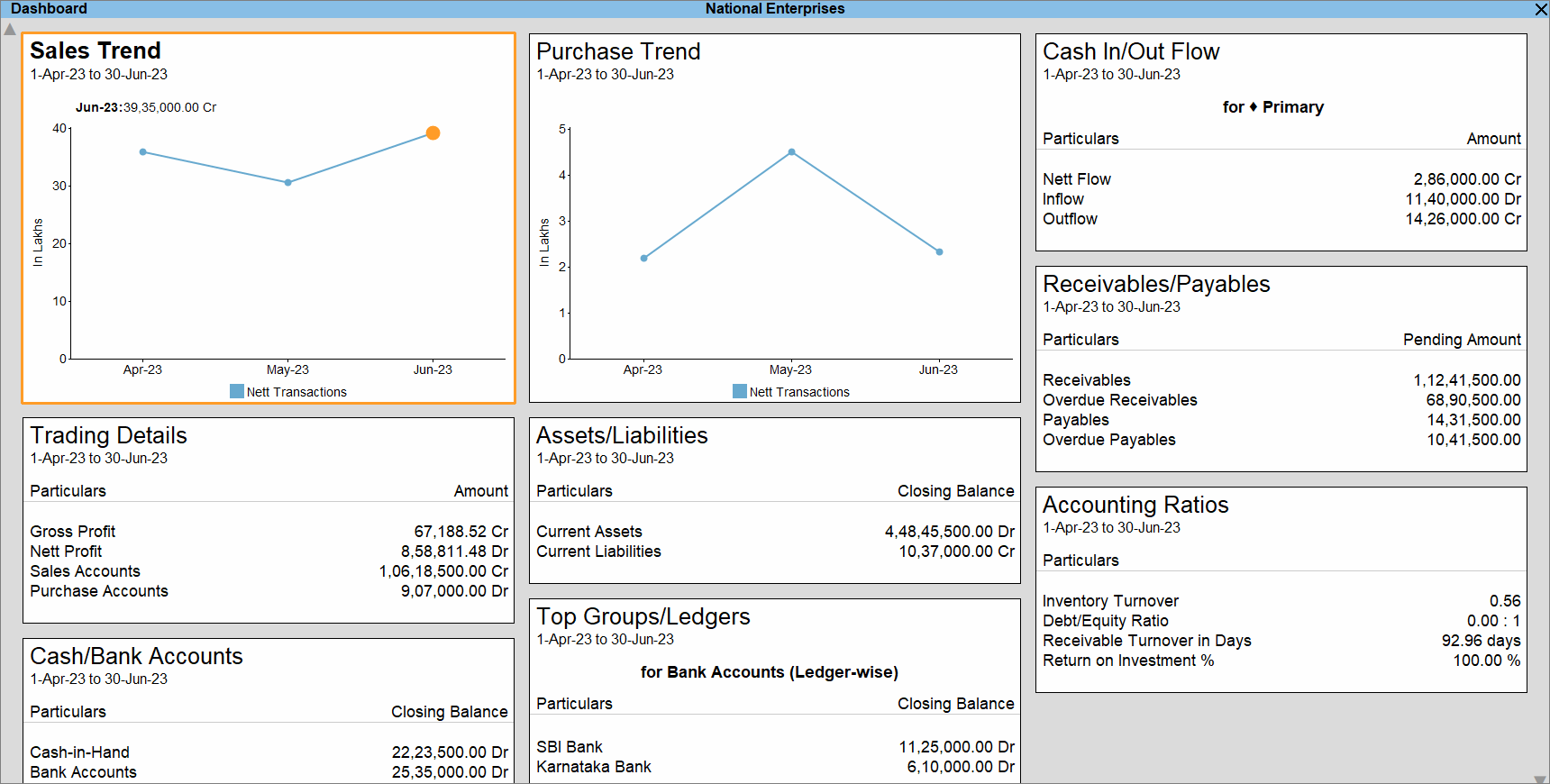
- To change the period for all the tiles in the Dashboard, press Ctrl+F2 (Period).
To change the period for a specific tile, select the tile and press F2 (Period).
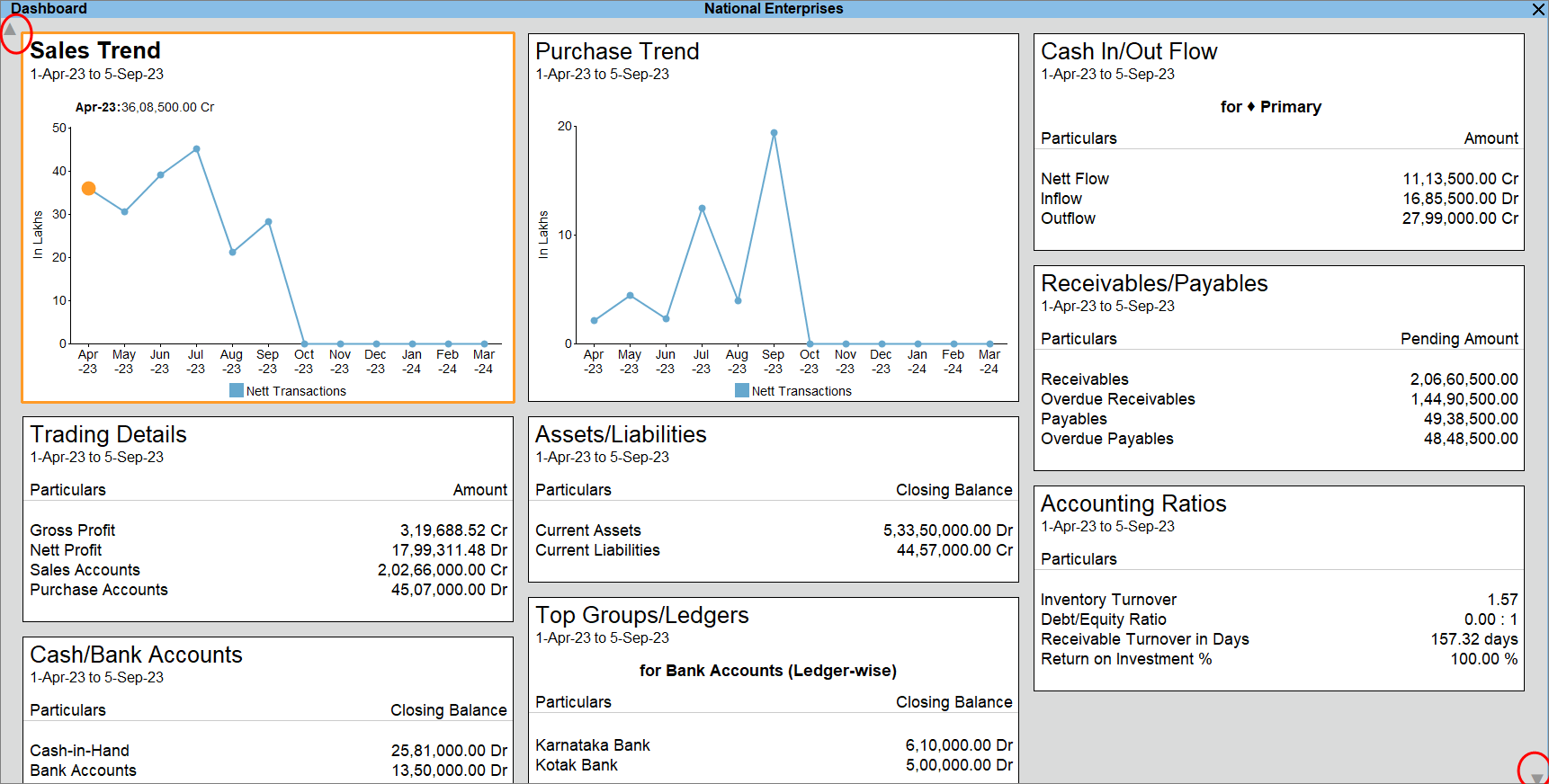
- Alternatively, use the up or down arrow in the top-right or bottom-right corner of the Dashboard, respectively.
-
If multiple Companies are open in TallyPrime, you can switch to the Dashboard of any other Company.
-
Press F3 (Change Company).
-
Select Company > Specify Path and press Enter > select the Company and press Enter.
Alternatively, Select from Drive > go to the folder > select the Company and press Enter.
-
Configure Dashboard
- Select the required tile and press Alt+C (Configure Tile).
- Name of Tile: You can rename the tile as many times as needed.
- Type of Value: Select from Closing Balance, Nett Transactions, or others, based on the values you want to view in the tile.
- Display type: Select Data Only, Graph Only, or Data & Graph, based on your requirement.
- Graph Type: When you enable Graph Only or Data & Graph, you can also select the type of graph you want to view.
- Show Percentages: If the tile has the facility to view percentages, then you can set this option as Yes, if needed.
- Scale Factor: Like in many reports in TallyPrime, you can select a scale factor, according to the scale on which you want to view the data.
- Sorting Method: Select Amount (Decreasing) to list the highest amount at the top, followed by lower amounts, or Amount (Increasing) to list the lowest amount at the top, followed by higher amounts.
- Position of Tile: You can reposition the tile, as needed.
- Press Ctrl+A to save.
Add tile
You can add tiles to the Dashboard in just a few clicks. For example, you might want to view the Top Ledgers/Groups or Top Stock Items/Stock Groups. You can easily add the tiles and view the data and graph, as needed.
- In Dashboard, press Alt+A (Add Tile) > select the required tile > Enter.
The tiles are grouped under Accounting, Inventory, Bank/Cash, and Statutory, on the basis of the data they provide.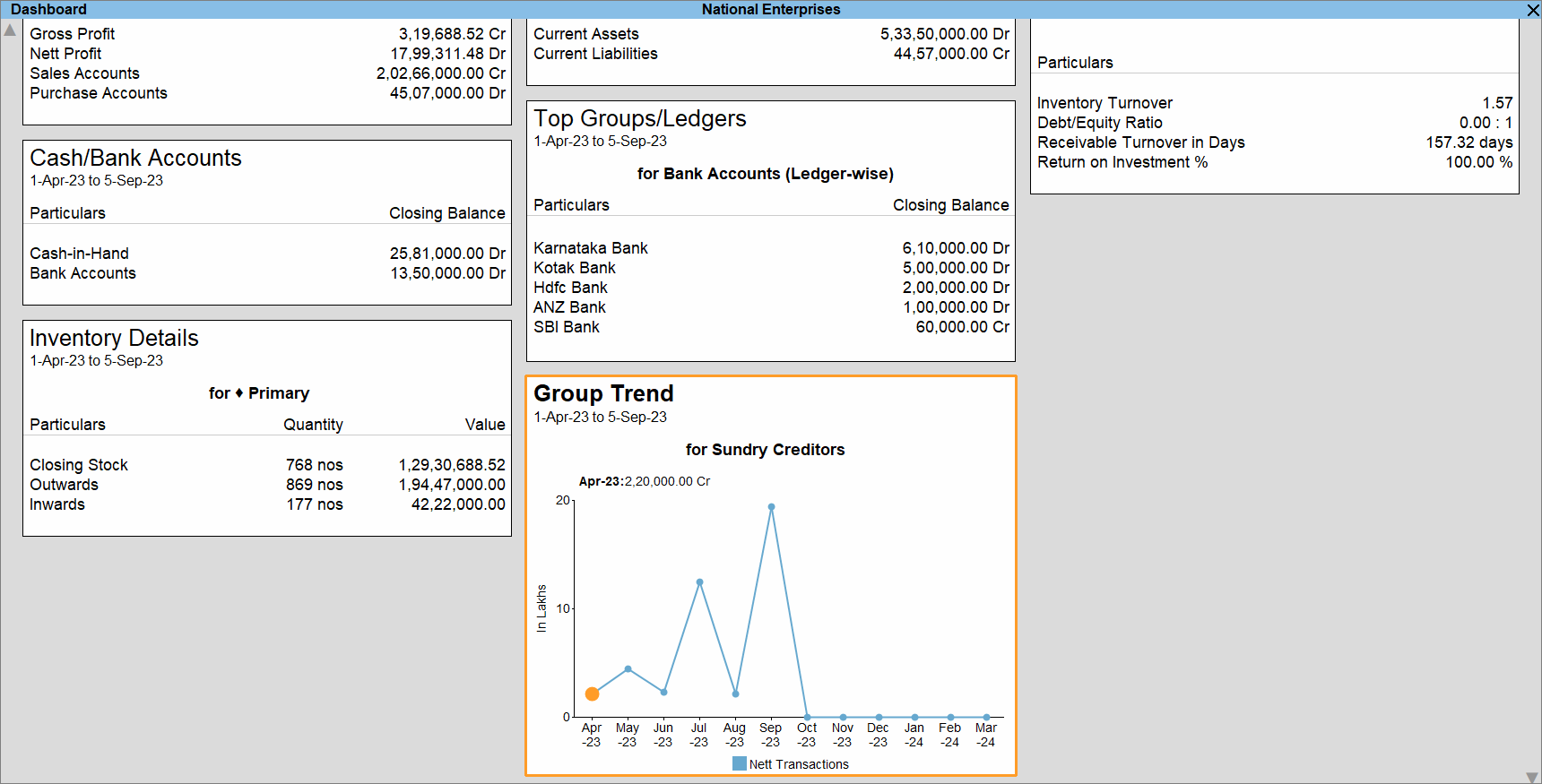
Remove Tile
You can remove tiles that are not relevant to your analysis. Removed tiles are not deleted permanently and can be added back anytime using Add Tile option.
- Select the tile > press Alt+D (Remove Tile) > press Y to confirm.
Expand Tile
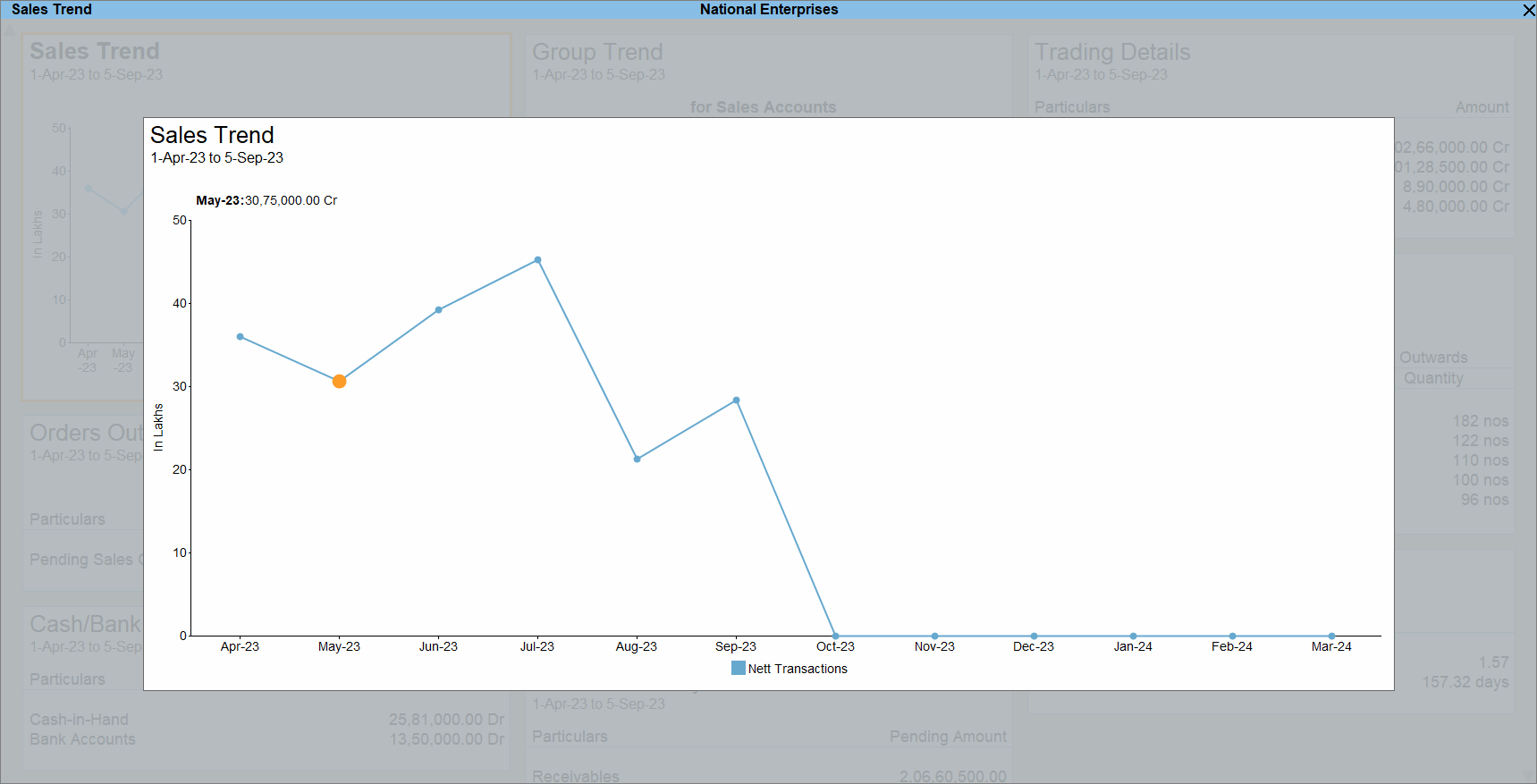
While in a meeting or working with a colleague, you might want to zoom in or focus on a tile to view the data with better clarity. In such cases, you can expand or enlarge the tile.
- In the Dashboard, select the tile you want to expand and press Alt+V (Expand Tile).
Change View
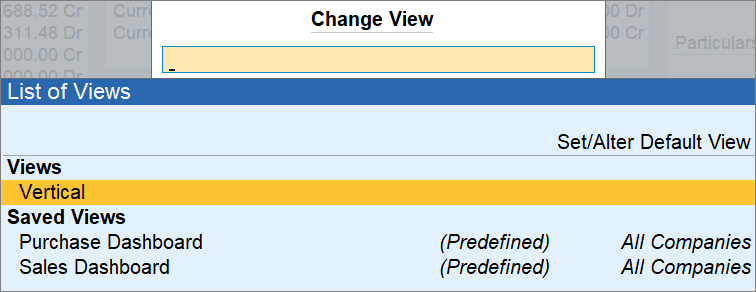
To view Dashboard information in a layout that best supports your analysis, compare information easily, and make better use of the available screen space, press Ctrl+H (Change View) and select the required view.
Set Position of Tile
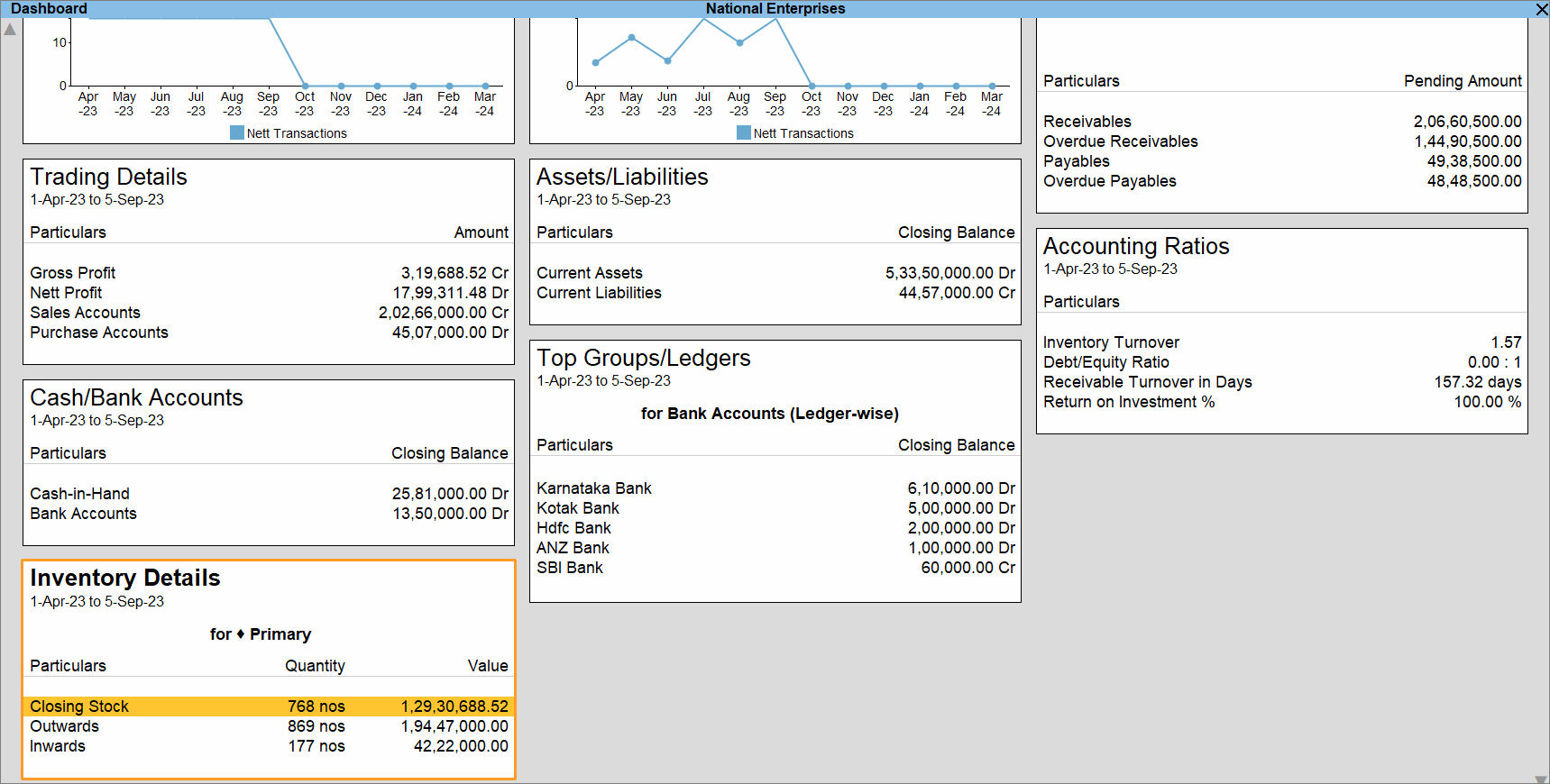
You can arrange tiles in the Dashboard based on the information that is most important to you. For example, you can place frequently viewed tiles or related tiles together for quick access and easier analysis.
- In the Dashboard, select the tile to be repositioned.
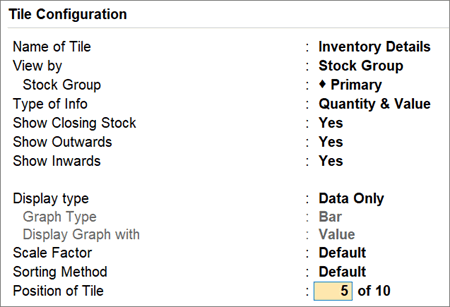
- Position of Tile: Based on the preferred position of the tile, enter a whole number between 1 and the maximum number of tiles in the Dashboard.
The tile gets repositioned.
Questions and Answers
- Why didn’t my tile position changes get saved?
If you reposition a tile and press Esc without saving the Dashboard, TallyPrime reverts to the default Dashboard configuration. Save the Dashboard when prompted to retain the updated tile positions. - Can I customise a tile to display only the information I need?
Yes. Each tile provides configuration options based on the type of information it displays. To configure a tile, select it in the Dashboard and press Alt+C (Configure Tile). - What can I configure in Accounting tiles?
You can configure Accounting tiles to view specific financial information, such as profit, income, expenses, and other accounting-related details relevant to your analysis. - How can I analyse inventory information for a particular stock classification?
You can configure Inventory tiles to focus on stock-related information for specific stock groups, stock items, stock categories, and other inventory classifications. - How can I track cash flow for a specific group or ledger?
You can configure Bank/Cash tiles to analyse cash flow information, including inflows, outflows, and nett flow for specific groups or ledgers. - How can I review only pending statutory actions?
You can configure Statutory tiles to view specific compliance-related information and focus on pending actions that require attention. - How can I access the Dashboard when working in TallyPrime?
You can configure TallyPrime to open the Dashboard automatically when a company is loaded.- Press F1 (Help) > Settings > Startup.
- Set Open Dashboard on loading a Company to Yes.
- Press Ctrl+A to save.
- How can I control users’ access to the Dashboard and Dashboard tiles?
You can use security levels to allow access to the Dashboard and restrict access to specific tiles.- Press Alt+K (Company) > User Roles.
- Select the required security level.
- Under Allow the following Facilities, select Dashboard to allow access to the Dashboard.
- Under Disallow the following Facilities, select the tiles that users should not be allowed to view.
- Press Ctrl+A to save.
To know more, click here to watch.


