
E-mail Invoices, Reports, and Other Documents in TallyPrime
Using the E-mail feature in TallyPrime, you can send invoices, payslips, reports, and other business documents in formats such as PDF and XML to one or more e-mail recipients.

- Ensure that you have created your e-mail profile in TallyPrime and authenticated your e-mail account.
E-mail Invoices/Reports in TallyPrime

- Open the invoice/report you want to share and press Ctrl+M (Current).
- Create an e-mail profile > enter Subject.
- For E-mail message (if any), enter a message, if needed.
- In the E-mail screen, press C (Configure) to configure, as needed.
- Press M (E-mail).
- Sign in to your e-mail account using a browser or an App Password.
E-mail an Invoice with Payment Link
- Open the invoice with payment links or QR codes > Ctrl+M (Current).
- Select an e-mail profile under E-mail from.
- Select your party’s e-mail address in the E-mail to field.
- Verify and update the prefilled Subject field based on the invoice type, if needed.
- Enter the custom message in E-mail message (if any) field.
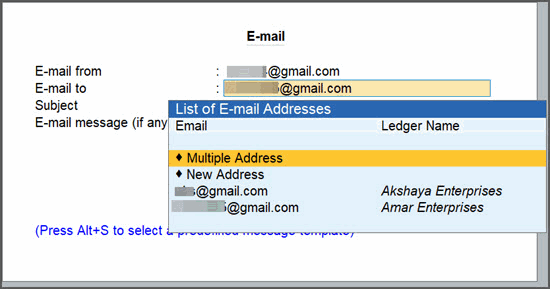
- Accept the screen and press M (E-mail).
E-mail Reminder Letters
- Press Alt+G (Go To) > type or select Bills Receivable > press Ctrl+M (Current).
- Open Bills Receivable report, and press Ctrl+M (Current).
- Select an e-mail profile under E-mail from.
- Select your party’s e-mail address in the E-mail to field.
- Verify the Subject field. Change the subject, if needed.
- For E-mail message (if any), enter a message, if needed.
- In the E-mail sub-screen, press C to configure
- Set Report Type to Reminder Letter.

- In Company Aging Alteration screen, configure the ageing slabs as required.
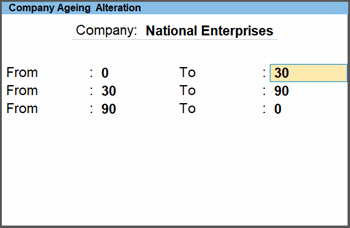
- Set Report Type to Reminder Letter.
- Accept the screen and press M (E-mail) to share the Reminder letter.
E-mail Multi Account Reports
E-mail All Ledger Accounts
- Press Alt+M (Share) > E-MAIL > Others.
- In the list of Multi Account Reports, select any report, say All Ledger Accounts > Enter.
- Select an e-mail profile under E-mail from.
- Select your party’s e-mail address in the E-mail to field.
- Verify the Subject field. Change the subject, if needed.
- For E-mail message (if any), enter a message, if needed.
- In the E-mail sub-screen, press C to configure the Multi-Account report, as needed.
- Change the report period to update the beginning and end date, if needed.
- Enable Show Narrations, Show Bill-wise details, Show Inventory details, if needed and save.
- Press M (E-mail).
E-mail Confirmation of Accounts
- Press Alt+M (Share) > E-MAIL > Others.
- In the list of Multi Account Reports, select any report, say Group of Accounts and press Enter.
- Select a group from the List of Groups and press Enter.
- In the E-mail sub-screen, press C to configure for Confirmation of Accounts.
- Select Report Type and press Enter.
- Set Report Type as Confirmation of Accounts and save.
- Press M (E-mail).
E-mail Dashboard Tiles
- To e-mail a specific tile, press Alt+M (Share) > Current and press Enter.
Alternatively, press Ctrl+M (Current). - To e-mail all the tiles, press Alt+M (Share) > All Tiles and press Enter.
- Select an e-mail profile under E-mail from.
- Select your party’s e-mail address in the E-mail to field.
- Verify and update the prefilled Subject field based on the invoice type, if needed.
- Enter a custom message in E-mail message (if any) field.
- In the E-mail sub-screen, press C to configure the tiles, as needed.
- Press Ctrl+A to save the configuration.
- Press M (E-mail).
Is this information useful?
YesNo


