
Print Invoices with or Without Tax in Arabic or Bilingual
As per government orders, printing sales and POS invoices in Arabic or bilingual is mandatory. With TallyPrime Release 6.0 & TallyPrime Edit Log 6.0, you can print sales and POS invoices in Arabic or bilingual for businesses in any country where tax is not applicable, for example, Kuwait and Qatar. In countries where tax applies, you can print invoices in Arabic or bilingual as usual, whether tax is enabled or not.
If you enable tax when printing invoices, you can select the invoice format. Otherwise, the system sets the invoice format to Format 1 by default, with no option to change it.
Step 1:Provide Company’s Mailing Details in Arabic
- Press F11 (Features) > enable Mailing details in local language.
- In the Primary Mailing Details screen, fill Name, Address and Region in Arabic.
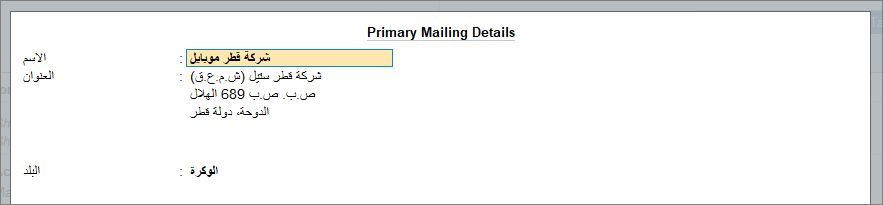
- Press Ctrl+A to accept the screen.
Step 2: Enable Language Alias and add the name of Ledgers/Stock Items in Arabic
- Press Alt+G (Go To) > Alter Master > type or select Ledger and press Enter.
Alternatively, Gateway of Tally > Alter > type or select Ledger and press Enter. - Press F12 (Configure) > Set Provide language aliases for Name as Yes.
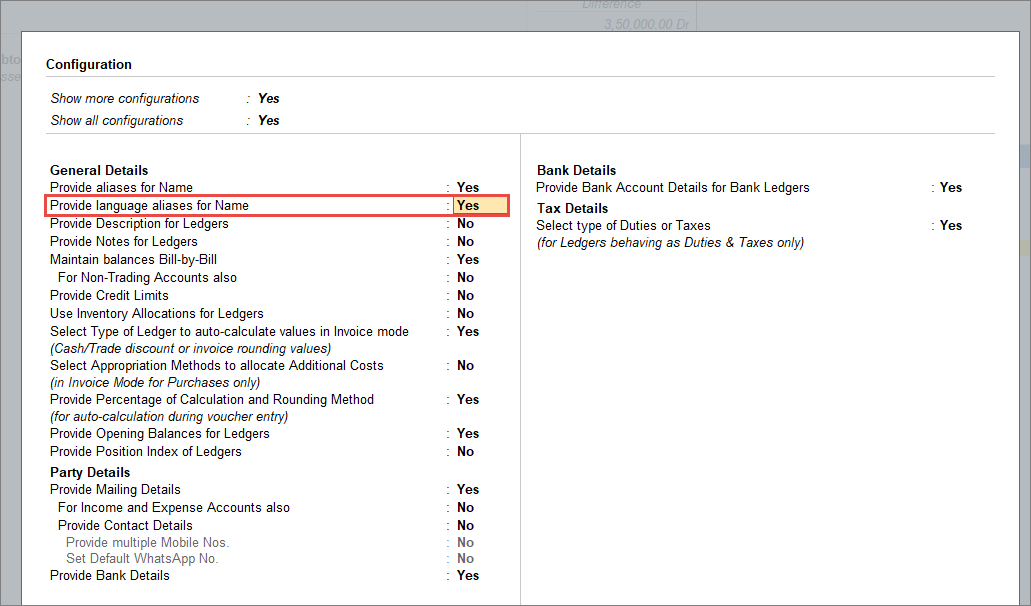
- Press Ctrl+A to accept the configuration screen.
- In the Ledger Alteration screen, from the Name field, press Enter to select the language alias.
- Select Arabic (Saudi Arabia) (System) from the List of Languages and enter the name in Arabic.
- Enable Mailing details in local language to add the Name, Address and Region in Arabic.
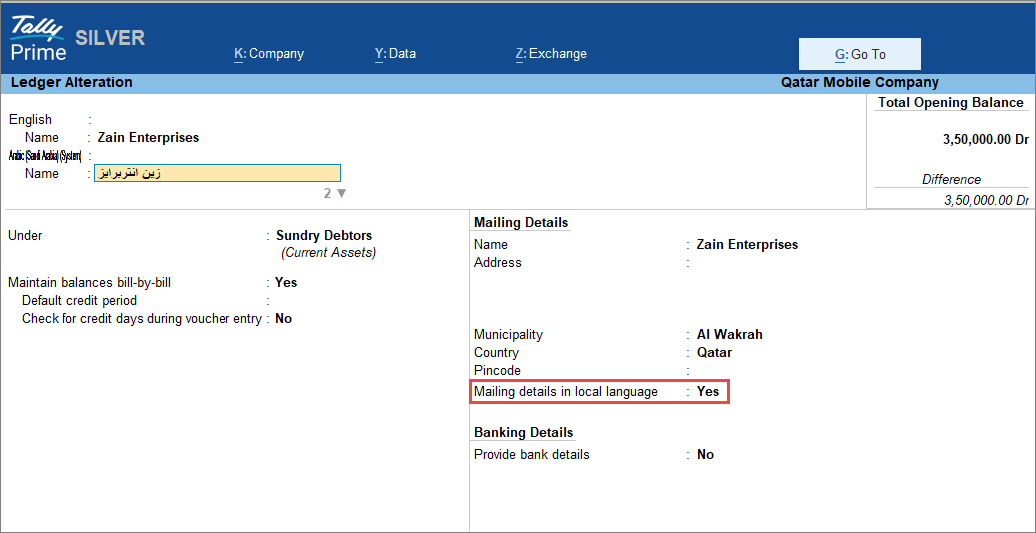
- Press Ctrl+A to accept the screen.
Similarly, enter the Stock Item name in Arabic.
Step 3:Update the Declaration in Arabic
- Press Alt+G (Go To) > Alter Master > type or select Voucher Type > Sales and press Enter.
Alternatively, Gateway of Tally > Alter > type or select Voucher Type > Sales and press Enter. - Add the Default title to print in Arabic and enable Set/alter declaration in Arabic.
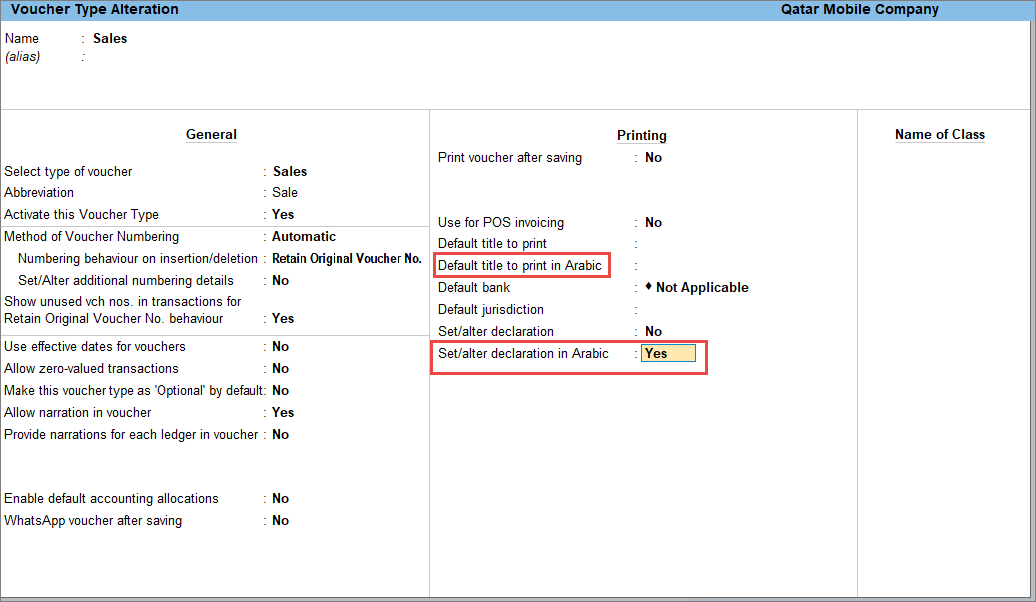
- Provide the declaration in Arabic to print the invoices with the declaration in Arabic or bilingual.
Step 4:Configure and Print the Sales or POS Invoice in Arabic or Bilingual
You can print your invoices in Arabic or bilingual and save them in PDF format.
- Create/Alter the Sales Voucher or POS voucher and press Ctrl+P (Current).
- Select the printer as any PDF writer and save the invoice; this will work like exporting to PDF.
- Press C (Configure) to configure the fields.
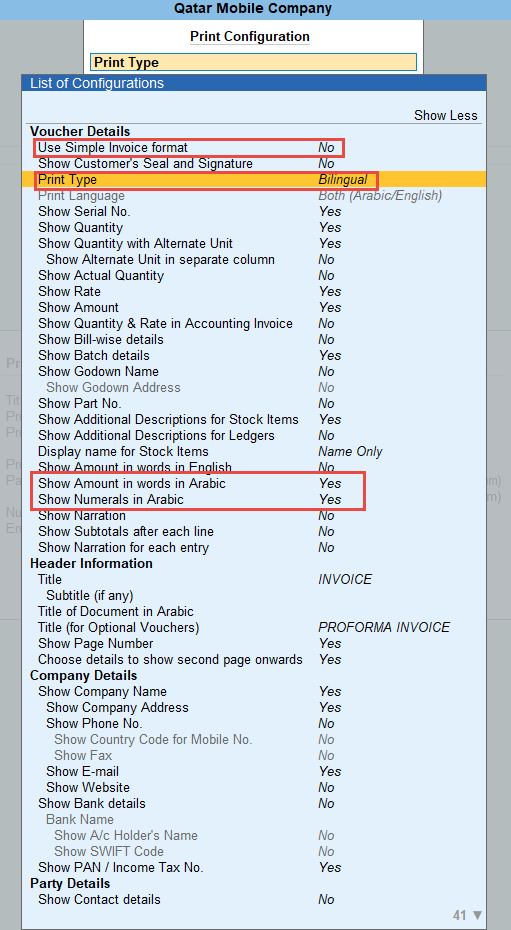
- Use Simple Invoice format: You can print the invoices in Arabic or bilingual in both simple invoice format and commercial format. By default, this option is set as No, letting you view the invoice in a commercial format.
- Print Type: By default, it is set to Single. You can change the Print Language in that case and select English or Arabic. You can also change it to Bilingual to print your invoice in bilingual.
- Show Amount in words in Arabic: Set it to Yes to see the amount in words in Arabic in the invoice.
- Show Numerals in Arabic: Set it to Yes to see the numerals in Arabic in the invoice.
- Show Amount in words in English: Set it to No, to view the amount in words in Arabic.
- Type or select Footer Information > Generated by. Enter the text in Arabic to view ‘This is a Computer-Generated Invoice’ in Arabic.
- Press Ctrl+A to accept the Print Configuration screen.
- Press I (Preview) or P (Print).
After configuring the masters, you can now record your sales transactions as usual and print the invoices in Arabic or bilingual.
Questions & Answers
- Why do I see some text in Arabic and some in English when using Arabic or bilingual formats?
If you are using an old language dictionary, then you may see some text in English along with Arabic. You need to download the latest dictionary to view all the strings in Arabic.
Gateway of Tally > press F1 (Help) > Settings > Language > click on Add Language > select Arabic. - Can I add declaration in Arabic language?
Yes, you can add the declaration in Arabic. To learn more, click here.
- Can I set a default Arabic translation for the phrase ‘This is a Computer-Generated Invoice’?
The text ‘This is a Computer-Generated Invoice’ is a customizable field, allowing you to define it according to your preference. To learn more, click here.
However, it is important to note that if this text is configured in Arabic and you print the invoice in English later, the Arabic version will still be displayed. To revert to English, you must manually update the text in the Print Configuration. - Why is the amount in words still appearing in English even after switching to Arabic in the invoice?
This happens when you have printed the invoice initially in bilingual mode and then switched to single-language mode (Arabic) without updating the relevant print settings. To learn how to change the amount in words to Arabic, click here.
- How can I save the invoice in PDF?
Open an invoice, press Ctrl+P (Print), and select the printer as any PDF writer and save the invoice; this will work like exporting to PDF. To learn more, click here.


