
Enable Connected Banking in TallyPrime
As a first step to setting up Connected Banking, you will need to enable Connected Banking in TallyPrime and link a mobile number to your Tally.NET ID and accept the terms and conditions.

- TallyPrime Release 6.0 or later.
- Valid Tally Software Subscription (TSS).
To know how to view the validity of your TSS or renew it, refer to Renew TSS. - Tally.NET ID, which is the registered e-mail address under your license.
- Valid 10-digit mobile number to link with your Tally.NET ID and receive OTP.
- An internet connection with a recommended speed of 3-5 Mbps that aids better connectivity.
- Press Alt+Z (Exchange) > All Banking Options > Login & Logout.
- In the Log In to Connected Banking screen, enter your Tally.NET ID.

If you are working with multiple users under a license site, then refer to Approve User Access to Connected Banking for non-admin users. - Enter your Tally.NET password.

- Enter the mobile number that you want to link to your Tally.NET ID.
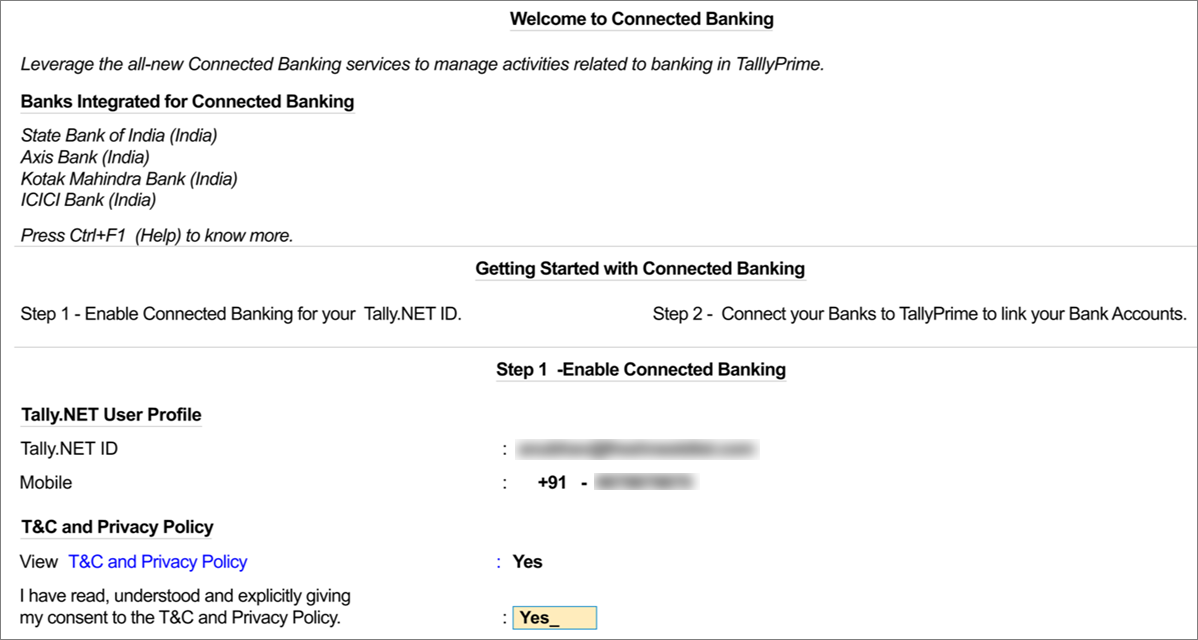
- View T&C and Privacy Policy: Yes.
You will get redirected to the web page where you can read the T&C and Privacy Policy and then accept it. - Enter the OTP received on your mobile number.
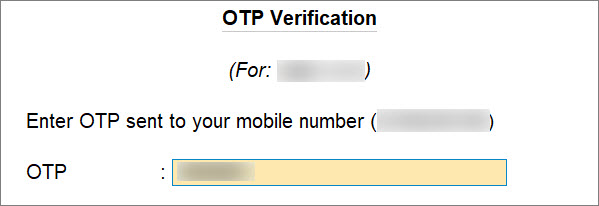
If you do not receive the OTP, press Alt+R (Resend OTP).
The mobile number gets linked to your Tally.NET ID and the Connected Banking gets enabled.
As a result, you get logged in and can use the Connected Banking services. You can proceed to connect your bank accounts to TallyPrime.

If your password does not meet the new password policy introduced for Connected Banking, then you will need to change the password.
Link Mobile Number to Tally.NET ID on the Portal
- Log in to the Tally Solutions Customer Portal.
- Click MY PROFILE.

- Update the mobile number.
- Under Connected Banking Services, click the edit icon.
- Enter the mobile number and click the tick mark icon (✓).
- Check the box to agree with Terms and Conditions & Password Policy.
- Click UPDATE.
- Click OK.
- Enter the 6-digit OTP sent on your mobile number.
- Click SUBMIT.
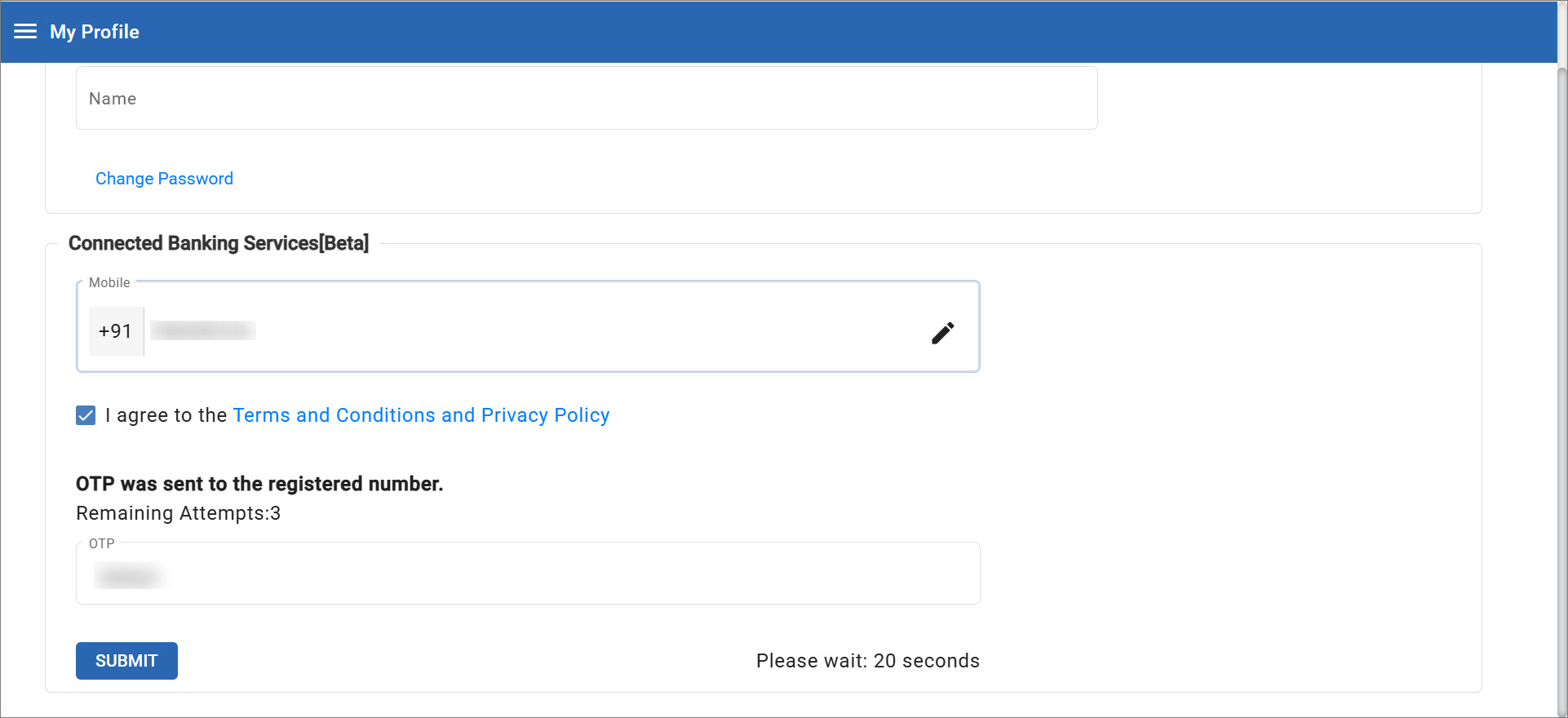
The mobile number gets linked to your Tally.NET ID.
Questions & Answers
- I had enabled Connected Banking by linking my mobile number with Tally.NET ID. I have changed my number. How can I use Connected Banking?
In such a case, you can easily update the mobile number linked to Tally.NET ID. Once the new mobile number is updated, you can log in to Connected Banking in TallyPrime.
- After enabling Connected Banking, I am unable to log in. How can I proceed?
If you are not able to log in, then recheck the mobile number entered while logging in. Ensure that you are entering the mobile number linked to Tally.NET ID. If the mobile number is correct, then reset Connected Banking login and try to log in again.
Is this information useful?
YesNo


