
Create Cost Categories in TallyPrime
To allocate the same income and expense to multiple Cost Centres or Profit Centres in TallyPrime, you can create Cost Categories to get a better analysis of your cost and revenue.

- Press Alt+G (Go To) > Create Master > Cost Category and press Enter.
- Name: Enter a suitable Name for the Cost Category.
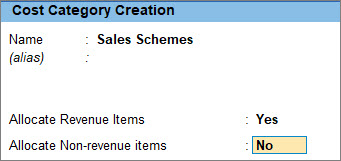
- Allocate transaction values for either revenue items or non-revenue items, or both.
- Press F12 (Configure) and set Allow allocation of transaction values for Revenue Items and Allow allocation of transaction values for Non-Revenue Items to Yes.
- In the Cost Category Creation screen, set Allocate Revenue Items & Allocate Non-revenue items to Yes.
- Press Ctrl+A to save.
You can alter the Cost Centres and attach those Cost Centres to the newly created Cost Category. By default, the cost centres are tagged to Primary Cost Category. You can also delete them when they are no longer needed.
Once multiple Cost Categories are created, you can use the same cost categories across different sets of Cost Centres to record transactions with parallel allocation.
Is this information useful?
YesNo


