
Set Up TallyPrime to Track Stock Item Cost
When you deal with stock items – be it buying, selling, or even transferring them, you want to know the expenses incurred. This includes expenses such as landing cost, packaging, and delivery charges. This helps you in understanding profit and budget, and coming up with a pricing strategy profitable to your business.
In TallyPrime, once you enable cost tracking for the company, you need to:

Ensure that:
- You have created stock items.
- You have created ledgers for expenses, as needed.
Enable Cost Tracking for Company
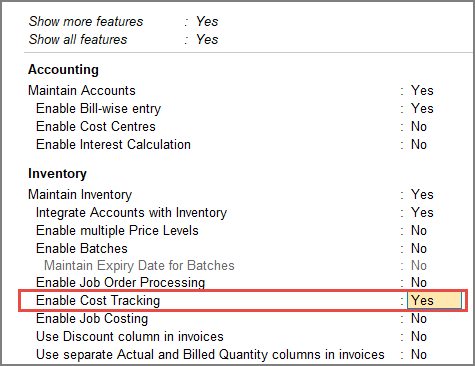
- Press F11 (Features) > set Enable Cost Tracking to Yes.
- Press Ctrl+A to save.
Enable Cost Tracking in Stock Items

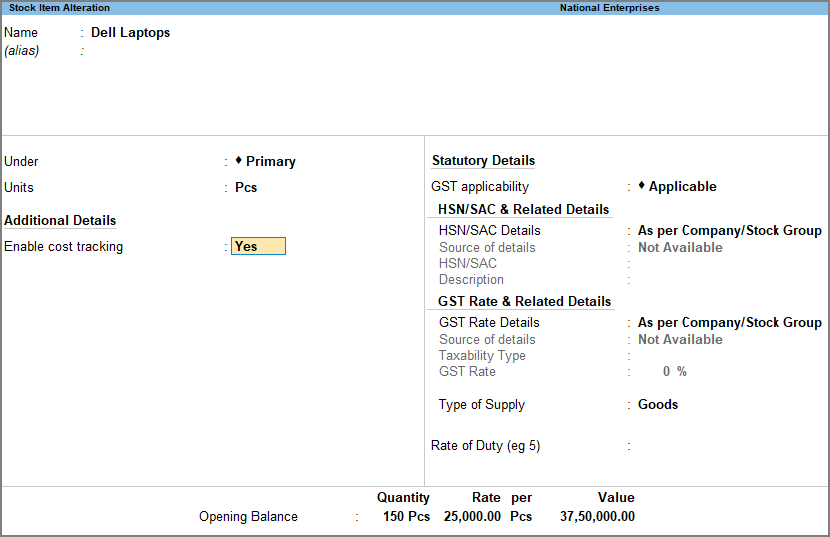
- In the Stock Item Creation/Alteration screen, press F12 (Configure) > set Is Cost Tracking applicable for Stock Items as Yes.
If you need to use this option only for the current stock item, press Ctrl+I (More Details) > type or select Cost Tracking > set Enable cost tracking as Yes. - Enable cost tracking: Yes.
- Press Ctrl+A to save.
Once cost tracking is enabled, you can track various costs with tracking number in the Item Allocations screen in transactions.
Enable Cost Allocations for Stock Items in Expense Ledgers
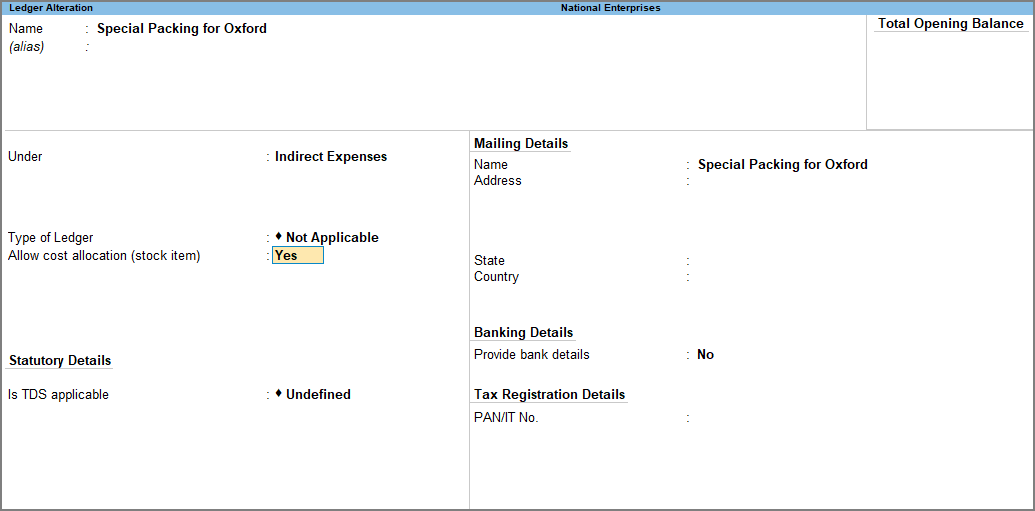
- In the Ledger Creation/Alteration screen, press F12 (Configure) and set Apply Cost Tracking of Stock Items for Ledgers as Yes.
Enabling this option ensures that whenever you use this ledger in the transaction, the cost of the stock items gets tracked.
If you need to use this option only for this specific ledger, then press Ctrl+I (More Details), and set Allow Cost Allocation for Stock Item as Yes. - Allow cost allocation (stock item): Yes.
- Press Ctrl+A to save.
Similarly, you can create other ledgers and enable cost allocation for stock items to track expenses.
Once you set up stock items for cost tracking, you can track item cost in transactions.
Is this information useful?
YesNo


