Record Sales as per Slab Rate Under GST
You might be selling a stock item that attracts different tax rates based on the price range. In such cases, you can define slab-based tax rates for the stock item and calculate tax based on either of the following methods:
- Tax as per the slab applicable to item rate: Say the item rate is 450 and the tax rate for the slab 0 to 500 is 5%, the tax gets calculated at 5% of the total item cost.
- Tax as per the slab applicable to MRP: Say the item rate is 450, the tax rate for the slab 0 to 500 is 5% and for slab 501 to 1000 is 18%, and the MRP for the item is set at 510, the tax gets calculated at 18% of the total item cost.

Ensure that
- GST is enabled for your company.
- Stock item is configured for slab rate, as needed:
- Slab-based tax rates and item rate
- Slab-based tax rates, along with MRP details and consideration for tax rate
Record Sales of Items by Using Tax Rate Based on Slab Rate of Item
In the sales voucher:
- Select the stock item configured with slab-based tax rates.
- Enter the Quantity and Rate of the stock item.
- Select the applicable tax ledgers: CGST & SGST/UTGST for local and IGST for interstate.
The tax amount gets calculated as per the tax rate of the corresponding slab or price range. - View the Tax Analysis for slab-based tax breakup, if needed.
- Press Ctrl+O (Related Reports) > GST Tax Analysis.
- Press Alt+F5 (Detailed) to view the detailed breakup of the tax.

- Provide other necessary details, and press Ctrl+A to save.
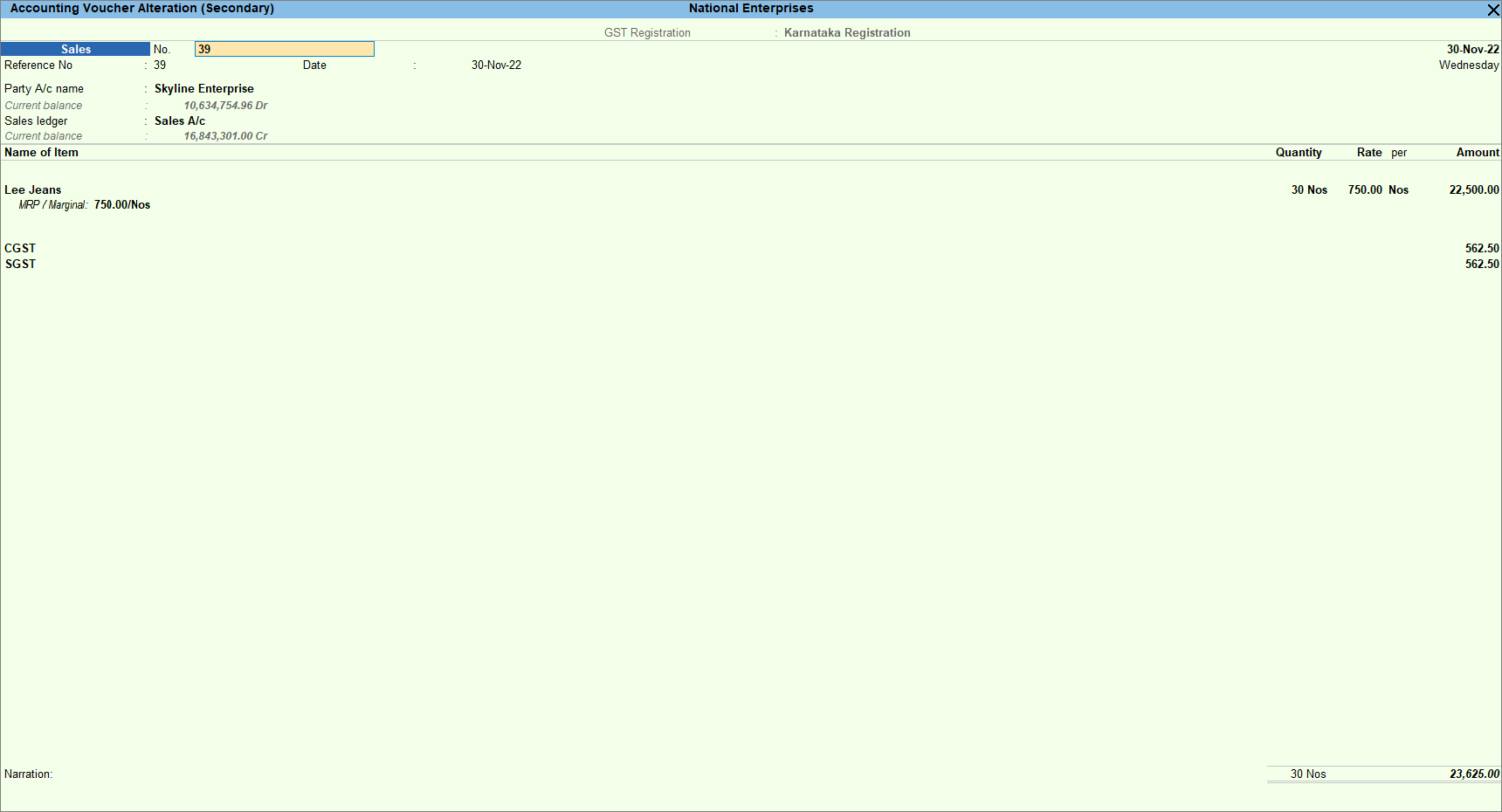
Record Sales of Items by Using Tax Rate Based on Slab Applicable to MRP
In the sales voucher:
- Select the stock item configured with slab-based tax rates and MRP consideration for tax rate.
The voucher displays the MRP price configured in the stock item for slab-based tax rate calculation. - Enter the Quantity and Rate of the stock item.
- In case you want to override the MRP configured in the stock item:
- Press F12 (Configure) > set Modify MRP in vouchers to Yes.
- Enter the required MRP/Marginal price to consider the tax rate.
- Select the applicable tax ledgers: CGST & SGST/UTGST for local and IGST for interstate.
- View the Tax Analysis for tax breakup as per the slab applicable to MRP.
- Press Ctrl+O (Related Reports) > GST Tax Analysis.
- Press Alt+F5 (Detailed) to view the detailed breakup of the tax.
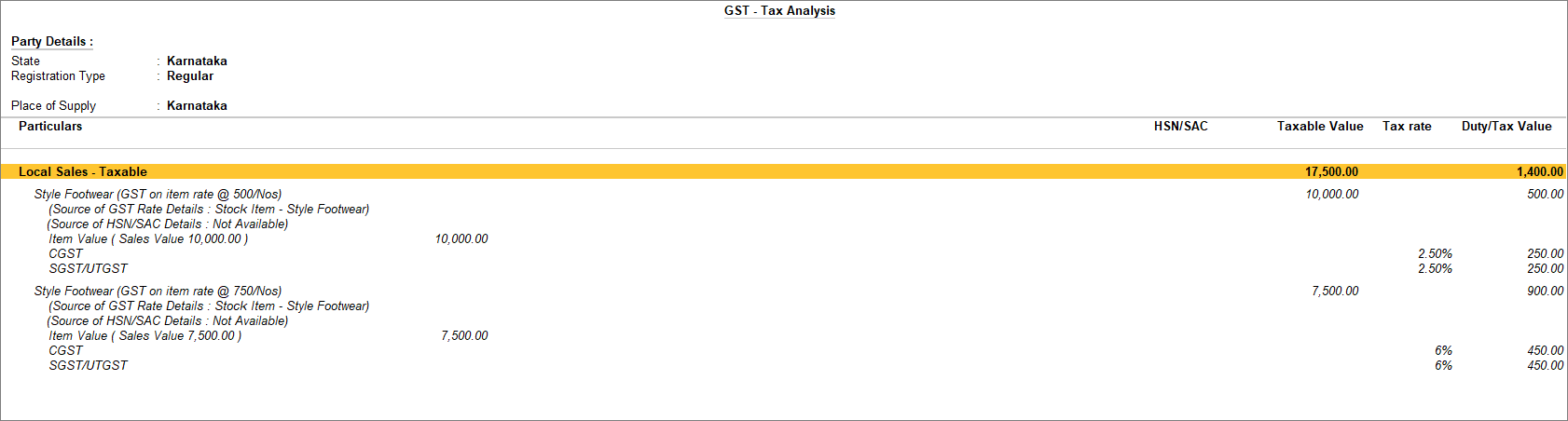
- The tax amount is calculated as per the tax rate of the slab applicable to the MRP, irrespective of the item rate.
- Provide other necessary details, and press Ctrl+A to save.
Questions & Answers
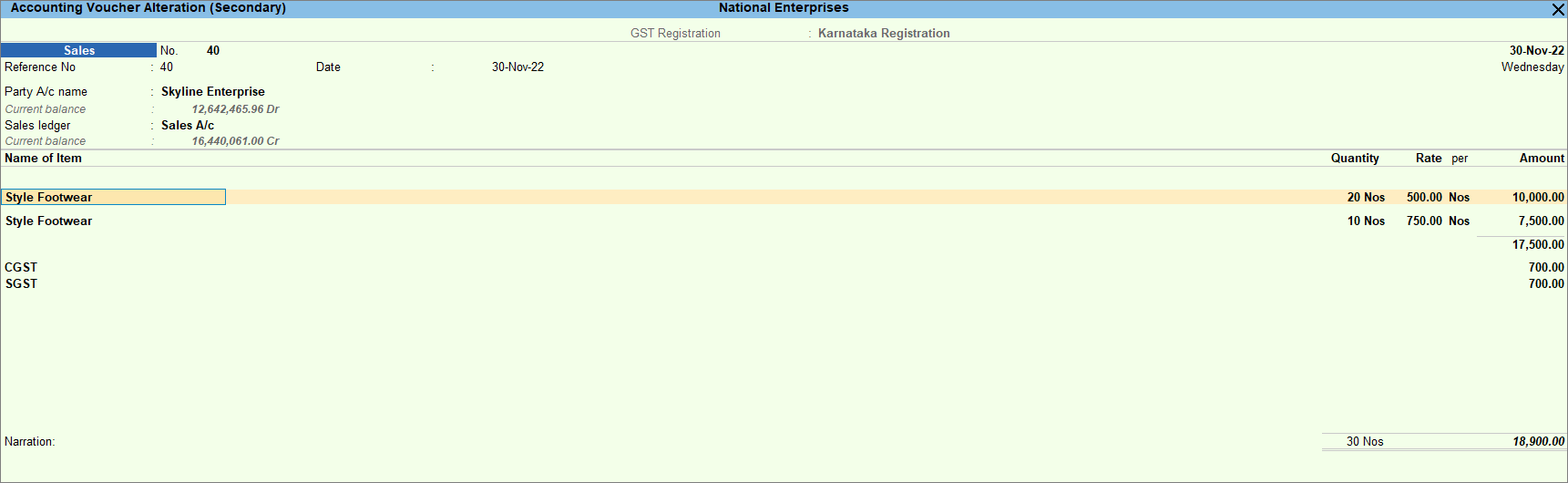
- Can I record sales of the same stock item falling under different slab-based tax rates in a single invoice?
Yes, you can. When recording sales of items as per MRP or Item Rate, as needed:- Select the same stock item again and enter the applicable quantity and rate.
- Provide all other necessary details, and press Ctrl+A to save.
Based on the MRP for each slab-based tax rate, TallyPrime calculates the overall tax amount.
- How do I include additional expenses in sales of items with slab-based rates?
When recording sales of items as per MRP or Item Rate, as needed:- Select the expense ledger <to be linked> configured for appropriation by quantity.
- Provide all other necessary details, and press Ctrl+A to save.
- Can I override the slab-based tax rate during voucher entry?
If the slab-based tax rates of stock items change for any reason, such as a discount on the items or change in tax rate, you can override the tax rates at the transaction level. However, changes made in the tax rate during voucher entry do not update the rates in the stock item.
When recording sales of items as per MRP or Item Rate, as needed:- Press F12 (Configure) > set Modify GST & HSN/SAC related details to Yes.
- After entering the stock item details, under GST Rate and Related Details, enter the applicable tax rate for the slab or price range.
- Provide all other necessary details, and press Ctrl+A to save.
Is this information useful?
YesNo