
Allocate Payments to Cost Centres in TallyPrime
Use Cost Centres to allocate incomes and expenses to specific employees, departments, projects, or activities. This helps you track and analyse the income earned and expenses incurred for each Cost Centre. Once multiple Cost Categories are created, you can allocate the same transaction across different sets of Cost Centres.
Simialarly, Cost Centre Class allows you to allocate the expenses and income to the respective Cost Centres based on the percentages decided at the time of creating the Class.

Ensure that you have created:
- An expense ledger, such as Travel & Accommodations, Stationary, and Advertisement.
- Separate Cost Centres under corresponding Cost Categories, such as employee Ramesh, employee Suresh, and so on.
Record Expenses and Incomes Using Cost Centres
For example, employees Ramesh and Suresh travel across the country to conduct training and demo sessions at client locations. You can allocate their travel and accommodation, stationery, and advertisement expenses, as well as the commission income earned, to the respective Cost Centres Ramesh and Suresh.

- In a payment voucher, select the expense ledger Travel and Accommodation and the corresponding amount and press Enter.
- In the Cost Centre Allocations screen, provide the Cost Centre details.
- Enter the employee name under Name of Cost Centre.
- Enter the allocated amount for that employee under Amount.
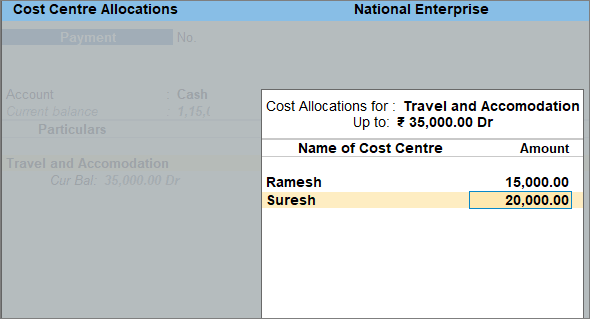
- Press Ctrl+A to save the Cost Centre Allocations screen.
- Enter the expense ledgers Stationery and Advertisement with their amount and Cost Centres.
- Press Ctrl+A to save.
Record transactions with parallel allocation using Cost Categories
Once multiple Cost Categories are created, you can allocate the same transaction across different sets of Cost Centres.
- In the payment voucher, select the Travel & Accommodations ledger, enter the corresponding Amount and press Enter.
- In the Cost Centre Allocations screen, update the necessary details.
- Select the Cost Category, say Employees.
- Select the Name of Cost Centre, say Ramesh and Suresh.
- Enter the amount for each Cost Centre.
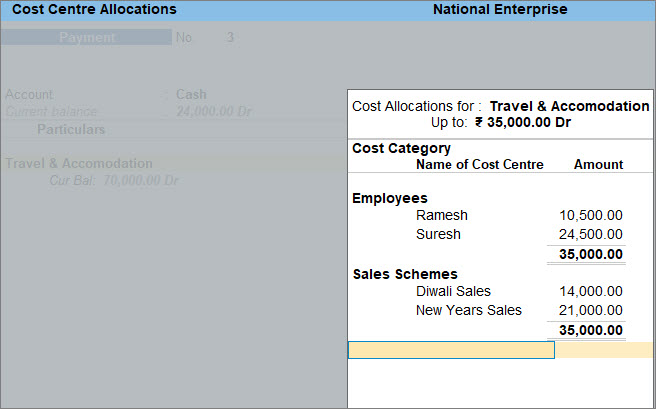
- Press Ctrl+A to save the Cost Centre Allocations screen.
- Press Ctrl+A to save the Payment voucher.
Allocate Expenses and Income to Cost Centres Using Cost Centre Class
- In the payment voucher, press F12 (Configure) and set Select Cost Centre/Class to Yes.
- While recording the payment voucher, select the Cost Centre Class, for example, Travel Expenses.
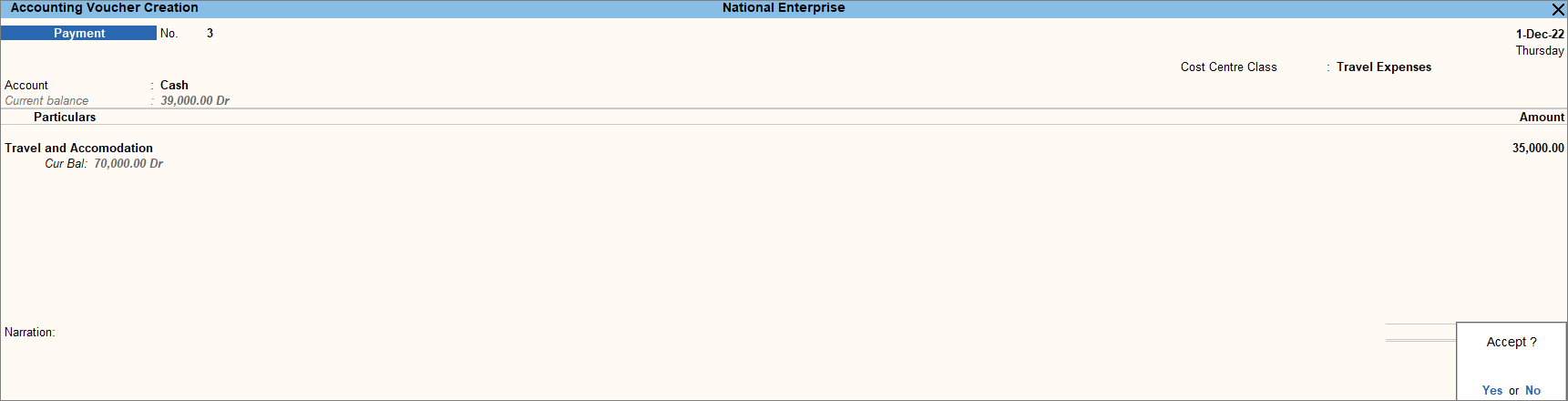
- Select the expense ledger under Particulars and enter the Amount.
You do not have to allocate the expenses to the Cost Centres. It gets allocated as defined in the Cost Centre Class. - Press Ctrl+A to save the Payment Voucher.
- Open the Voucher in alteration mode or press Page Up to view the Cost Centre allocation.
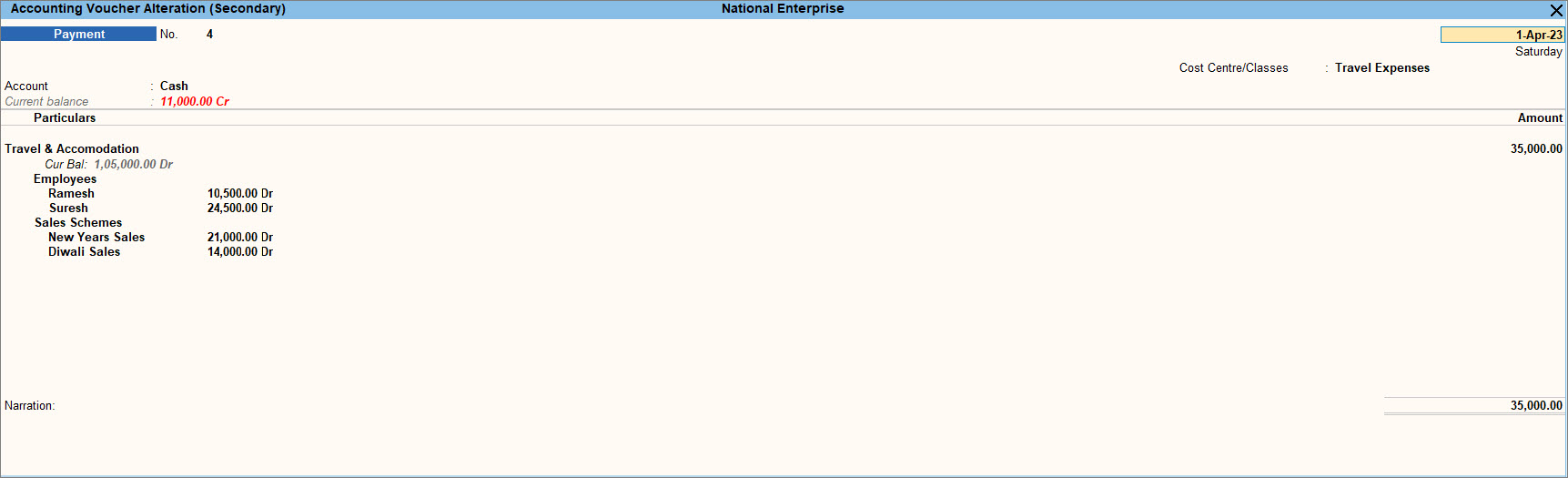
Similarly, you can create the required Cost Centre Class and record a Sales Voucher to see the expense allocation to Cost Centres based on the percentages defined in the Cost Centre Class.


