
Track Item Cost in Transactions in TallyPrime
TallyPrime allows you to track stock item cost in transactions such as Sales Order, Sales Invoice, Purchase Voucher, and Payment Voucher. Tracking cost of stock item in transactions helps you predict profitability and optimise cost of the item.
In TallyPrime, when you record a sales or purchase order, you can create a cost tracking number to track the expenses incurred for a stock right from anywhere in the purchase to the sales cycle.

Ensure that:
- You have created stock items.
- You have created ledgers for expenses, as needed.
- You have enabled Cost tracking for the stock item or ledger, as needed.
- You have configured the ledger for cost-tracking.
Record a Sales Order with Item Cost Tracking Number
While recording a Sales Order:
- Select the item and enter details like Quantity and Rate, and press Enter.
- In the Item Allocations screen, select the Tracking Number from the List of Cost Tracking Numbers.
If none of the Tracking Numbers are relevant for these transactions, then select New Number, and enter the Tracking Number.
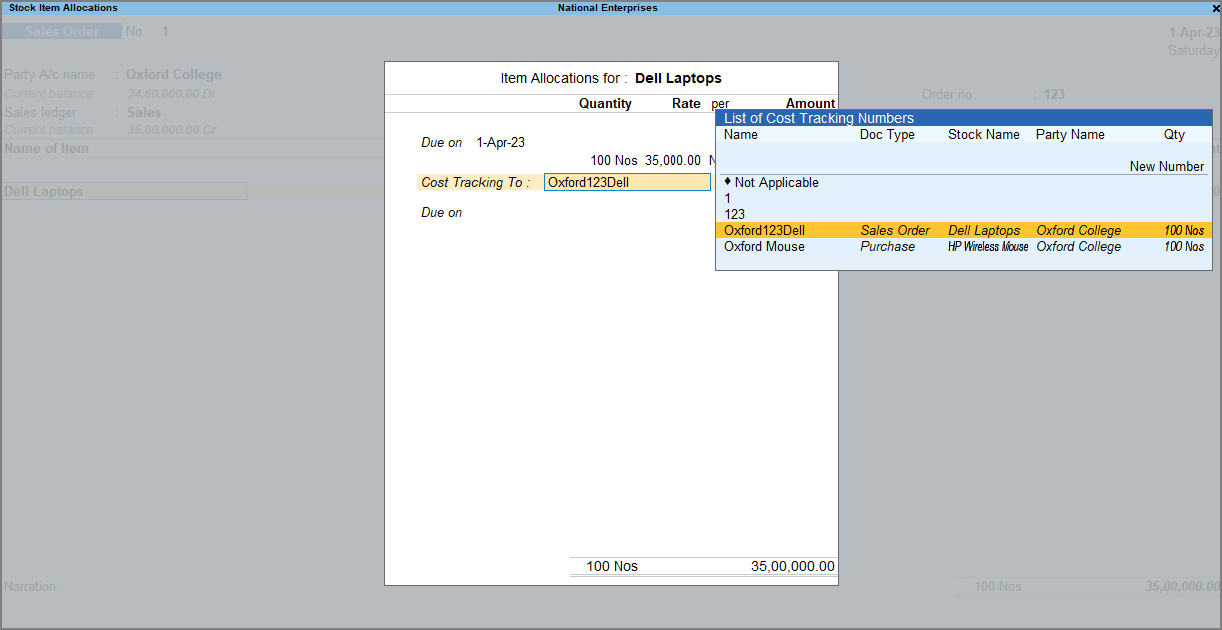
- Press Ctrl+A to save the Item Allocations screen.
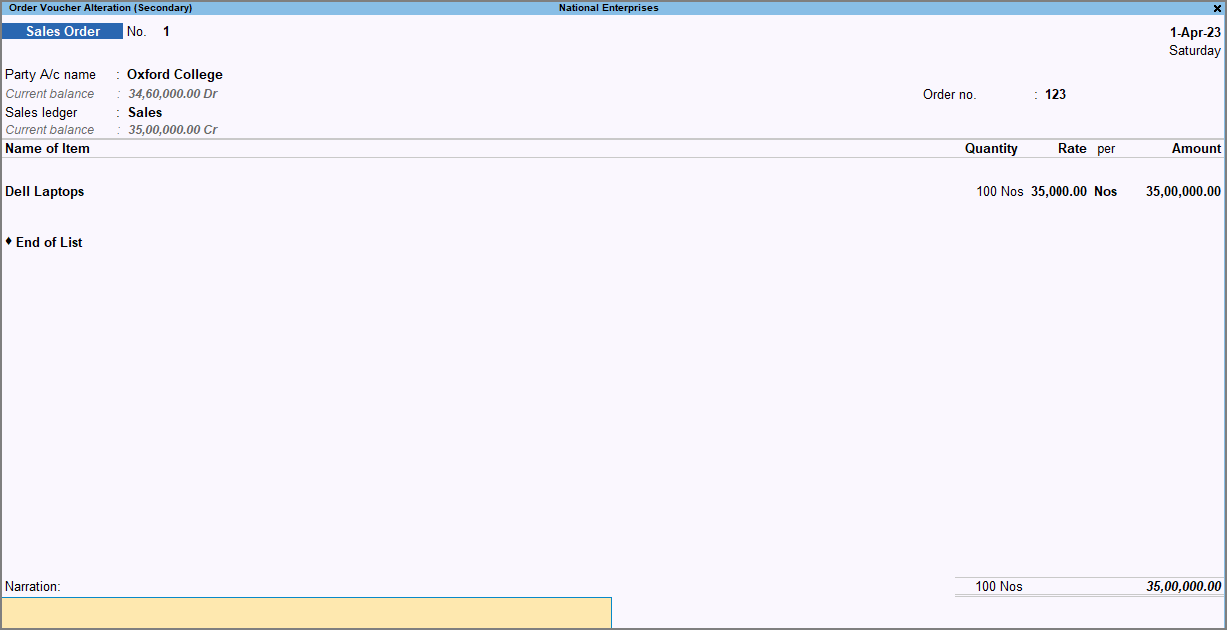
- Enter other necessary details, and press Ctrl+A to save the voucher.
Record Purchase Voucher with Item Cost Tracking Number
While record a purchase voucher:
- Select the item and enter details like Quantity and Rate, and press Enter.
- In the Item Allocations screen, select the Tracking Number from the List of Cost Tracking Numbers.
If none of the Tracking Numbers are relevant for these transactions, then select New Number, and enter the Tracking Number.
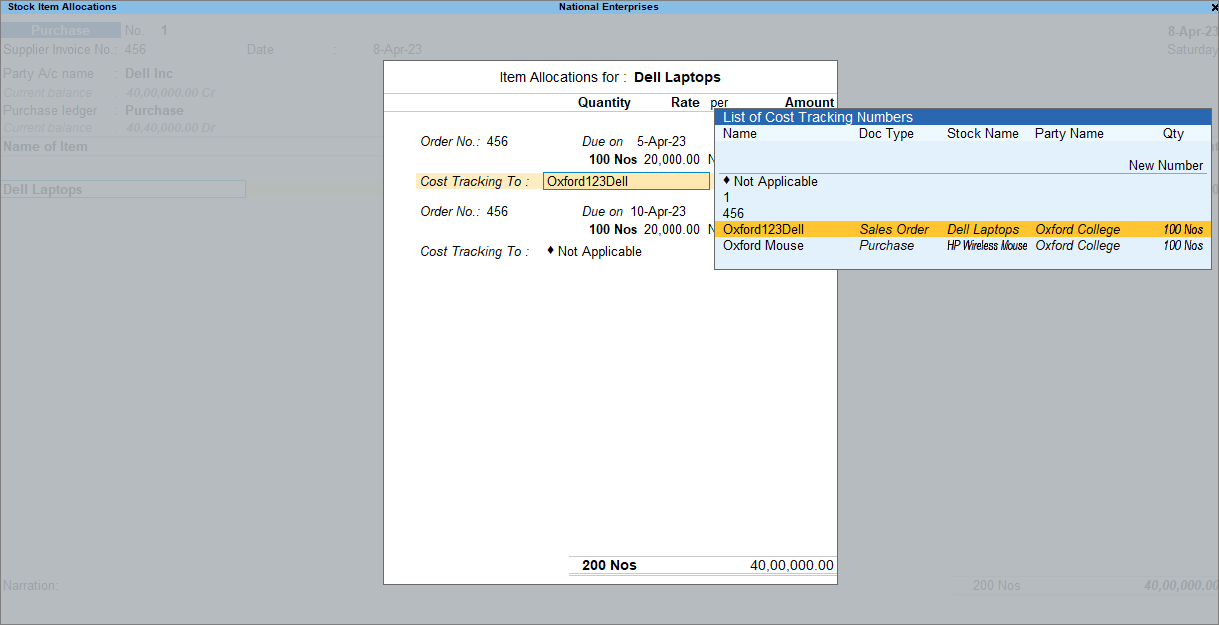
- Press Ctrl+A to save the Item Allocations screen.
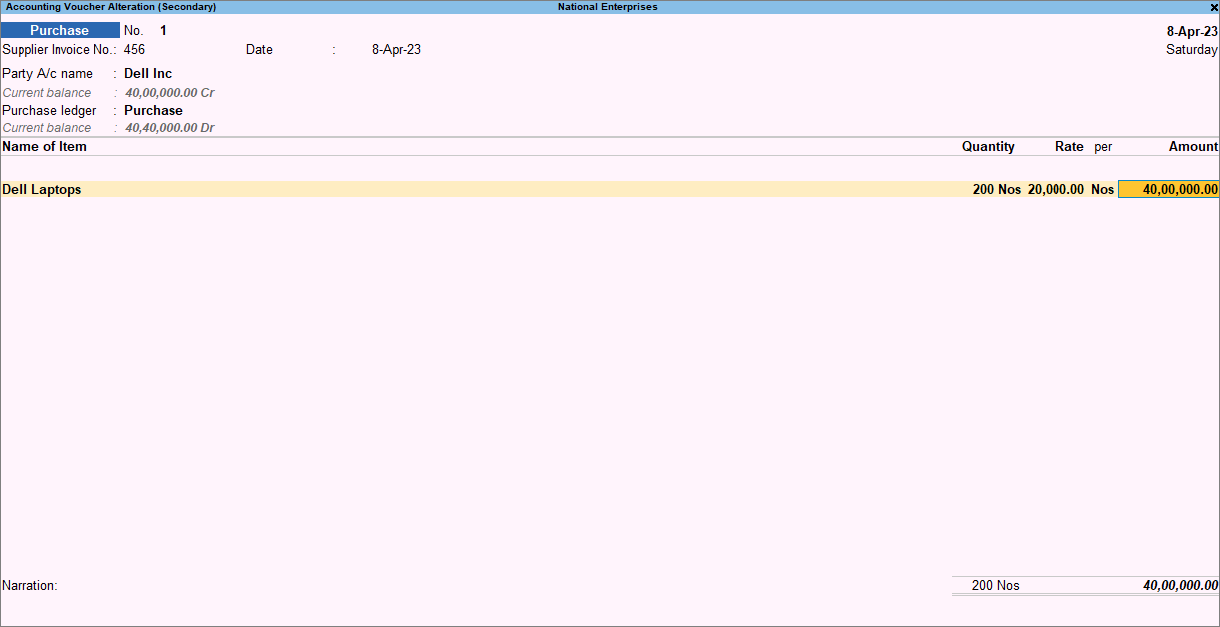
- Enter other necessary details and press Ctrl+A to save the voucher.
Record a Payment Voucher to Account for Expense on Stock Item
While recording a payment voucher:
- Under Particulars, select the expense ledger with cost allocation enabled and enter the Amount and press Enter.
- In the Stock Item Cost Allocation screen, select the Tracking Number from the List of Cost Tracking Numbers.
If none of the Tracking Numbers are relevant for these transactions, then select New Number, and enter the Tracking Number.
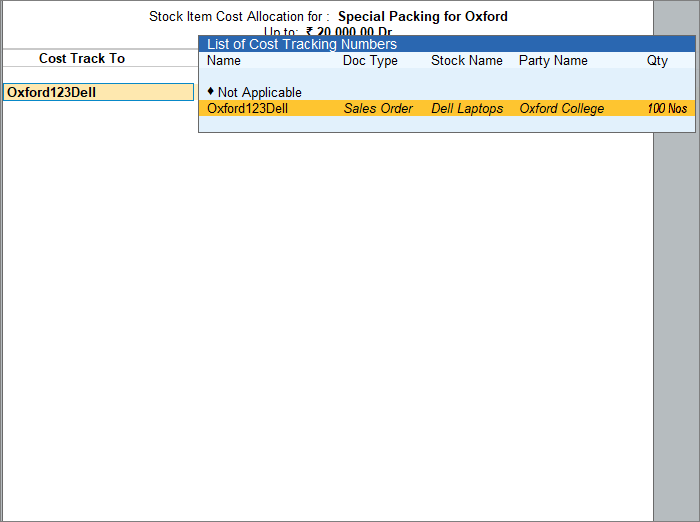
- Select the Item and enter details like Quantity and Rate, and press Enter.
The Amount gets prefilled as entered earlier.
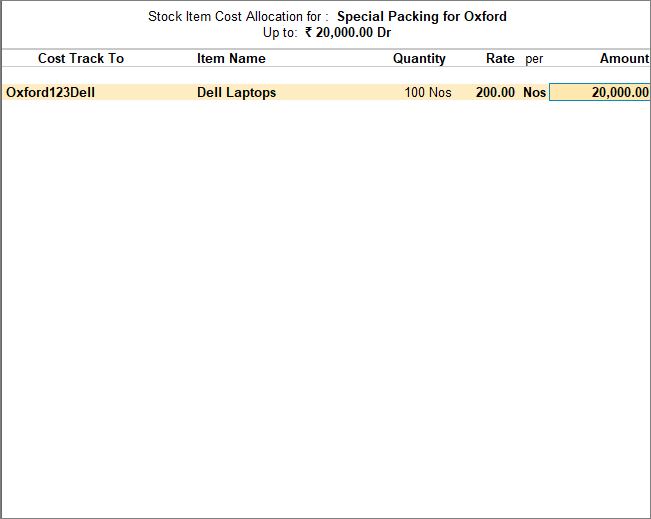
- Press Ctrl+A to save the Item Allocations screen.
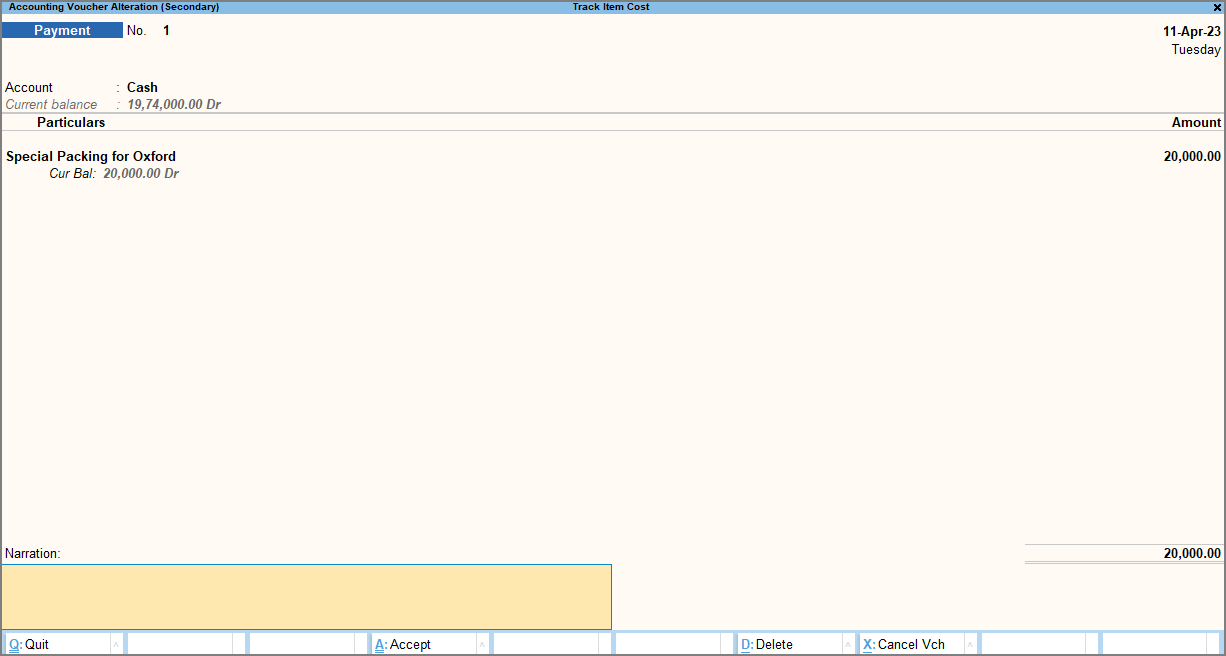
- Enter other necessary details, and press Ctrl+A to save the voucher.
Questions & Answers
- I have already recorded the purchase of a stock item with a cost tracking number. Later, I incur an additional expense related to that item, such as delivery or packaging charges. How can I associate this expense with the item without recording another purchase transaction?
Record the expense in a Payment Voucher using the expense ledger configured for cost tracking. In Item Allocations, select the existing cost tracking number and specify the relevant Item, Quantity, and Rate. This associates the additional expense with the same tracking number and helps account for it while evaluating the item’s profitability.
Is this information useful?
YesNo


