
Set Up TallyPrime to Synchronise Data from Tally e-Billing
To synchronise data from Tally e-Billing to TallyPrime, ensure that TallyPrime is set up for synchronisation.
- Create a Company in TallyPrime with the same details as configured in Tally e-Billing.
- Set up user access control for the company.
- To connect the company to Tally.NET Services, press F11 (Company Features) > set Enable Tally.NET Services for Remote Access & Synchronisation to Yes.
- Verify the Company Display Name as given in Tally e-Billing.
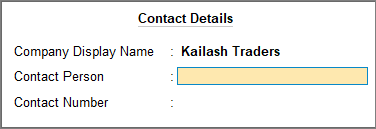
- Press Alt+K (Company) > Online Access.
- In the Online Access Configuration screen, select Contact Details.
- Connect the company automatically when TallyPrime starts.
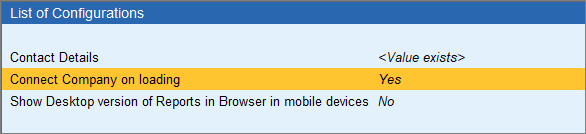
- Press Alt+K (Company) > Online Access.
- In the Online Access Configuration screen, enable Connect Company on loading.
- To add e-mail ID for browser access, press Alt+K (Company) > Security > E-mail ID for Browser Access.
- Press Alt+K (Company) > Connect to connect the company to the Tally.NET services.
Once the company is connected, you are ready to synchronise data.
Is this information useful?
YesNo


