
Create Company in TallyPrime
Create a company in TallyPrime to record business transactions, maintain accounts, and generate your financial reports. Set up the security and business-specific features in your company, as needed, and start recording your transactions.

Ensure that:
- You have installed the required TallyPrime version.
- You have the company-specific details, such as data path, company address, contact details, and so on.
- You know the financial year applicable to your business.
Watch our video!
- In TallyPrime, press Alt+K (Company) > Create.
If another company is already open, in the Select Company screen, select Create Company. - Enter Company Name.
It is recommended to enter the registered company name. - Set up Company Data Path as needed.
- By default, the company data is stored in the default or last used data path. Press Spacebar to change the location, if needed.
- You can change the Data Path any time later from Alt+Y (Data) > Configuration.
- Enter company’s contact details. These details will be part of your invoices when you print, export, or share them via e-mail and WhatsApp.
- Mailing Name: It is prefilled as per the Company Name. You can change the mailing name if needed.
- Address: Enter the detailed address of your company.
The mailing name and address are printed on invoices, reports, and other business documents. - State and Country: Select the Country and State that your business is operating from.
- Other contact details: Enter details such as Mobile, Fax, E-mail, and Website.
- Enter accounting period details.
- Financial year beginning from: This is prefilled based on the date settings of your computer and the country. Change the date, if needed, based on the financial year applicable to your business.
- Books beginning from: This is prefilled based on the Financial Year Beginning date. Change the date, if needed, based on the actual start date of your business transactions.
- Set up User Access Control.
- Press F12 (Configure) > set Use User Access Control to Yes.
- Set Control User Access to Company Data to Yes.
- Enter the Username (Administrator) and Password.
- Enable TallyAudit features: To help auditors and administrators verify changes made to the company data and transactions.
- Disallow opening in Educational Mode: Ensures that users can access the company only through a valid license, preventing unauthorised access to the company.
- Set up TallyVault to encrypt your company data.
- Press F12 (Configure) > enable Use TallyVault Password.
- Enable Set TallyVault Password to encrypt Company Data.
- Enter the TallyVault Password.
- Enable Edit Log.
- Press F12 (Configure) > Set Edit Log applicability: Yes.
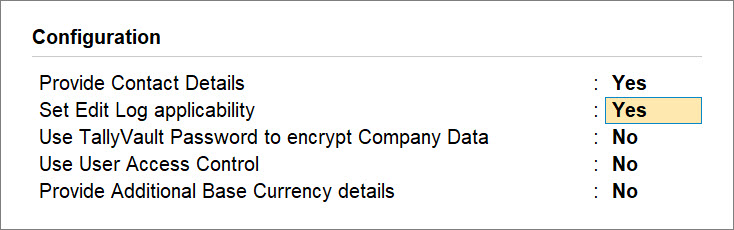
- Set Enable Edit Log to Yes.

- Press Y or Enter to confirm.
- Press F12 (Configure) > Set Edit Log applicability: Yes.
- By default, the Base Currency is set as applicable to the country of your business. Make changes, if needed.
- To enter additional currency details, press F12 (Configure) > set Provide Additional Base Currency details to Yes.
- Set up suffix, spacing, amount in words, and decimal place details, as needed.
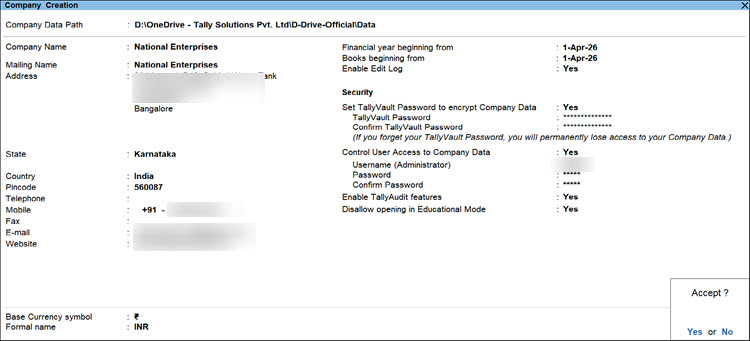
- Press Ctrl+A to create the company.
You will see the Company Features screen, where you can enable or disable the features and provide necessary details required for your business operations.
You can create more than one company in TallyPrime by following the same set of steps.
Questions & Answers
- Why do I need Edit Log?
You need Edit Log to comply with MCA’s Audit Trail compliance requirements. Refer to the Edit Log topic for more details. If you have installed TallyPrime Edit Log, no additional set up is needed to track and log changes to your company and data. TallyPrime Edit Log is designed to meet MCA guidelines. However, if you are on TallyPrime, you can enable the Edit Log feature, if needed to record the history of changes to your company data and review them when needed. - I have already created my company. I do not see the option to set up TallyVault in the alteration screen. How do I set up TallyVault now?
- Press Alt+K (Company) > TallyVault.
- In the TallyVault screen, enter the Password and Confirm Password.
- Press Ctrl+A to save.
Next time you open the company, you must enter the TallyVault password to access your company.
Is this information useful?
YesNo


