
VAT Rate Setup Report in TallyPrime for UAE e-Invoicing
You can view the VAT rates configured in your company using the Tax Rate Setup report.


-
Enable VAT and e-invoicing.
-
Complete the e-Invoicing Registration from TallyPrime.
-
Configure the stock items, party ledgers, VAT ledgers, and UoM details correctly.
- Press Alt+G (Go To) > VAT Rate Setup.
By default, the report is displayed Group-wise.
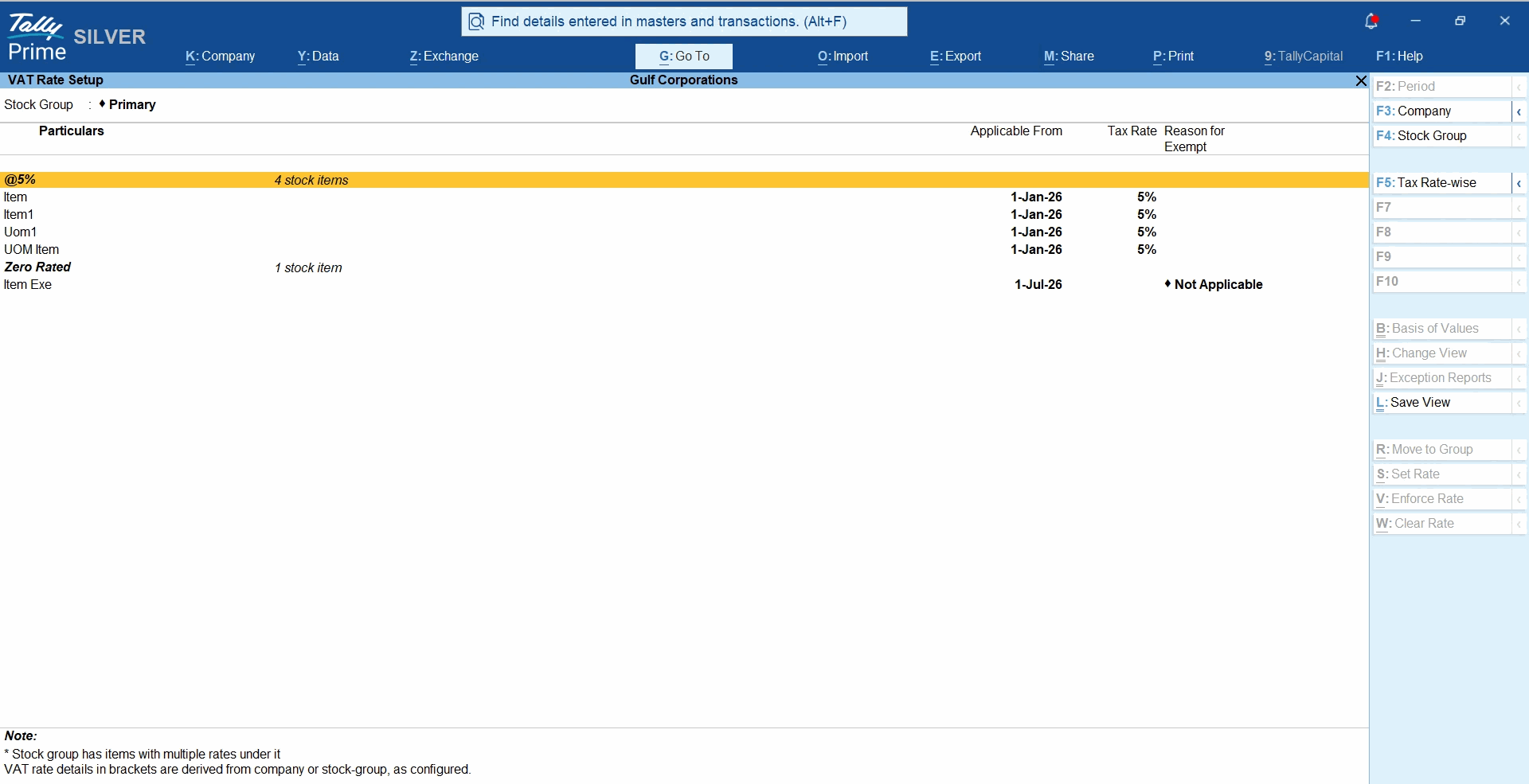
- To view the report Tax Rate-wise, press F5.
- Particulars: Displays the name of the Stock Group.
A stock group can contain items with multiple VAT rates, which can be viewed in the drill-down details. - Applicable From: Displays the date from which the VAT rate is effective.
- Tax Rate: Displays the percentage of VAT applied.
- Reason for Exempt: Displays the reason if an item/group is exempt from VAT.
- Particulars: Displays the name of the Stock Group.
- Drill down from any stock group, as required.
- Press Alt+S (Set Rate) to change the rate of the Stock Item.
- Press Alt+W (Clear Rate) to change the rate of the Stock Item.
- Provide other necessary details and press Ctrl+A to save.
Questions & Answers
-
How can I view the history of tax rate changes for an item?
Open the stock item and press Alt+W to view the history of tax-related changes, including the Applicable date, Taxability, Tax rate, and Reason for Exempt. -
Why is the Reason for Exempt field not available for some items?
The Reason for Exempt field is available only when the stock item’s Taxability is set to Exempt. If the item is Taxable, Not Vatable, or Zero Rated, the field is not displayed.
Is this information useful?
YesNo


