Record Sales with MRP Inclusive of GST in TallyPrime
If you sell goods at an MRP that already includes GST (MRP inclusive of taxes), you can record such transactions in TallyPrime without entering tax ledgers separately. To do this, create a Voucher Class with the required accounting allocations, configure the stock item, and then record the sales transaction. Alternatively, you can use the Rate (Incl. of Tax) column for individual transactions.

Ensure that:
- GST is enabled for your company.
- Sales and GST tax ledgers are created.
- Stock items are created with the required GST details.
Record Sales with MRP-Inclusive of Tax Using a Voucher Class
This method is most suitable when the MRP entered in the invoice is already tax-inclusive and this is your regular business practice, and not just an occasional transaction.
Step 1: Set up Voucher Class for MRP Inclusive of GST
Create a Voucher Class in the Sales voucher type to automatically calculate sales and tax amounts from an MRP that is inclusive of GST.
In the Voucher Type Alteration screen:
- Press Enter in the Name of Class field and enter a Voucher Class Name (say MRP Inclusive of Taxes).
- Enable Default Accounting Allocations.
- Set Enable default accounting allocations to Yes.
- Enable Set/Alter Default Accounting Entries.
- Press F12 (Configure) and enable Allow to change default Accounting Allocation method.
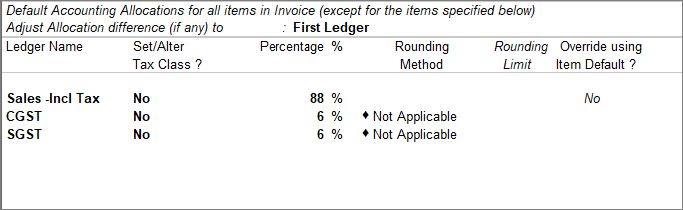
- Under Adjust Allocation Difference (if any) to, select First Ledger.
- Configure the required Sales ledger and GST ledgers with their percentages.
- Press Ctrl+A to save the Voucher Class.
Once First Ledger is selected for adjustment of allocation differences, a rounding method cannot be applied to that ledger because the adjustment is already assigned to it. Changes made to the Voucher Class do not affect transactions that were recorded earlier. Any corrections to existing transactions must be made manually.
Step 2: Configure Accounting Allocations for Stock Items
Configure the stock item so that the sales and tax ledgers are automatically applied when recording invoices with the Voucher Class.
In the Stock Item Creation/Alteration screen:
- Press F12 (Configure) and enable Set default Accounting Allocations for Stock Items (in Invoice Mode).
- Enable Set/Modify Default Ledgers for Invoicing.
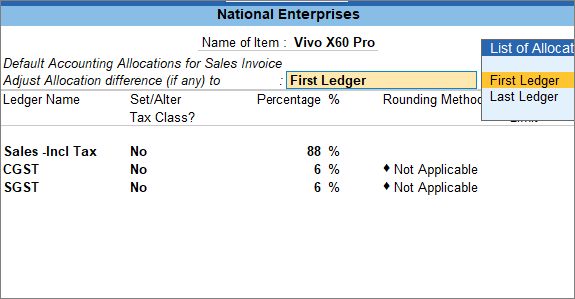
- In the Default Accounting Allocations for Sales Invoice screen, press F12 (Configure) and set Allow to change default Accounting Allocation method to Yes.
- Under Adjust Allocation Difference (if any) to, select First Ledger.
- Configure the required Sales ledger and GST ledgers with their percentages.
- Press Ctrl+A to save the configuration.
Step 3: Record Sales with MRP Inclusive of GST
In the sales voucher:
- Select the Voucher Class created for MRP-inclusive sales.
- Enter the stock item details, such as Quantity and Rate.
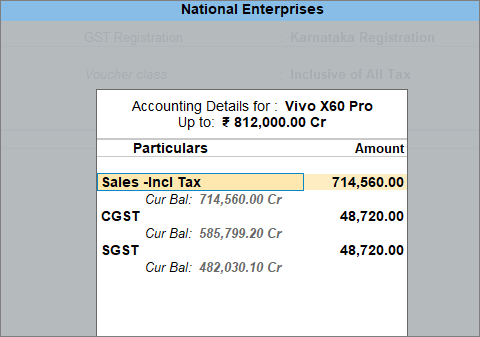
GST ledgers are applied automatically as you have selected the Voucher Class. - To view the tax allocations, on the Amount field, press Enter.
- Provide other necessary details and press Ctrl+A to save the voucher.

Record MRP-Inclusive Sales Using Rate (Incl. of Tax) Column
If you need MRP-inclusive tax calculation only for specific transactions, you can use the Rate (Incl. of Tax) column in the voucher instead of creating a Voucher Class.
In the sales voucher:
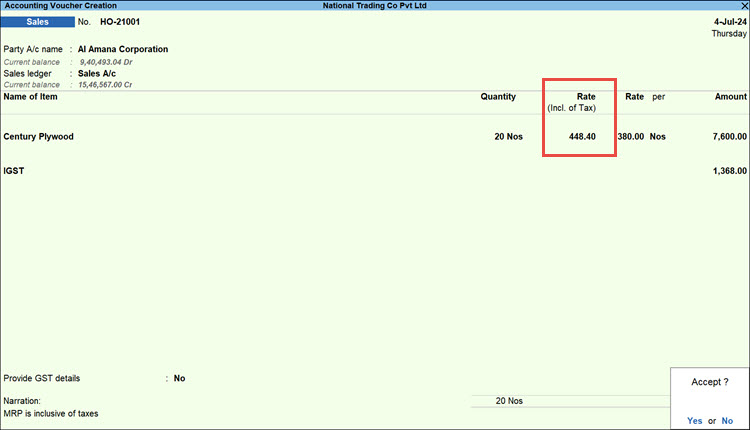
- Press F12 (Configure) and set Provide Rate Inclusive of Tax for Stock Items to Yes.
- Enter the stock item details, such as Quantity and Rate.
- In the Rate (Incl. of Tax) column, enter the rate that already includes GST.
- Provide other necessary details and press Ctrl+A to save the voucher.
Questions & Answers
- Why is the allocation difference adjusted to the First Ledger?
Selecting First Ledger ensures that any minor allocation differences arising from tax calculations are automatically adjusted to the first ledger in the allocation list. - Will changes to the Voucher Class update previously recorded transactions?
No. Changes made to the Voucher Class affect only future transactions. Existing transactions must be corrected manually if required.