
Record Job Work Out Orders in TallyPrime – Principal Manufacturer
With the Job work feature in TallyPrime, as a principal manufacturer, you can:
- Account for the tasks assigned to a job worker, using Job Work Out Orders.
- Keep track of the raw material sent to the job worker, using Material Out vouchers.
- Keep track of finished goods received from job worker, using Material In vouchers.
- Account for the job work services purchased.
- Make payments to the job worker.
TallyPrime also provides you with a wide range of job work orders reports to stay informed about job work in TallyPrime.

Ensure that you have:
- Set up TallyPrime for Job Work.
- Created party ledger for Job Worker under Sundry Creditor.
Record Job Work Out Order
In TallyPrime, you can record Job Work Out Order for:
- Stock Items without BoM.
- Stock Items with BoM when the components are involved.
Record Job Work Out Order for Stock Items Without BoM
- Press Alt+G (Go To) > Create Voucher > press F10 (Other Vouchers) > type or select Job Work Out Order and press Enter.
- Party A/c name: Select the ledger created for the Job Worker, and press Enter.
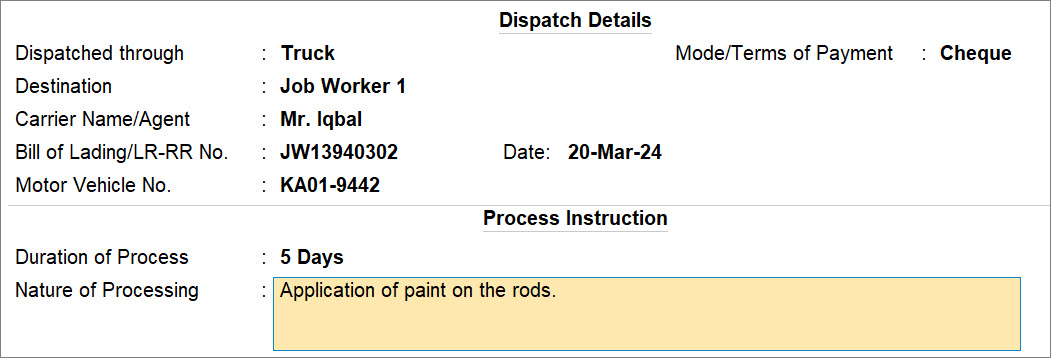
- In the Dispatch Details screen, provide the process and dispatch details.
- Duration of Process: Enter the duration (number of days or weeks) required to complete the job work.
- Nature of Processing: Enter the nature of work to be done on the raw materials.
For instance, when you send rods for painting, the nature of processing is application of paint on the rod.
Note: In a Job Work Out Order, Duration of Process and Nature of Processing are optional. However, Nature of Processing must be specified when transferring goods to a job worker. If the transfer is recorded against the order, both details are captured automatically. - Enter other necessary details, such as Dispatched through, Destination, Carrier Name/Agent, Bill of Lading/LR-RR No, and others.
- Press Ctrl+A to save the dispatch details.
- Enter the Order No.
- Select the Stock Item.
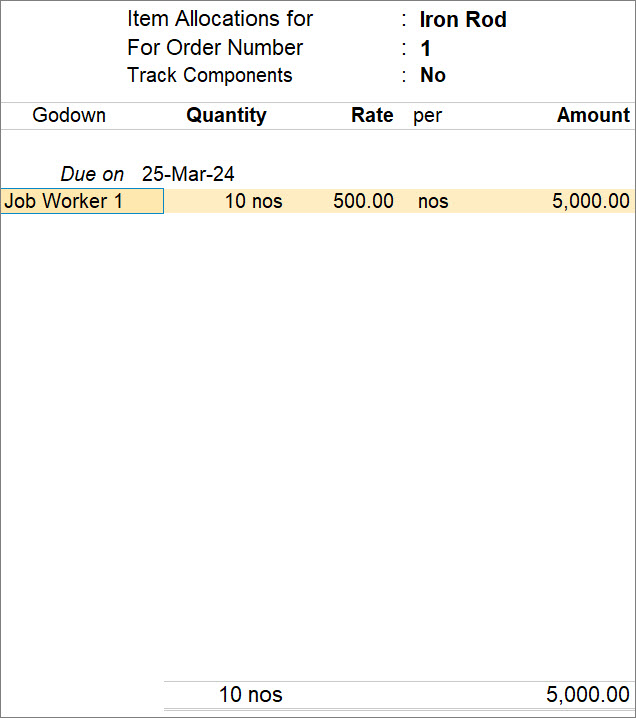
- In the Stock Item Allocations screen, specify the details.
- Track Components: No, for an item without Bill of Materials.
- Due on: Enter the date of completion of the job work.
- Godown: Select the appropriate Godown.
- Quantity: Enter the quantity of the stock item.
- Enter the Rate, and the Amount gets calculated.
- Press Ctrl+A to save to save Item Allocations details.
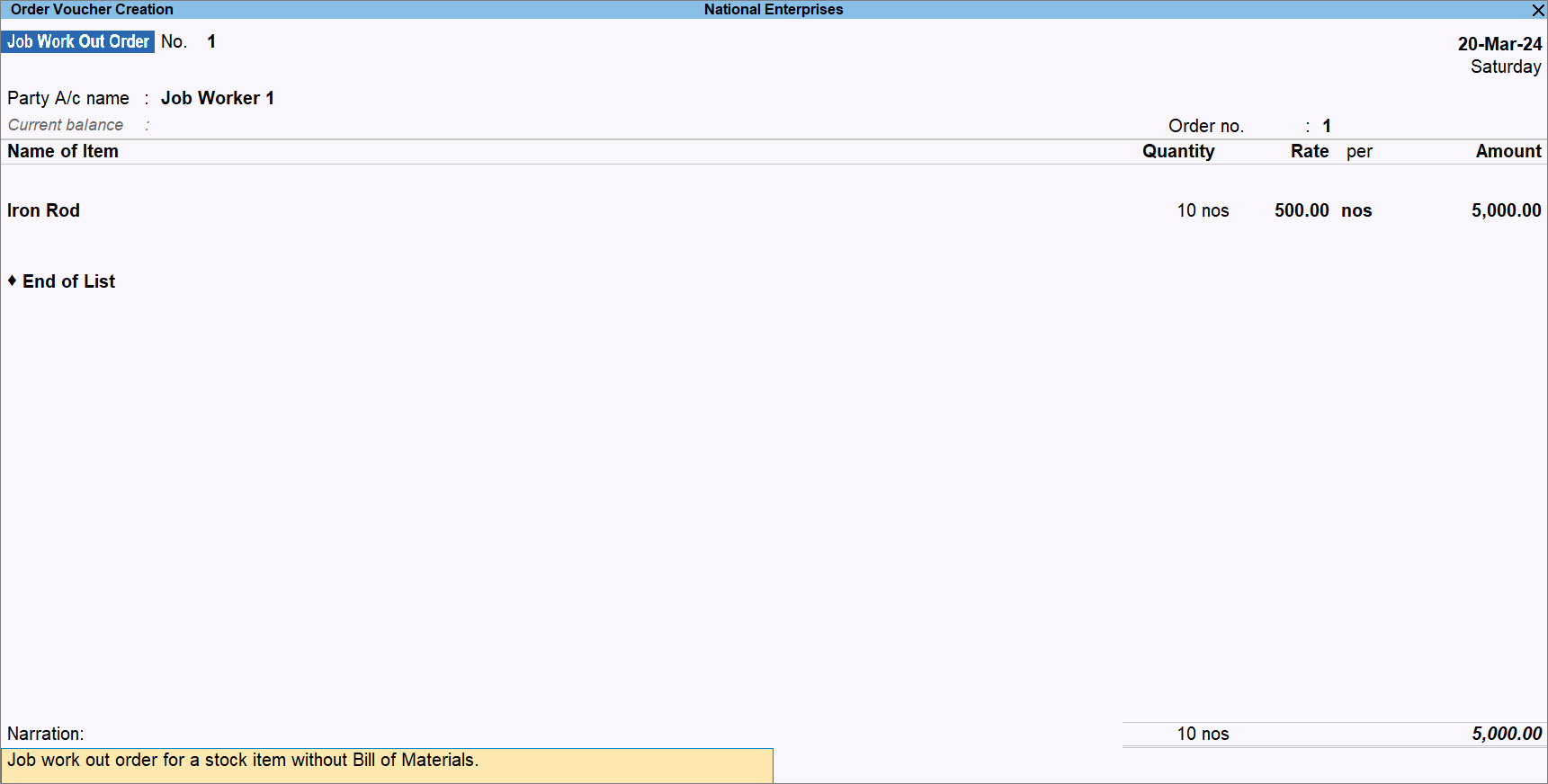
- Enter other necessary details in the voucher and press Ctrl+A to save the voucher.
Record Job Work Out Order for Stock Items With BoM
You just need to follow the procedure to record Job Work Out Order for Stock Items without BoM with the following following changes. While recording the Job Work Out Order voucher:
- In the Stock Item Allocations screen, specify the details.
- Track Components: Yes, for an item with Bill of Materials.
- Due on: Enter the date of completion of the job work.
- Godown: Select the appropriate Godown.
- Quantity: Enter the quantity of the stock item.
- Specify the Component Allocations.
- Specify the Component Allocations for the stock item or validate the same based on the Bill of Materials.
To know how to specify Bill of Materials for a specific Stock Item, refer to the Create/Alter Stock Item – Finished Goods With Bill of Materials section in the Set Up TallyPrime for Job Work Orders topic.
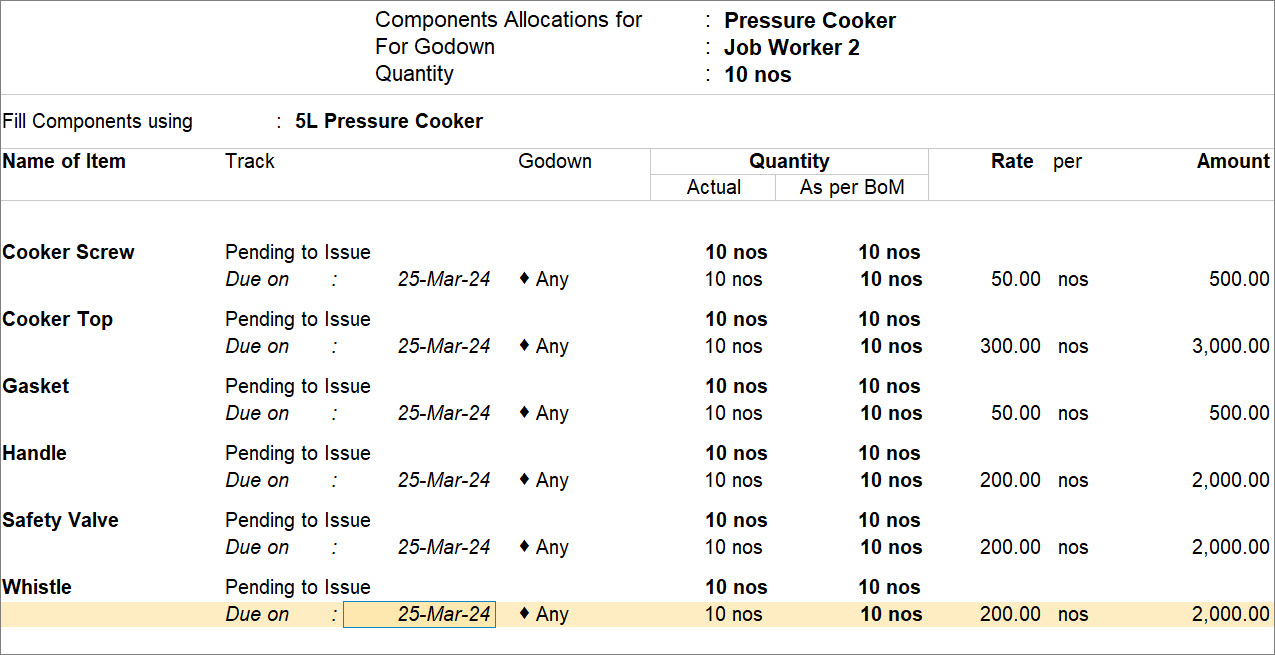
- Press Ctrl+A to save the Component Allocations details.
- Specify the Component Allocations for the stock item or validate the same based on the Bill of Materials.
- Enter the Rate, and the Amount gets calculated.
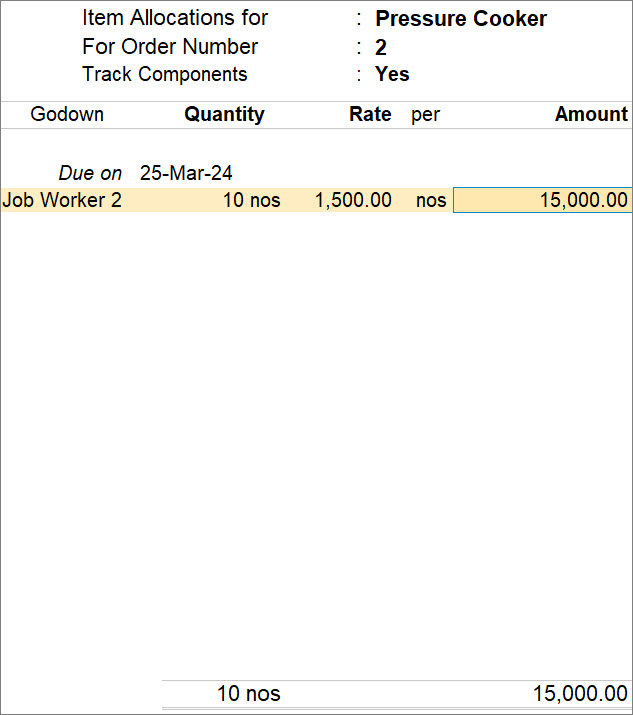
- Press Ctrl+A to save the Item Allocations details.
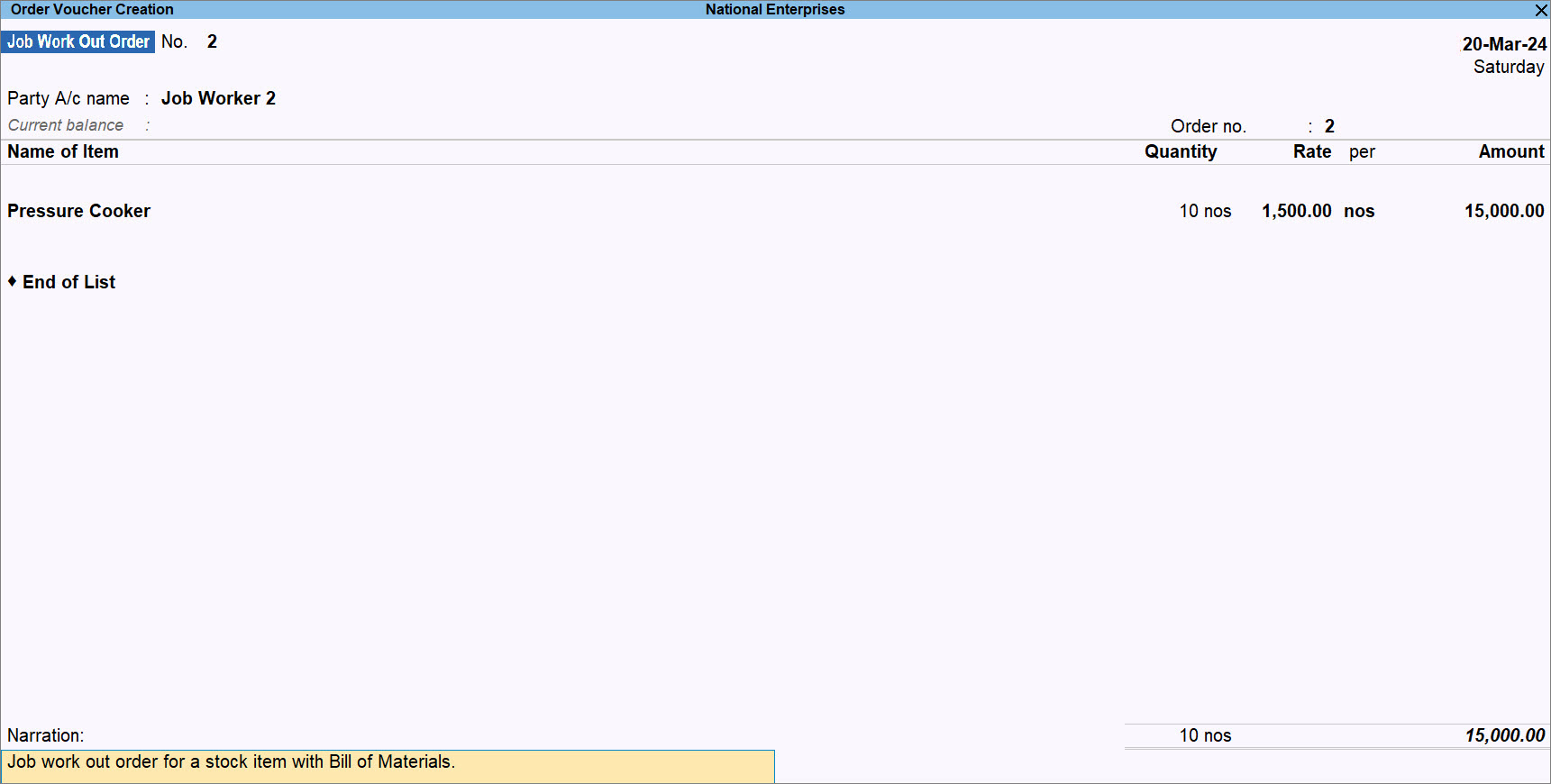
- Enter other necessary details in the voucher and press Ctrl+A to save the voucher.
For instances such as job work delivery failure and incomplete delivery, you can pre-close job work orders in TallyPrime.
You can view all the Job Work Out Orders in the Job Work Out report. Moreover, you can also refer to Job Work Orders Summary to view all the vouchers recorded for job work out.
Account for Raw Material Sent to Job Worker with Material Out Voucher
- Press Alt+G (Go To) > Create Voucher > press F10 (Other Vouchers) > type or select Material Out and press Enter.
- Party A/c name: Select the ledger created for the Job Worker and press Enter.
- In the Order Details screen, specify the details.
- Order No(s): Select the job work out order(s) against which you are recording the Material Out voucher.
As you enter the Order No., the other details get prefilled based on the details entered in the Job Worker Out Order. - Specify Other References and Terms of Delivery, if needed and applicable.
- Dispatch Doc No.: Enter the appropriate document number.
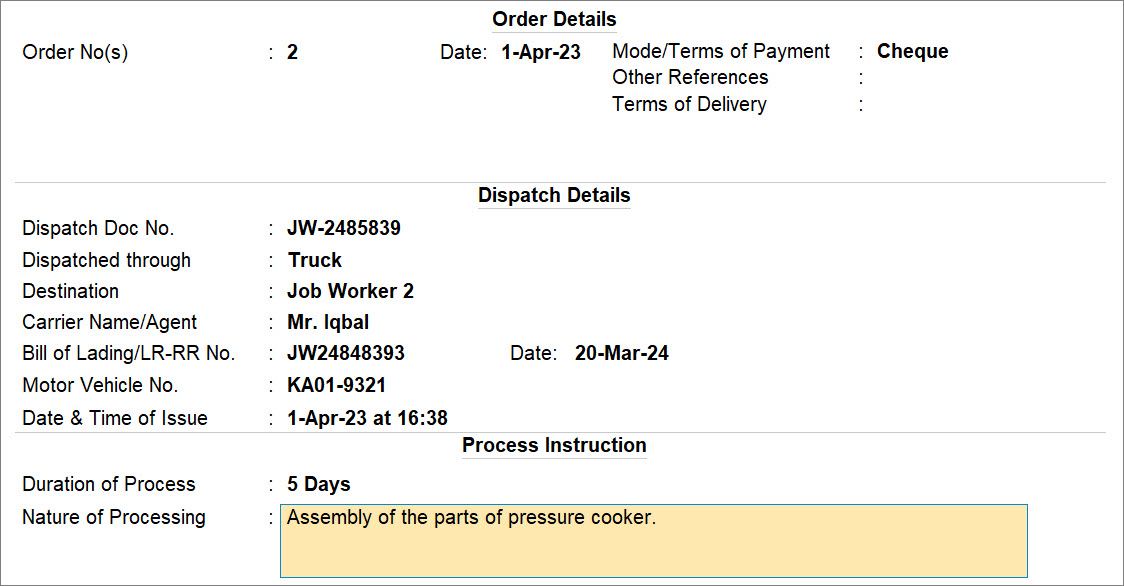
- Press Ctrl+A to save the Order Details.
The Stock Items appear based on the Bill of Materials specified in the Stock Item master.
- Order No(s): Select the job work out order(s) against which you are recording the Material Out voucher.
- In the Item Allocations screen, specify the Destination Godown.
- Press Enter on a stock item.
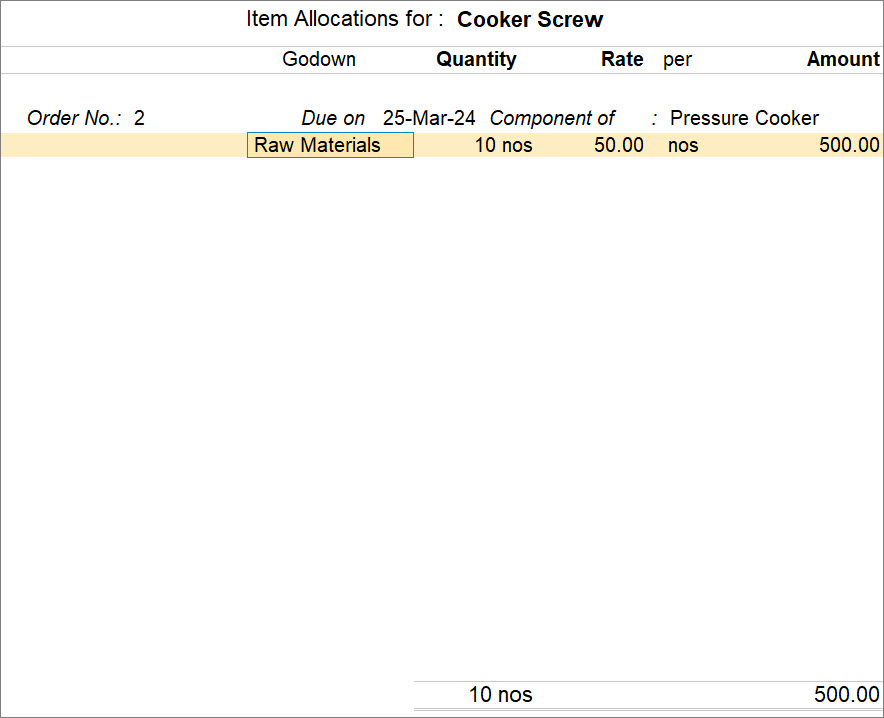
- In the Stock Item Allocations screen for each stock item, specify the Godown and press Ctrl+A to save.
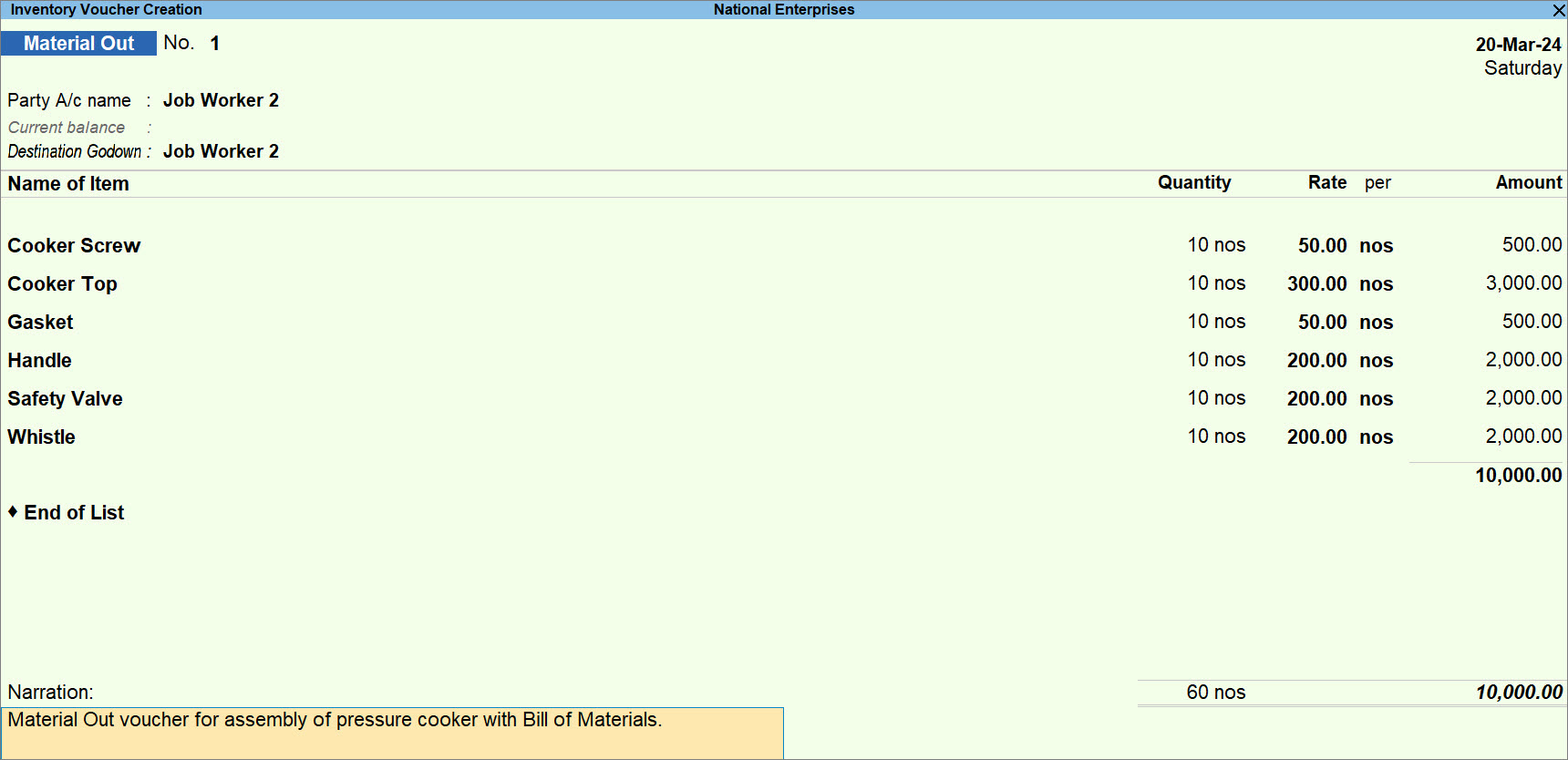
- Enter other necessary details in the voucher and press Ctrl+A to save the voucher.
If you do not want to show amount chargeable for the raw materials provided to your job worker, then you can choose to record zero-valued entries for Material Out voucher type.
Once you record the Material Out Voucher, you can view the entry in the Material Out Register and check the Stock With Job Worker.
Account for Finished Goods Received from Job Worker with Material In Voucher
- Press Alt+G (Go To) > Create Voucher > press F10 (Other Vouchers) > type or select Material In and press Enter.
- Party A/c name: Select the ledger created for the Job Worker and press Enter.
- In the Order Details screen, specify the details.
- Order No(s): Select the job work out order(s) against which you are recording the Material Out voucher.
As you enter the Order No., the other details get prefilled based on the details entered in the Job Worker Out Order. - Specify Other References and Terms of Delivery, if needed and applicable.
- Challan No.: Enter the appropriate challan number.
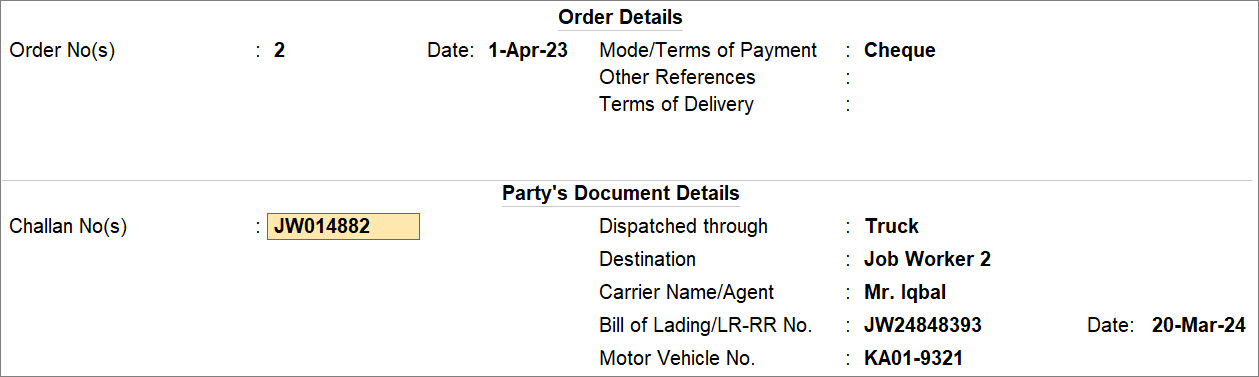
- Press Ctrl+A to save the Order Details.
- Order No(s): Select the job work out order(s) against which you are recording the Material Out voucher.
- In the Item Allocations screen, specify the Source Godown.
- Press Enter on a stock item.
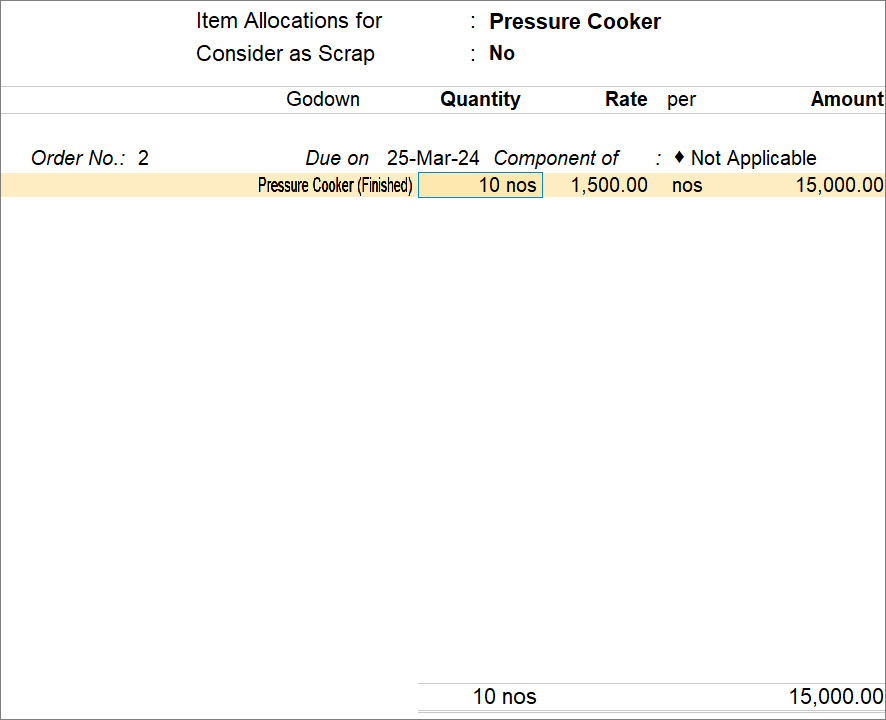
- Specify the Godown and press Ctrl+A to save.
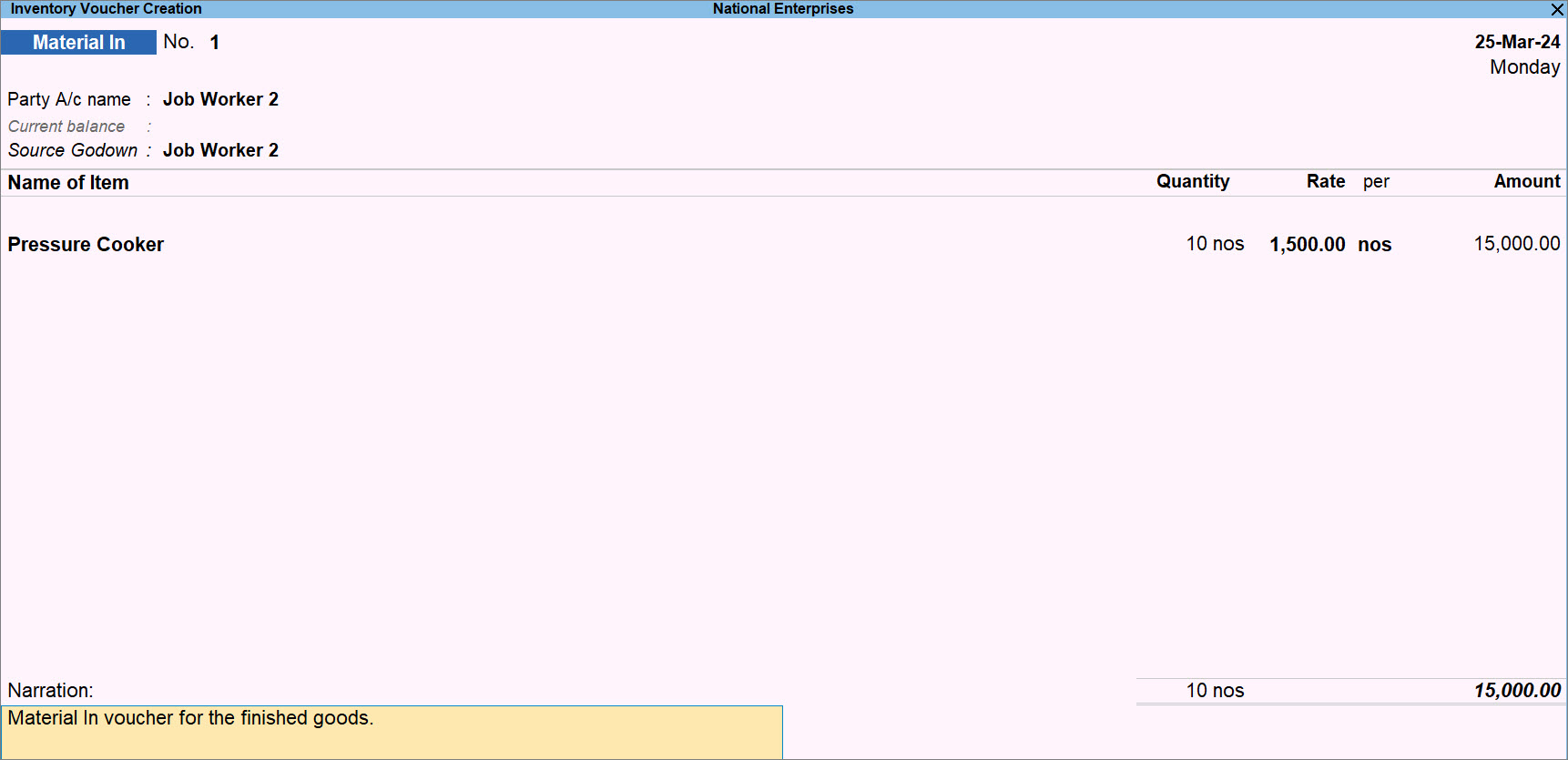
- Enter other necessary details in the voucher and press Ctrl+A to save the voucher.
Once you record the Material In Voucher, you can view the entry in the Material In Register report.
Record Purchase of Job Work Service from a Job Worker
You need to ensure the following:
- Record the purchase voucher based on the finished goods delivered by the job worker.
- For partial delivery of finished goods, record the purchase voucher for the quantity received from the job worker.
- Press Alt+G (Go To) > Create Voucher and press F9 (Purchase).
- Supplier Invoice No.: Enter the invoice number of the sales invoice shared by the job worker against the job work out order.
- Party A/c name: Select the ledger created for the Job Worker and press Enter.
- Purchase ledger: Select the ledger for accounting purchases.
- Specify the stock item details.
- Select the stock items received from the job worker as finished goods.
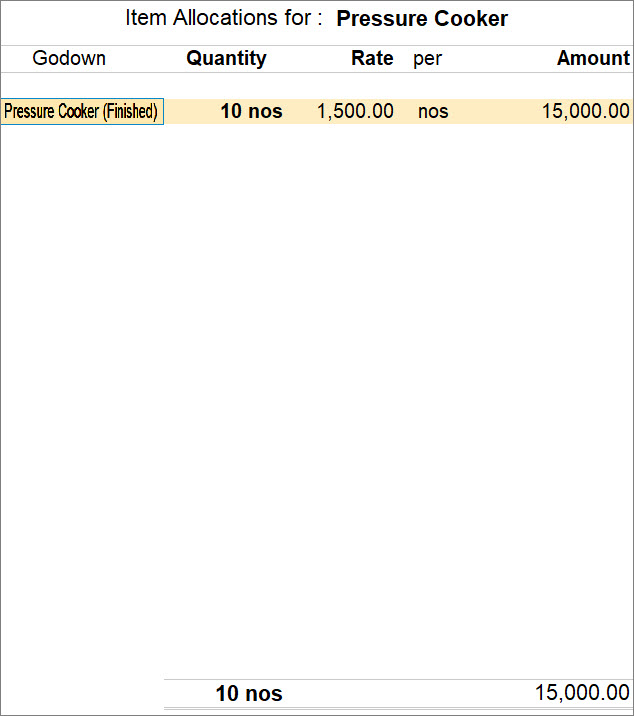
- Specify the Godown and press Ctrl+A to save.
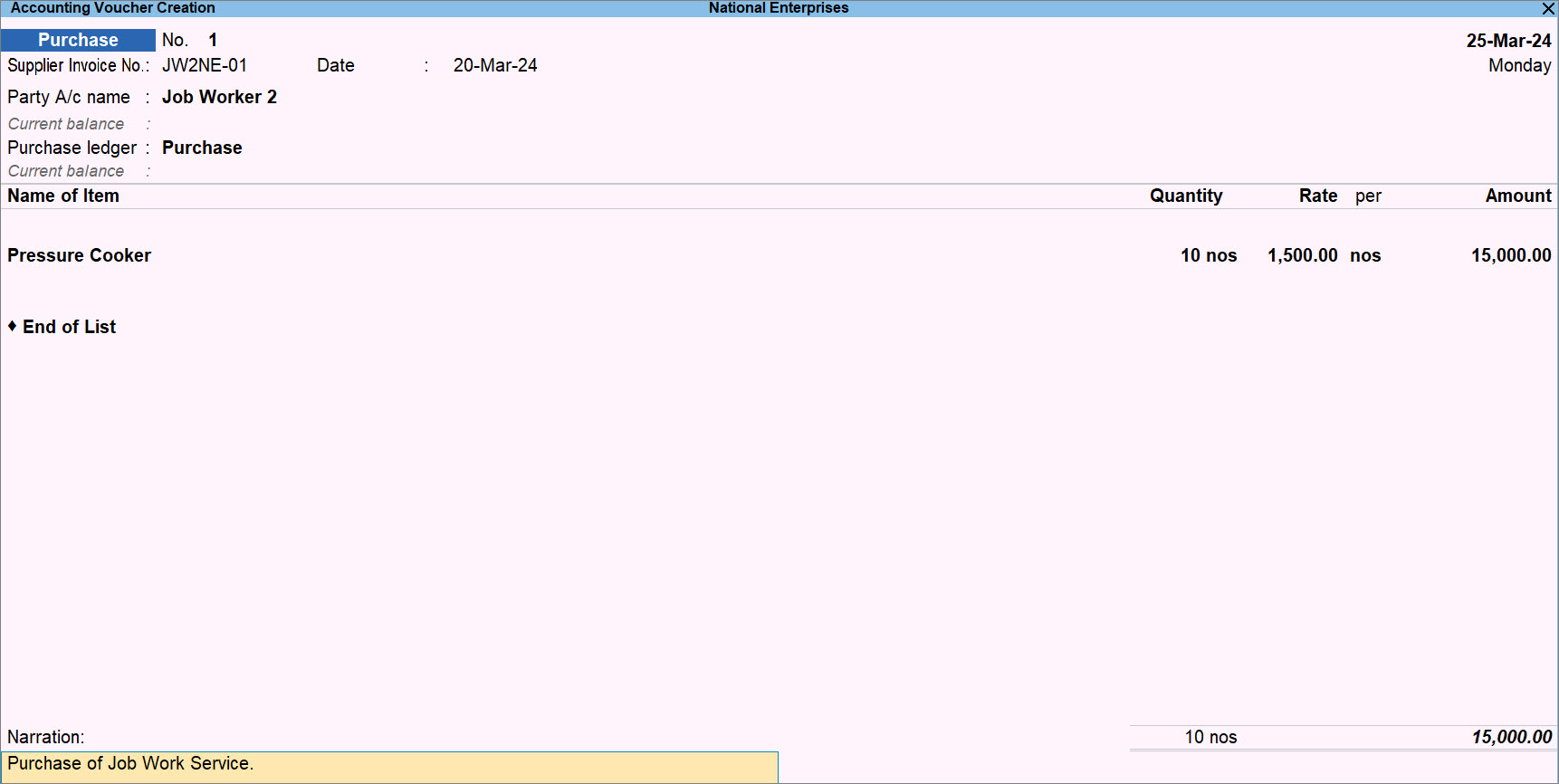
- Select the stock items received from the job worker as finished goods.
- Enter other necessary details in the voucher, and press Ctrl+A to save the voucher.
Record Payment Made to Job Worker
- Press Alt+G (Go To) > Create Voucher > press F5 (Payment).
Alternatively, Gateway of Tally > Vouchers > press F5 (Payment). - Account: Select the appropriate ledger created for Cash or Bank.
- Particulars: Select the ledger created for the job worker.
- Amount: Enter the amount paid to the job worker.
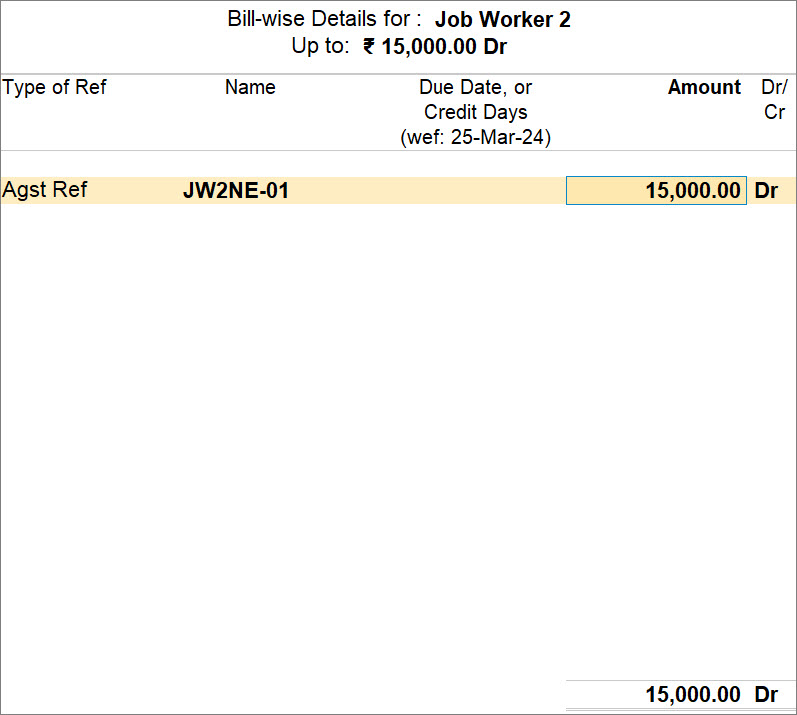
- In the Bill-wise Details screen, enter the Type of Ref as Agst Ref and select the Name.
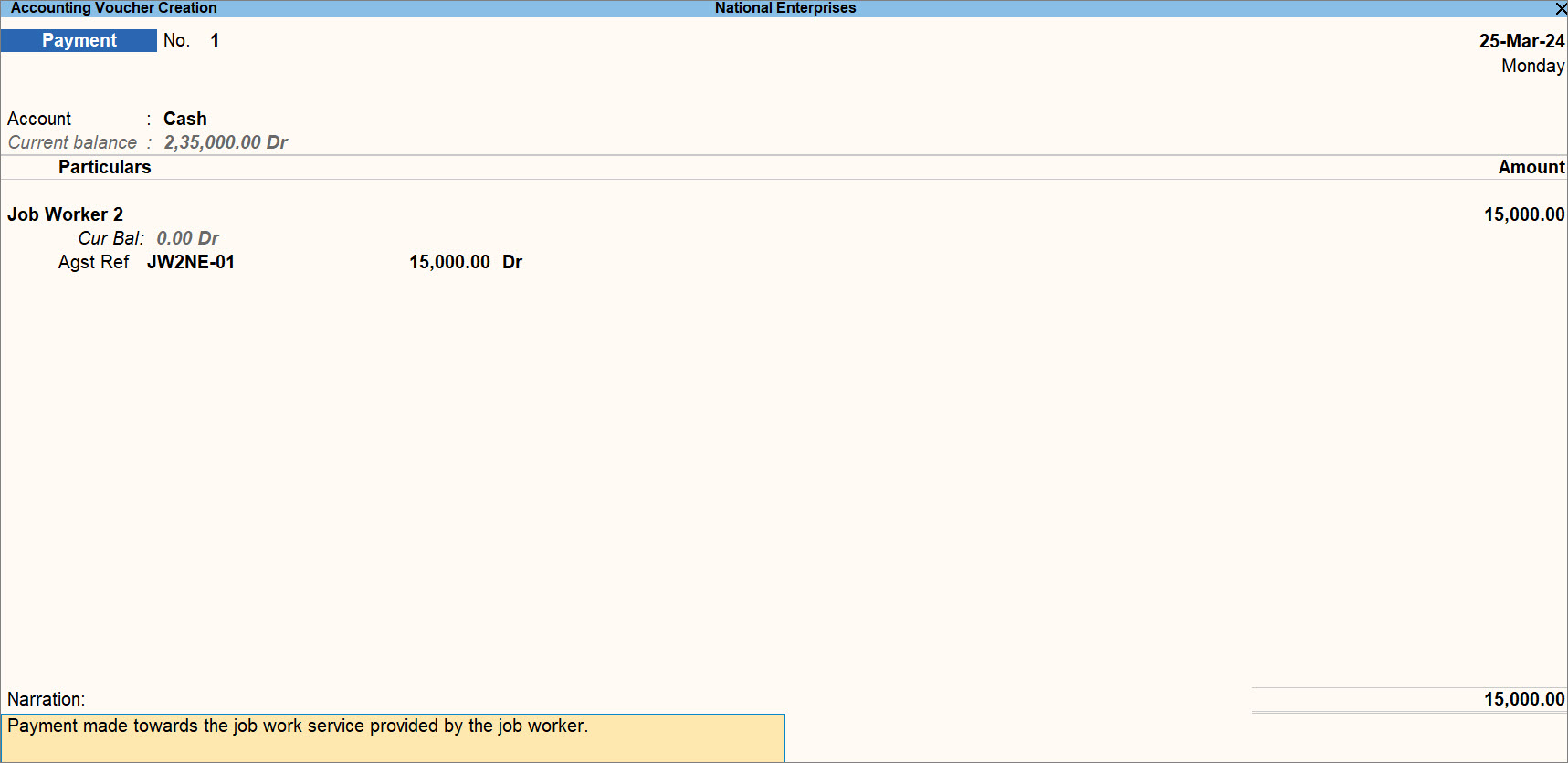
- Enter other necessary details in the voucher and press Ctrl+A to save the payment voucher.


