Record Sales with Standard Price in TallyPrime
If you have defined a Standard Selling Price for a stock item, TallyPrime automatically picks up the applicable rate when you select the item in a Sales voucher. The rate is determined based on the voucher date, allowing you to record sales using the predefined selling price.

- Ensure that you have defined the Standard Selling Price for the stock items for the applicable dates.
In the Sales voucher:
- Press F2 (Date) and select the date for which the Standard Selling Price is applicable.
- Under Name of Item, select the stock item for which you have defined the standard selling price.
- In the Stock Item Allocation screen, enter the Quantity. The Rate appears based on the Standard Selling Price defined for the stock item and the voucher date.
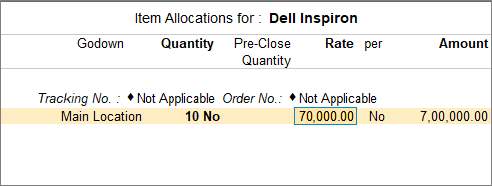
- Select additional ledgers, if any.
- Enter the necessary details, and press Ctrl+A to save the voucher.
If you change the rate in the voucher, the Standard Selling Price defined for the stock item continues to be used in subsequent vouchers based on the voucher date.
Questions & Answers
- Which price is applied if both Standard Selling Price and Price List are defined?
If you select a Price Level in the sales invoice, the rate defined in the corresponding Price List is applied. Otherwise, the Standard Selling Price defined for the stock item is used based on the voucher date.
Is this information useful?
YesNo