
Record Sales Return in Tally e-Billing
In Tally e-Billing, you can record a Sales Return in the following situations:
- When a customer returns goods.
- When you need to reverse a sales transaction due to incorrect details, cancellation, or other transaction-related reasons.
Since recorded sales vouchers cannot be altered, record a Sales Return against the original voucher and then create a new Sales voucher with the correct details.

Ensure that:
- You have recorded a sales transaction.
- You have configured the Sales Return voucher type with the default VAT account, and other details.
- From Gateway > click Transactions > and then click Sales Return.
- Select the Customer to whom the goods were sold.
The list of active invoices for the selected customer is displayed.
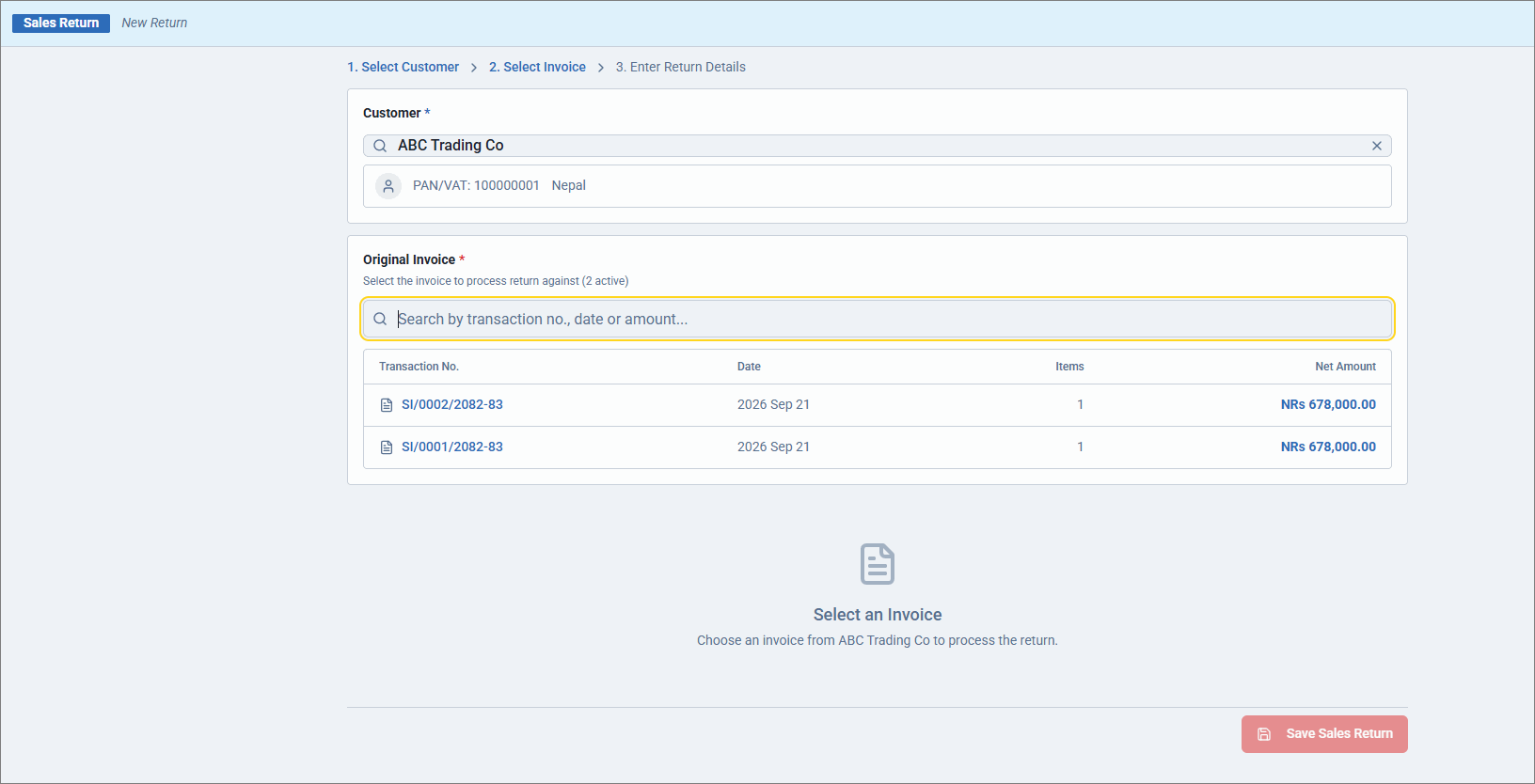
- Select the required invoice.
- Enter the Return Qty.
- Enter the Return Reason.
- Enter a Narration, if required.
- Select the Payment Method.
- Click Save Sales Return.
The Bill-wise Details screen displays the invoice against which the sales return is recorded. - Click Accept.
- Select Yes to save the voucher.
- Print the invoice.
- In the Sales Return voucher screen, click Print (Original).
The first print is marked as Original. Subsequent prints are marked as Copy of Original (1), Copy of Original (2), and so on. - If Print after saving voucher is enabled in the voucher type, click Print in the Print Preview screen.
- In the Sales Return voucher screen, click Print (Original).
Is this information useful?
YesNo


