Record Sales with Discounts in TallyPrime
Discounts can help attract and retain customers, increase sales, clear old stock, and encourage cash or early payments. Depending on your business policy, you can apply discounts to the total item value or to individual items. TallyPrime caters to both requirements.

Ensure that:
- You have created the required party ledger, sales ledger, and stock items.
- The discount ledger is created under Indirect Expenses.
Record Sales with Discounts on Total Amount
In the Sales voucher:
- Enter the stock item details.
- Select the discount ledger.
- Enter the discount percentage under Rate. You can also enter the amount.
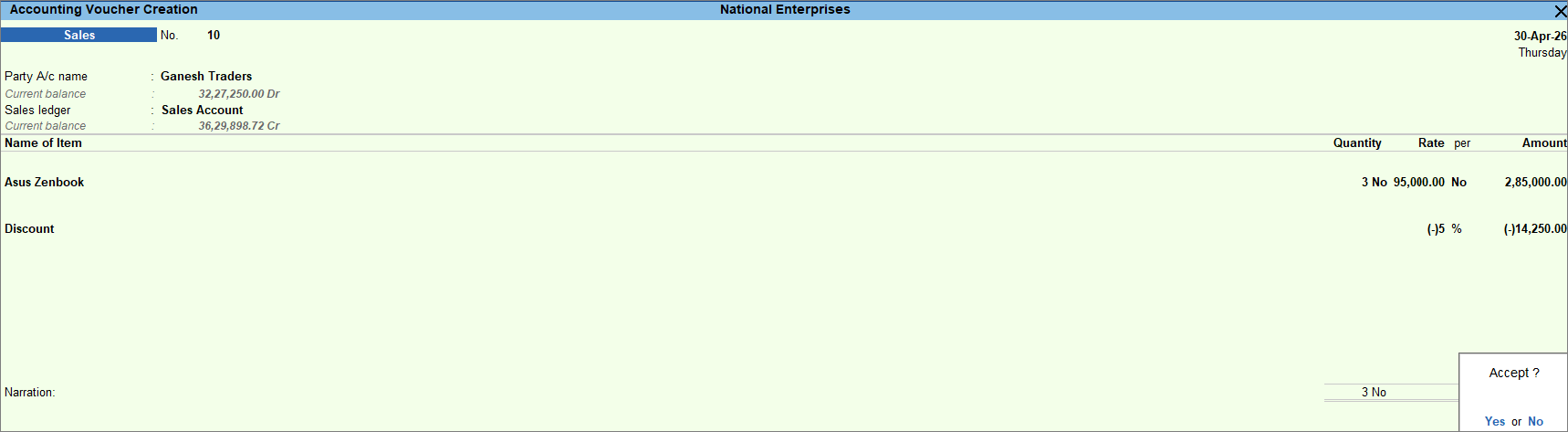
- Enter the necessary details, and press Ctrl+A to save the voucher.
Record Sales with Item-wise Trade Discount
In this method, the discount is applied directly to each item, and only the discounted item price is displayed without showing the discount amount under a separate ledger.
- Enable the Discount Column in Invoices.
- Press F11 (Company Features) > enable Use Discount column in invoices.
- In Discount Format, select either Percentage, Amount, or Both Percentage & Amount as required.

For TallyPrime 7.0 & earlier, the Discount Format screen is not supported.
- In the sales voucher, enter the stock item details.
- In the Discount column, enter the % or Amt, or both.
For TallyPrime 7.0 or earlier, you can enter the Disc%.
The Amount column displays the item price after the discount is applied, while the Rate remains unchanged.
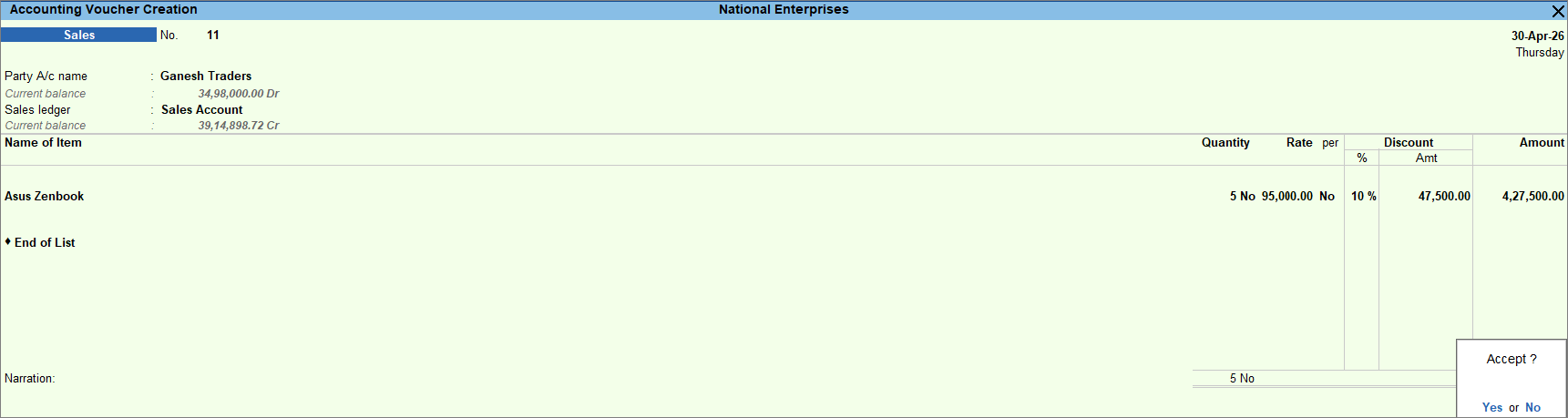
- Enter the necessary details, and press Ctrl+A to save the voucher.
Questions & Answers
- How can I calculate the discount after including additional charges in a sales invoice?
If your sales invoice includes additional charges, and you want the discount to be calculated after including these charges, then
In the Sales voucher:- Press F12 (Configure) > enable Calculate Tax on Current Subtotal.
- Record the invoice and select the discount ledger.
The discount is calculated on the invoice total after including the additional charges. - Enter the necessary details, and press Ctrl+A to save the voucher.
Is this information useful?
YesNo