
View Supplier Activities Report in TallyPrime
In this report, you can see the transactions via Bharat Connect for Business and transactions in the Books. Transactions appear under different sections in the reports based on their status and actions needed from you. Once you take the action, the invoice will appear in the relevant section.

Ensure that:
- Bharat Connect for Business is enabled for the license.
- You are logged in to Bharat Connect for Business and connected to the internet.
- Bharat Connect registration is done, and B2B ID is created.
- You have user access to manage Bharat Connect for Business data.
Resolve Transactions with Incomplete/Mismatched Details
While we record the sales invoice, if there are any incomplete or mismatched details, the invoices will appear under Bharat Connect Activities – Supplier > Books > Uncertain Invoices (Corrections needed).
- Press Alt+G (Go To) > type or select Supplier – Activities.
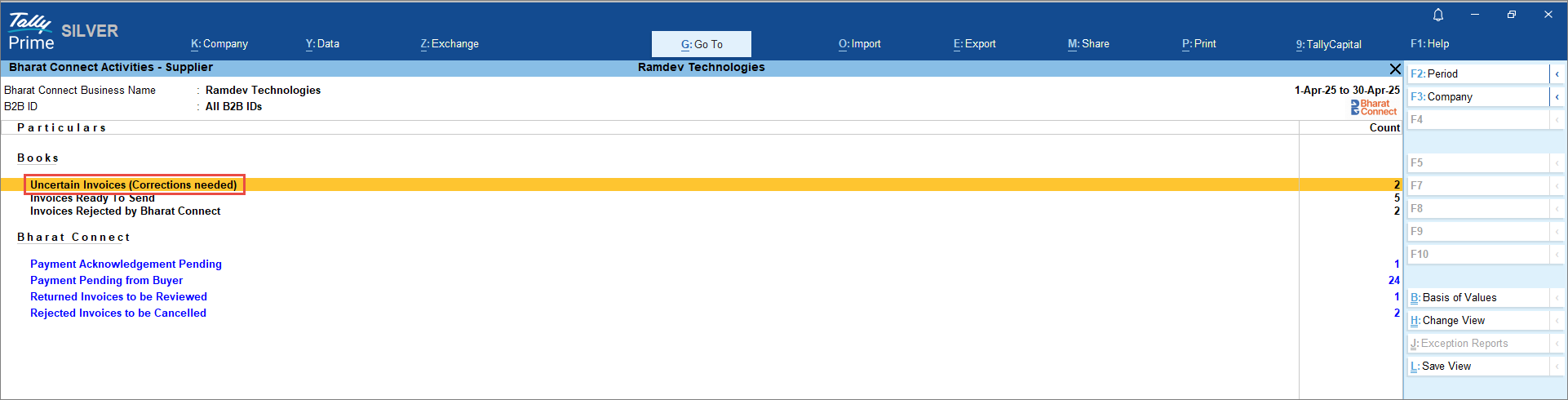
- In the Bharat Connect Activities – Supplier screen, drill down from Uncertain Invoices (Corrections needed).
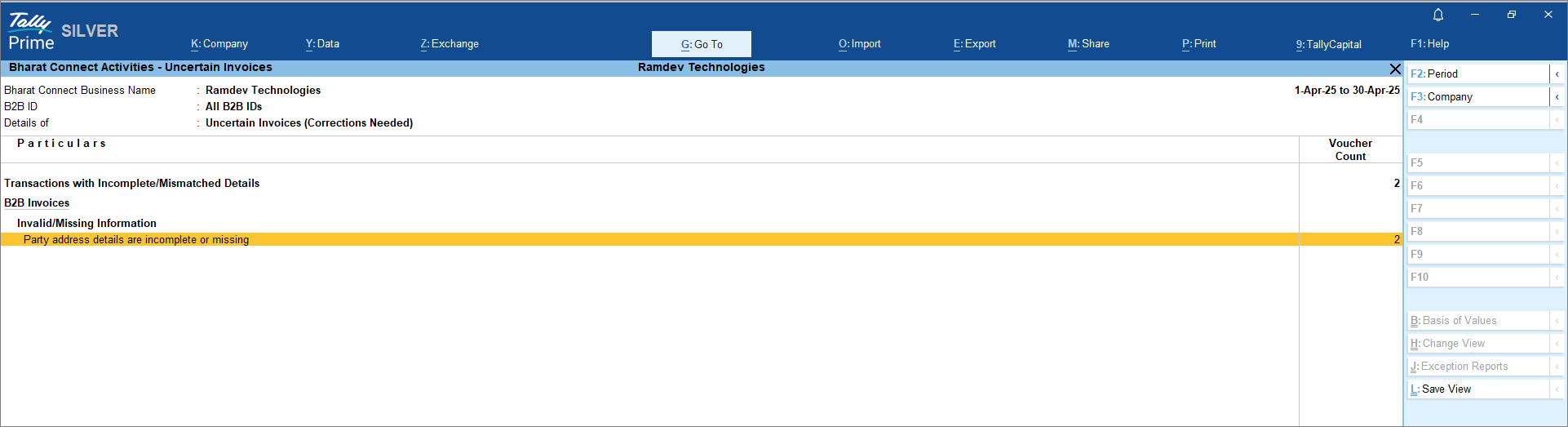
- In the Bharat Connect Activities – Uncertain Invoices screen, drill down from Invalid/Missing Information.
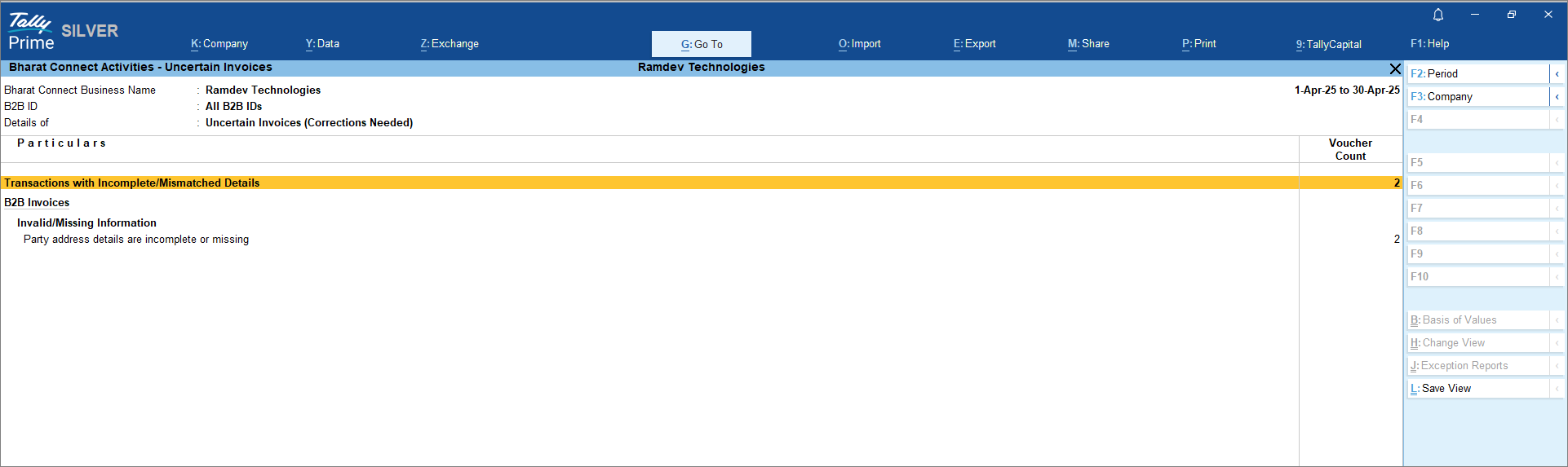
- In the Bharat Connect Activities – Resolution of Uncertain Invoices screen, you will find your uncertain details in one of the following sub-groups:
- Party B2B ID is missing in voucher.
- Company B2B ID is missing in voucher.
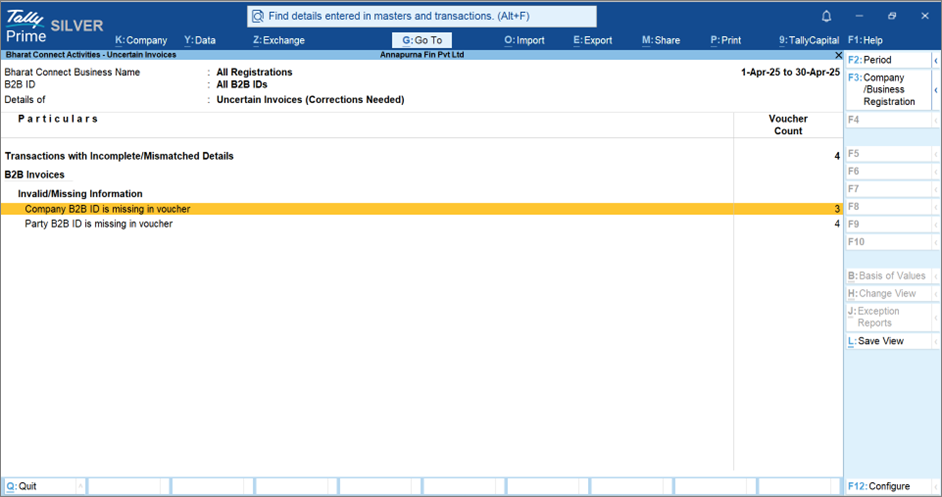
Company B2B is missing in voucher
Cause
Your company B2B ID is not specified in the voucher.
Resolution
- Drill down to view the list of GST registrations where the company B2B ID is missing.
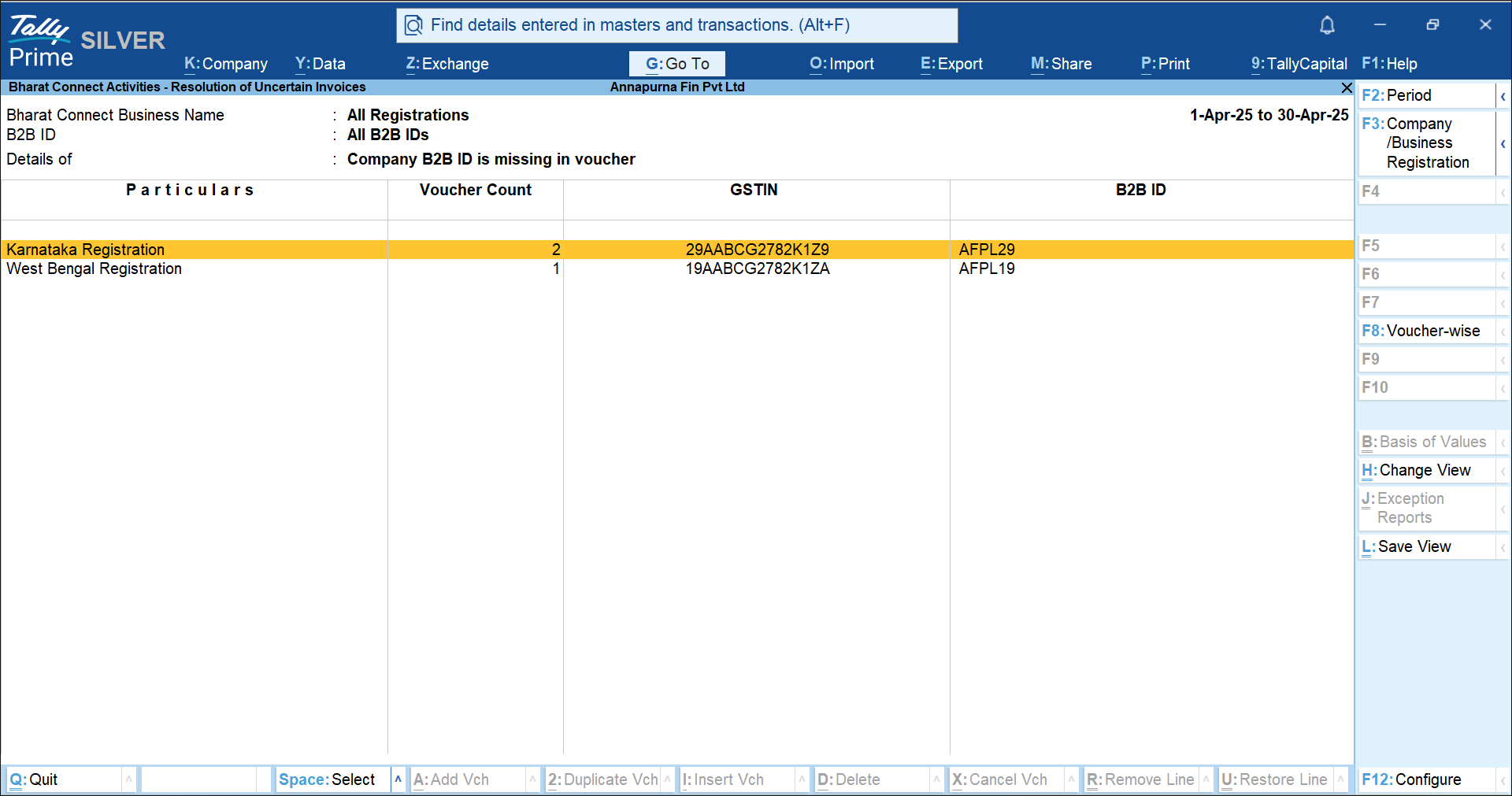
- Select the GST Registration and press Enter.
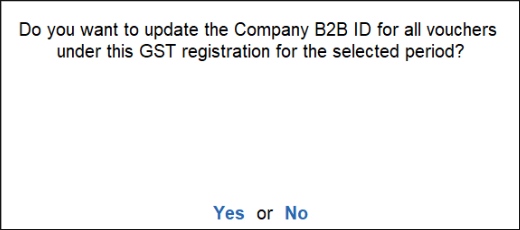
- Press Y to update the Company B2B ID under that GST Registration for all vouchers within the selected period.
You can also view the list voucher-wise by pressing F8 (Voucher-wise).
- Select the voucher and press Enter to drill down to the Voucher Alteration screen.
- Press Ctrl+A to save the voucher.
Once updated, the voucher is removed from the list.
Once all exceptions are resolved, it will move to Invoices Ready To Send, and you can share the invoices with buyers from Alt+Z (Exchange) > Send Invoices. Press Ctrl+B (Basis of Values) in the Bharat Connect Activities – Invoices Ready to Send screen to send new invoices, modified invoices, or both.
You can exclude the invoices from Bharat Connect Activities – Resolution of Uncertain Invoices screen by pressing Alt+S (Set Status) if you do not want to make any changes and settle outside.
Update B2B IDs of Buyers
When you send invoices to buyers through Bharat Connect, any vouchers where the buyer’s B2B ID is not found on Bharat Connect, as they are not registered, will be listed under Bharat Connect Activities – Supplier > Books > Buyer Registration Pending. To view this report, press Ctrl+B (Basis of Values) and enable Show Buyer Registration Pending.
To search and update B2B IDs for multiple vouchers at once, press Alt+L (Search & Update B2B IDs).
- Press Alt+G (Go To) > type or select Supplier – Activities.
- In the Bharat Connect Activities – Supplier screen, drill down from Buyer Registration Pending.
- In the Bharat Connect Activities – Buyer Registration Pending screen, drill down to view the list of transactions where the party B2B ID is missing.
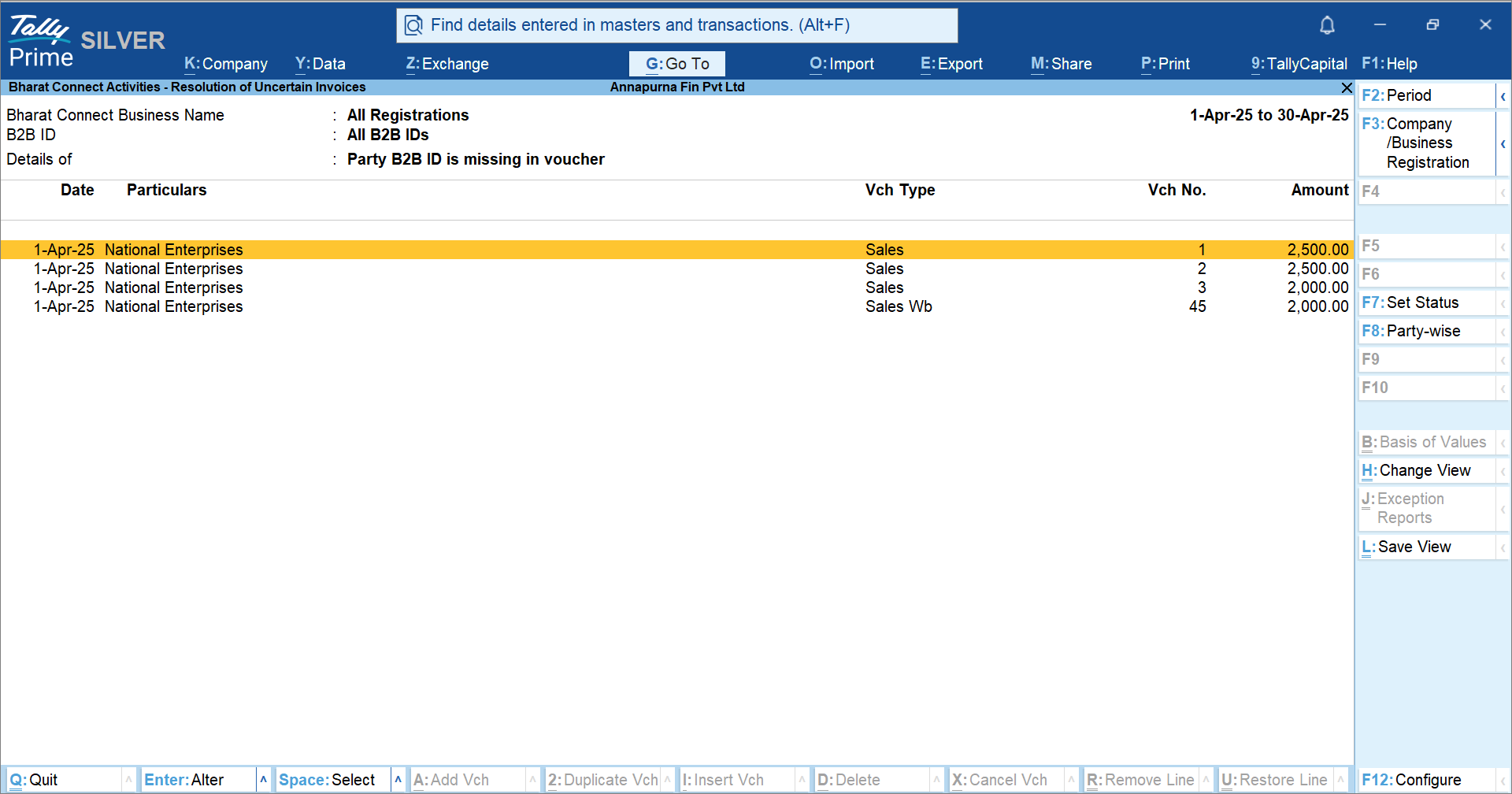
- Select a voucher and press Enter to drill down.
- In the Share Invoice Details screen, search for and update the party B2B ID.
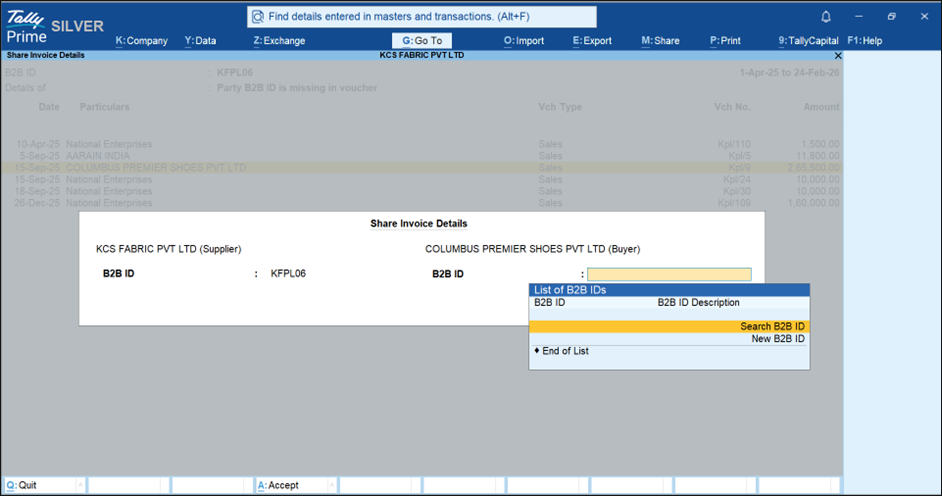
Once updated, the voucher is removed from the list.
You can also view the list party-wise by pressing F8 (Party-wise).
- Select the party name for which the B2B ID is not specified, and press Enter to drill down.
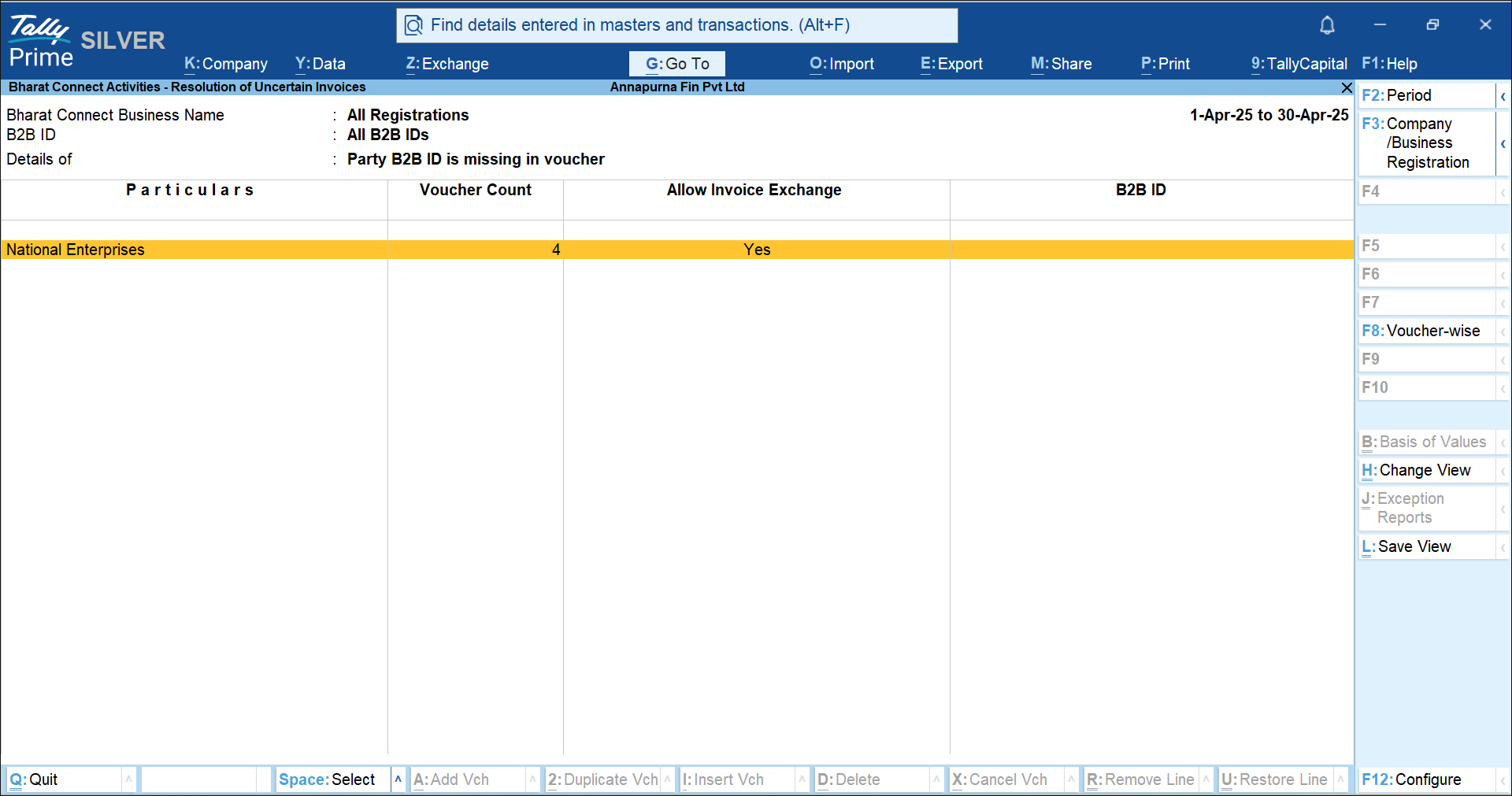
- In the Bharat Connect Details screen, search for or update the party B2B ID.
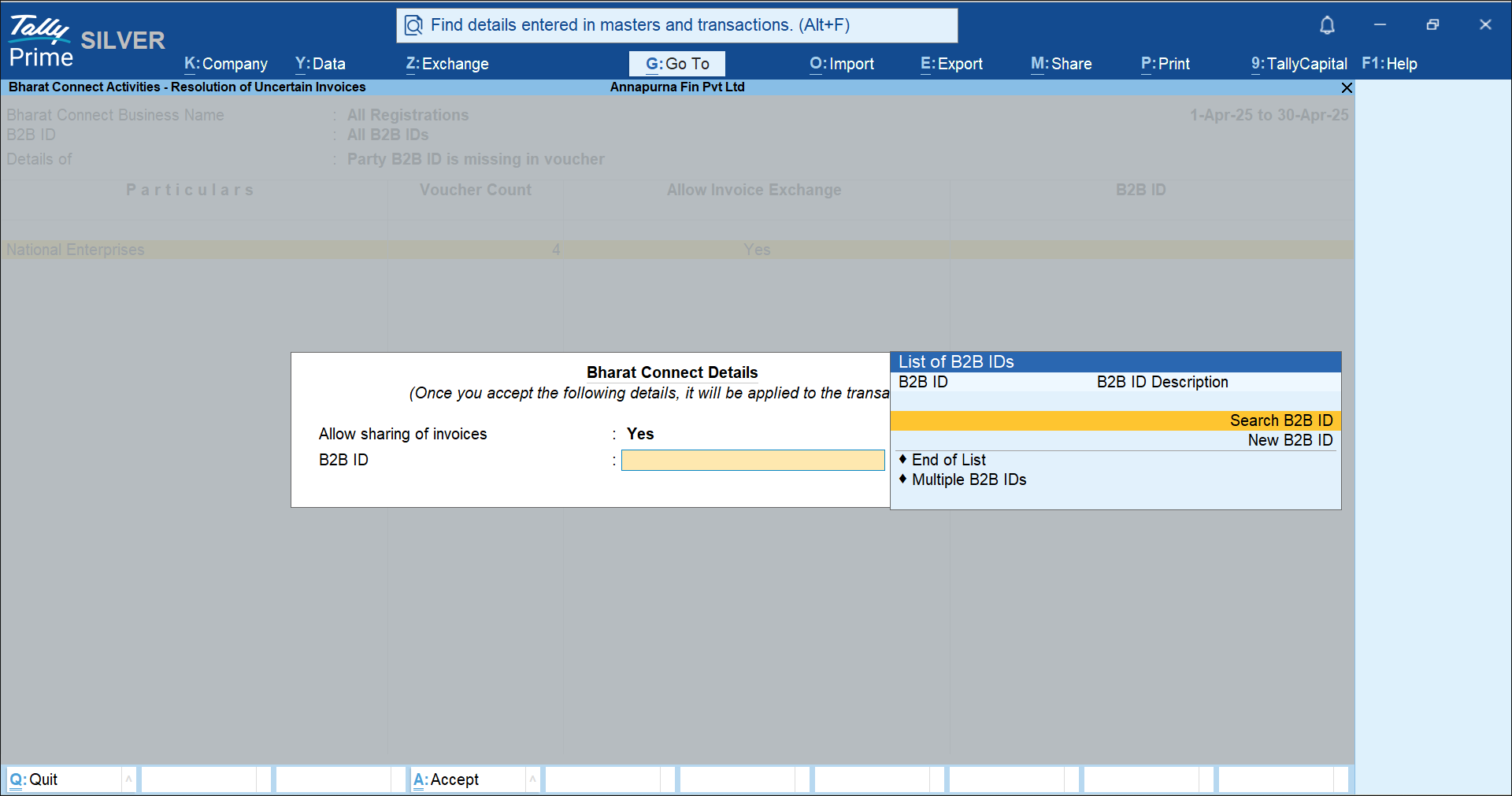
Once updated, the respective party name is removed from the list.
Modify Invoices Rejected by Bharat Connect
Invoices sent to the buyer may be rejected by the Bharat Connect for Business platform for reasons such as a duplicate invoice number, party address, item HSN and GST rates, party B2B ID, and so on. Once rejected, it will appear under Bharat Connect Activities – Supplier > Books > Invoices Rejected by Bharat Connect.
- Press Alt+G (Go To) > type or select Supplier – Activities.
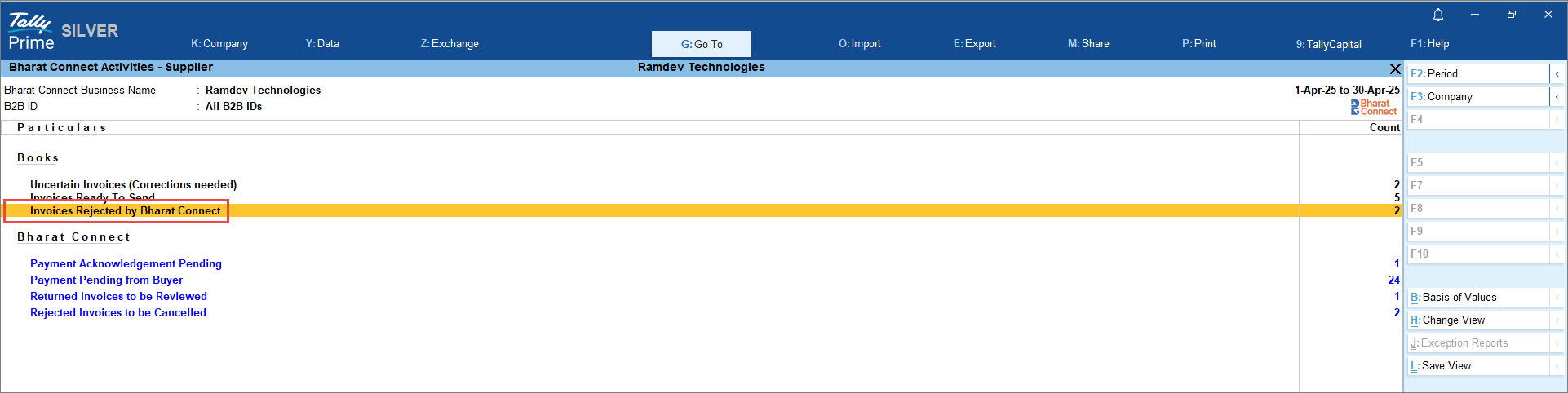
- In the Bharat Connect Activities – Supplier screen, drill down from Invoices Rejected by Bharat Connect.
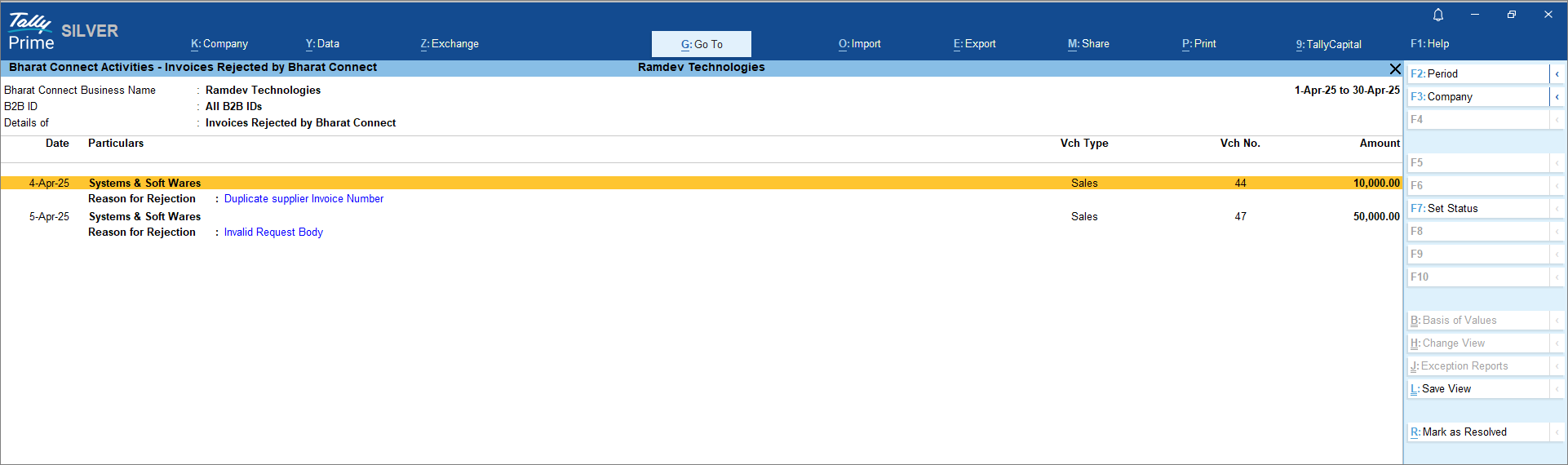
- In the Bharat Connect Activities – Invoices Rejected by Bharat Connect screen, drill down from the voucher entry and modify the invoice.
Once the modifications are done, it will move to Invoices Ready To Send, and you can share the invoices from Alt+Z (Exchange) > Send Invoices.
You can exclude the invoices from Bharat Connect Activities – Invoices Rejected by Bharat Connect screen, by pressing Alt+S (Set Status) or mark the invoices as resolved by pressing Alt+R (Mark as Resolved) if you do not want to make any changes and settle outside.
Review Invoices Returned by Buyer
When you send invoices to the buyer, they may return an invoice if there are changes in quantity, rate, or stock item. In such cases, the invoices will appear under Bharat Connect Activities – Supplier > Bharat Connect > Returned Invoices to be Reviewed for you to check and modify. However, if the invoice is issued as an e-invoice, you cannot resend the altered invoice. You will need to cancel the invoice and issue a new one to the buyer.
- Press Alt+G (Go To) > type or select Supplier – Activities.
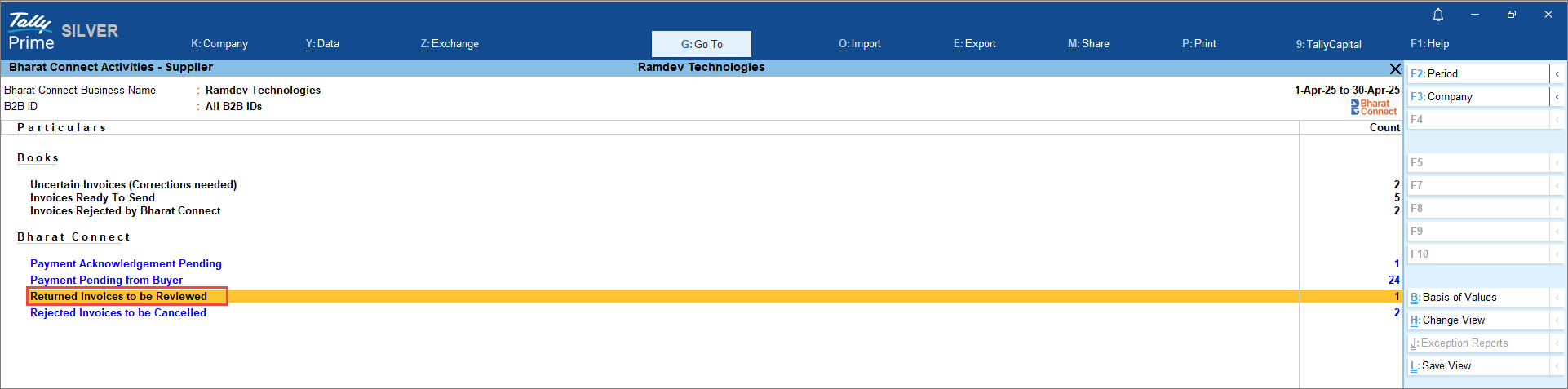
- In the Bharat Connect Activities – Supplier screen, drill down from Returned Invoices to be Reviewed.
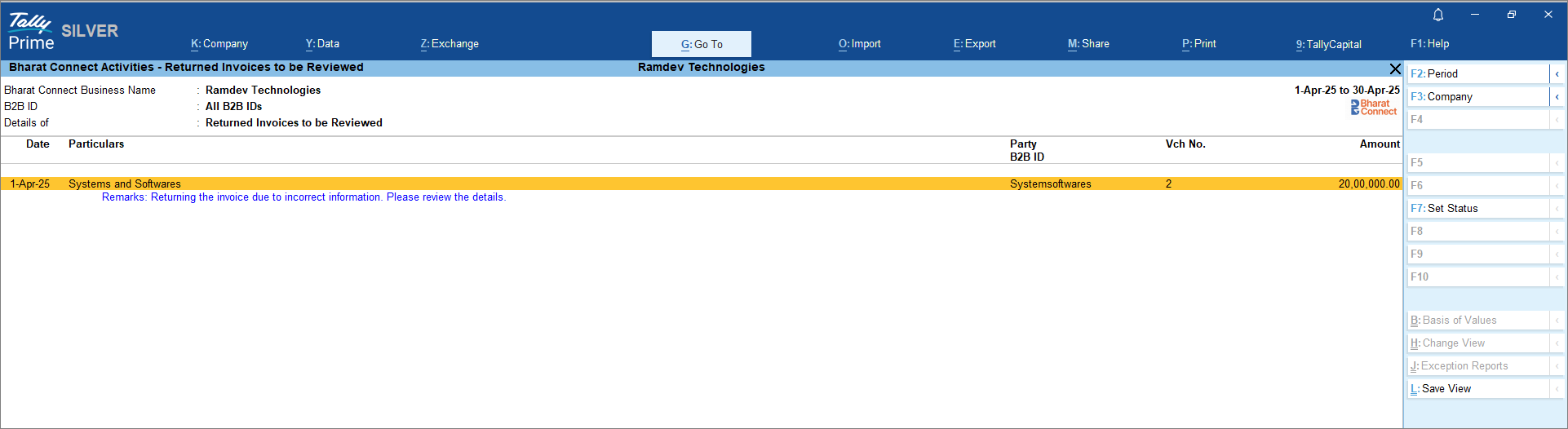
- In the Bharat Connect Activities – Returned Invoices to be Reviewed screen, press Shift+Enter to view the invoice recorded in the books.
- Drill down from the voucher entry and modify the invoice.
Once the modifications are done, it will move to Bharat Connect Activities – Supplier > Books > Modified Invoices to be Reviewed, and you can share the invoices from Alt+Z (Exchange) > Send Invoices.
Cancel Invoices Rejected by Buyer
When you send invoices to the buyer, they may reject an invoice. In such cases, it will appear under Bharat Connect Activities – Supplier > Bharat Connect > Rejected Invoices to be Cancelled.
- Press Alt+G (Go To) > type or select Supplier – Activities.
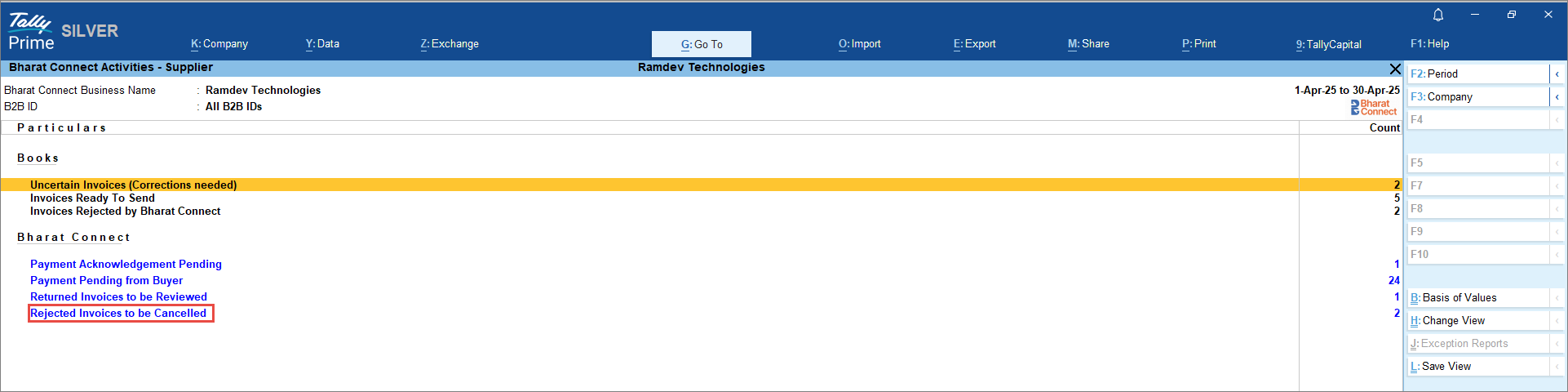
- In the Bharat Connect Activities – Supplier screen, drill down from Rejected Invoices to be Cancelled.
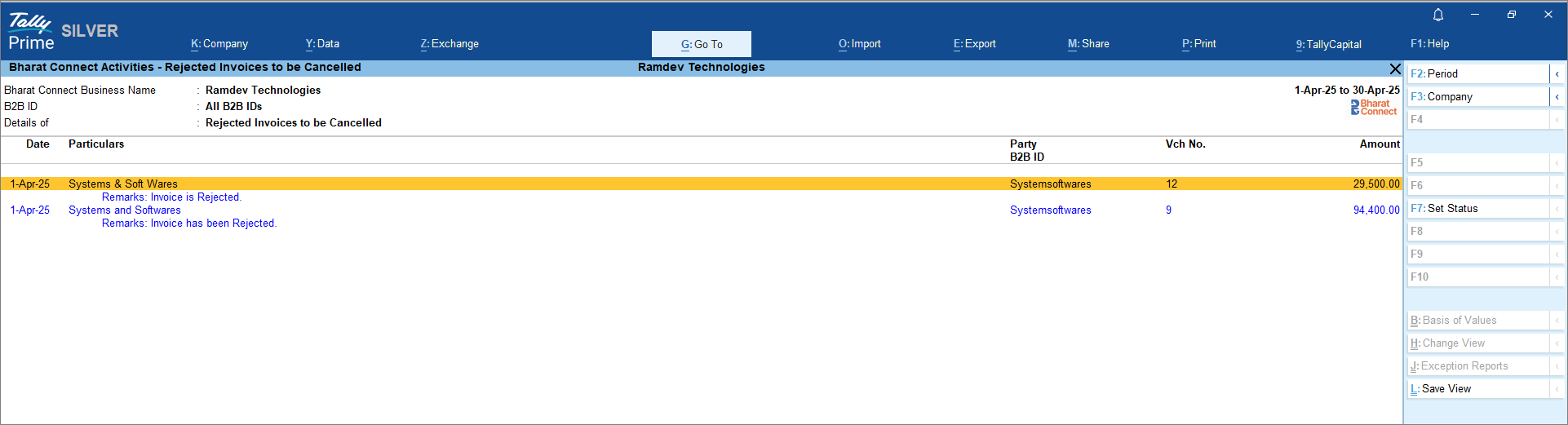
- In the Bharat Connect Activities – Rejected Invoices to be Cancelled screen, press Alt+S (Set Status) to cancel the invoice.
After cancellation, the invoices will appear under Bharat Connect Activities – Supplier > Bharat Connect > Closed Invoices. Press Ctrl+B (Basis of Values) to include Closed Invoices in the report. There is no further action to be taken.
View Credit Notes Issued
When you create and issue credit notes to your buyer, you can see all the issued credit notes under Bharat Connect Activities – Supplier > Bharat Connect > Credit Notes Issued, irrespective of the credit notes that are adjusted and paid and have no outstanding amount.
- Press Alt+G (Go To) > type or select Supplier – Activities.
- In the Bharat Connect Activities – Supplier screen, drill down from Credit Notes Issued.
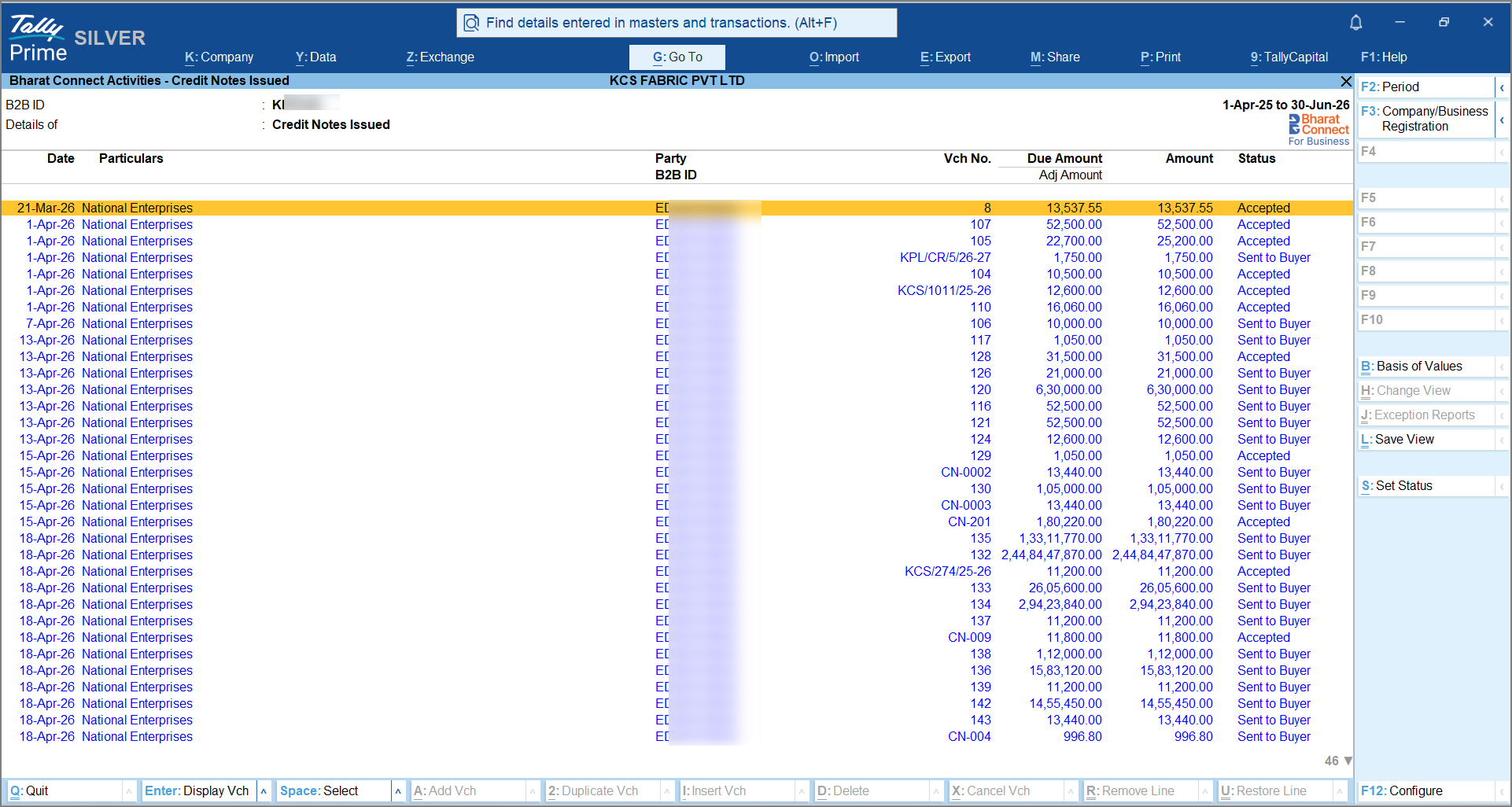
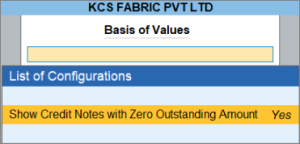
In the Bharat Connect Activities – Credit Notes Issued screen, the status is displayed as Accepted if the buyer has accepted the credit note, or Sent to Buyer if the buyer’s acceptance is still pending. - If you want to remove the credit notes that have zero outstanding amount, then press Ctrl+B (Basis of Values) > disable Show Credit Notes for Zero Outstanding Amount.
-
To cancel a credit note that has been sent to the buyer but is not yet accepted, press Alt+S (Set Status) and cancel the credit note.
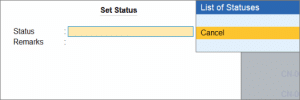
Once the buyer accepts the credit note, it can no longer be cancelled.
View Payment Pending from Buyer
After you send the invoices to the buyer, all the invoices that are sent but not accepted, accepted but not paid, and partially paid will appear under Bharat Connect Activities – Supplier > Bharat Connect > Payment Pending from Buyer.
- Press Alt+G (Go To) > type or select Supplier – Activities.
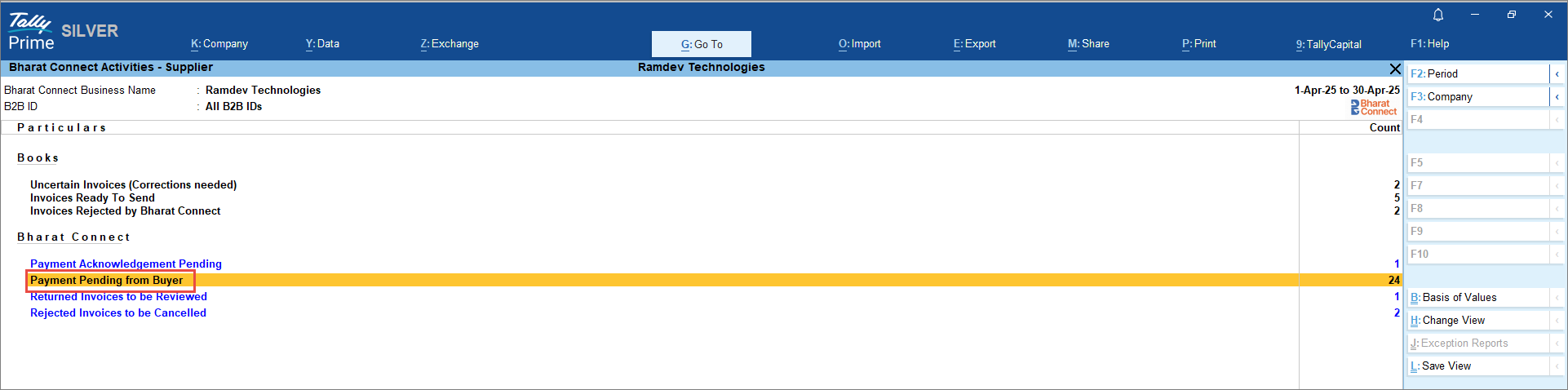
- In the Bharat Connect Activities – Supplier screen, drill down from Payment Pending from Buyer.
In the Bharat Connect Activities – Payment Pending from Buyer screen, you can see the payment status of your invoices.
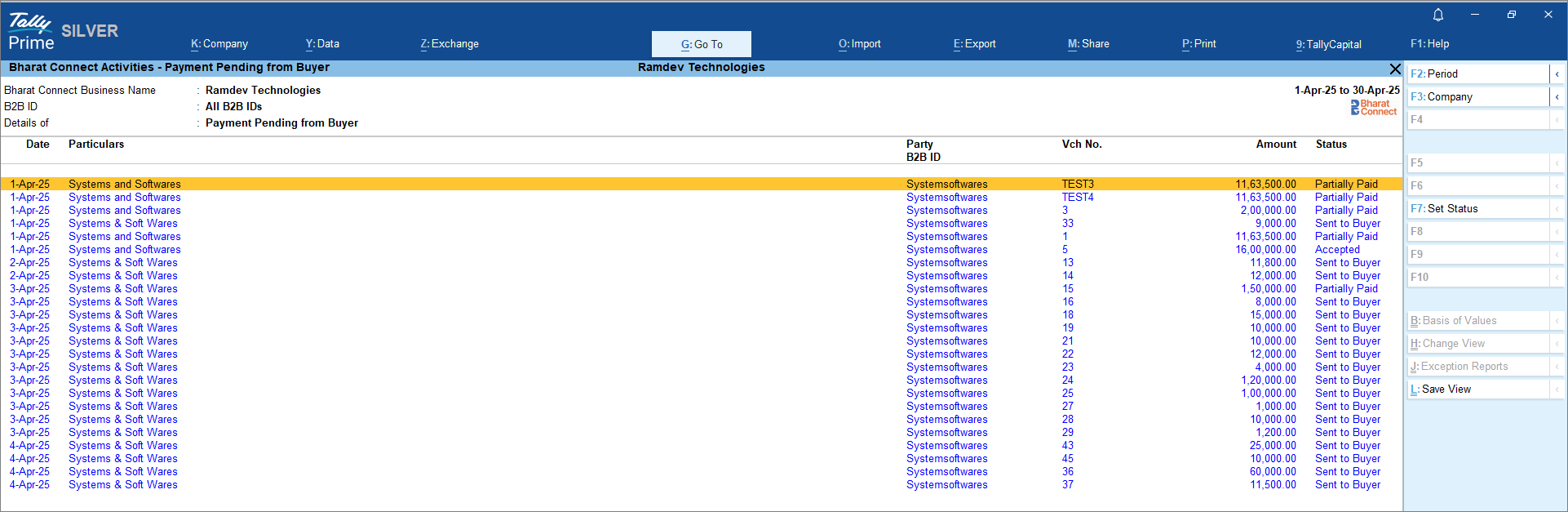
- Press F12 (Configure) and enable Show Due Amount to include the due amount in the report.
You can close or write off invoices for which payment is not expected from the buyer by pressing Alt+S (Set Status).
Questions & Answers
- What should I do when my invoice gets rejected or returned after sending it?
You need to review the reason for return, update the required details (such as GST rate, HSN, or B2B ID), and save the changes. Once corrected, the invoice moves to Ready to Send, and you can resend it.
In case the invoice is rejected, you will also have to cancel it. - How should I handle invoices that buyers return with changes?
You can review and update the returned invoice and resend it. However, if it is an e-invoice, you must cancel the original and create a new invoice instead of modifying it. - How can I monitor invoices that are still unpaid or partially paid?
You can track them in Payment Pending from Buyer, where invoices are grouped based on their payment status. You can also enable due amount visibility for better tracking. - What can I do if the buyer is not registered on Bharat Connect and the invoice is pending?
You can search and update the buyer’s B2B ID directly in the voucher, or use the bulk update option to update multiple transactions at once. - What should I do if I don’t expect payment for certain invoices?
You can close or write off those invoices directly from the pending payment report using the available status update options.


