
Group Summary
In TallyPrime, you can view groups in reports to analyse group-wise balances, review related transactions, and access all predefined and user-created groups from one screen. The Group Summary report shows the closing balance of the accounts in a selected group for a specified period. Similarly, the Group Vouchers report lists all vouchers that contain at least one ledger entry from the selected group.
Group Summary Report
- Press Alt+G (Go To) > Group Summary and press Enter.
- Select the Group you want to view in the Group Summary, say Indirect Expenses and press Enter.
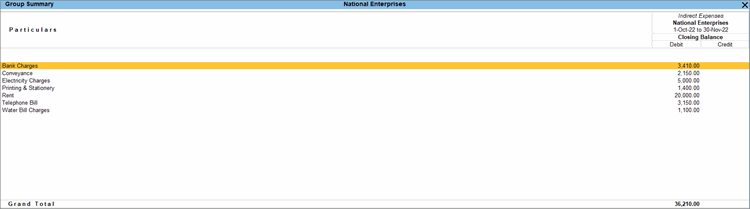
In the Group Summary report, you can further drill down to Ledger Monthly Summary report and Ledger Vouchers report. - Press F6 (Monthly) to open the Ledger Monthly Summary report.
- To toggle between the ledger-wise or group-wise details within the selected group, press F5 (Ledger-wise/Group-wise).
- To open the report in detailed mode, press Alt+F5 (Detailed).
Alternatively, press F12 (Configure) and set Format of Report: Detailed.
If you have enabled Connected Banking and want to view your available bank balance, enable Show Available Balance as per Bank.
For TallyPrime 5.1 & earlier, this option is not applicable.
Group Vouchers Report
- Press Alt+G (Go To) > Group Vouchers and press Enter.
- Select the group from the List of Groups, say Sales Accounts and press Enter.
- To view the Monthly or Daily report, press F6 (Monthly) or Ctrl+F6 (Daily), respectively.
- To filter the entries shown in the report by their nature, press Ctrl+B (Basis of Values) > Type of Voucher entries.
- Credit Entries Only: Displays vouchers with incoming value or a reduction in assets/increase in liabilities, such as Sales Vouchers or Receipts.
- Debit Entries Only: Displays vouchers with outgoing value, expenses, or an increase in assets/decrease in liabilities, such as Purchase Vouchers or Payments.
- All Vouchers: Displays every voucher recorded, regardless of whether it is a debit or a credit.
Similarly, you can explore other options for Basis of Values, as needed.
- To open the report in detailed mode, press Alt+F5 (Detailed).
Alternatively, press F12 (Configure) and set Format of Report: Detailed.- To view all ledger details, enable Show All Ledger Details.
- To view or specify the method by which a payment or receipt was made or received, enable Show Mode of Payment/Receipt.
- To view the bank details and reconciliation status in the report, enable Show additional bank details and status.
Is this information useful?
YesNo


