
Apply Range and Value Filters in TallyPrime
For TallyPrime 2.1 & earlier
You can filter for vouchers in voucher registers using the Range filter. In summary reports, you can apply the Value filter to view the reports showing values based on the contributing vouchers as per the filter conditions.
Apply Range Filter to Reports
Let’s consider Day Book for illustration purpose.
- Open Day Book > press F2 (Date) to set the date if needed.
- Press Alt+F12 (Range).
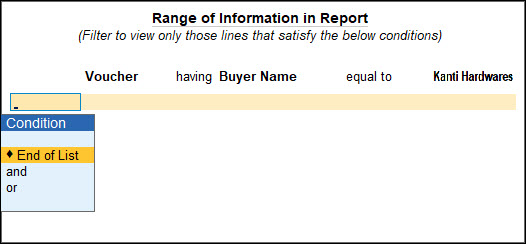
- Provide the relevant filter values in the Range of Information in Report screen.
- Select Voucher from Type of Information.
- Select the required field name under Particulars, say Buyer Name.
- Select the condition as containing or equal to under Range of Information.
- Enter the Buyer Name, say Kanti Hardwares,
You can provide more than one set of conditions to apply the Range filter, by selecting the and option under Conditions. - Once you have provided all the information select End of List and press Enter.
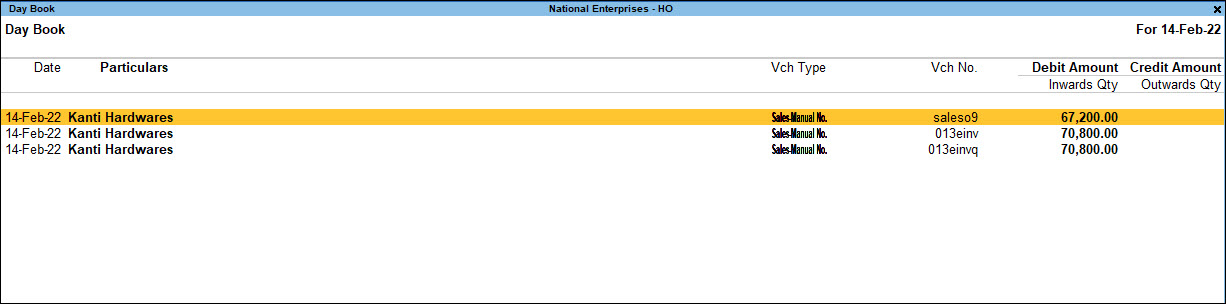
Day Book will display all the voucher entries where the Buyer Name or Party Name was found as Kanti Hardwares.
Apply Value Filter to Reports
TallyPrime provides summary reports where the values are represented based on your transactions or vouchers. You might need to view the reports based on vouchers that meet specific conditions. In such cases, you can use the Value filter on your summary reports.
Let’s consider Balance Sheet for illustration purpose.
- Open Balance Sheet > press F2 (Period) to set the period, if needed.
- Press Ctrl+F12 (Value).
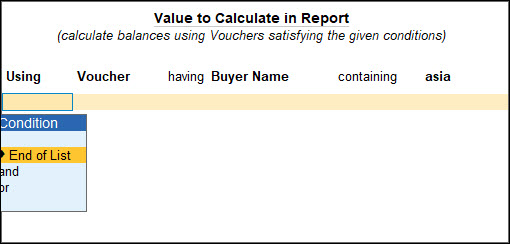
- Provide the relevant filter values in the Value to Calculate in Report screen.
- Select the required field name under Particulars, say Date.
Note the in Balance Sheet, Voucher is prefilled by default. - Select the condition as containing or equal to under Range of Information.
- Enter the date, say 15-Feb-22,
You can provide more than one set of conditions to apply the Value filter, by selecting the and option under Conditions. - Once you have provided all the information select End of List and press Enter.
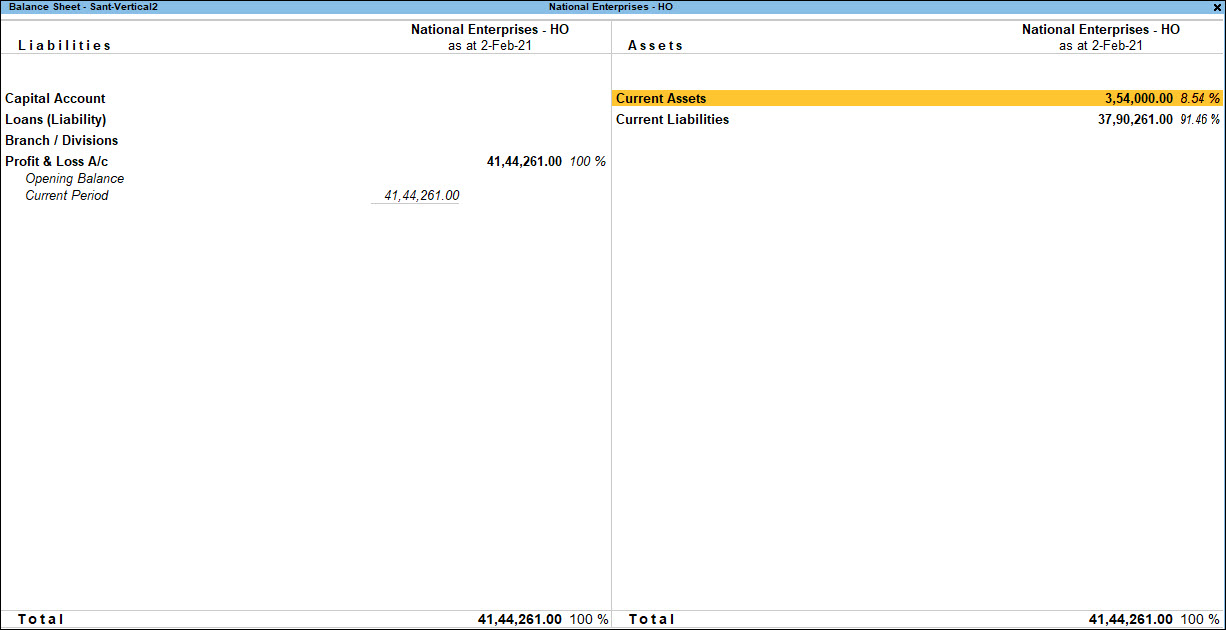
Balance Sheet will display the values based on calculated the values of the vouchers of that particular date that you entered.
- Select the required field name under Particulars, say Date.
In TallyPrime Release 2.1, you can use Range and Value filters options in different reports depending on your business requirements.
Is this information useful?
YesNo


