
Track Your Purchases in TallyPrime
Keeping track of purchases helps you monitor stock availability, outstanding dues, purchase returns, and overall procurement trends. TallyPrime provides a range of purchase reports that help you analyse purchase transactions and make informed business decisions.
Track Daily Purchases Using Day Book
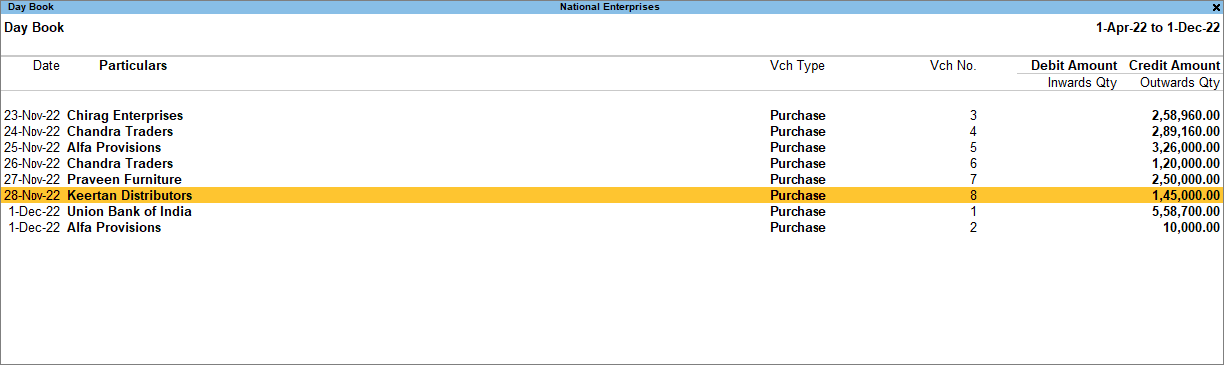
Day Book tracks all your transactions on a day-to-day basis. You can filter this report to check all the purchase transactions made on a particular day or a period.

- Press Alt+G (Go To) > Day Book.
- View the purchases recorded on any given day or a period.
- Press F2 (Date) to change the date or Alt+F2 (Period) to change the period.
Press F4 (Voucher Type) and select Purchase.
- Press F2 (Date) to change the date or Alt+F2 (Period) to change the period.
View Month-wise Purchases Using Purchase Register
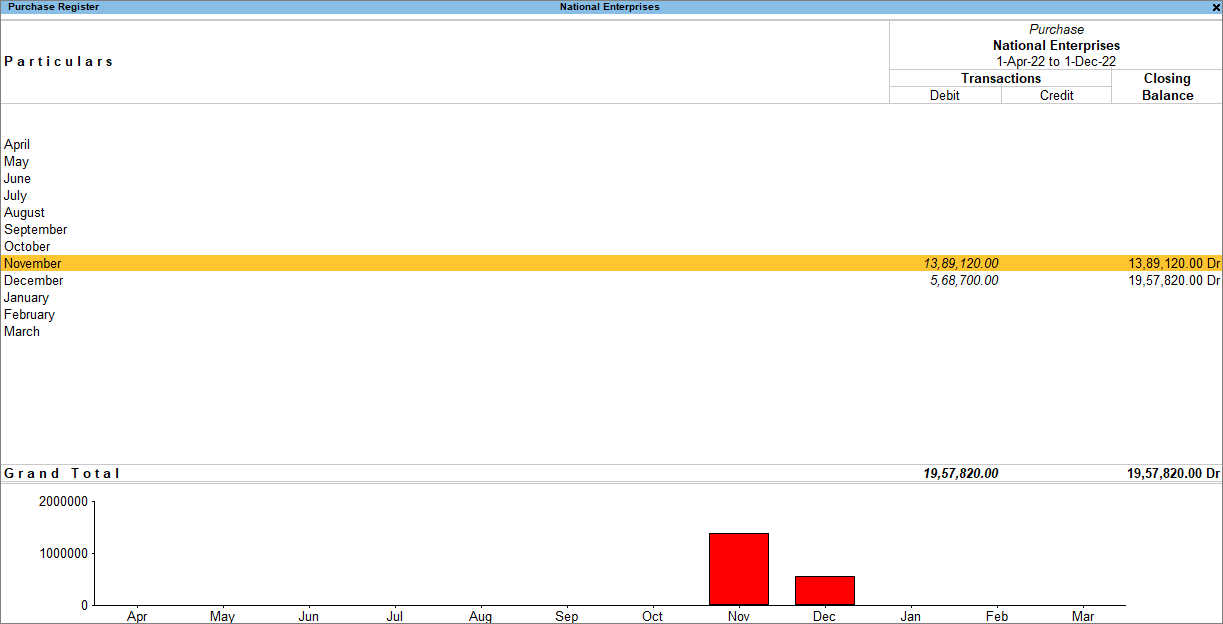
In the Purchase Register, you can view your total purchases for each month and drill down to view the purchase vouchers. You can further configure the report to view the data for different periods.
- Press Alt+G (Go To) > Purchase Register.
- Select a month and drill down to view the purchase vouchers.

View Purchase Orders in Purchase Orders Book
The Purchase Orders Book provides a summary of all purchase orders recorded in TallyPrime. You can use this report to view and track purchase orders entered up to the latest transaction date.
- Press Alt+G (Go To) > Purchase Orders Book.
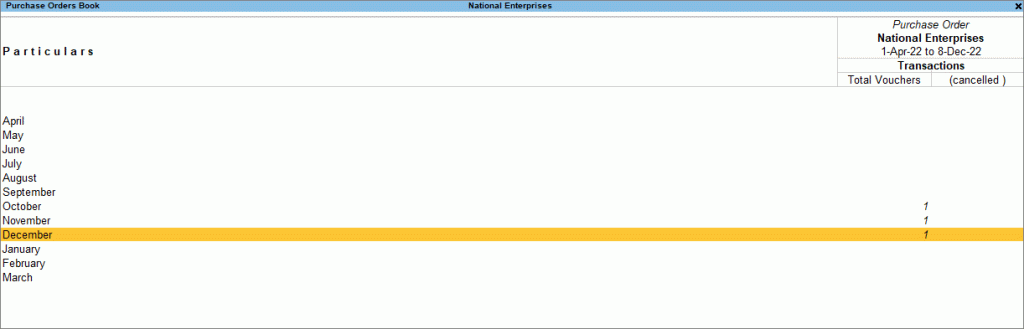
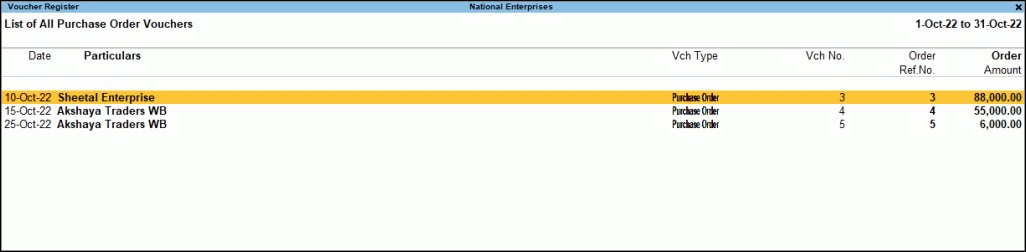
- Select a month and drill down to view the purchase orders.
Track Outstanding Orders Using Purchase Order Outstandings
After recording a purchase order, you may need to track orders that are yet to be fulfilled, partially fulfilled, or cancelled. The Purchase Order Outstandings report helps you monitor such orders and, if required, pre-close outstanding or cancelled orders.
- Press Alt+G (Go To) > type or select any of the Purchase Order Reports for Ledger, Group, Stock Item, and so on.
Let us view the Purchase Order Outstandings for one or all stock groups.
- Press Alt+G (Go To) > Purchase Order Stock Group Outstandings, and select the stock group.
- Drill down from any stock item to view the Purchase Orders Outstanding.
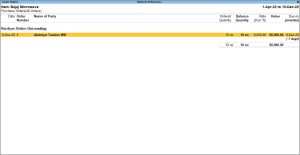
You can view the Due on date for delivering the goods and the number of days overdue, along with other details such as the Date of the order, Order Number, Name of Party and Ordered Quantity.
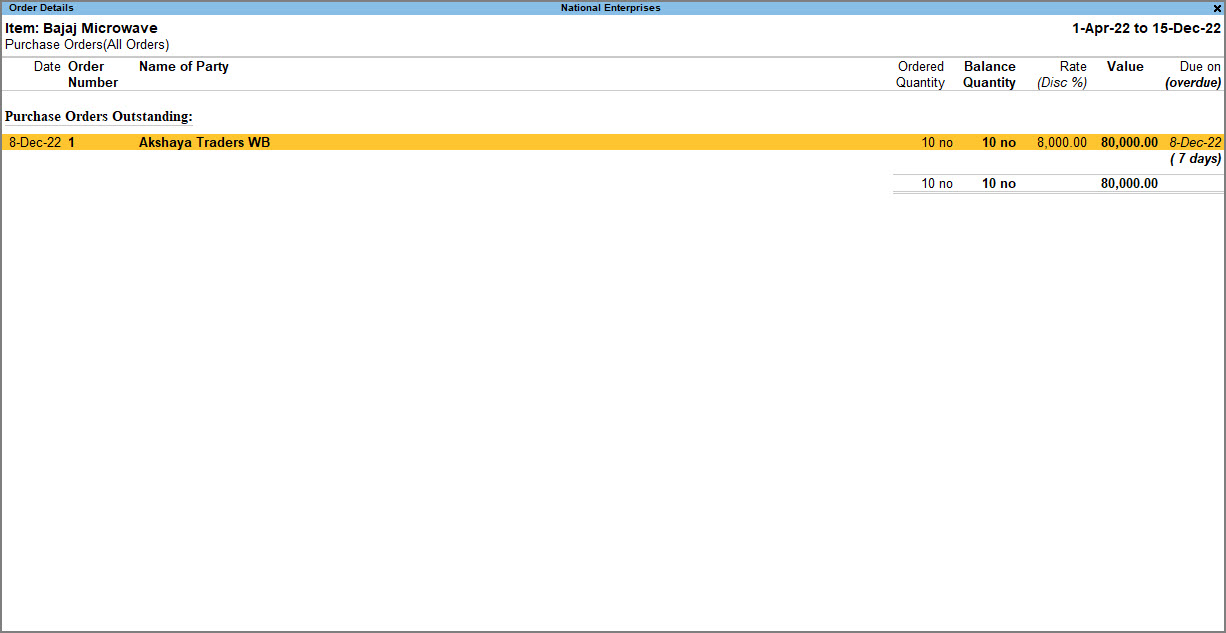
Similarly, you can view Purchase Order Outstanding summary of stock categories, stock items, groups, and ledgers.
Track Your Pending Purchase Bills
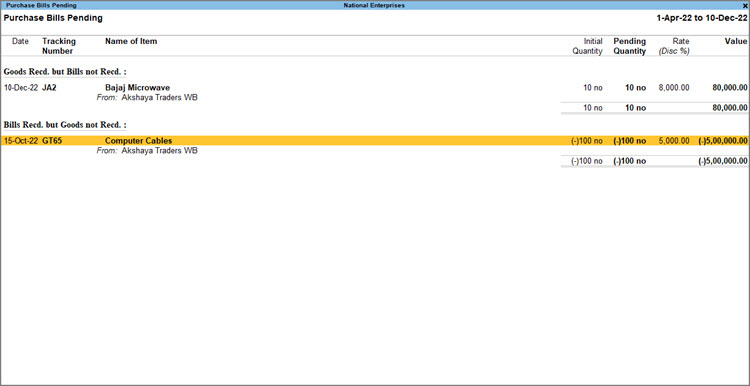
Purchase Bills Pending report helps you identify incomplete purchase transactions where inventory or accounting entries are pending due to unlinked invoices.
- Press Alt+G (Go To) > Purchase Bills Pending.
- Select any transaction under Goods Recd. but Bills not Recd. or Bills Recd. but Goods not Recd. and press Enter to view the details.
- Select a voucher detail and drill down to open the voucher and make any updates, as needed.
View Debit Notes in Debit Note Register
The Debit Note Register provides a consolidated view of all debit notes recorded in TallyPrime. You can use this report to track purchase returns or supplier-related adjustments for a selected period.
- Press Alt+G (Go To) > Debit Note Register.
- Select a month and drill down to view the debit notes.
With the wide range of purchase reports, you can effectively track purchases, monitor outstanding orders and bills, and review purchase returns at any time.
Questions & Answers
How can I view the actual value of stock items including the Additional Cost of Purchase?
You can view the actual value of stock items, including the Additional Cost of Purchase, in the Stock Summary report.For example, if the value of Copper Wire in the Stock Summary is ₹3,060 and its value in the Stock Item ledger is ₹3,000, then the additional cost allocated to the item is ₹60. This helps you understand the actual cost of the item and determine an appropriate selling price.


