
Manage Purchase Orders in TallyPrime
In TallyPrime, you can use Purchase Orders to track the procurement of goods and services from suppliers. If certain ordered quantities are no longer expected to be received, you can pre-close those orders. This removes outstanding references and keeps your order tracking reports up to date, even when only negligible quantities remain pending.

Ensure that you have created the purchase ledger.
Record Purchase Orders in TallyPrime
- Press Alt+G (Go To) > Create Voucher > F10 (Other Vouchers) > Purchase Order.
If Purchase Order is inactive, you will be asked to activate it. Press Enter to proceed. - Specify the supplier details.
- Party A/c Name: Select the Supplier ledger.
- Update the Order Details and Receipt Details.
- Include import details in the voucher, if needed.
- Press F12 (Configure), and set Provide Import details to Yes.
- Update the Import Details.
- Enter the Party Details.
- Enter the purchase Order no. for the voucher.
To enter an order number for each item, press F12 (Configure) and set Provide Order No. for each Stock Item to Yes. The Order no. field will appear in the Stock Items Allocation screen instead of in the voucher. - Select the Purchase ledger.
- Provide stock item details.
- Select the stock item.
- Enter the Due on date and Quantity.
The Rate will be auto-filled, if updated for the stock item. However, you may choose to enter the Rate.
The Amount will be auto-filled, depending on the rate. - Press Ctrl+A to save the details.
- Provide Narration for the voucher, if needed, and press Ctrl+A to save.
Pre-Close Purchase Order
In TallyPrime, you can partially or completely pre-close orders either from the Voucher Alteration screen or from the Purchase Order (Due Only) report under Purchase Order Outstandings.
Configure purchase order voucher for pre-closure
- In Day Book, select the required Purchase Order voucher and press Enter.
- In the Order Voucher Alteration screen, press F12 (Configure) and set Provide details to preclose orders to Yes.
Pre-close purchase orders from transaction
You can pre-close pending quantities in a purchase order directly from the transaction when they are no longer expected to be received.

Pre-close purchase order partially from transaction
- In the Order Voucher Alteration screen, select the stock item and press Enter.
- In the Item Allocations for screen, enter the Pre-Close Quantity and the Reason for Pre-Close.
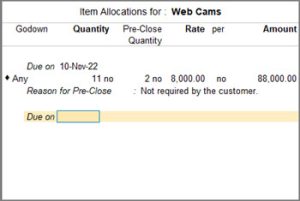
- Press Ctrl+A to save.
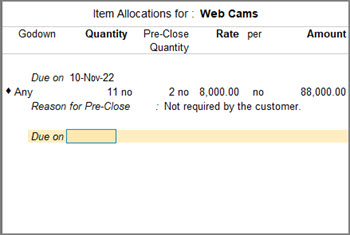
Pre-close purchase order completely from transaction
- In the Order Voucher Alteration screen, press Alt+W (Preclose Order).
- In the Pre-Close Order Completely screen, enter the Reason and the Closed on date.
- Press Ctrl+A to save.
Pre-close purchase order from Purchase Orders
You can pre-close orders partially or completely from the Purchase Order (Due Only) report under Purchase Order Outstandings.
Configure the Order Details report for Pre-Closure
- Press Alt+G (Go To) > Purchase Orders (Due Only).
- In the Order Details report, press F12 (Configure) and enable the options Show Cleared Purchase Orders, Show Pre-closure Order details, and Show Reason.
- Press Ctrl+A to save.
The Order Details screen now appears with the Pre-Closed Qty (Closed on) column and Reason for Pre-Close field.
Pre-close purchase order partially from the Purchase Order
- In the Order Details report, select the purchase orders and press Alt+W (Preclose Orders).
- Enter the Pre-Close Quantity and the Reason for Pre-Close.
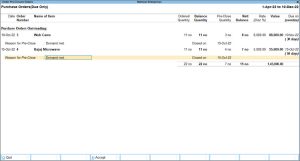
- Press Ctrl+A to save.
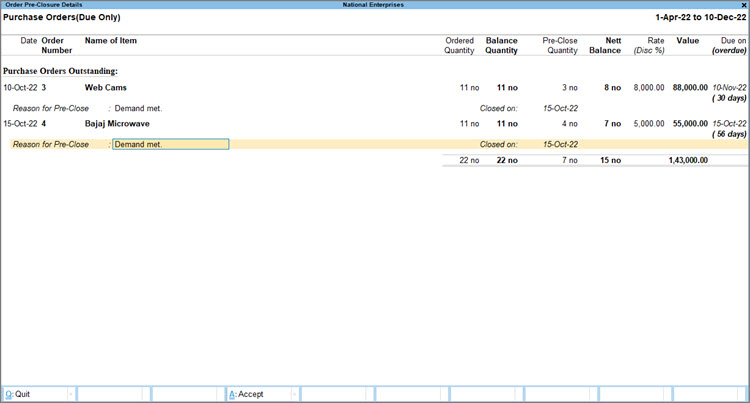
Pre-close purchase order completely from the report
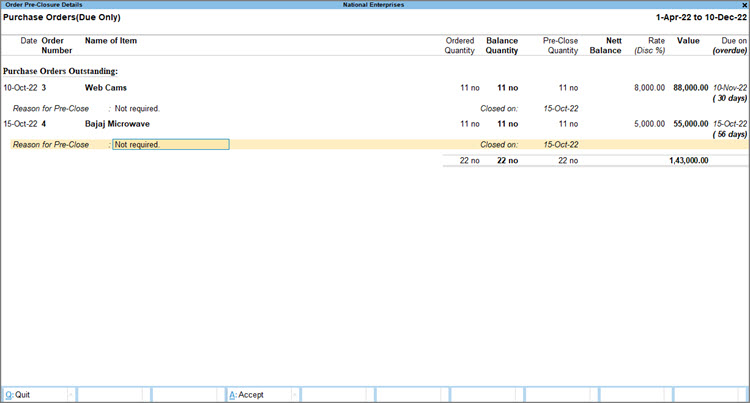
- In the Order Details report, select the purchase orders and press Alt+W (Preclose Orders).
- In the Order Pre-Closure Details screen, press Alt+W (Set Quantity).
The closing date reflects under the Pre-Close Quantity column.
- Press Ctrl+A to save.
Record Purchase Against Purchase Order
If you want to record a purchase invoice directly against a Purchase Order, without recording a Receipt Note, you can select the Purchase Order while recording the purchase invoice.
In the purchase voucher:
- Press F12 (Configure) and set Provide Order Details to Yes.
- In the Order Details screen, select the purchase Order No.
The details from the Purchase Order appear in the purchase voucher. - Make changes to the items or quantities, if required.
- Enter the necessary details, and press Ctrl+A to save the voucher.
In this way, you can use Purchase Orders in TallyPrime to streamline procurement, track order fulfilment, and manage outstanding commitments efficiently from order creation to closure.


