
Set Up Stock Item for UAE e-Invoicing
To ensure accurate e-Invoicing in the UAE, you need to configure stock items with the required statutory and tax details in TallyPrime. By defining taxability, supply type, and reporting units, you can generate compliant invoices for goods and services.

- Under Statutory Details, configure the details required for UAE e-Invoicing.
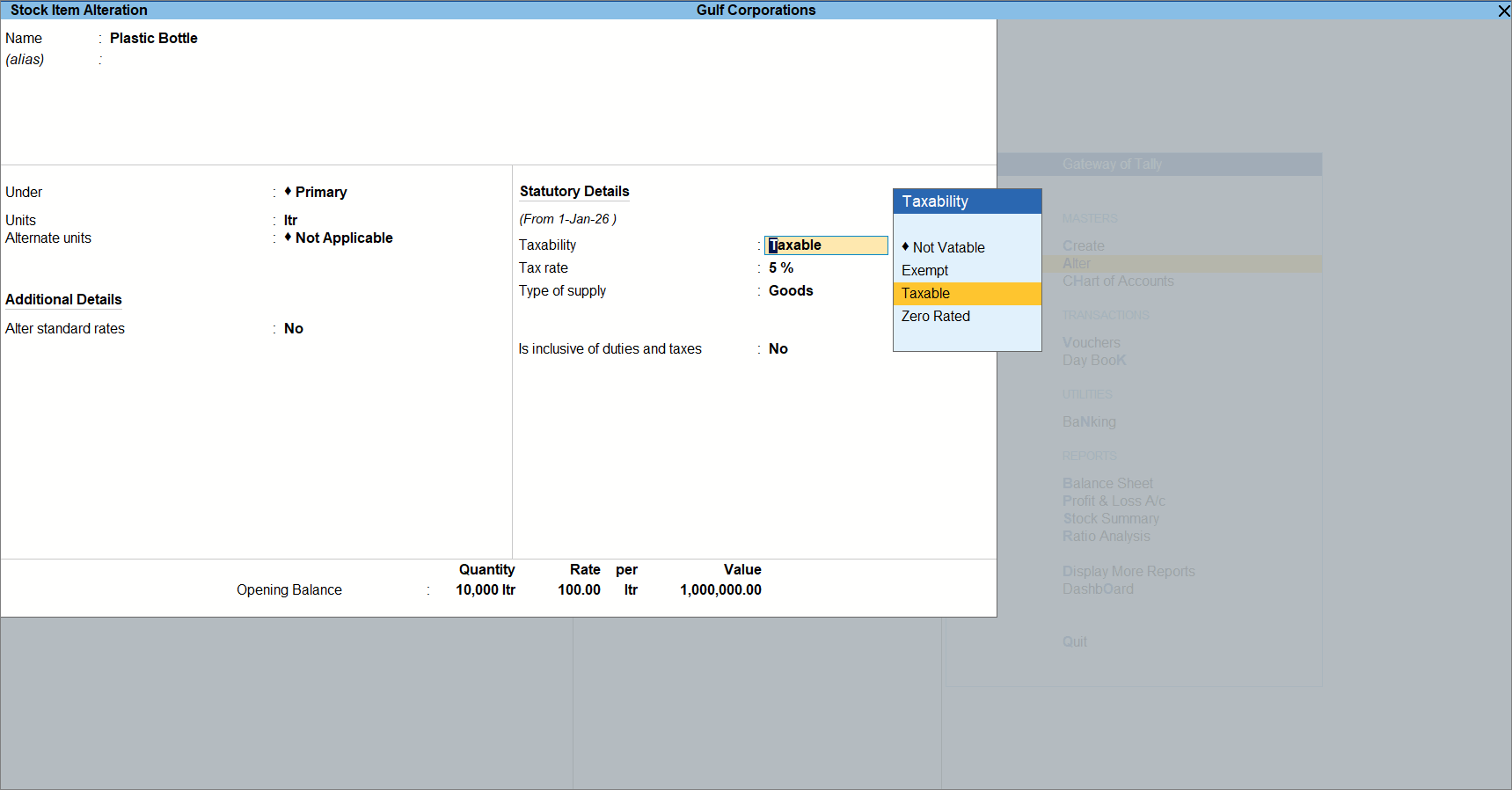
- Taxability: Select the tax applicability for the stock item.
- Exempt: When the item is not subject to VAT.
- From the List of Reasons, select the Reason for Exempt.
- Taxable: When VAT is applicable on the item.
- Zero Rated: When the item is taxable but the VAT rate applicable is 0%.
- Exempt: When the item is not subject to VAT.
- Tax rate: Specify the VAT rate applicable to the item.
- Type of supply: Select the nature of supply for the item.
- Select the required reporting unit of measurement.
- Reporting UOM (UQC): From the List of Units (UQC), select the unit that must be reported in the e-Invoice.
If you are using alternate units for a stock item, this field appears. While exchanging e-Invoices there can be two units associated with the item. Therefore, you need to specify the unit that must be reported to the e-Invoice system.- Press F12 (Configure) > set Use Alternate Units to Yes.
- Enter the required Alternate Units for the stock item.
- where: Specify the conversion factor between the primary unit and alternate unit. This helps TallyPrime identify the equivalent quantity between both units for the stock item.
If alternate units are used for the stock item, you can choose the required reporting unit from the available UQCs.
- Press F12 (Configure) > set Use Alternate Units to Yes.
- Alternatively, press Ctrl+I (More Details) to update the reporting UOM, if required.
- Reporting UOM (UQC): Displays the unit selected at the item level. Any changes made here will be updated in the stock item as well.
- Reporting UOM (UQC) (History): Displays the history of reporting UOM changes with Applicable Date and Reporting UOM (UQC).
A new history entry is created whenever the reporting UOM is changed with a new effective date. Previous entries remain available for reference.
- Set Is inclusive of duties and taxes to Yes or No, as required.
- Reporting UOM (UQC): From the List of Units (UQC), select the unit that must be reported in the e-Invoice.
- Provide other necessary details and press Ctrl+A to save.
Is this information useful?
YesNo


