
Establish Connection with ICICI Bank Accounts from TallyPrime
For TallyPrime 7.0 & later
With Connected Banking, you can connect your ICICI Bank accounts to TallyPrime. This helps you avoid all manual activities and perform the following right from TallyPrime:
-
- Send payments online from TallyPrime.
- View Bank Balance in a click.
- Get Bank Statement right in TallyPrime to reconcile your transactions.

- TallyPrime Release 7.0 or later
- An active license
- A valid Tally Software Services (TSS) subscription
- Tally.NET ID and password.
- CIB Portal Login ID, when you submit the connection request to the bank.
If you have not created a CIB Portal Login ID, then you can either get it created or use your Corporate ID.User ID to submit the connection request.
Corporate ID: John
User ID: Donne
Corporate ID.User ID: John.Donne
Account Types Supported | ICICI Bank
| Sl No. | Account Type | Supported/Not Supported |
| 1 | Current Account (Regular and Overdraft) | Supported |
| 2 | Savings Account | Not Supported |
Connect Your ICICI Bank Accounts
With an active Connected Banking session, you can connect your ICICI Bank accounts in TallyPrime. After you initiate the connection from TallyPrime, you can complete the connection process on the ICICI CIB portal.
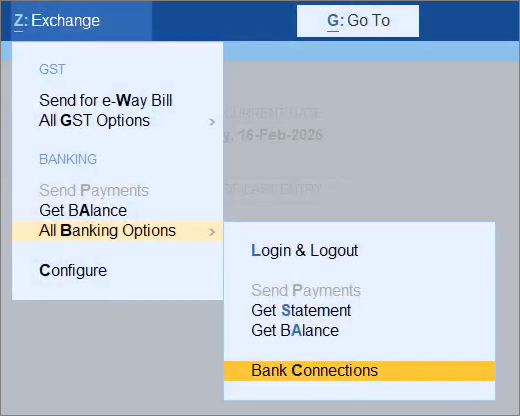
- In TallyPrime, press Alt+Z (Exchange) > All Banking Options > Bank Connections.
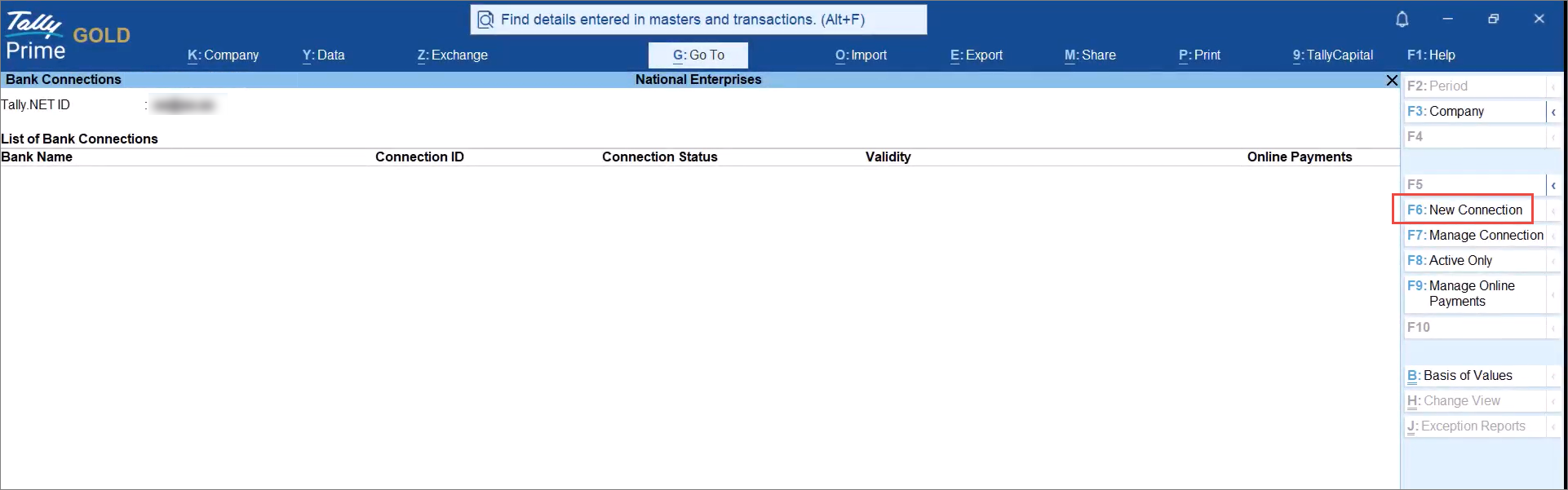
You need to log in to Connected Banking, if you haven’t already. - Press F6 (New Connection).
- Select ICICI Bank (India).
A Connection ID gets generated. - In the Connect to Bank screen, press C (Connect).
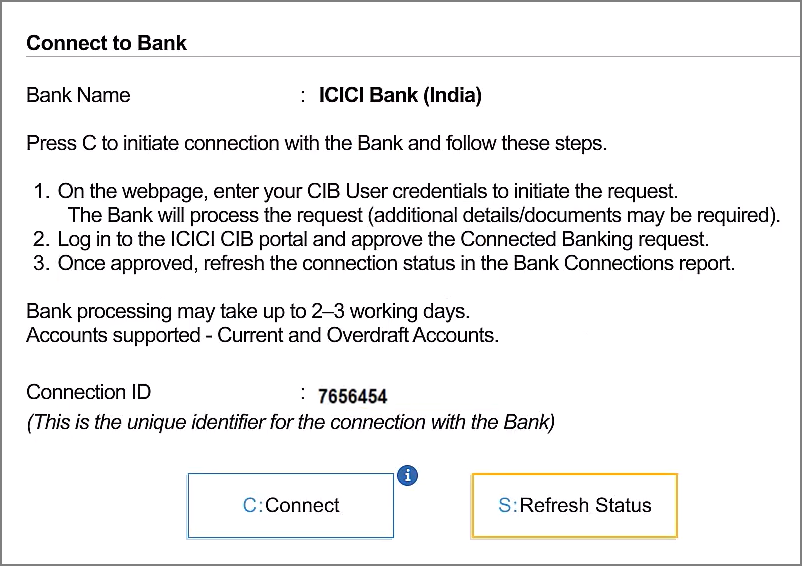
You will then be redirected to Tally’s ICICI Connection webpage on your browser.
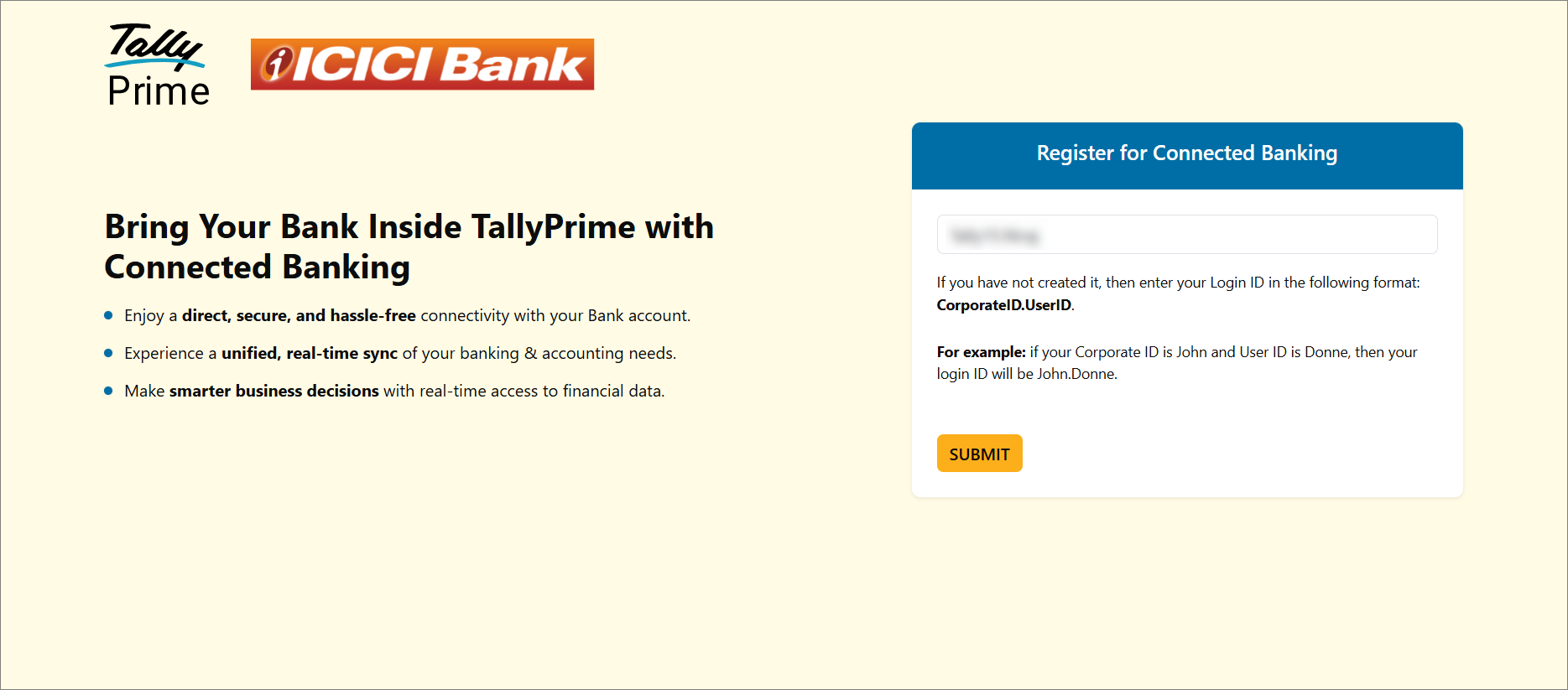
Submit Connection Request on Tally’s ICICI Connection webpage
- Enter your CIB Portal Login ID.
If you have not created it, use the format: CorporateID.UserID. - Click SUBMIT.
- Click Continue.

The connection request gets submitted.
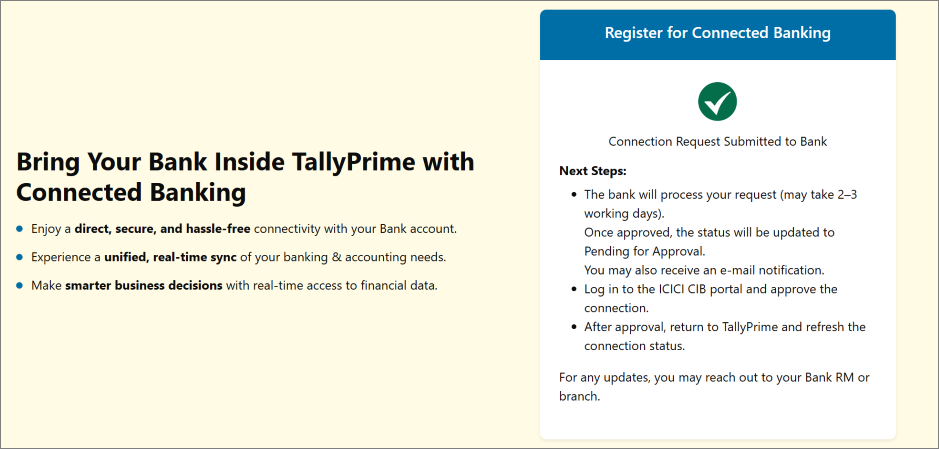
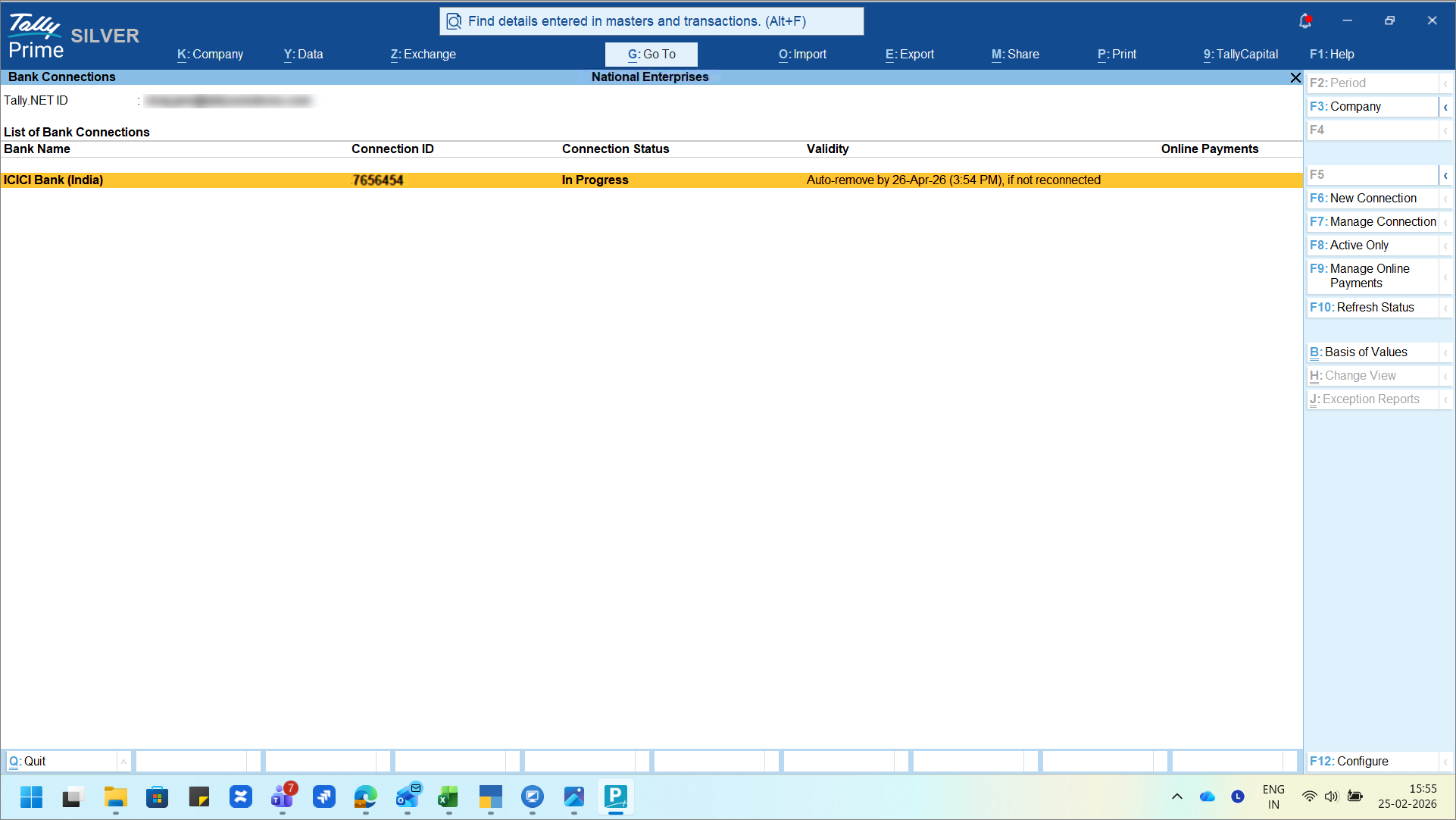
At this point, the status of the ICICI Bank Connection in TallyPrime changes to In Progress.
After due diligence, your Bank Relationship Manager must approve this request. The RM might reach out to you for any further details. Once the request is approved, you will also receive an e-mail confirmation.
The approval request may take 2-3 working days to appear on the CIB portal.
Approve the Connection Request on the CIB Portal
After the bank approves it, the Connection Status in the Bank Connections report changes from In Progress to Pending for Approval.
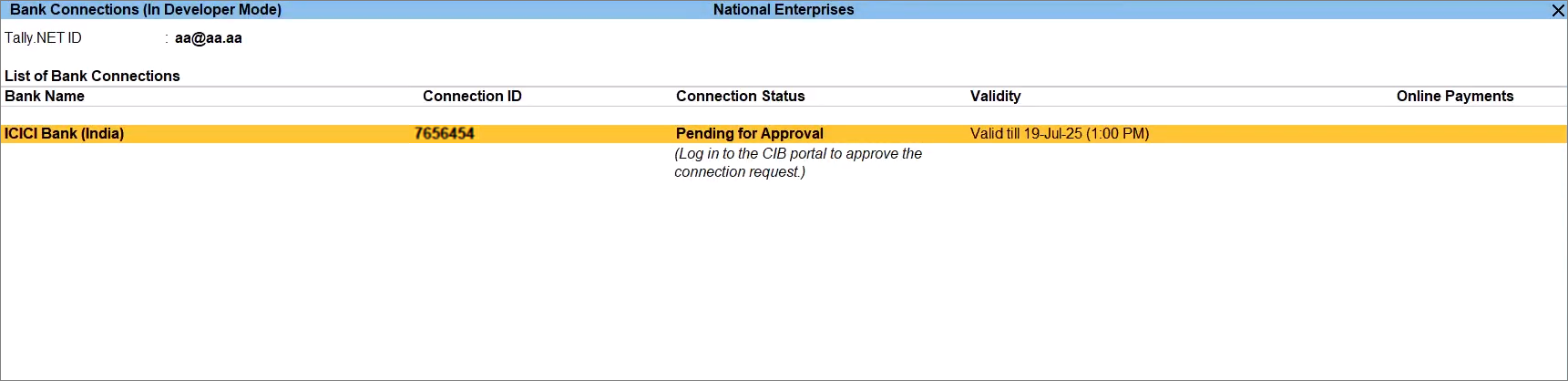 You need to approve this request on the ICICI CIB portal.
- Log in to the ICICI CIB portal.
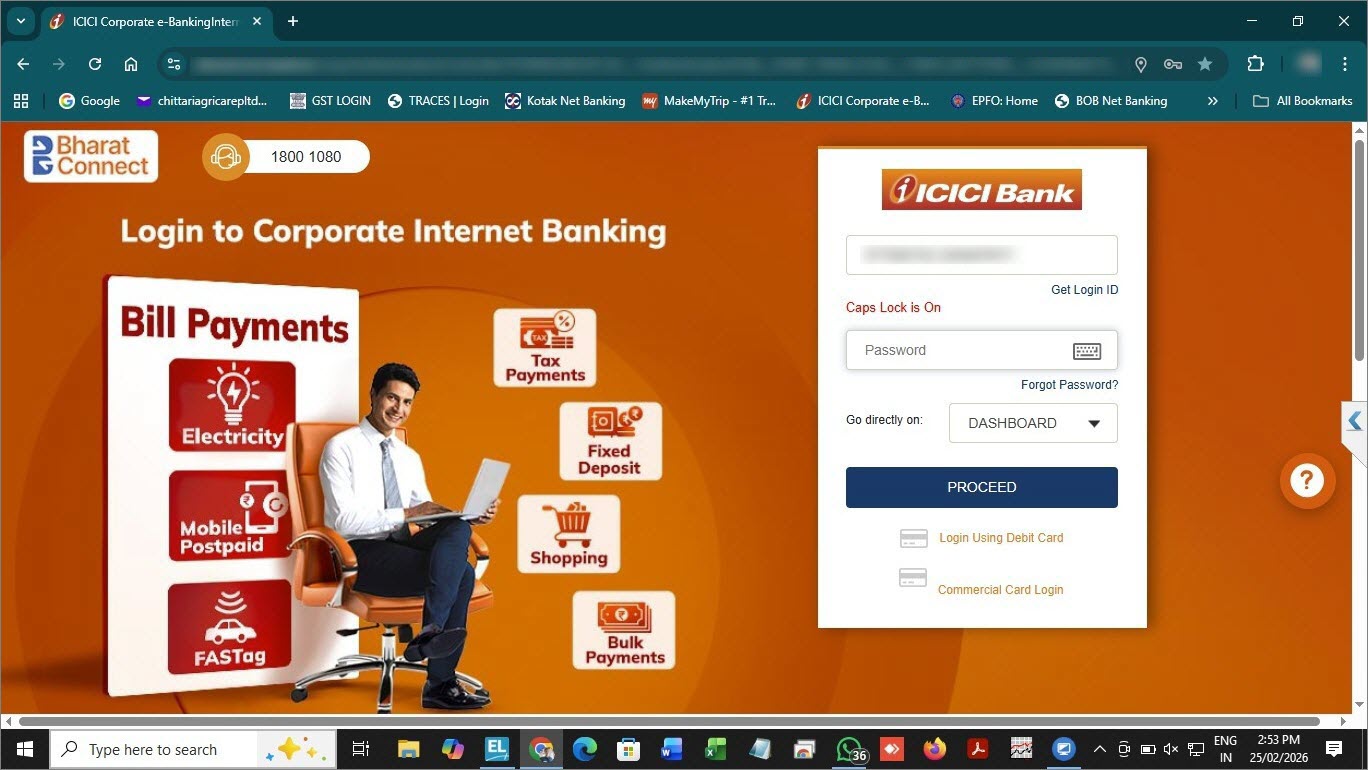
- Under Connected Banking, click Connected Banking Approvals.
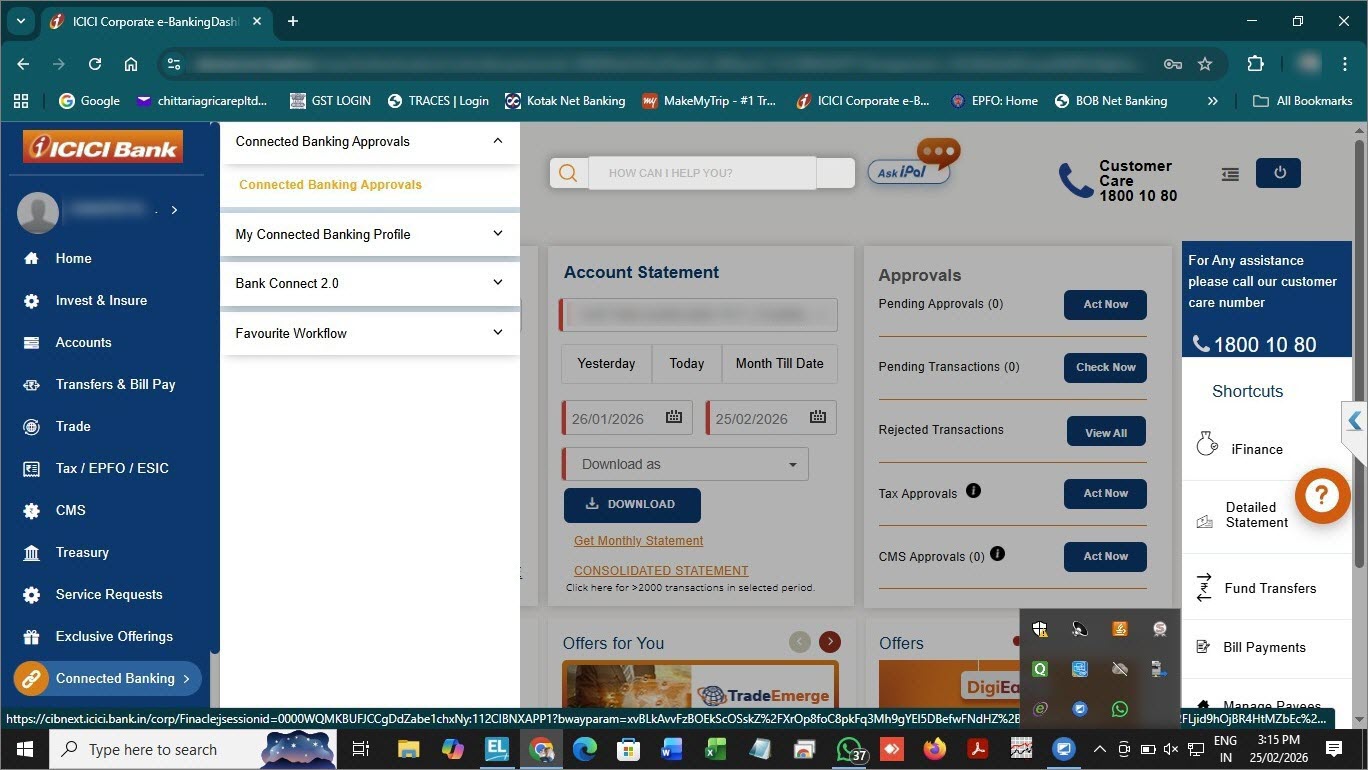
- Initiate the approval of the relevant Connection Request.
- Click the checkbox against the relevant Connection Request.
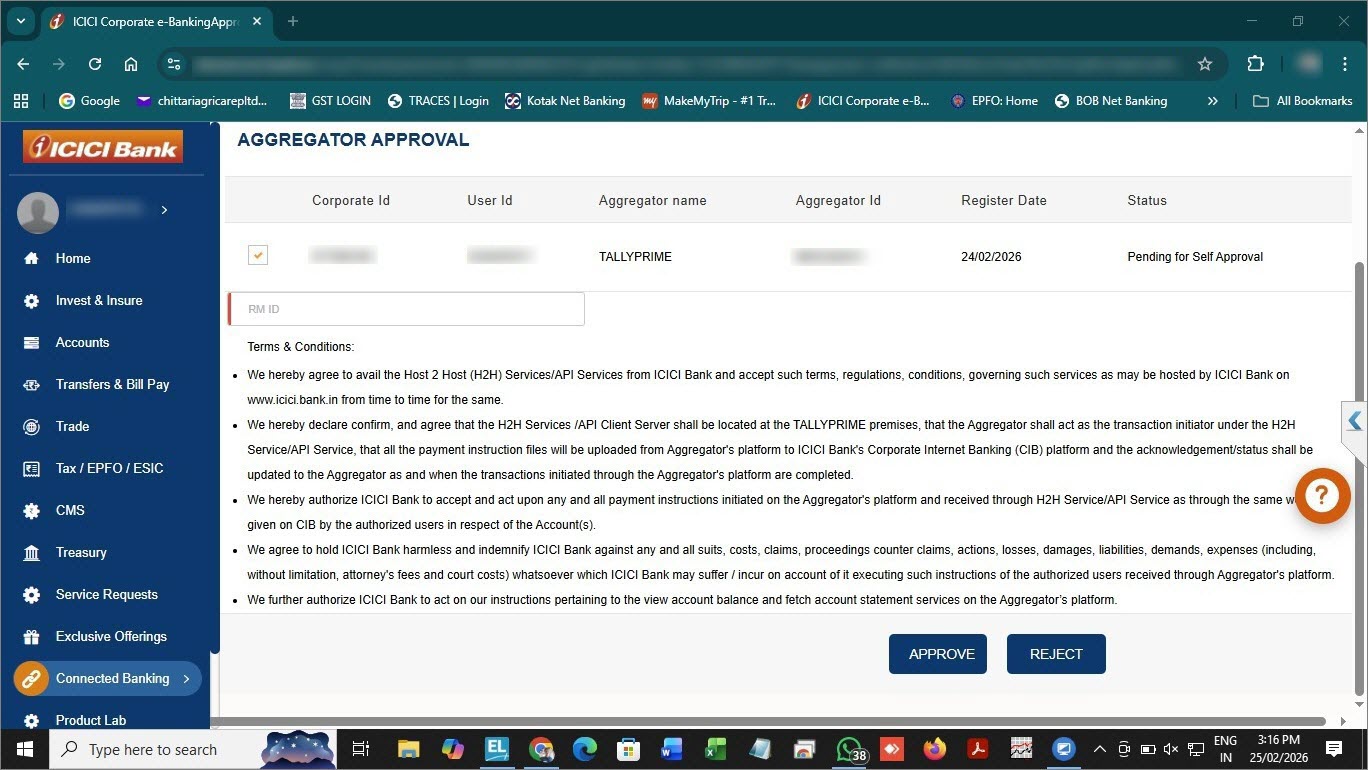
- Click APPROVE.
- Click the checkbox against the relevant Connection Request.
- Confirm the Connection Request approval.
- Click the relevant Connection Request.
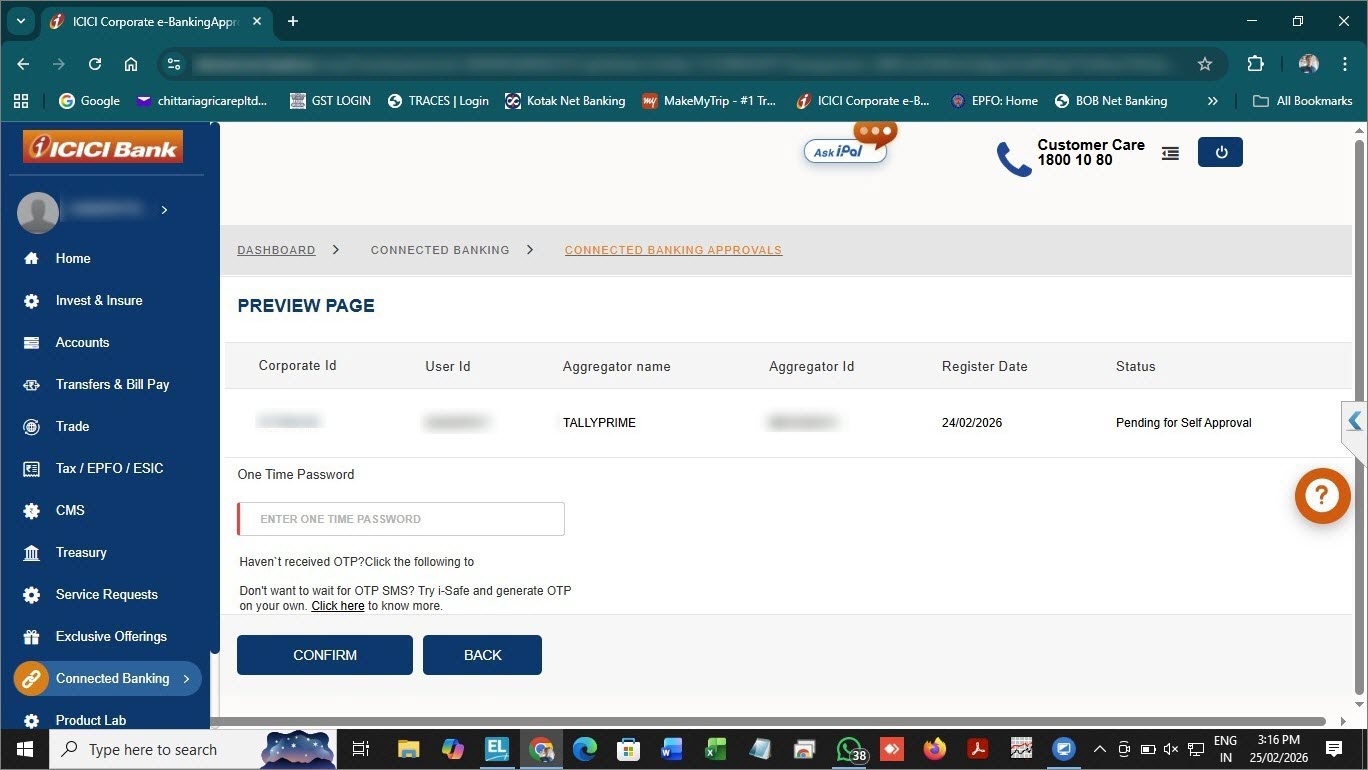
- Enter the OTP received on your mobile number registered with the bank.
- Click Confirm.
- Click the relevant Connection Request.
Refresh Connection Status in TallyPrime
- Open the Bank Connections report.
- Press F10 (Refresh Status).
The Connection Status is Connected.
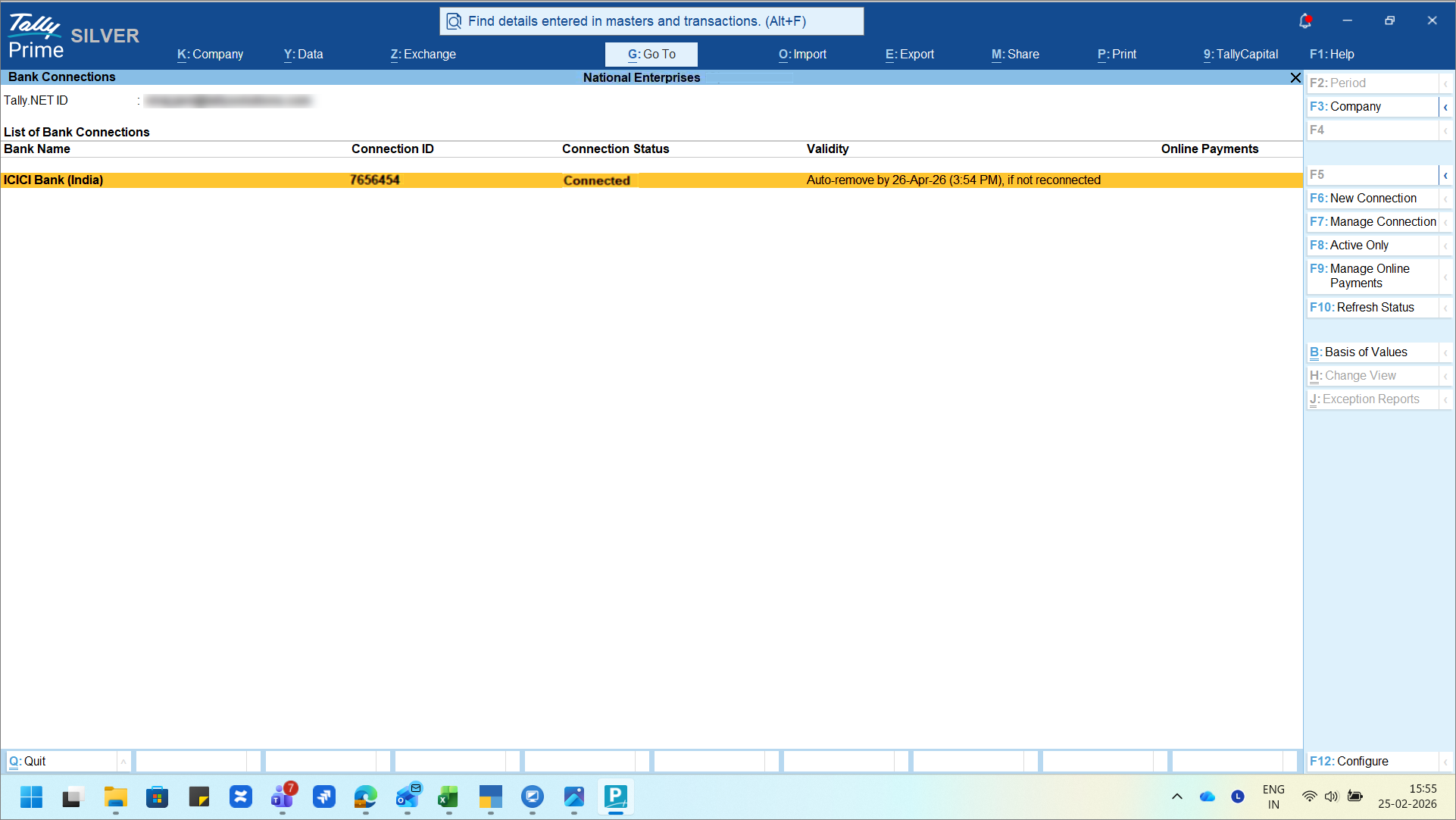
However, the account number will appear only after you get the bank account balance right from TallyPrime.
After getting the bank balance, return to the Bank Connections report.
The Account Number gets displayed.

The ICICI Bank connection does not expire automatically. It remains valid unless you manually disconnect it from TallyPrime.
Once the connection is established, you can:
- Send payments online from TallyPrime.
- View Bank Balance in a click.
- Get Bank Statement right in TallyPrime.
- Auto-create vouchers using the entries in the Bank Statement.
- Auto-reconcile your bank transactions.
Disconnect Your ICICI Bank Accounts
When you no longer want to use one or more ICICI Bank accounts through Connected Banking, you can disconnect from the bank.
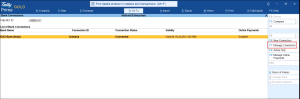
- Select the connection and press Enter, or press F7 (Manage Connection).
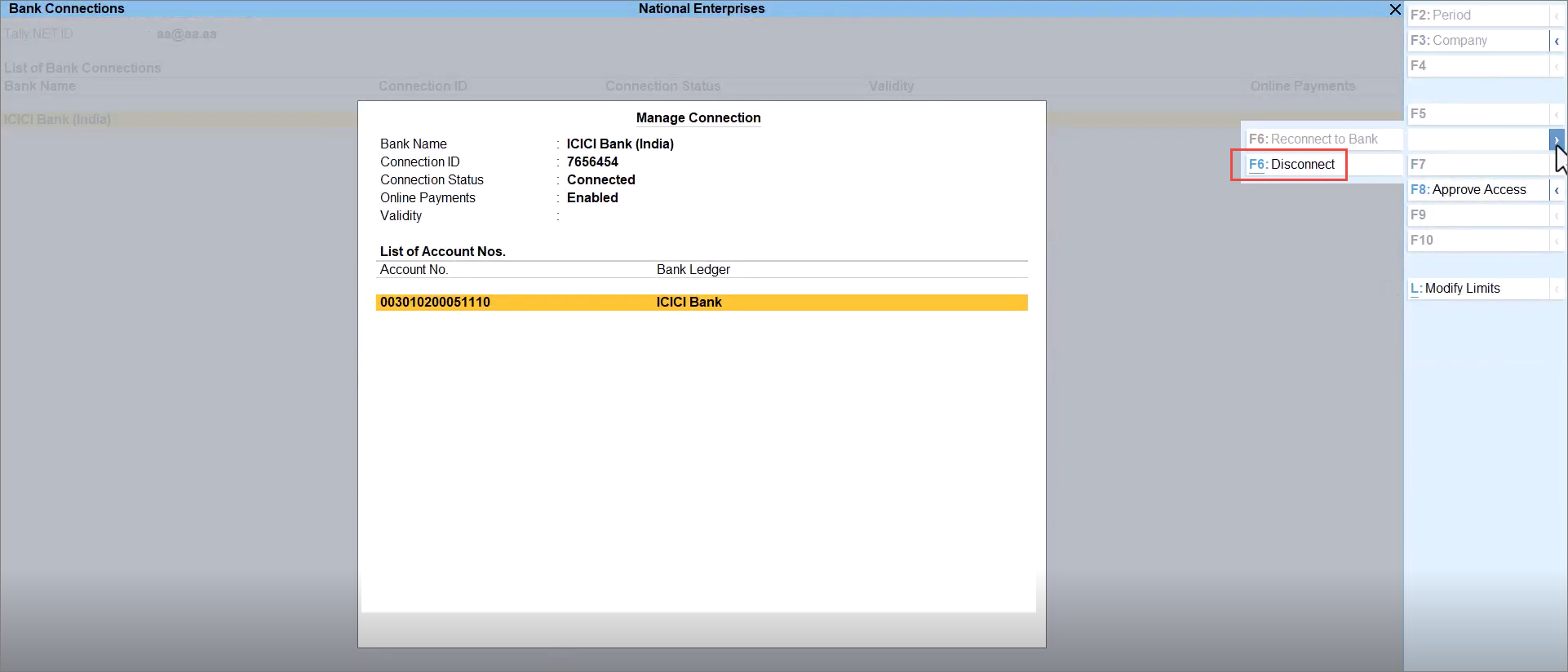
- In the Manage Connection screen, press Alt+F6 (Disconnect).
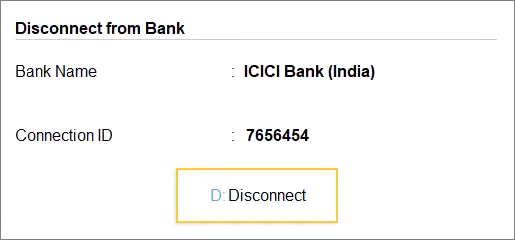
- In the Disconnect from Bank screen, press D (Disconnect).
- Press Y to confirm.
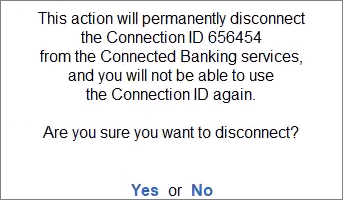
The ICICI Bank account gets disconnected from TallyPrime.
If you want to use the same bank account for Connected Banking again, then you can initiate a new connection. If you want to use the same bank account for Connected Banking again, then you can initiate a new connection.
Reconnect Your ICICI Bank Accounts
You can reconnect to the bank using an existing Connection ID when the Bank Connection gets expired, due to modification in your Tally.NET details, such as mobile number.
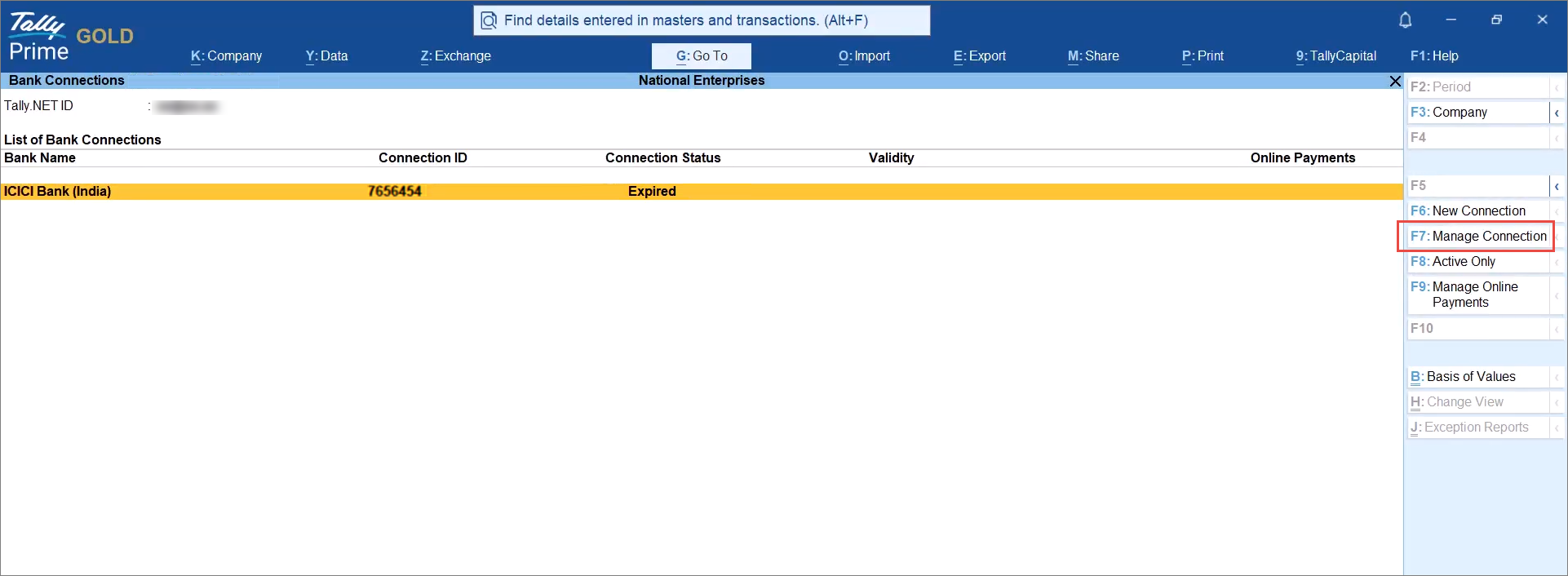
- Select the connection and press Enter, or press F7 (Manage Connection).
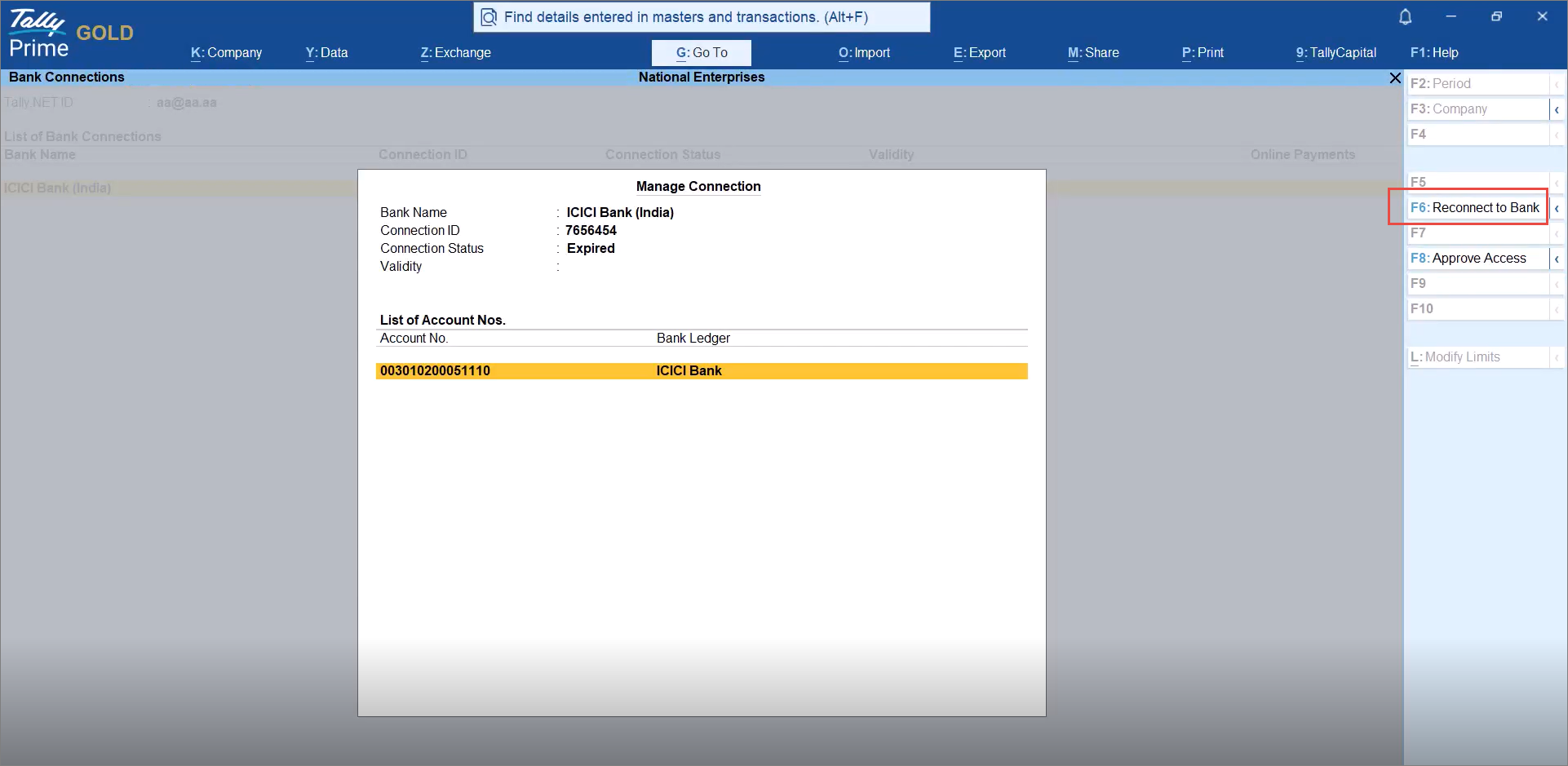
- In the Manage Connection screen, press F6 (Reconnect to Bank).
- In the Reconnect to Bank screen, press C (Connect).
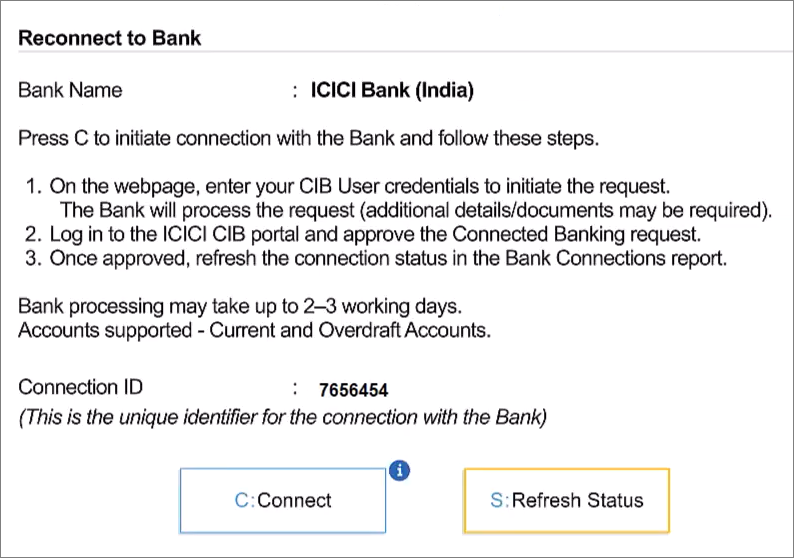
You will be redirected to Tally’s ICICI Connection Portal.
Submit the Connection Request on the Tally’s ICICI Connection webpage
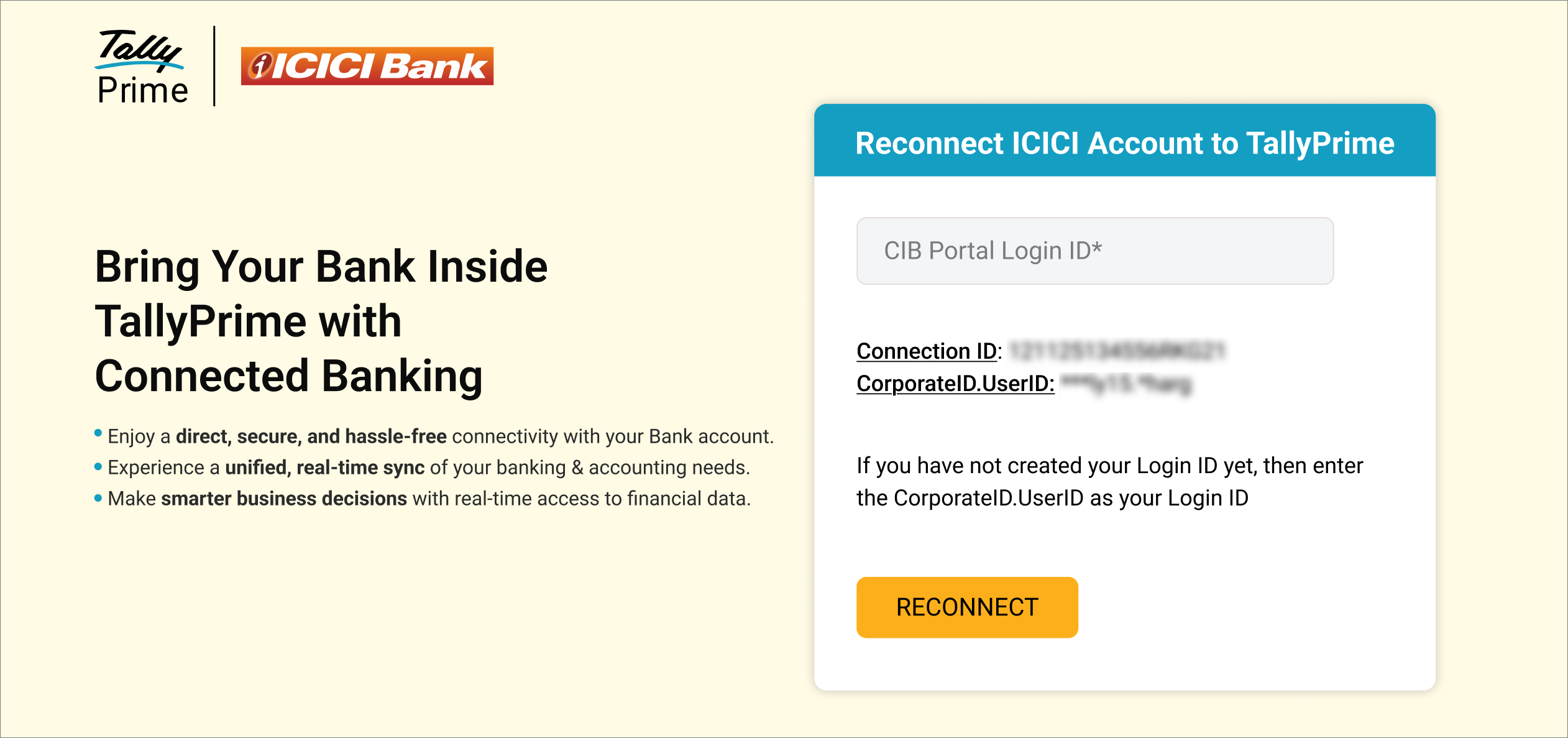
You will see your Connection ID and Login ID displayed.
- On the webpage, enter your CIB Portal Login ID.
If you have not created it, use the format: CorporateID.UserID. - Click RECONNECT.
- Click Continue.

The reconnection request gets submitted to the bank.
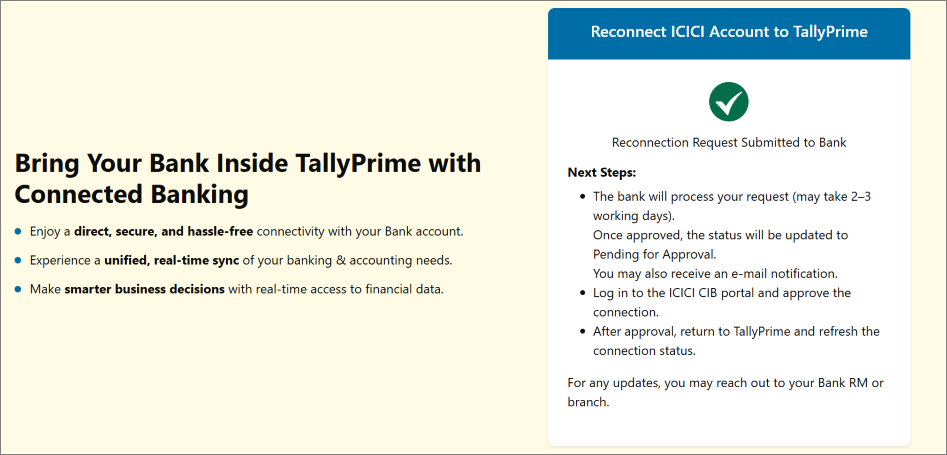
Within 24 hours, the request starts appearing on the CIB portal.
You can then log in to the CIB portal and approve the request, just the way you would approve a connection request.
Refresh Reconnection Status in TallyPrime
- Switch to TallyPrime.
- In the Bank Connections screen, press F10 (Refresh Status).
The Connection Status will appear as Connected, and the validity and linked account numbers will be displayed.



