
Share Documents Using TallyPrime with WhatsApp
In your business, you might be sharing invoices or reports with your customers, parties, and others depending on the nature of transactions. For every sales, your buyer would need the sales invoice. For delivery of goods, the delivery person will need a delivery note. Similarly, you might want to remind your parties for the due payments, and so on. Now send documents directly from TallyPrime to your parties on their WhatsApp numbers.

Ensure that, you have:
- Signed up for WhatsApp.
- Verified your business.
- Activated your subscription.
- Added a registered Business WhatsApp No. in TallyPrime.
- Received approval for the required WhatsApp templates.
- Set the default WhatsApp number in the party ledger.
WhatsApp Invoices & Reports

- Open the invoice or report you want to WhatsApp.
- Press Alt+M (Share), and select Current under WHATSAPP.
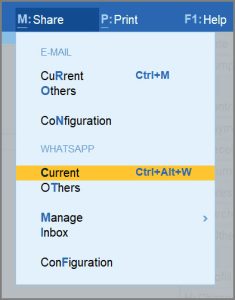
If you have not logged in for WhatsApp while adding the registered WhatsApp No. in TallyPrime, the Sign Up & Use Registered Business WhatsApp No. screen will appear. - In the WhatsApp screen, specify the required details for sending the document.
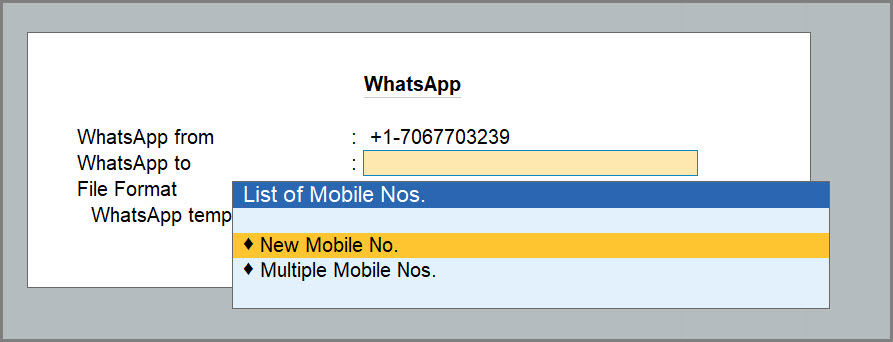
- WhatsApp from: This is prefilled with your Registered Business WhatsApp No.
- WhatsApp to: Enter the WhatsApp No. of the recipient (the buyer).
If you have set any default WhatsApp number in the party ledger, you can select the same in the WhatsApp to field.
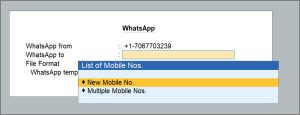
To send the document to multiple mobile numbers at the same time- Select Multiple Mobile Nos., select more than one number or add new numbers as needed.
- Select End of List once you have selected or added the numbers.
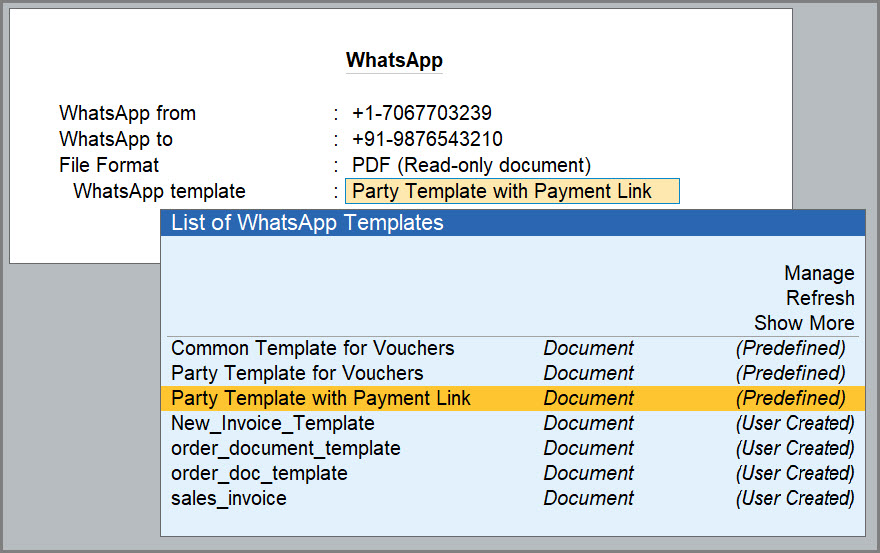
- Select the required File Format and WhatsApp template suitable for the document, and press Enter.
- In WhatsApp template, select the template with the attached invoice or report that will be sent to the recipient.
You can also design your templates and submit them to Meta for approval. - Press C (Configure) to add any required information, such as Company Logo, GSTIN, and so on, to the invoice.
- Press W (WhatsApp) to send the invoice to the recipient’s WhatsApp number.
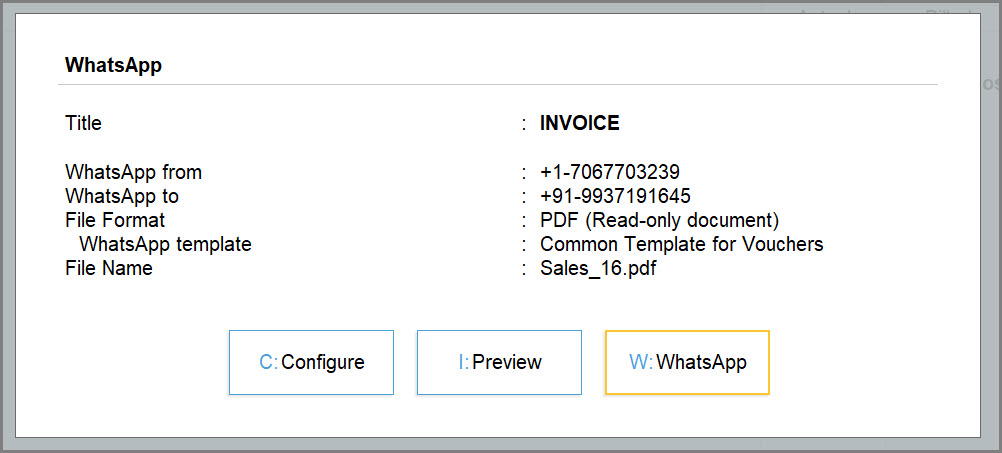
WhatsApp Invoice with Payment Link/QR code
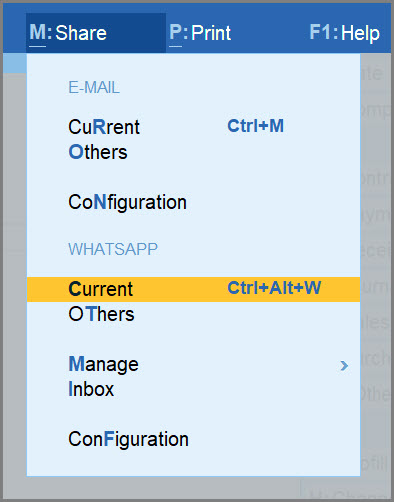
- Open the sales invoice containing the payment link/QR code > Alt+M (Share) > select Current under WHATSAPP.
- In the WhatsApp screen, under WhatsApp template, select Party Template with Payment Link and press W (WhatsApp).
From the WhatsApp message, your party can tap the Pay Now button and make the payment right then.
WhatsApp Reminder Letters
- Press Alt+G (Go To) > Bills Receivable > Alt+M (Share) and select Current under WHATSAPP.
- Press C (Configure) and specify the Report Type and enter the ageing range for which the bills have been overdue.
- Set Report Type as Reminder Letter.
- In the Company Ageing Alteration screen, select the age range of the outstanding amount for which you want to send the reminder letter.

- Select Reminder Letter information and press Enter to update the information related to the bill or amount details for reference, if needed.
- Enable Show Due on and Show Over Due Days/Bill age in Days, if needed.
- Enable Post-dated Vouchers to print post-dated in the reminder letter, if needed.
- In the WhatsApp screen, under WhatsApp template, select Common Template for Reports, and press W (WhatsApp).
WhatsApp Dashboard Tiles
- To WhatsApp a specific tile in Dashboard, press Alt+M (Share).
- To send the current tile, select WHATSAPP > Current.
- To send all the tiles, select WHATSAPP > All Tiles.
- In the WhatsApp screen, under WhatsApp template, select Common Template for Reports, and press W (WhatsApp).
WhatsApp Multi-Account Reports
In TallyPrime, you can WhatsApp multi-account reports and share WhatsApp details across multiple accounts at once.
Let’s consider All Ledger Accounts and Confirmation of Accounts.
WhatsApp All Ledger Accounts
- Press Alt+M (Share) > Others.
- In the list of Multi Account Reports, select any report, say All Ledger Accounts > Enter.
- In the WhatsApp screen, press C to configure the Multi-Account report, as needed.
- Change the report period to update the beginning and end dates, if needed.
- Enable Show Narrations, Show Bill-wise details, Show Inventory details, if needed.
- Under WhatsApp template, select Common Template for Reports, and press W (WhatsApp).
WhatsApp Confirmation of Accounts
- Press Alt+M (Share) > Others.
- In the list of Multi Account Reports, select any report, say Group of Accounts, and press Enter.
- Select a group from the List of Groups and press Enter.
- In the WhatsApp screen, press C to configure for Confirmation of Accounts.
- Select Report Type and press Enter.
- Set Report Type as Confirmation of Accounts and save.

- Under WhatsApp template, select Common Template for Reports, and press W (WhatsApp).
Questions & Answers
Can I create my own WhatsApp templates based on my business requirements?
Yes, you can customise your own set of templates as per your requirements and create custom templates to suit your business needs.
- While sharing a document from TallyPrime, select Manage from the template selection screen to open the Interakt portal.
- You can design your templates and submit them to Meta for approval.
Once approved, select Refresh in the template selection screen to sync the latest templates with TallyPrime. Only Meta-approved templates are available for selection under the List of WhatsApp Templates.


